This is one of the major reasons I stay with Apple, which is, unlike just about every other major tech company, they actually do protect the privacy of their customers.
4 Likes
The article itself is good. But the attached comments (on Ars) are, perhaps best left unread because they’re a mix of possibly-useful and less-than useful … and it’s difficult to figure out which is which.
1 Like
Unfortunately, basing the new Siri on Google software, says Apple ISN’T as pro-privacy in all areas.
1 Like
In 2024, a federal appeals court ruled that the Constitution’s Fifth Amendment protection against self-incrimination does not prohibit police officers from forcing a suspect to unlock a phone with a thumbprint scan. That case involved a traffic stop, rather than a home search authorized by a warrant.
Really makes you wonder if this essentially presents an argument against use of biometrics, suggesting that, at least people in sensitive areas, use passwords to protect their Macs instead.
1 Like
It’s always going to be comparative to other companies, but in the announcement, Apple specifically invoked privacy standards, so I don’t agree.
3 Likes
In System Settings, you can disable using TouchID to wake from sleep while leaving it enabled for other uses. You can also, of course, log out or shutdown so that a password will be required to restart.
The reporter’s error was leaving TouchID enabled for waking the computer on her personal computer. She could have just disabled that while allowing it to be used for other security checks that usually require a password.
1 Like
A lot of privacy and civil rights groups recommend powering down Apple devices when entering the US because there may be a legal difference between entering a password and scanning an eye or finger, as mentioned above, even at immigration and customs checkpoints.
I’d say, though, that using devices other than one’s everyday devices is the best defense if problems at any country’s border are a concern.
ETA: another reason to power down iPhones and iPads when crossing borders is that if a device is confiscated, it is harder to break into the device.
In the United States, using a biometric—like your face scan or fingerprint—to unlock your phone may compromise legal protections for the contents of your phone afforded to you under the Fifth Amendment privilege against compelled incrimination. Under current law—which is still in flux—using a memorized passcode generally provides a stronger legal footing to push back against a court order of compelled device unlocking/decryption. While EFF continues to fight to strengthen our legal protections against compelling people to decrypt
their devices, there is currently less protection against compelled face and fingerprint unlocking than there is against compelled password disclosure.
5 Likes
This also applies to the iPhone and iPad. So, you can disable biometric unlocking while retaining it for other cases that require a password. That seems like a pretty non-drastic thing to do when in situations where authorities may try to get you to unlock the device.
So, you don’t get rid of the biometric information in the Secure Enclave; you just flip a switch.
If you’re concerned about biometric unlocking of your phone, it’s worthwhile verifying that you know how to set your phone to require a passcode to unlock it quickly. I the case of my iPhone 13 mini, I would need to simultaneously hold down the side button and one of the volume buttons, which isn’t the most intuitive action.
1 Like
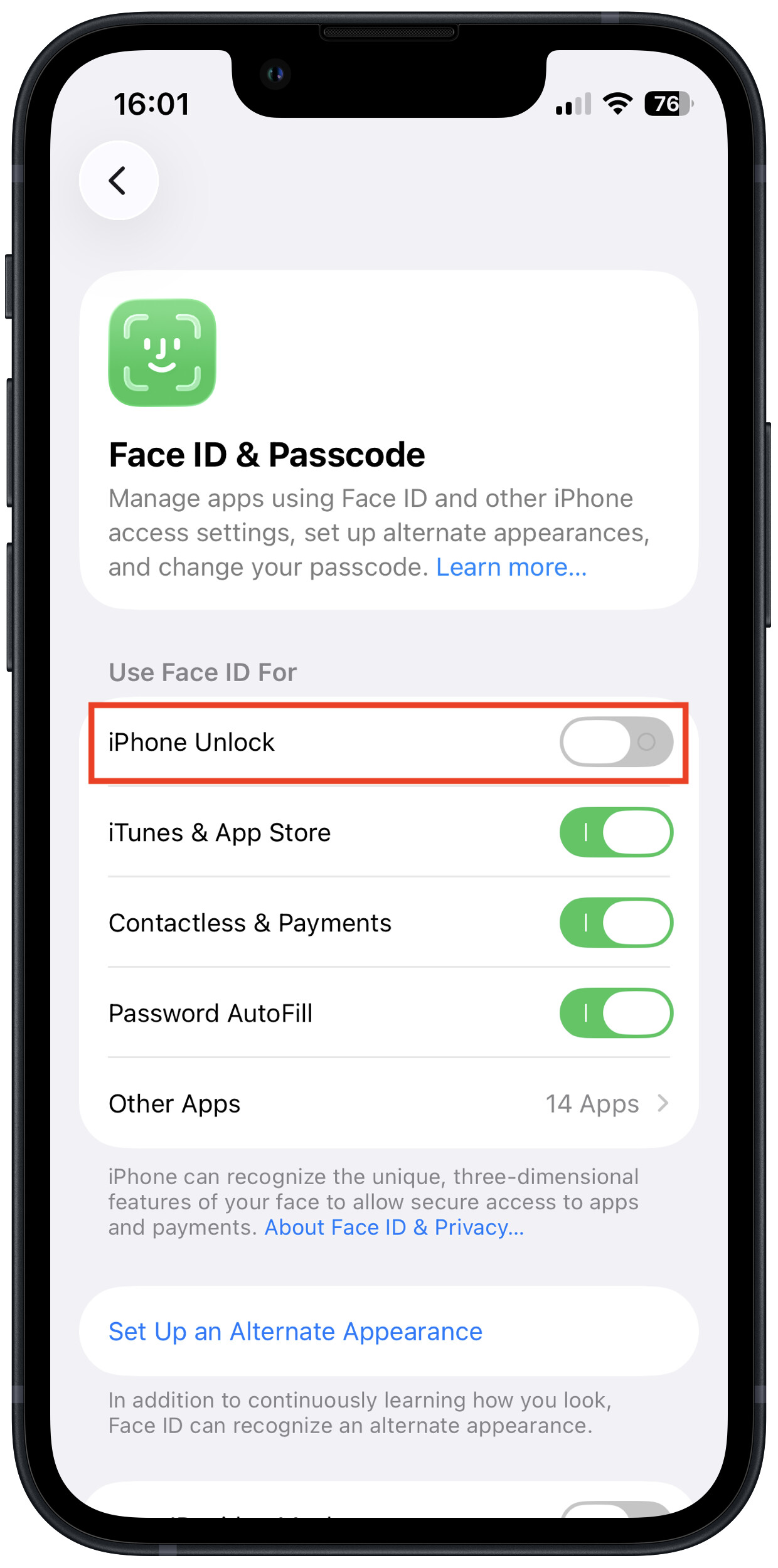
Thanks for that reminder. Settings → Face ID & Passcode:
But this is not without its own drawbacks. If you need to always use your passcode to unlock your device, then shoulder-surfers may be able to get your code - a well-known tactic used by thieves, so they can unlock your phone for resale and to steal login credentials for your apps and web sites.
Personally, I’d rather let law enforcement have access than increase my risk of a phone-theft becoming massive identity theft.
But you can have it both ways, if you have the presence of mind to do so:
You don’t need to power-down. Just perform the gesture to bring up the shutdown/emergency screen (5-click the power button, or long-press power and volume-down) and then tap Cancel:
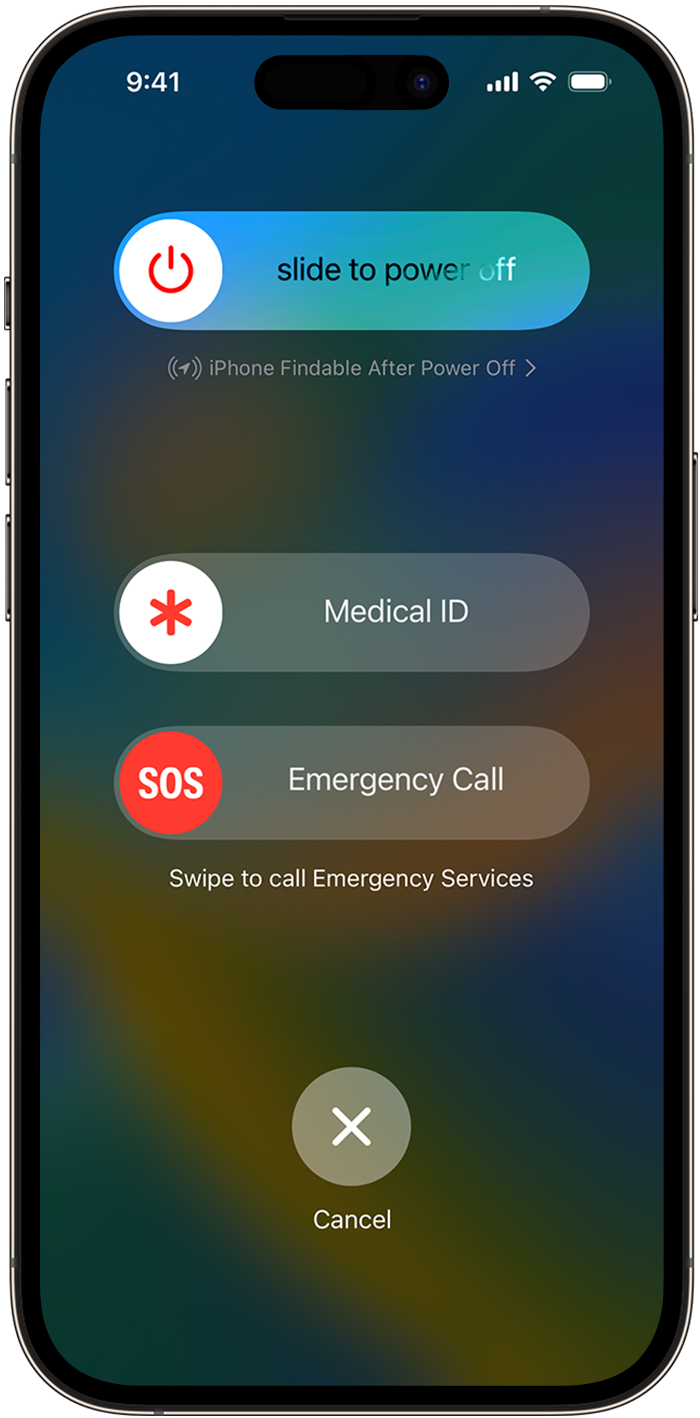
(Image from Apple’s support page - I can’t take a screen-shot of that page, because the same button-gesture is used for making an emergency call.)
After that, the system will require your passcode to re-enable biometrics. This way, you can keep your biometrics enabled, and just turn them off in situations where you think they might become problematic.
If you have the presence of mind to do this. Probably not something you’ll forget when passing through airport security or customs (of you care that much), but you may not think to do it if you’re about to be arrested for something (or you may not have a chance, under those circumstances).
2 Likes
It’s the same action you use to start the shut down of the phone, if that makes it any easier to remember.
What I like about this is that I can do this action easily without looking at the phone when the phone is in my pocket, which is where it is almost all of the time when I am not using it.
For what it’s worth, and if this is any easier to remember, in iOS 26 (and I think iOS 18?) when you pull down control center there is a power icon top-right. A long-press on this does the same thing.
Another way to do this on the iPhone is Settings / General / Shut Down.
Thanks, especially for the Control Center reminder. I rarely actually shut down my phone, so that hand gesture is not quite muscle memory for me, especially since I use other devices often enough that have different shut down methods.
Maybe I’ll need to look at Control Center more. I tried swiping down a few times without success to get to Control Center, then I looked it up and saw that I needed to swipe down from the top right corner of the screen. I’m ambivalent about investing too much time into building the habit for fear that Apple will arbitrarily end up changing it to something else somewhere down the road. It wasn’t that long ago that you got to Control Center by swiping up from the bottom.
2 Likes
The iPhone X, shipped in November 2017, changed this for all FaceID phones - so it’s been over 8 years now.
In iPadOS, it was changed to pulling down from the top-right with iPadOS 12 in September 2018.
Eight years for Apple, but not for users of older phones or TouchID phones, even if as spare phones. It’s a pretty significant change with little justification.
3 Likes
Which is actually great because it’s a quick little switch you can flip without looking and with the phone still in your pocket. Like right before you go through a checkpoint.
I’d appreciate knowing there were some kind of similar hold these three buttons for one sec to do the same on a MacBook.
2 Likes
I’d appreciate knowing there were some kind of similar hold these three buttons for one sec to do the same on a MacBook.
Holding the power button down until it turns off is a possible substitute.
On another note, anybody here actually use Lockdown Mode, the turbo-charged privacy setting that the original article is referencing? I was wondering how difficult the limitations are.
I tried it when it came out and for my use case didn’t find it ‘extreme’ at all.
https://support.apple.com/en-us/105120#:~:text=How%20Lockdown%20Mode%20protects%20your%20device
About the only thing that bothered me was occasionally sending a photo in Messages, which appears to be blocked. The other stuff is imho quite easy to deal with. YMMV if you frequently use the stuff that is blocked. Give it a whirl I’d suggest. If it doesn’t effect your usage too badly then it’s a good value proposition; if it does then maybe it’s not for you.
1 Like
That will get the job done, but it’s also a bit violent since it is essentially a forced shutdown — anything unsaved will be gone.
I was looking out for something a bit more delicate, like on iPhone. I wonder if this isn’t something that could be enabled by a small third party app.
That’s true. My main point was that if you are seriously worried about preventing access to your phone in a pinch, it is important to practice the locking procedure enough that you really can do it without looking or thinking. It’s one thing to know how to do it, but it’s an entirely different thing to do it confidently while under stress.