Might you be using Little Snitch (or similar) to block all access from your mail program?
1 Like
As you seem to have this issue with ANY browser, that would seem to eliminate add-ons or extensions in web apps.
I would definitely try an alternate user account as josehill suggested. The new account can be a “Standard” user. It is just for testing.
(NOTE: Before you do the following, be sure you know the username and password for your daily Mac login. You can check the username in the Users & Groups settings panel. The password is the same one you use when installing software, when certain macOS security messages appear that require your password, or to unlock the screensaver, if you use that feature.)
Once the new user is created, try switching from your main account to the new account.
- Apple Menu > Log Out (username)…
- Once your main account exits, click or type the new account name, and enter the password you chose to gain access.
- When the account loads, see if web browsers still are blocked with that ctrk.klclick.com “This site can’t be reached” error.
If things work normally (no error), we know it is most likely something in your user account on the computer itself, and not the router or network or your ISP.
When finished testing, log out of the new user account and re-enter your normal account as before.
For reference:
1 Like
So you’ve gotten some great advice here from folks whose technical knowledge surpasses mine considerably, but (as also noted by @david_blanchard), your /etc/hosts file should not have a length of zero. What I’m suggesting is that you use the text I provided (which is a default copy of /etc/hosts provided by a macOS Installer).
Making an educated guess by the results you listed earlier, I’m betting your /etc/hosts~orig file has the contents we’re looking for. So here’s your command line recipe.
Step 1:
cat /etc/hosts~orig
This will simply display the contents of the file. If the results look like the text I gave you above (doesn’t have to be exactly the same, but it should have definitions for localhost and broadcasthost), then go on to…
Step 2 (note you will be prompted to enter your log-in password):
sudo cp /etc/hosts~orig /etc/hosts
This will overwrite your existing /etc/hosts file with the contents of /etc/hosts~orig (while keeping /etc/hosts~orig). Since the former has a zero-byte length, you’re not losing anything.
For the new /etc/hosts to take effect, I think you’ll at least need to log out and back in. A restart may be required (and is a pretty easy way to log out/in as well). Afterward, run the dscacheutil command (earlier post) and see if it has some output now.
[Edit: per @Shamino and @david_blanchard’s comments below, change should work immediately.]
And again, I have very little hope this will lead to a solution to your problem, but at least you’ll have a proper /etc/hosts file when you’re done!
2 Likes
It should just work. The gethostbyname() API (used by most apps to perform a hostname lookup, using whatever mechanism is configured), should immediately see changes to the configured hosts file.
Some apps may cache looked-up IP addresses, but for the most part, changes you make there should take effect immediately.
A logout/in will cause all your running apps to quit and restart, which will ensure that they aren’t using any old cached values.
A reboot should not be necessary. Low-level system services shouldn’t be holding cached values for a long time. Note that they may be expected to run for months at a time, and DNS address-host mappings are always changing.
2 Likes
We’ve been assuming the problem is a result of ad blocking, because you recalled installing some ad blocking utility but can’t find it. But maybe it isn’t ad blocking at all.
ctrk.klclick.com isn’t advertising, it is used by marketers for tracking email campaigns, I think using https://www.klaviyo.com. That is, it is “link click tracking”.
There are a number of ways this can go wrong. And Google says you’re not the first Apple user with this exact issue. So…
- Can you copy-and-paste one of the exact tracking links that fails? Even better is if you can share the entire problem email, by dragging out of Mail to create an .eml file.
- Do you have “Protect Mail Activity” enabled in Mail > Settings > Privacy > Mail Privacy Protection"? Try turning it off.
- What do you get from Terminal command
dig ctrk.klclick.com, or whatever the problem domain is? - Do you have “Limit IP address tracking” enabled in System Settings > Network > (network adapter) > Details? If so, try turning it off.
- Do you have explicit DNS servers in the same Network Details > DNS, or are they all grey? If so, try removing them so it uses the default DNS servers.
- Do you have a router? If so, try rebooting it.
- Previously you were asked if you have any Mail extensions or plugins. While that wouldn’t explain why a valid URL doesn’t work in a browser, it could be that the extension is changing the URL to defeat tracking.
There’s other possibilities, such as what I listed before, and more. For example, IPv4 vs. IPv6. But I’d like to know these questions first.
Rationale for what I’m asking for:
- Example of problem link or email: so we can try it, and compare our results to yours
- Protect Mail Activity: This is known to cause problems.
- dig: this will tell us what you’re getting for DNS resolution
- Explicit DNS: The link tracking example you gave is resolved to a CDN (Cloudflare), which redirects to local caching servers. When you use a DNS that isn’t from your ISP, it is harder for the CDN to know what’s “local”. I’ve seen where this actually breaks, because the ISP assumes the site will be served from the local content server, and has no route to servers elsewhere.
- Router reboot: Routers usually cache DNS lookups. Previously you were asked to refresh the computer’s cache, this is to refresh the router’s cache. I’ve seen many times where sites and applications stop working because of out-of-date cached DNS in the router.
3 Likes
@Shamino is correct. The change does not require a reboot or logout/login. Nice feature!
1 Like
Michael
I started working my way through your list of things to do/try i.e. creating an .eml file etc. Anyway, when I got to “Limit IP Address tracking”, it turns out there was an option for an app/extension/whatever called “Little Snitch”. Turning that to the option “off” resolves my issues.
It’s moot now, but this program was installed ~ 6 months ago and I’ve had this issue for a couple of years!??
Anyway, I’d like to thank you sincerely for the amount of time you have spent trying to help me get this sorted out - greatly appreciated!!
Cheers, Dave R (Sydney)
1 Like
Yes, I am/was using Little Snitch. I din’t realise/had forgotten until going through a list of steps provided by @mschmitt - turning this off has resolved the problem.
I still don’t know why. as Little Snitch is relatively new on my Mac and I’ve had this problem for far longer, but I’ll take the “win”.
Thanks very much for your help!
1 Like
Thanks for all your assistance, Jose!
Turns out that I had an app called Little Snitch running in the background.
1 Like
@fischej - thanks very much for your time assisting me - the problem seems to have been Little Snitch running in the background.
Interesting. That was on my first list of possibilities above:
Little Snitch doesn’t inherently block trackers or ads, but can be configured to either intentionally or accidentally. I’ve been using it for 18 years without this kind of problem. Although, once I accidentally blocked the DNS server port, which caused all kinds of havoc.
1 Like
And I specifically called out Little Snitch earlier Tuesday before it was mentioned by anyone.
This whole thread doesn’t make much sense, since LS is an application that must be manually purchased and installed. It doesn’t magically start blocking random connections on its own. Dialogs are shown for every attempted connection, each of which must be manually allowed or denied.
I’m “Gobsmacked”
1 Like
I am sorry for “wasting” everybody’s time - particularly @mschmitt - who offered a (the) solution with his first post.
It is probably one of the ‘Blocklists’ that are optional installs. In fact, I just searched the Rules on my LS installation for “klclick” and got three hits:
Peter Lowe
Ad Away
1Host Lite
You could uncheck these in your Rules window (click on the menu bar status item, select Manage Rules, and look in the Blocklists in the sidebar) and see if the problem goes away.
1 Like
I don’t view this thread as a waste of time because the comprehensive troubleshooting advice may help somebody in the future and it made me take a closer look at my Little Snitch setup.
Here is LS’s help page about blocklists:
https://help.obdev.at/littlesnitch6/lsc-blocklists
Beyond that, if I were facing the same situation as the OP, I would question if I wanted to allow unfettered access to tracking and surveillance services such as klclick/Klaviyo. Yes, it is more convenient to be able to click on links in emails but to my mind, the privacy and security cost is pretty high for the benefit. I don’t feel using a browser bookmark or typing a URL is that much of a hassle. Most important, disabling LS would remove a critical layer in my defenses against security and privacy attacks on my Mac.
3 Likes
I don’t think anyone is advising to disable Little Snitch permanently. But it shouldn’t be breaking following valid links from Mail.
I’m running Ventura on my main computer, so I don’t have the version of Little Snitch there with blocklists.
If you want to thwart email trackers, I’d suggest either:
- Mail Privacy Protection > Protect Mail Activity (this is what I’m using now)
- Or, if not that, you can use MailTrackerBlocker (which I used to use)
These work quite differently. MailTrackerBlocker removes trackers from emails, including the kind that tracks if you have read an email. It is designed to retain the same email functionality: links still work, images still load, etc.
Mail Privacy Protection doesn’t change the email, but instead routes the tracker connections through an Apple server, and always fetches the tracker linked files, even if you haven’t read the email. This means that the tracker is useless for marketing purposes. If they send emails to 1,000,000 Apple users, their system will report that 1,000,000 Apple users read the email – even if only 5 did.
1 Like
Yes to both. In any case, since turning off Little Snitch was mentioned as the solution to the OP’s problem my intent was to point out the tradeoffs. I also view the blocklists as an important feature of LS so I personally wouldn’t run LS without them.
Absolutely NOT a waste of anyone’s time. There is almost always someone else who can benefit from the process and resolution, while providing a good set of tips and tools, as well as giving those of us who pride our “techy” abilities a chance to blow off the digital cobwebs and flex our minds. 
3 Likes
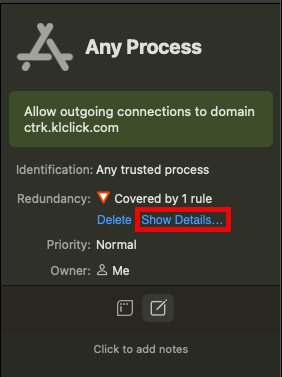
I had the same problem today, and found it in Peter Lowe’s blocklist. I don’t want to disable the blocklist, so here’s how I fixed it:
Click on Little Snitch in the menu bar and click on “Manage Rules…”
Click the “+” at the top.
Change the “To:” field to “Domains”, and then paste in “ctrk.klclick.com” instead of example.com, and click “Create Rule”.
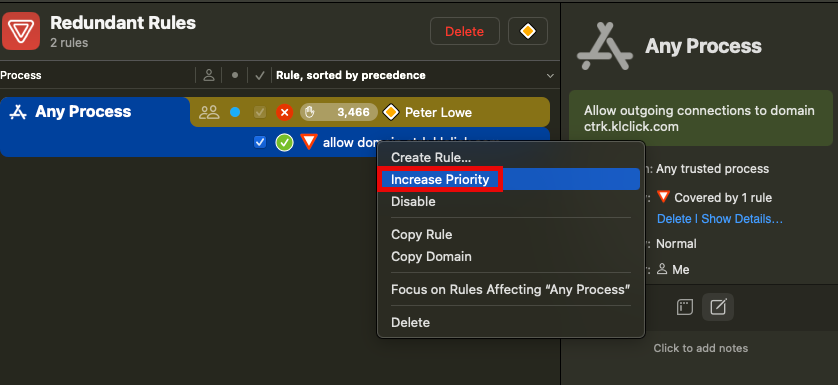
Note that it now shows as redundant. Click “Show Details…”
Right-click the new rule, and click “Increase Priority”
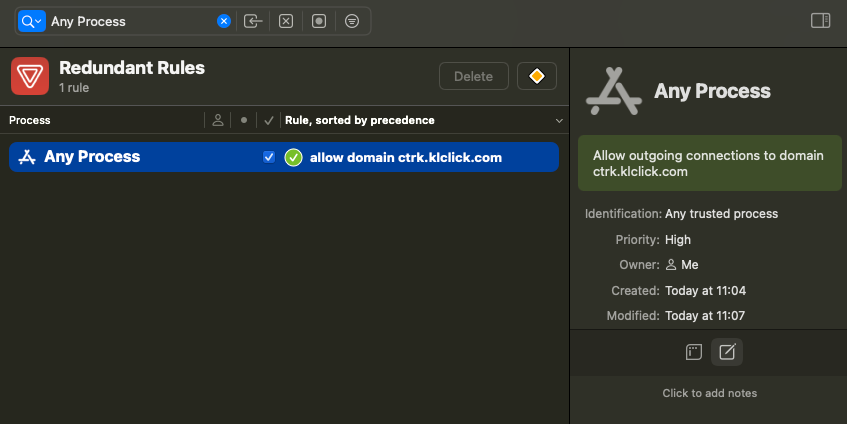
Now that the Priority is High, it’s no longer redundant, and traffic to that specific domain will be allowed even though the rest of the blocklist continues to function.
2 Likes
I took a quick look into klclick. It is a domain used for tracking and data collection by a company called Klaviyo, which is primarily a business-to-business firm that provides text message and email marketing delivery, data mining, and data storage services. It is a public company with a market capitalization of about $9 billion and recent annual revenues of less than $1 billiion. It is currently unprofitable.
More to the point of this thread, Klaviyo was successfully hacked in 2022:
1 Like