Originally published at: TipBITS: How Fake Contacts Can Fix Dictation’s Proper Noun Problems - TidBITS
I’m a big fan of Apple’s Dictation on the iPhone because typing is so slow and error-prone. But Dictation introduces its own frustrations, particularly with regard to proper nouns. I’ve identified three separate problems:
- Capitalization: Common words that are part of a proper noun, such as FLRC Challenge or Brooklyn Public Library, won’t be capitalized properly in dictated text. Improperly capitalized words give me conniptions.
- Unpredictable recognition: You never know how Dictation will recognize proper names that aren’t in Contacts, something I often encounter with building names at Cornell, like Teagle Hall.
- Contact conflicts: Dictation often prefers names in Contacts to common words that sound the same. When I dictate the word “ride” in Strava, I often get “Ryd,” because a friend’s last name is Ryd.
What to do? Apple doesn’t provide a user-editable list where you can add special words, but there is a back-door way to train Dictation—on all your Apple devices—to work more the way you prefer: through the Contacts app.
Add Custom Words to Contacts
The first two issues can be solved by adding entries to Contacts. Now that I’ve created a contact for “FLRC Challenge,” Dictation capitalizes “Challenge” correctly every time. Similarly, a contact for “Teagle” ensures that I no longer end up with wild guesses like “Thiago” or “Tego” (which aren’t in my Contacts either).
Regardless of the number of words in the name or phrase, I put them all in the First Name field, with the hear-no-evil monkey 🙉 emoji in the Last Name field. That way, these spurious contacts sort to the very bottom of Contacts and don’t clutter the display. I also add them to a Proper Noun-Contacts list (mentally removing the “u” amuses me).

Dictation picks up some of these entries quickly, such that you don’t have to do anything more. However, in other cases, it requires more training. For instance, the Finger Lakes Runners Club hosts a race called the Thom B. Trail Runs. I frequently need to use that name in dictated text, but Dictation usually writes it as “Tom B” or “Toby” instead. I created a “Thom B.” contact, went to Notes, and dictated a few sentences like “I will be timing at Thom B. tomorrow” and “The Thom B. course is part of the FLRC Challenge.” They came out wrong the first few times, but iOS usually underlined “Tom B,” enabling me to tap it and choose “Thom B.” from the replacements. After correcting mistakes in a variety of sentences, Dictation improved.
Even so, however, it didn’t like the trailing “B.” in the name, often recognizing it as “be” or failing to include the period in the middle of a sentence. I believe I addressed that by editing the contact in Contacts on my Mac to use a non-breaking Option-space between “Thom” and “B.” in the hopes that it would cause Dictation to see it as a unit. It’s too early to know if it works universally, but my test sentences are now being recognized every time.
Insert a Zero-Width Space in Conflicting Names
The third problem, when a proper name in Contacts conflicts with a common word, is more difficult to solve. Sometimes, you can work around it using your sentence structure. For instance, if I say “Ride into Teagle” in a Strava post, I’ll often get “Ryd into Teagle.” But if I say “Bike ride into Teagle,” Dictation usually gets it right because “ride” makes more sense than “Ryd” after “bike.” It’s worth trying, but you’ll likely still end up with the wrong word some of the time.
The nuclear solution would be to delete the contact, and that may be a good excuse for getting rid of unnecessary or unknown contacts—I certainly have a bunch of people in Contacts whose names I barely recognize, much less use. What if you want to keep your contacts and continue using them normally, without their names overriding common words in Dictation?
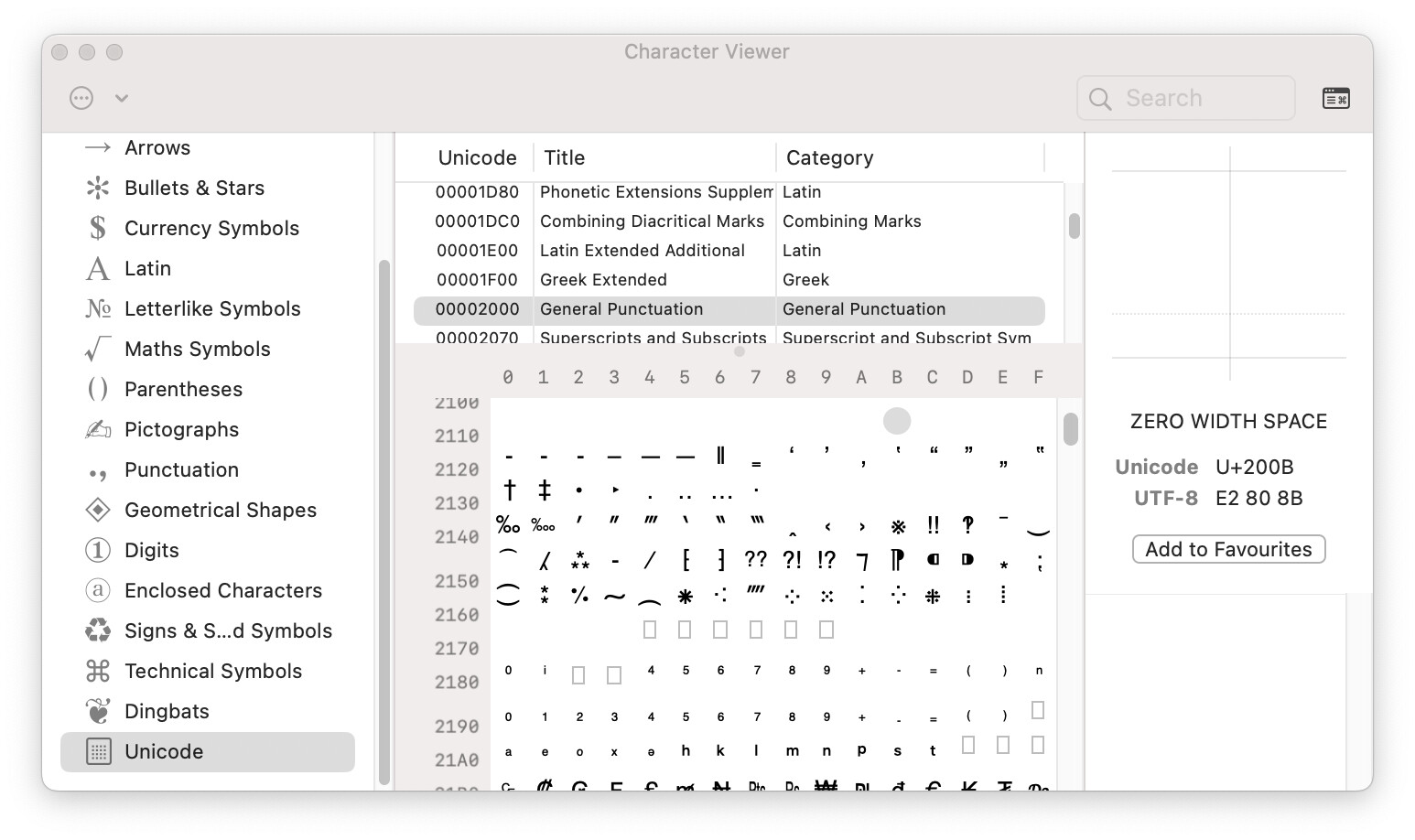
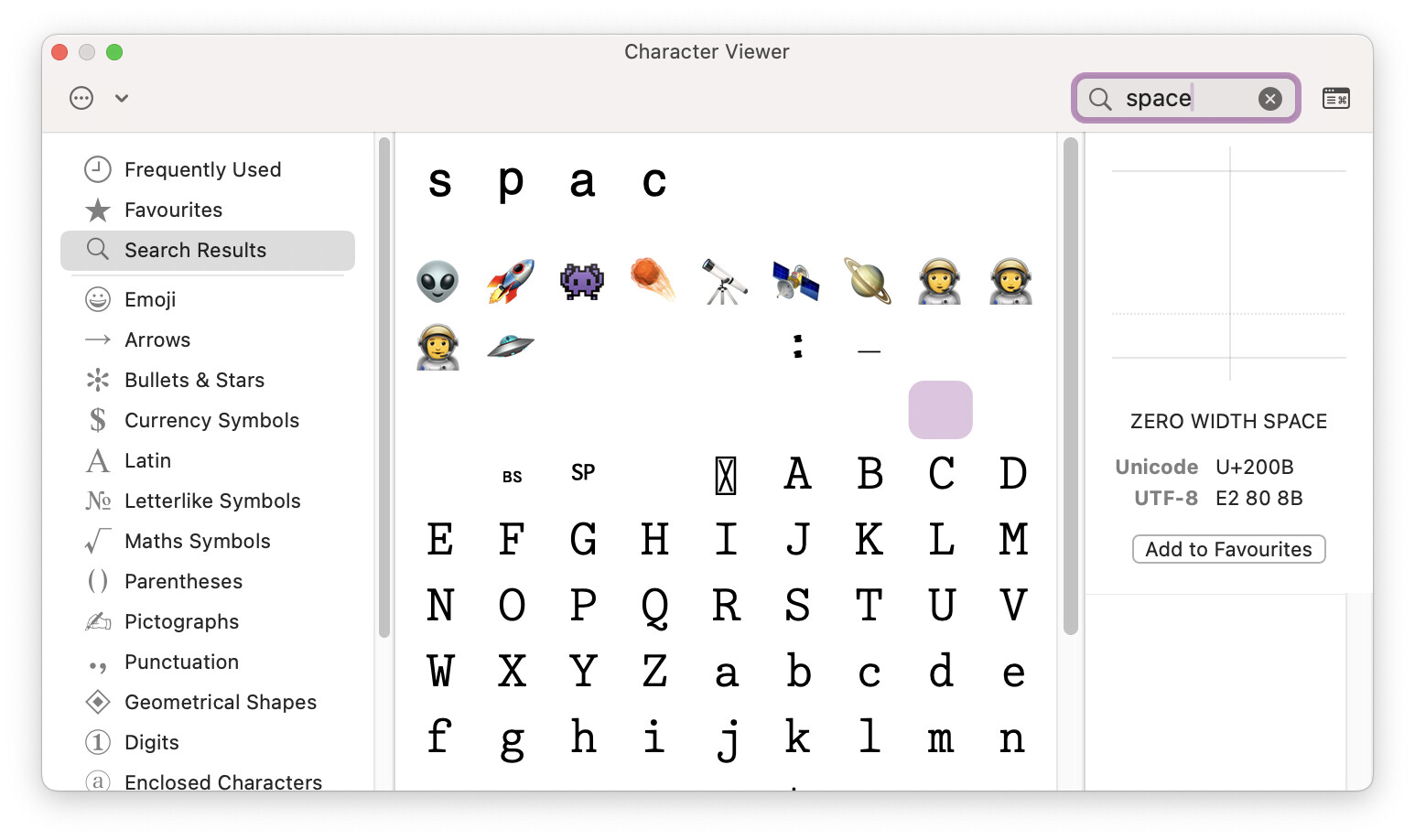
Here’s a solution: the zero-width Unicode space. My friend’s last name is “Ryd,” but if Contacts sees it spelled “Ry d” with a space, that’s a very different string. A regular space or non-breaking space would look strange, but a zero-width space is invisible and shouldn’t affect how the name appears anywhere else, including mailing labels. Inserting a zero-width space in the middle of the word did indeed prevent Dictation from recognizing it. Unfortunately, the zero-width space also gets in the way of searching on the full name, so it’s best to put it as far back in the word as possible. That way, searches on the first few letters will continue to work, and the name will continue to sort where you expect.
Unfortunately, it’s a little fussy to insert a zero-width space. Here’s the easiest general technique I’ve come up with—please suggest any easier alternatives you can develop. As with the Option-space above, this can only be done in the Mac version of Contacts.
- Open System Settings > Keyboard > Input Sources, and click the + icon at the bottom left to add a new input source.
- Scroll to the bottom of the list, click Others, select Unicode Hex Input, and click Add.

- Switch to Contacts, select the contact to edit, click the Edit button, click the name field to edit, and position the insertion point where you want to insert a zero-width space.
- From the Input Source menu in the menu bar (which may have an A icon), choose Unicode Hex Input to switch to that keyboard. The icon will change to U+.

- Working carefully, since nothing appears on the screen, press and hold the Option key and type
200bto insert the Unicode character code U+200B. (You don’t need to press the Shift key when typing the B, but it won’t hurt if you do.) - Click the Done button to save your changes. If you want to verify that they took, copy the text of the name and paste it into BBEdit, which will display an upside-down question mark where the invisible character is. You can also copy that character from BBEdit and paste it into other apps in the future, if that’s easier. Your regular input source should take over again right away, but remember that you’ve enabled Unicode Hex Input if anything weird starts happening with your keyboard (see “Mysterious Mac Login Failures? Check Your Input Source,” 20 March 2026).
- Wait for Contacts to sync your change to the iPhone. I sometimes change the Company field so I can tell the sync has happened. If you’re not using iCloud to sync Contacts, you’ll have to perform a USB sync.
- Dictate some more sentences to Notes to see if your change was sufficient. If not, you may need to search in Contacts to see if any other people share the offending name.
I’ve used this technique successfully with several names, so I have high hopes that it will work more generally for others as well. The only downside is that an invisible space could have unintended consequences down the line, so I strongly recommend adding a note to any contact you modify in this way, explaining what you’ve done so Future You can figure it out. Let me know how it works in the comments!
 as the surname. Almost immediately, dictating sentences containing “said road” into BBEdit produces the correct response.