I have a memory that Time Machine used to have a low priority, and I recall reading about patches (sudo commands in Terminal) to boost its priority.
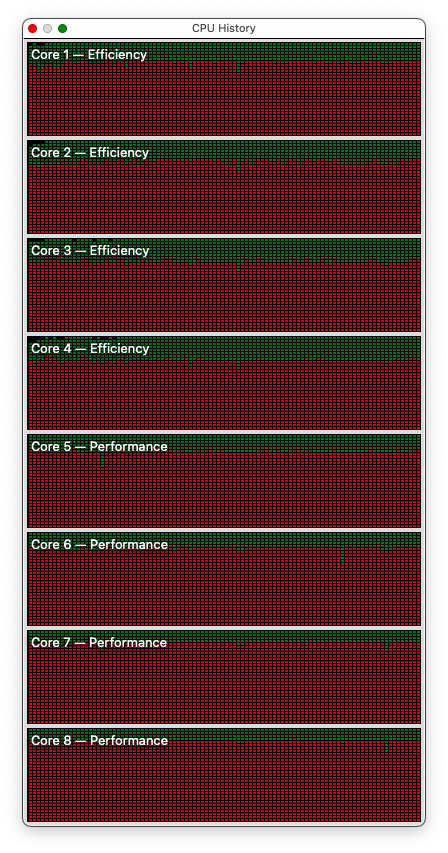
My MBA M3 running macOS 15.5 behaves differently. When Time Machine is backing up, I notice slow behavior and jerky responses in my front app (usually Firefox). Today, I took a screenshot of Activity Monitor’s CPU History window.
Good question. If you hadn’t put “know” in italics, I would have answered yes. Since you did, I’ll answer “not really” and note that this has happened several times in the past two months, and on each occurrence, Time Machine was performing a backup. But I had not looked at the processes in Activity Monitor. Today, when it happened, diskimagesiod was consuming 761.1% of the CPU cycles. I don’t know that diskimagesiod is Time Machine.
The computer was new in December and did not take over a previous Time Machine backup, so the effect is (I believe) same as having wiped the TM disk and starting over seven months ago.
I don’t know what turbo mode is; I do not believe TM is in turbo mode unless Apple put it there.
The disk is in a Time Capsule, so you know it’s old, but I’m not aware of any problems. But, now that you mention it, I only see the high CPU cycles when TM is backing up to the TC. TM uses another spinning drive and an SSD, and I haven’t noticed the increased CPU cycle consumption with either. (Neither the other spinning drive nor the SSD is routinely connected to the Mac.)
Just now, I was going to force a backup to the other spinning disk to confirm that it didn’t take a lot of CPU cycles. Lo and behold, TM was backing up to the TC and not taking a lot of CPU cycles. In particular, diskimagesiod was using 5-15% of CPU cycles until TM was 3/4 done, then it jumped to 760% for several seconds (about a fifth of the width of the CPU History window), and then dropped back to under 10%. After it finished, I forced a TM backup to the other spinning disk, and diskimagesiod peaked at under 20%.
It’s not, but it may be related. diskimagesiod is a system service for handling disk images. Unfortunately, the manual page doesn’t say much:
Since you are using a Time Capsule, your backup is almost certainly being stored in a sparse bundle disk image on the Time Capsule. It may be that something is going wrong with the Time Capsule that is causing macOS to use a ton of CPU power to manage the sparse bundle.
Interesting. I wonder if there may be some disk-image cleanup going on in there, in order to keep the sparse bundle operating well.
If this disk is directly attached (e.g. USB) and not a network drive, then it wouldn’t be using any disk images. So any CPU consumed by that backup would come from some other system service.
It still works this way. Time Machine backups are considered by macOS to be “low priority I/O”, and is throttled by default.
To disable throttling: sudo sysctl debug.lowpri_throttle_enabled=0
To reenable: sudo sysctl debug.lowpri_throttle_enabled=1. It also gets enabled when you reboot.
I used to think it was only throttling backups to spinning metal drives, but that’s not true. Sure, HDDs can be severely affected by this, but so too are backups to SSDs.
So, if you see that your Time Machine backup is completely stalled, or is operating slower than molasses in a stasis field, try turning off the throttling.
(FileVault encryption is also affected by throttling. And so is SuperDuper!, though the developer says otherwise.)
I’m certain that I have not (yet) used sysctl on this computer.
Even if something is haywire with the Time Capsule, why would some process(es) associated with Time Machine need so many cycles in a short time? In other words, shouldn’t the throttling make the backup take longer but use a smaller percentage of available cycles while taking longer?
It is attached by USB.
On the contrary, the only time this comes to my attention is when the front application becomes sluggish, and then I notice that there is high CPU usage. I have no complaints about Time Machine being sluggish. It’s as if the throtttling has been turned off, and (again) I’m certain that I have not done that on this (relatively new) computer.
FWIW, Time Machine performed a backup as I typed this, and diskimagesiod took over 750% CPU for a while. I didn’t react quickly enough to see if that was all in the preparatory phase, but cycles had dropped way down (for all processes; the top process used under 40%) by the time the backup was 50% complete.
I think this is interesting but unimportant stuff, and I wouldn’t blame anyone for not investing any (more) effort in trying to figure it out.