I don’t really understand the urge to archive mail to a separate program. Backup, absolutely. But the mail client is itself the definitive archive of the mail. I have dumped some eudora mailboxes into eaglefiler, but it was never an urgency even if I don’t want to boot up snowie to run eudora.
Once upon a time I used to at least try to keep mail cleaned up and organized. But disk space got cheap, search got fast, and time got expensive so I stopped fiddling with it. There’s no real point in deleting things (though I usually dump out server status messages once a year and spam more often). I use mail rules to sort mailing lists and such into their own folders and I’ve greatly reduced the number of folders that I move things to manually.
Mailing lists especially I prefer to keep. There are a bunch of them that I don’t read so much as search for particular things. E.g, many or most microscopy lists are taken over by gear restoration people who crowd out any talk about what people are actually looking at (if anything). But search can turn up the good stuff, and every now and again even the gearheads are useful. Searching directly on mac is faster and much more effective and flexible (regular expressions via bbedit if needed) than search on associated online forum archives.
Mostly I use the fastmail.com web interface, but I have an instance of Mail.app on an older mini running to back that up and move older mail off line (by hand). I do have old old mail repositories from the early days (pre personal computers) that I could probably merge in with the others, but I’ve never used a mail program that didn’t save as plain text files, so even that’s still all easily available with a search, usually in houdah spot.
One thing I’ve done, when I have all the emails I want to archive in a small number of folders, is to COPY the those emails to a new folder I’ve created in “On My Mac” in Appple Mail. That means I have a separate copy on my SSD of all the emails I’ve copied. It’s not automatic, and it doesn’t have the ability to look for emails I want to save, but it does the basics. I suppose I’ll invest in on of the email archivers I’ve read about here, one day. Maybe next year LOL.
Somehow I had managed to miss this and you got me concerned. Usually I do all my interacting with Gmail through the Apple Mail program, but I logged into my Gmail account in a web browser to search for deleted emails. I found none, and I found no Archive folder. If Google is holding my deleted emails for eternity, I would expect to be able to access them somehow, but I could find nothing. It seems to me that Google is deleting my email when I tell it to do so.
That’s what I do, too. However, last year’s Mail.app update barfed on my 90gb of “On my Mac” mail folders. I haven’t tried reloading most of those back into the the latest version of Mail.
Annually, I move mail out of the ‘current’ folders into a folder for the year, with “Inbox”, “Outbox”, “Friends, Family, etc” and “Misc”. That includes all the content from both my iCloud (IMAP) and Grebyn (POP) servers. This year’s archive was 25gb, but that includes multiple copies of some really large attachments.
GMail doesn’t have an “archive” folder as such. Remember, that on the GMail server, there are no folders - there’s just one big blob of messages, to which you can attach tags. Even the trash is just another tag. All “folders” (as seen via IMAP) are smart folders - each one shows messages which have a specific tag and do not have the trash tag. The “All Mail” folder shows everything that doesn’t have the trash tag. The “Trash” folder shows everything that does have the trash tag, etc.
Within the GMail web interface, “deleting” a message does one of two things (depending on configuration):
Remove the “Inbox” tag and add the “Trash” tag. This effectively moves the message to the Trash folder (as seen via IMAP).
Remove the “Inbox” tag and do nothing else. If there are no other tags, GMail will still show it via the “All messages” link.
When you delete a message via IMAP, I think it works one of two ways:
If your mail client is configured to move deleted messages to the trash, then it will remove the tag from the folder you’re “moving” it from and will add the Trash tag.
If your mail client is configured to archive deleted messages, then it will remove the source folder’s tag and do nothing else. Making it available only via the “All Mail” folder.
Thanks for the detailed response and reminder of how GMail works.
That’s how my client (Apple Mail) is configured, and that is apparently what happens. In addition (and perhaps I should have mentioned this), I have Mail configured to “Erase deleted messages: After one month” and that function appears to work, in that messages that I had deleted over 30 days ago do not appear in the Trash folder in my client and they did not appear in the Trash folder nor All Mail when I checked in the GMail web interface. To put it all in perspective, I was responding to a report that, with GMail, “you cannot delete the emails.” Unless I’m missing something, I can and do (or Apple Mail can and does).
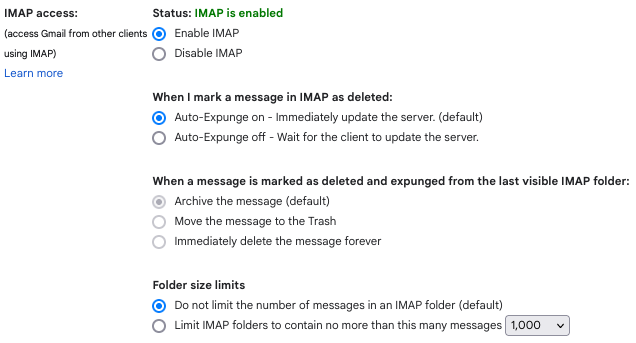
Note the third option: When a message is marked as deleted and expunged from the last visible IMAP folder. For me, this is disabled, because I have auto-expunge set on, but if you are configured to expunge from your client, then you can choose where the message goes (and the default is archiving).
In my case, my mail clients never expunge anything. They just move deleted messages to the Trash. GMail auto-deletes any message that has been in the Trash (that is, has a Trash label) for more than 30 days.
If you want your mail client to be in control of this, then you should set GMail’s auto-expunge to off and then set the expunge behavior to “immediately delete the message forever”. Just keep in mind that you may get unexpected behavior if you access your mail from multiple devices and they’re all configured for an expunge policy.
That matches the behavior that I see. GMail messages that I tell Mail to delete appear in the Trash, and disappear from Trash (presumably after 30 days, although I do not track this) with no additional effort on my part.
An update on my experiences with Mail Steward. Over the years I have created several archive files (actually databases) with Mail Steward.
Today I needed to review some emails from 2020. To my disappointment (to put it mildly) I couldn’t find them in Apple Mail.
Using Mail Steward I searched for emails to the client. Several dozen emails were found. I then used Mail Steward to export the found records to an mbox folder. However Apple Mail refused to open it.
I then bought Mbox Office from the Mac App Store (AU$15) and this successfully opened the mbox file. I could then find and print the important emails using a similar UI to Apple Mail.
So… Mail Steward is good for archiving but it is a little tedious to recover archived emails and I haven’t found a way to restore them to Apple Mail.
Mbox Office might also be useful for viewing other mbox folders such as backup files.
Well finally played with all these, unfortunately each has major cons/annoyances in how they handle email with attachments, so I wondered about another solution entirely. Other ideas that I’ve considered if you want to view these emails (and attachments) quickly in future without loading into another app to do so each time:
Export/import into another mail client entirely.
Use another email address to store them.
For option 1, eg. if you can export MBOX files from Mail.app > convert them to PST or OLM files > import to Outlook.app, you could chuck such offline (On My Mac) emails/folders into that. Or set-up one of your email addresses in the new client to drag them into the other client. Presumably these will then backup in macOS to Time Machine backups?
For option 2, eg. create another free/paid outlook.com/gmail.com/other email address, set it up in Mail.app, then manually drag emails/folders into it (depending on how much free/paid storage each give you). You could either access these email/attachments in webmail, and/or use either Mail.app (temporarily turning the account on/off as needed in its Settings; though note all thousands of emails/folders will download each time the account is turned on!) or instead use another email client like Outlook (if an MS365 subscriber) to do so.
For either, you can carry on using Mail.app as your regular email client for newer emails.
From above posts, for anyone wondering why bother?
Many users want emails/folders/sub-folders out of their regular email client for many reasons, including the client simply being overloaded or running slow with too much stuff; searching in the client app includes irrelevant/old emails you now don’t care about regularly searching; or simply too much clutter.
So which have I done… well, I’m still considering, lol!
As an alternative, you might consider this: I bought an extra 200GB on iCloud for around $5 a month, and set up folders in Mail as archives on iCloud. I have Sent and Received folders for each year going back to 1998, and on the first of January each year I create two new folders for the current year. Periodically I’ll move my sent e-mails to the current year’s Sent folder, and any e-mails received that I want to keep I move to the current Received folder, which is easily done using the Move or Move to… menubar items in Mail. Being an IMAP account, these are also present on my Mac so searching them is pretty much instantaneous. All that mail (34,588) still uses only about 4GB of my iCloud storage. I can move mails, both received by and sent from, each of my four e-mail accounts to those archive folders, not just mails related to the iCloud mail address. I do separate Work e-mails into a special folder, but that doesn’t see much activity now I’m retired, just the odd medical chart request. I don’t think I can set up a smart mailbox on iCloud, but if there is a way to do that I could automate the process. As it is, I only keep the ones that I want and stuff I’ll never need goes in the Trash.
I file emails from several email addresses into folders on iCloud. So I already have folders on iCloud for recent stuff of the last two years (eg. 2023+2024 – I hold a previous year back online there). I have the 2TB plan so storage not an issue along with Documents/Desktop iCloud Drive usage.
Previous years of folder archives at the moment are stored on one of my Macs ‘On My Mac’ areas in Mail.app, as I look for a decent solution.
Remember one important idea here is to get archives out of search in your Mail clients entirely (generally ‘out of mind’), so dragging them back onto any cloud IMAP email account doesn’t solve that issue. But somewhat ironically, I also want to be able to quickly go back and be able to look at these archives separately, without having to re-import them into a mail client each time to do so, especially if attachments are on emails (yes I save attachments on receipt of emails outside mail.app already, but you might still have to see them in the archive later as well, and doing that is difficult without importing the emails with attachments back into an email client).
Yes, I know this likely sounds like having my cake and eating it, lol!
It’s a shame Apple don’t offer the same kind of solutions MS offer for Exchange users, who have simple archive inside Outlook.app itself, provided it’s setup. See the options 2+3 here (mainly option 3):
I tend to disagree that it’s best to leave email on a server, but it may depend on the mail client. I am using Apple Mail and with >100,000 emails on the server, Apple Mail has become so slow that it sometimes takes hours (no kidding) do download new emails. I suspect this is because of the many emails on the server already, but not sure. At least I did not have this problem years ago with fewer emails.
PS: no, this is NOT because of a slow connection. I have actually a pretty fast connection both at home and at work, but the problem is the same no matter where I am.
I try to organise anything I might need again (receipts, addresses etc) to a local folder and then delete everything else.
I understand everyone is different, but a quick look through any of my supported users’ emails reveals 99.9% is content which will never be needed again. I don’t see the point in archiving what’s essentially trash. It’s far easier to organise on receipt and keep the inbox tidy than trying to clean up years of neglect.
I archive a lot of email in Apple Mail, but don’t see long delays in downloading email. How I make this work is a two-step approach to mail management.
The first is to delete everything I don’t want on the first pass through the mail. As a safety, I set the trash for deletion after a month, just in case anything comes up that requires checking it. During the first pass, I also manually move certain emails out of the In Box and into separate “OnMyMac” folders in Mail; invoices and bills go into one folder, for example. I also have Rules that automatically puts emails from a few mailing lists I follow in their own folders, which I can check when and if needed. That leaves an InBox containing a few thousand mails and the rest dispersed among a few dozen “OnMyMac” folders.
I also set up email folders for each year, and move everything more than six months to a year old to that. For example, I have a folder “InBox 2023”.
Searches usually find everything I want in the “OnMyMac” folder. It works for me.