I have no direct experience because I have never bought LaunchControl. I stumbled across a mention of it on the launchd.info site. I used the information on that site to write my own launchd plist files in BBEdit. I use it only to quickly find out what is loaded on my Macs. I have kept LaunchControl on my Macs for many years now. I have had Little Snitch even longer, so I’m pretty sure it is simply a very useful piece of software.
1 Like
Thumbs up on the recommendation of LaunchControl.
3 Likes
Update:
need to download and run Launch Control, but meantime I thought I may as well update to MacOS 15.6 and see if it helped, but it doesn’t. Every day I find Safari has launched itself and is sitting there with no open windows.
Will report back when I see what Launch Control indicates.
Update:
Found Safari App icon in the App Switcher again, quit it and about 5 min later it was back, quit again and launched Launch Control, ticked pretty much all the left column boxes and searched for Safari. At the time of screen shot below the Safari icon was not in App Switcher or Dock.
I don’t really understand about 90% of what I see in LC’s window panes so am turning it over to the Forum:
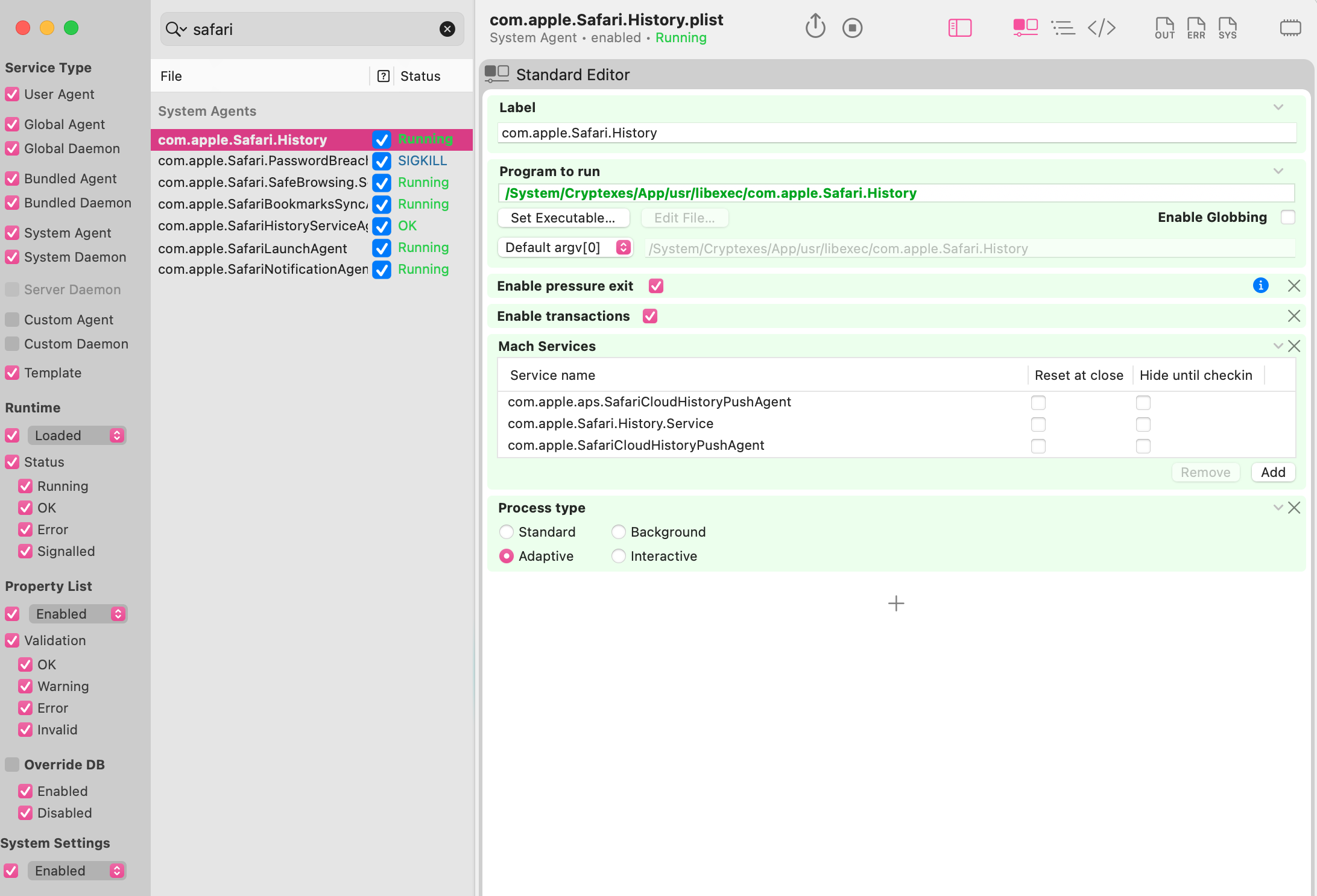
I don’t know what OK/Running/SIGKILL mean and there are no time/date references to know what these things are or do or when they happened. I am using Trial Version of Launch Control.
Although several Safari thingies are, ah, ‘active’, the Safari icon/Browser window are not showing.
It feels icky and disturbing that Safari is launching itself and doing stuff even though I haven’t actively used it in… maybe over a year. Hm.
So one of the reasons LaunchControl was recommended was to find whether there was some scheduled job on your machine that was launching Safari purposely. Based on your screen shot above, these are all System Agents which, as the tooltip in LaunchControl says, are “part of macOS and cannot be modified.” So my translation of that would be, these are not the jobs you’re looking for. And since they are all that show under a filter of “Safari” (as you have done), I think we can conclude there is no job with Safari in its name that is causing the problem.
You said earlier that Safari is not set as your default browser. Just to double-check, what browser to you have set at Settings > Desktop & Dock > Default web browser?
Next suggestion would be to post a screen shot from LaunchControl with no filter set, and only User Agent, Global Agent, and Global Daemon selected. You may need to do three screen shots, depending on how many items are displayed. This will show all the jobs that you or apps you’ve installed have added. One of them could possibly be launching Safari without having “Safari” in their name. (Do scan the list of jobs before you post the screen shot and be sure you’re comfortable disclosing that information.)
1 Like
If you feel troubleshooting your situation has become more than you can handle and you rarely or never use Safari, you could consider installing a reverse firewall, such as LuLu or Little Snitch (both are from well respected developers), and simply blocking Safari from making any connections to the Internet. These blocks are reversable so if a situation arose that absolutely required Safari—or possibly WebKit—it’s easy to accomplish what you need to do.
Thanks @fischej for the detailed reply!
I don’t see a ToolTip reference as you noted, but some other text, but am using the Trial Version of Launch Control.
Orion is confirmed set as default browser, and as I understand it, is based on Safari (though I have no clue anymore how browsers work).
There isn’t much when only the two Agents and one Daemon are ticked:
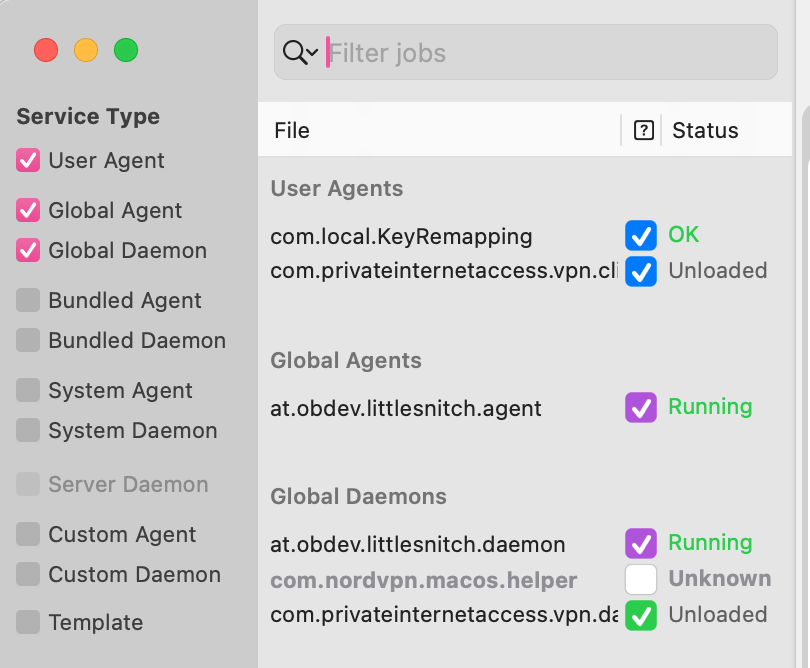
I haven’t used Private Internet Access VPN for maybe months by now. As I don’t understand what this is showing I don’t know if that’s correct or not. Little Snitch and NordVPN yes, almost always running (at least in layman’s terms, ‘running’, as in I manually/knowingly launched the app or have it set to launch at login etc).
Key remapping might refer to having changed the F5 and F6 keys from Mic and Moon on the M2 MBAir back to keyboard backlighting up and down as it used to be. I did that with some Terminal commands.
Thanks @Halfsmoke , correct I don’t use Safari at all and that is what bugs me about its self-launching. All the other Apps that show running/in use/whatever its called now, are ones I knowingly and expressly want running (sure lots of other stuff is going on behind the scenes).
That Safari irregularly displays as having launched itself is irritating.
I’ve set the following Rule in LS:

so maybe that will help identify when it’s running.
I’m not using any keyboard shortcuts app other than text replacements in the OS, it just occurred to me that might be a possiblity, that I’m unwittingly launching it with a key combination intended for something else.
Still, a LS rule won’t prevent it running. Maybe there is a simple Terminal command for that?
FWIW, the tooltip I was referring to appears when you hover the mouse pointer over one of the labels in the left-hand column, e.g. “User Agent”. Perhaps it’s disabled in the trial version, although that would seem an odd choice on the part of the developer.
Kinda grasping at straws here, but in a subsequent reply you speculated perhaps there was some forgotten keymapping that was launching Safari. The only thing in your screen shot that points to that as a possibility (however remote) is the com.local.KeyRemapping job. I’m not familiar with that, and it’s not in my list of User Agents, but if you want to keep digging, click once on the name of that job to highlight it, then post a screen shot of the details for that job, which will appear in the rightmost (third) column in the Launch Control display. That will give us (among other important info) the exact path to whatever program or script that job is launching.
1 Like
I don’t use Safari either, but it does launch in a couple of situations when authenticating a log-in or allowing a log-out. It used to do it when logging in to Google, but seems to have stopped. There’s an iPhone app I run on my Mac to access my province’s health records, and it opens Safari when logging in and out. I have no idea why it does, as Safari does not open any windows.
Could there be something like that for you?
macOS: in Settings, a lot of Internet account management activities are tied to Safari, such as adding and re-logging into email accounts in Mail. So total avoidance of Safari and WebKit can be difficult, depending on how you use your Mac.
iOS: Apple requires pretty much all web activities to run through WebKit, so even if you designate another default browser (on my iPhones and iPads I use Firefox Focus), you are essentially using Safari.
Sorry, not clear enough on that. I was just saying the only results shown in the middle column from the three left hand column recommended checkboxes were fairly known/expected items. I wasn’t saying any of them could be linked to the launching of Safari, sorry about that.
I’ll keep Launch Control running and advise if something interesting pops up.
I haven’t been able to link Safari’s launching to anything yet. I log in and out of a variety of ordinary business sites, online shopping etc. but don’t use Google knowingly for anything.
But as you indicate, it seems to be running without any open windows. I use the App Switcher frequently and that’s where I see the Safari icon.
I’ll try to make a habit of checking for the Safari icon around log-in and out times.
Mostly I use Orion and Firefox browsers, I get what I think is an OS prompt when signing into some sites, asking if I want to save the login or use a passkey or something, in a little floating window in the middle of the display. I don’t use any passkeys so I click it away, but I’ll have to remember to look at that time if Safari is on, maybe that’s it…
Update 30 Oct: This afternoon, I noticed Safari in the App Switcher, quit it. Within a minute it had launched again. Quit it. Within a few minutes, launched again and quit, launched Launch Control.
I don’t understand LC though. All Checkboxes on the left were checked, but the middle column was empty and the right part had details about something not listed or highlighted, so quit that too. Safari has remained quiet since.
SO… now the question is, I can’t figure out why Safari is launching itself but I would like to have the Mac quit it automatically any time it does.
Poked around in Automator and there is a Quit Application bit, but I couldn’t find anything on “When [App x] launches”. I’m no Automator expert so maybe it’s the wrong tool for the job.
Update 17 Jan 26:
Thank goodness for TidBITS Talk!
I was about to post a new Topic asking how to identify what is happening when a given sound effect is played by the Mac, apparently I’d set an action somewhere but couldn’t recall what it was (would still be interested to know, maybe in Terminal one can ask where a certain sound is being used and get a listing).
Then I noticed Safari running again on its own and was about to write in this Topic asking if there was an Apple Script or something I could use to quit Safari whenever it launches, and searched and found my screenshot from LittleSnitch and now I know where the sound comes from!
Then I got back on track and went to Shortcuts to see if it also had a way of dealing with Safari and I found to my amazement that I found something that works! I created a new Automation, which first watches for Safari opening. Then I found ‘Play Sound’ and although it doesn’t list System sounds for some reason the Info said it will play a default sound if no other choice is made. Then I found a ‘Quit App’ building block and chose Safari. For good measure I duplicated the Play Sound.
Then I launched Safari intentionally, the sound played twice, and the App quit immediately, hurrah! The Little Snitch sound didn’t play though. I might later enhance the Automation with more fun stuff, if available, like screen flashing or something. (later: I tried making a funny Voice Memo and having that play at the end but to my dismay VM on 26.2 appears to transcribe recordings without any way to turn that off (spent a good 45 minutes searching Help, apple, and other sites), which I found intrusive and icky so I deleted the recording and selected an older untranscribed recording that was already there.
Sorry to say that LaunchControl was over my head but appreciate the suggestions and attempts to interpret what it showed.
One other thing I tried was checking Little Snitch when I noticed Safari running. One time it showed Safari had recently tried to connect with, iirc, configuration dot apple dot com, which LS said is used to update Rosetta 2. I thought that useful so ok’d the connection. Safari seems to be doing its own thing behind the scenes even when ‘quit’ by the user. But ok’ing the connection didn’t stop Safari self-launching.
Anyway, I’m happy to have found a way to automatically quit the bugger when it unquits itself.
Here is “advice” from DuckDuckGo Search Assistant. It includes a link to this Tidbits discussion!
Background Activity in Safari
What Happens When Safari Runs in the Background
When Safari is running in the background, it may continue to perform certain tasks, such as:
- Loading Pages: Safari can keep web pages active, even if they are not currently visible. This means that if you have multiple tabs open, they may still be processing information.
- Notifications: If you have subscribed to notifications from websites, Safari may launch in the background to check for updates or deliver notifications.
- Energy Usage: Background activity can consume battery life, especially if certain websites are resource-intensive.
Managing Background Activity
To control Safari’s background behavior, consider the following:
- Clear History and Data: Regularly clear your browsing history and website data to minimize background activity. This can be done through Safari settings.
- Disable Notifications: Check for any website notifications that may trigger Safari to run in the background and disable them if necessary.
- Check Extensions: Some Safari extensions may cause background activity. Disable or remove any unnecessary extensions to reduce this.
Troubleshooting Background Issues
If Safari is unexpectedly running in the background:
- Force Quit: If Safari is unresponsive, you can force quit it using Option-Command-Esc.
- Check for Updates: Ensure that your macOS and Safari are up to date, as updates can fix bugs related to background processes.
- Review Login Items: Check your system’s login items to see if any applications are set to launch Safari automatically.
–-----------
The Notifications tip might be relevant to you. Maybe you agreed to allow notifications for a website some time ago? This might help:
https://methodshop.com/how-to-disable-safari-notifications/
Evidently I allowed Qantas to notify me many years ago:
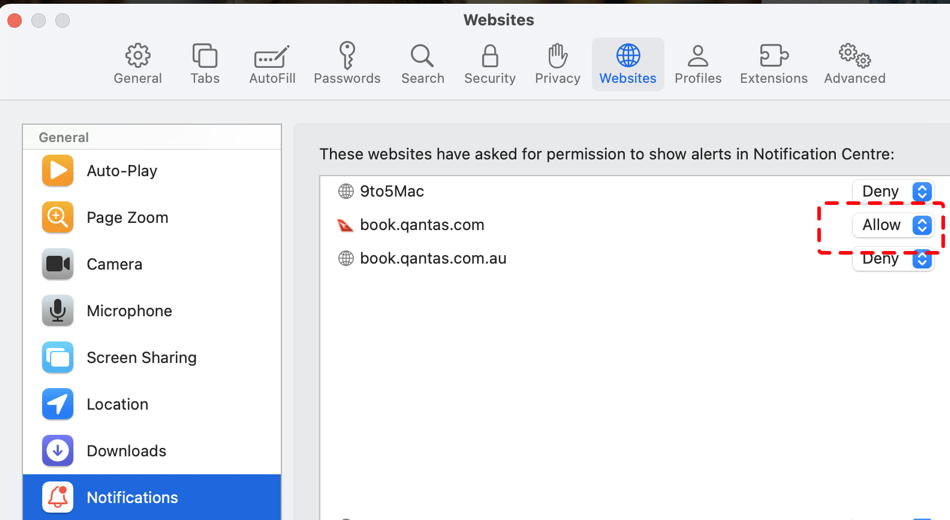
There is also mention elsewhere that some Bookmarks can trigger Safari to run in the background.
This is all creepy stuff!
Thanks @mpainesyd for the research and screenshot!
I’m not sure if what is happening on my Mac with Safari is it running in the background. I could very easily be mistaken but ‘in the background’ I understand as the app not being visible at all. In my case as originally noted, I only notice it running when I use alt-tab to switch apps and see its icon there. If I switch to it, no windows are open, hidden, minimized.
In my initial troubleshooting, I did clear out history, data, extensions and confirmed Notifications turned off (I allow very few, including Safari, which I haven’t used in a long time) and most everything else in the Settings > Websites > General column. Login items would not be relevant as Safari launches itself seemingly randomly, not at every boot or login. I’m not aware of having any bookmarks in Safari. Maybe the default ones.
Most recently when I noticed Safari running I checked Little Snitch, which showed it had blocked Safari communicating with Apple in regards to Rosetta 2 updates. I allowed the connection, later quit Safari but it continued to launch itself. So I came up with the whack-a-Safari Shortcut.
Brief update for those following the topic:
Today I saw my shortcut to quit Safari when it launches itself running, and quickly went to Little Snitch and saw Safari on its own contacting:
APPLE/com.apple.Safari.SafeBrowsing, which has the Internet Access Policy from Objective Development:
“Safari” has built-in support for Google Safe Browsing service to identify fraudulent and unsafe websites. Right before “Safari” navigates to a certain website, the website gets checked for possible security concerns using Google’s Safe Browsing online database. Accessing the online database requires connections to Google servers.
Since I don’t use Safari or Google I’ll just leave things status quo. I do use Orion, which uses some variation of Safari ‘under the hood’ so if I ever notice an action I take in Orion that regularly causes the connection, I’ll post it here.
About 20 minutes before that event, Little Snitch shows Safari contacting an Apple configuration url and a search engine, but it didn’t launch itself that I noticed, so perhaps those connections came from Orion and Little Snitch reports it as Safari. Ah well.
Over n out for now.