Originally published at: Release Your Inner Art Director with Improved ChatGPT Image Generation - TidBITS
I’m always impressed by people who can draw, paint, or create images digitally. At the same time, I’m quietly annoyed when they insist that anyone can learn to do it. That may have been true for them—they had the time, inclination, and mental wiring—but not everyone does.
Perhaps because of the aphantasia that prevents me from mentally visualizing images, I have trouble coming up with ideas for what an image should look like. Conversely, once I’m looking at an image and can talk about it, I have no problem saying what I like and what I don’t. I’m lousy at creating images, but I feel like I’m pretty good at art direction.
As a result, the recent improvements in ChatGPT Images 2.0 have made it far more useful to people like me, who are better at giving direction than creating images from scratch. I have no desire to become an artist or replace one, but now and then, an image would be helpful, and that’s far more possible than in the past.
ChatGPT’s image-generation tools are available on free accounts, but with tighter limits. ChatGPT Plus subscribers get higher usage limits and access to image generation with Thinking, which can improve results for more complex or instruction-heavy images. If you haven’t played with image generation before, it’s worth reading OpenAI’s FAQ about images in ChatGPT and the OpenAI Academy article about creating images. Per OpenAI’s terms, you own the images you create, though you should disclose AI involvement where required by context or law.
Generating Conceptual Images with Prompting Help
Recently, I was preparing a talk on managing shadow AI for the ACES Conference and wanted some images to break up my text-heavy slides. I subscribe to iStock for the featured images I include in our syndicated TidBITS Content Network posts, but I have often found it difficult or impossible to find stock photos that illustrate technology concepts that have little connection to the real world.
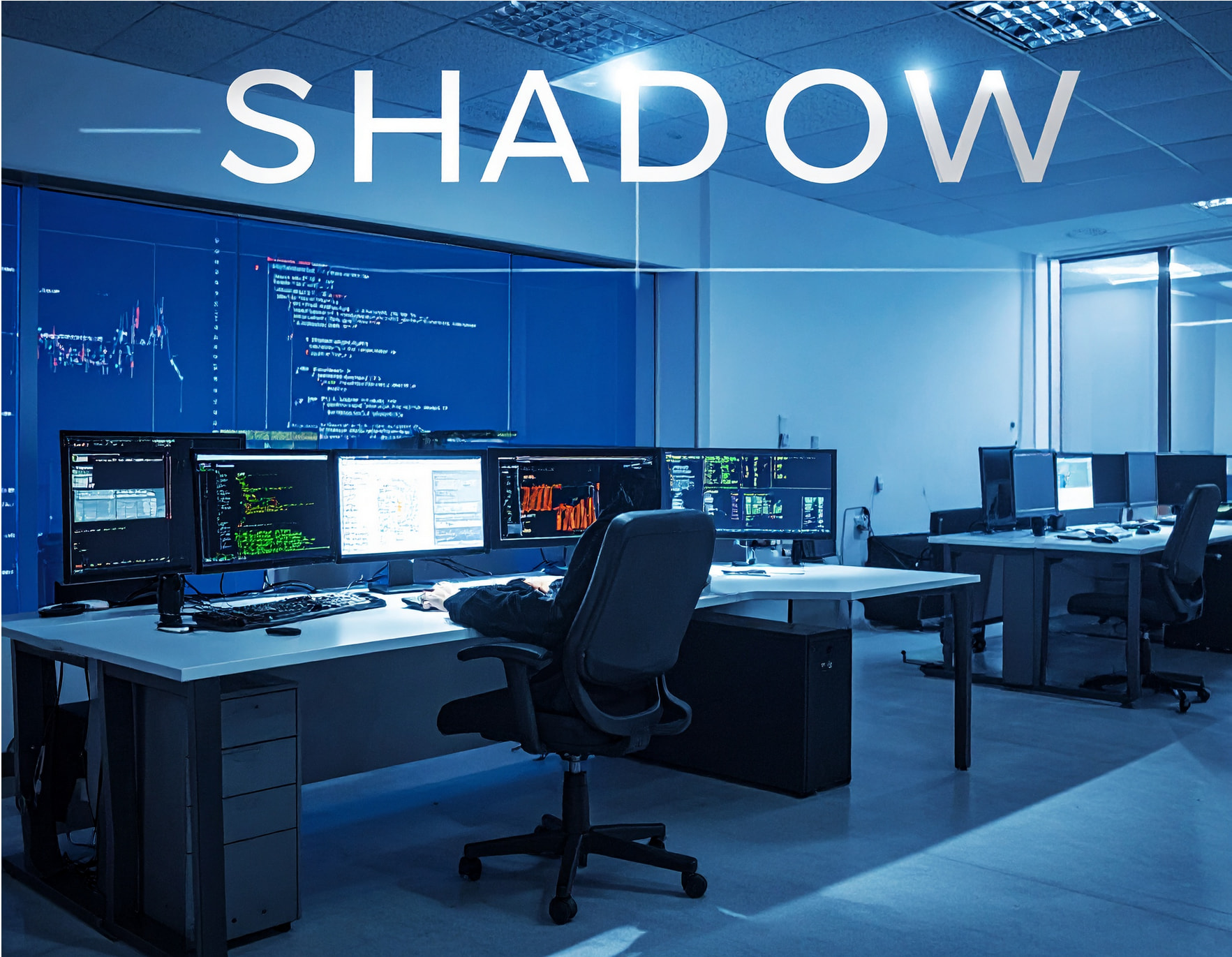
For instance, I wanted something that would illustrate a slide discussing Ethan Mollick’s concept of the “jagged frontier,” which points out that AI is superhumanly good at some tasks while simultaneously being laughably poor at others. After some back-and-forth, ChatGPT came up with the image on the left. Similarly, how does one illustrate the concept of “shadow AI,” the unsanctioned use of AI tools without IT’s knowledge or approval? (Shadow AI can lead to data leakage, security vulnerabilities, regulatory noncompliance, and reputational damage.) To that end, I worked with ChatGPT to develop the image on the right.

One important thing to note up front is that I also asked ChatGPT to develop the prompts for these images using the text of my slides and, in the case of the jagged frontier image, Ethan Mollick’s explanation of what he meant. (Yes, I used AI to figure out the best way to talk to AI.) That prompt assistance was key, since I would never have thought to write a prompt like this:
Create a portrait 4:5 illustration of a traveler moving along a winding path through a landscape that represents the jagged frontier of AI capability. The left side of the path should be a futuristic, gleaming city with glass towers. The right side should be steep and irregular, with lots of broken bits and badly engineered machine parts. The traveler moves cautiously, testing the route because the boundaries between reliable and unreliable sections are abrupt and mysterious. Subtle, realistic editorial style, muted natural colors, no text.
Modifying Specific Portions of Images
Part of what’s new is that ChatGPT can now change specific portions of an image much more reliably. As an example, I asked it to make me an image with this prompt:
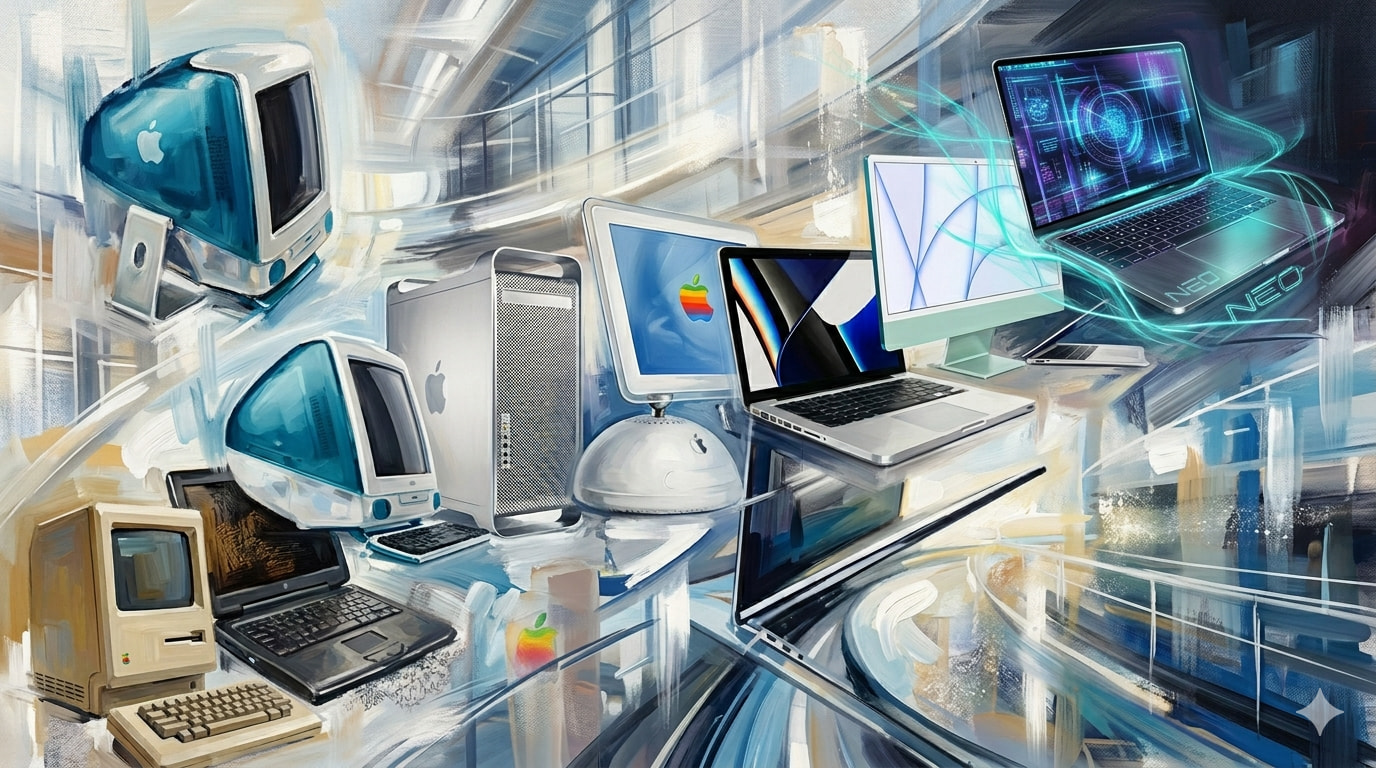
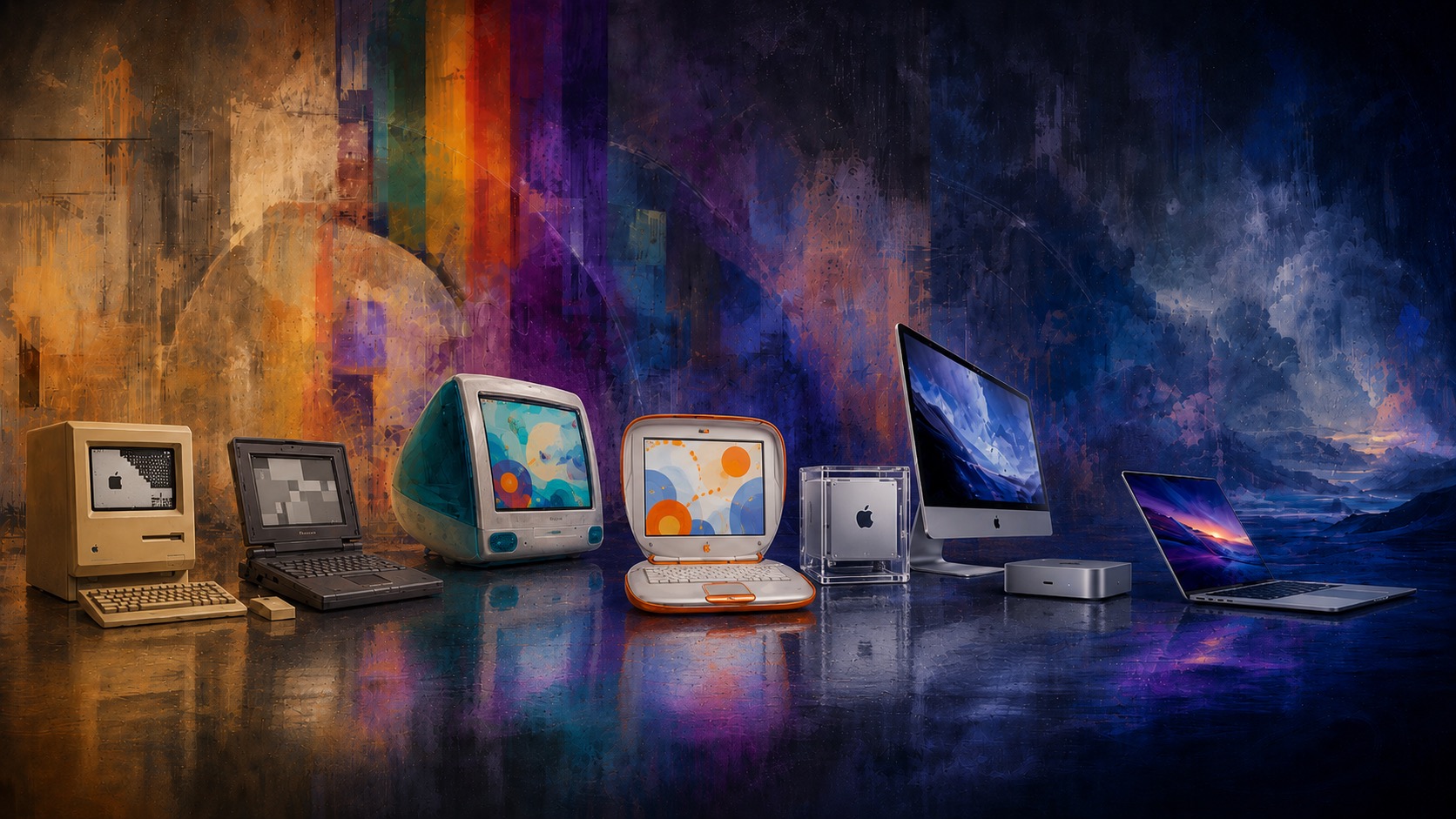
Create a wallpaper image for my 27-inch Studio Display that’s an abstract impressionism take on a collage of Macs throughout the years from the original Mac to the MacBook Neo.
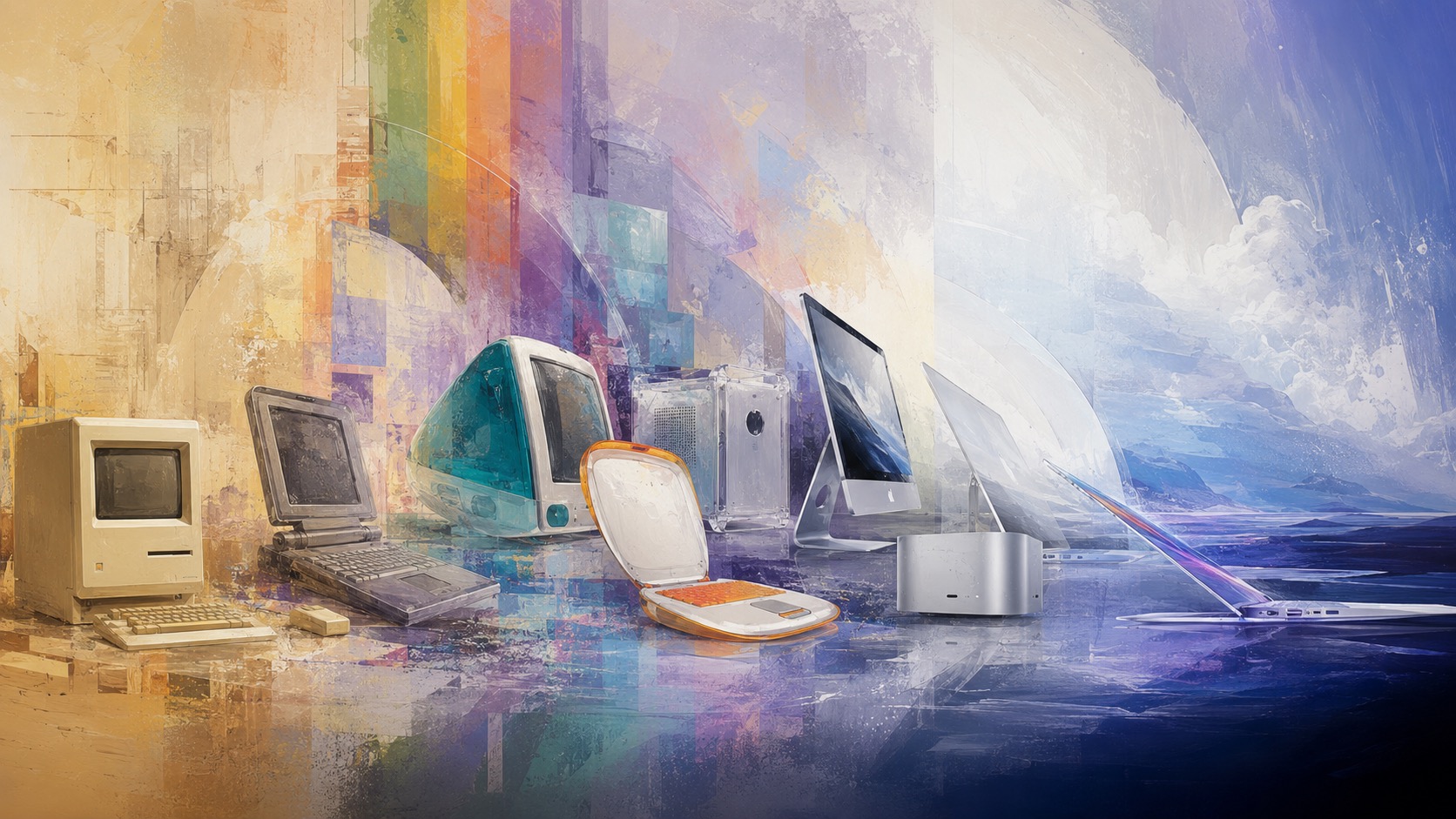
Not too shabby, but the MacBook on the right had some visual artifacts, the proportions of the Power Mac G4 Cube were wrong, the relative size of several of the Macs was odd, and there was nothing on the screens of the four Macs on the left, whereas the iMac and MacBook had images reminiscent of Apple desktops. Plus, as a wallpaper image, having the right side be so light made it hard to distinguish desktop icons and read their names. After several adjustment prompts, I got this new version. It’s not great art, but I could never have created it any other way myself, and it amuses me as a personal wallpaper.
Accurate Text Generation in Images
Another area where ChatGPT’s image generation has improved drastically in recent versions is with text. Early on, AI image creation code had no conception of text as text—it just guessed at what it thought were reasonable-looking shapes that sometimes matched up with actual letters. Later, the systems improved at letters but had little understanding of how they combined correctly into words, resulting in egregious misspellings. Now, ChatGPT can generate and lay out text that is completely correct.
For my next example, I asked ChatGPT to generate a one-page infographic from the article Michael Cohen and I wrote about Apple’s Q2 2026 financial report (see “iPhone and Services Drive Apple to Record Q2 2026 Despite Supply Constraints,” 1 May 2026). The prompt was simple:
Make an 8.5×11 infographic page that summarizes the information in this TidBITS article. https://tidbits.com/2026/05/01/iphone-and-services-drive-apple-to-record-q2-2026-despite-supply-constraints/
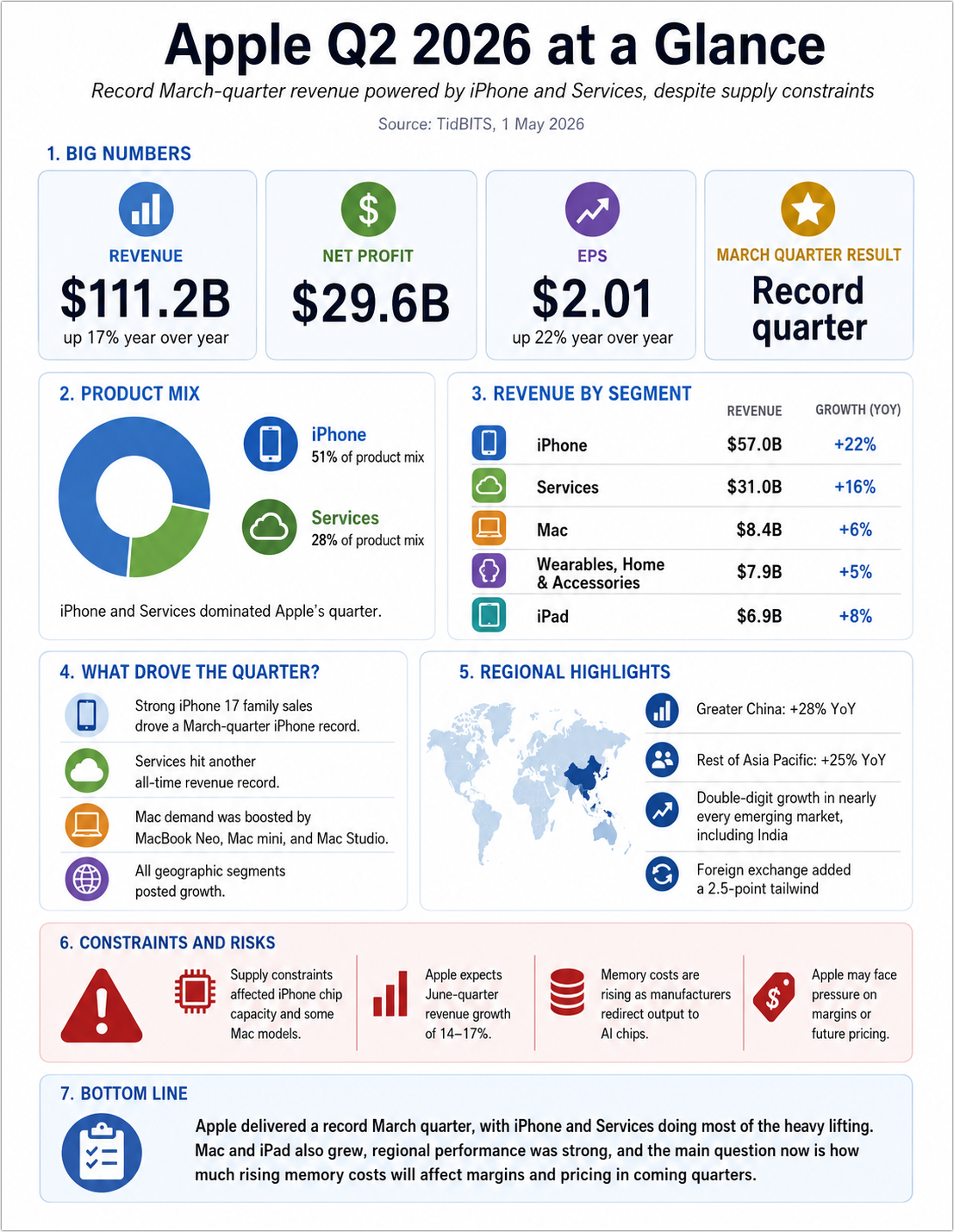
Frankly, that’s pretty impressive. All the numbers are correct, it extracted key facts from the article, and it’s decently laid out. However, as an editor, I had issues:
- In #2, the circular chart showing the iPhone and Services percentages of the product mix is deceiving because it doesn’t show the other products.
- In #3, the “Wearables, Home & Accessories” is awkwardly long.
- In #5, I wanted to see regional revenues rather than textual highlights.
- In #6, Apple’s June-quarter projections didn’t belong in a section titled “Constraints and Risks,” and two of the blocks there were both about memory.
It took a few more tries, and I had to add the PDF of Apple’s financial statement to the conversation so ChatGPT could access the raw data for regional revenues, which appeared in the article only in chart form. Eventually, I ended up with this version.
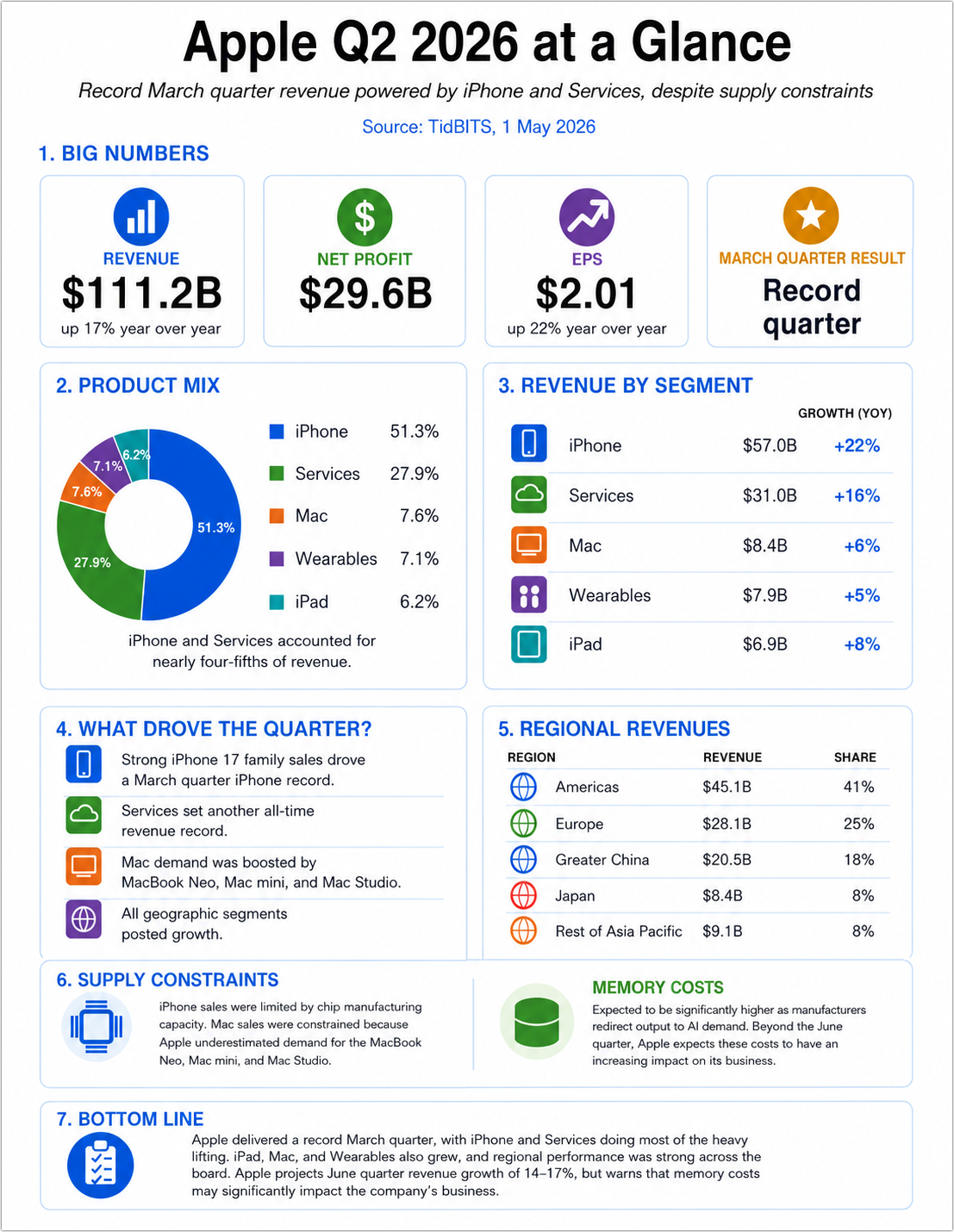
As I’ve often found when editing images with AI, it can be tedious and error-prone to request highly targeted changes, and the more times you try, the more other parts of the image degrade in small ways because the entire image is regenerated each time. In this image, the icons shifted around, the Revenue column shifted left, and font sizes changed in undesirable ways, forcing more edits.
For images like this, which are essentially page layouts, there’s a better approach. First, get ChatGPT to sketch out a visual concept that you’re largely happy with. Then ask it to convert it to a format that supports editable text and objects, such as SVG (Scalable Vector Graphics, which is based on XML) or, potentially, HTML+CSS. From that point forward, treat the generated image as a visual reference, not the source. For all subsequent edits, specify that all text corrections, spacing tweaks, and export requests should happen from the editable source.
The other potential win of working in this fashion is that you can export the SVG or HTML+CSS and work with it locally. The free Affinity can open SVG files (see “Canva’s Affinity Combines Photo, Designer, and Publisher into One Free App,” 31 October 2025), and you can edit HTML and CSS in BBEdit while seeing the results in its preview window. How well this works will depend on the individual layout and your skills with Affinity or HTML+CSS.
Generating the images you want still requires skills—they’ve just shifted from the artist’s creative abilities and the technician’s software mastery to the art director’s aesthetic judgment and communication chops.