For the longest time I thought I was imagining things, but I’ve now tested it on two different setups and indeed, it’s really happening.
If I open a PDF in Preview and I expand the parent window, Preview will automatically enlarge the image to fill the larger window, if I’m doing this on my MBP’s built-in display.
If, OTOH, I’m in clamshell mode with that same 14" M4 Pro MBP hooked up to an external 5K 27" (set to deliver comparable ppi as the resolution setting for the built-in 14" display), Preview will just increase the parent window size but keep the image at the previous magnification, IOW the image stays exactly as small as it was originally displayed regardless of how much I increase the parent window size. If I want it to blow up the PDF to fill the larger window, I need to hit cmd-+ a whole bunch of times.
Is this really the intended behavior? Any setting to change this so it auto-zooms even when working on an external display?
No help here for solving the problem, but I have the same behavior with my MBA M3 in clamshell mode. (I hardly ever use the internal display, so no comment on that.)
I have no clue why this would be the intended behavior.
I don’t know why Preview does not do this on an external screen, but if you hit ⌘9 (command 9) the pdf zooms to fill the window. This is the default action of Preview on the built-in screen.
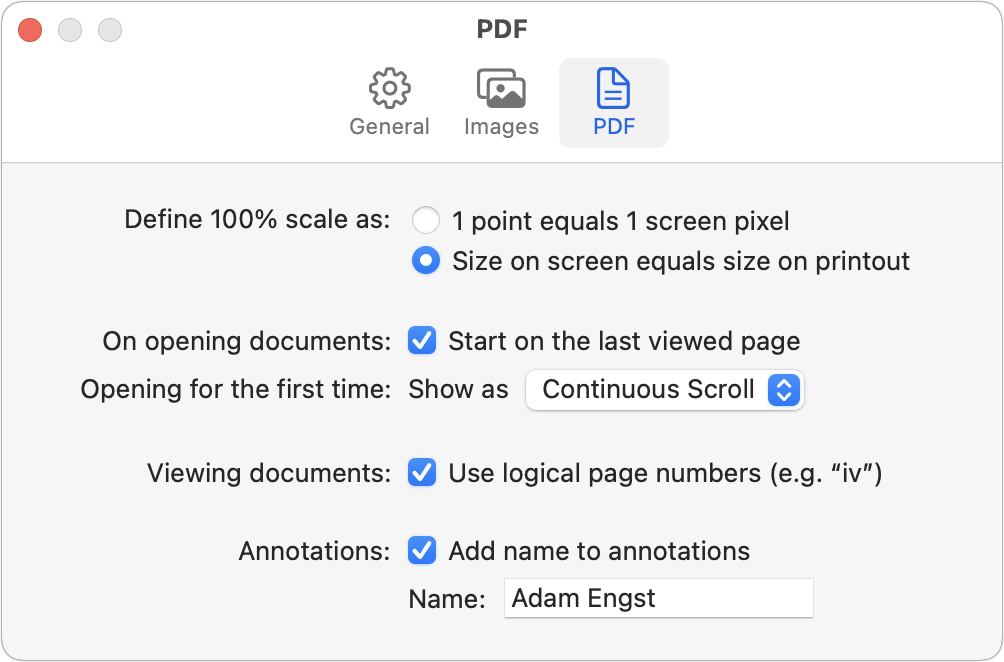
I have played with that toggle, but I cannot tell any difference in this behavior based on that setting. My setting is as you have it in your screen shot — size on screen matches printout.
It’s close, but not exactly the same thing AFAICT.
Cmd-9, although the menu says “Zoom to fit”, does not actually fit, it “zooms to fill”. By that I mean it does not respect the aspect ratio of the window and makes sure to fill it, which means there’s overflow in the dimension for which the window is wider. Zoom to fit OTOH would adjust so the narrowed dimension is filled, leaving gray space in the other dimension. Bottom line, cmd-9 will chop off part of the image, which is not exactly the same behavior as I see on my built-in screen, where increasing the parent window size will enlarge the contained image such that the whole imagine remains visible.
That all said, it’s still good advice as a possible workaround.
I’m tempted to report this discrepancy as a bug to Apple, but I wonder if for some reason they consider this the ‘desired’ behavior.
I just noticed that appears to depend on the file type!
I see the correct behavior (zoom to fit fits rather than fills) with a HEIC. But I’ve been testing this primarily with PDFs and there zoom to fit fills.
Are you working with a one-page PDF? If not, then I don’t understand your description.
A 100+ page PDF behaved as you described initially. After I pressed cmd-9, the pages were resized as I changed the window width. This changed behavior persisted through a quit and restart of Preview (as described at the end of this post).
FWIW, this was with Define 100% scale as Size on screen equals size on printout (although the size on the screen was changing).
Probably unrelated to this discussion, Preview has taken to quitting when I switch to it using cmd-Tab.
Yeah, these are mostly figures auto-generated from EPS source. They are often quite small (for print in scientific journals) so I usually find myself immediately wanting to drag the window out to blow them up.