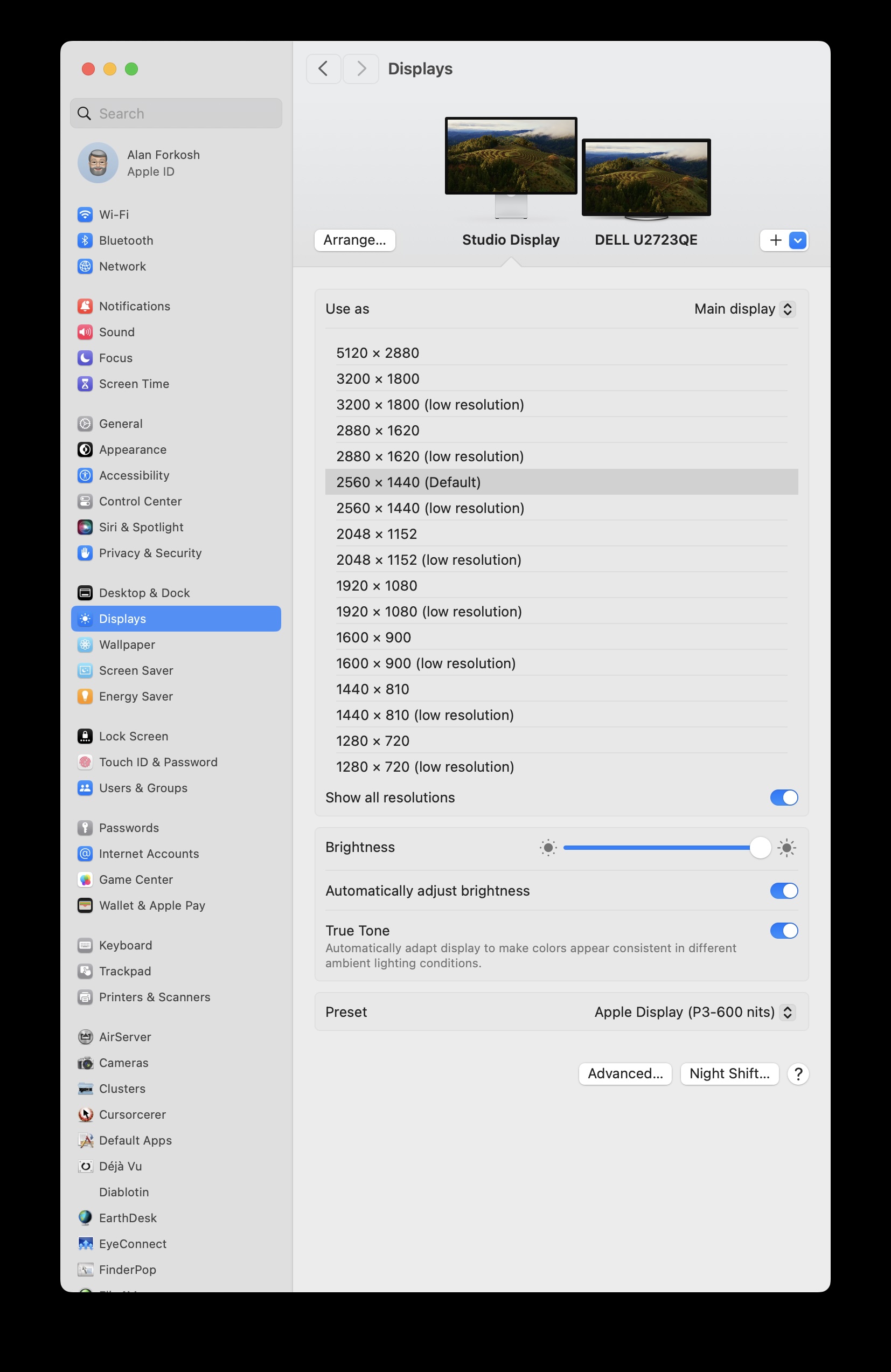
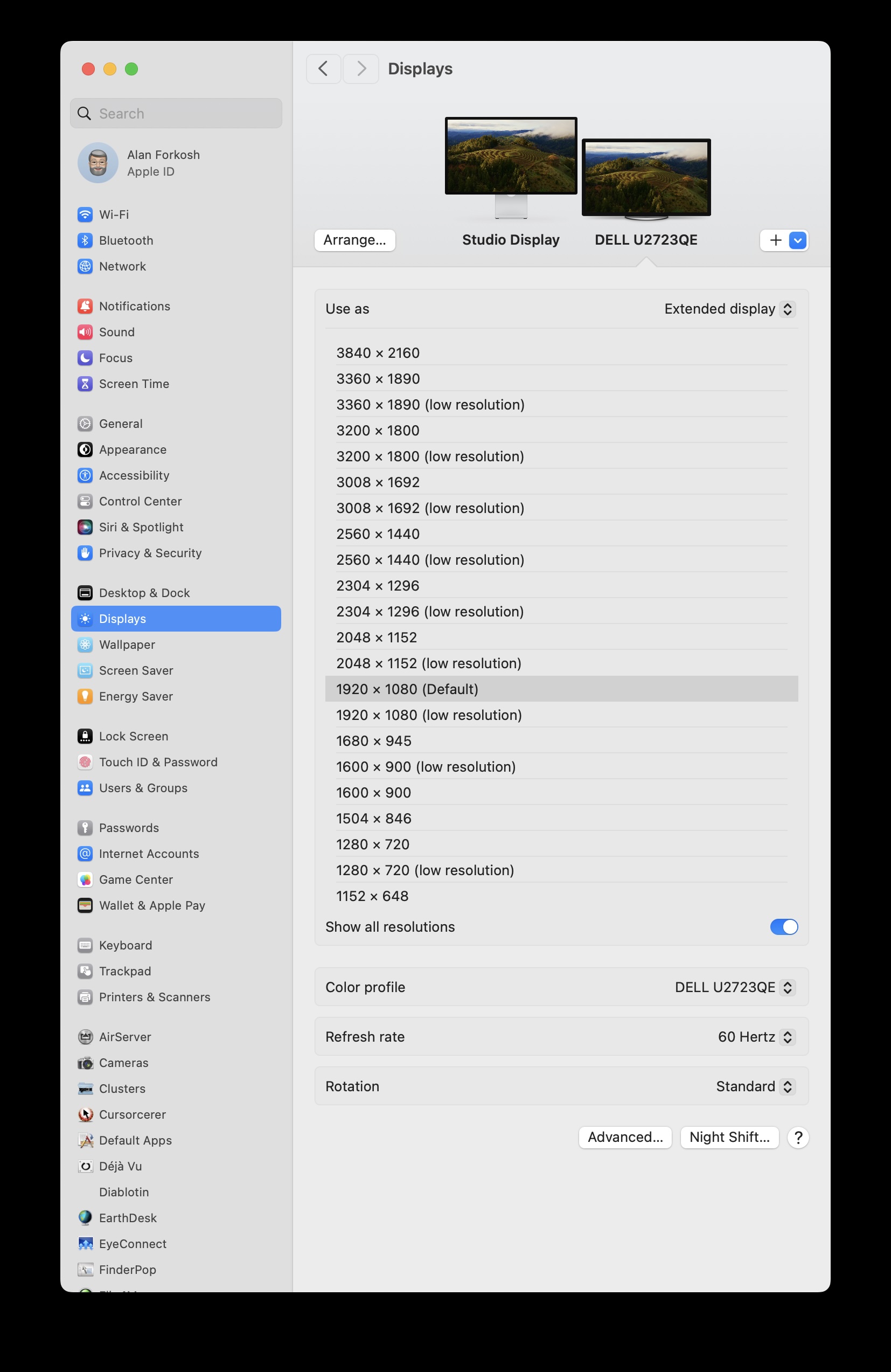
Apple Display Settings (at least in MacOS Sonoma)can show what is happening. My home setup has an Apple Studio Display as the primary monitor and a Dell 4K U2723QE as a secondary monitor. I’ve attached 3 images below to show the possible relations.
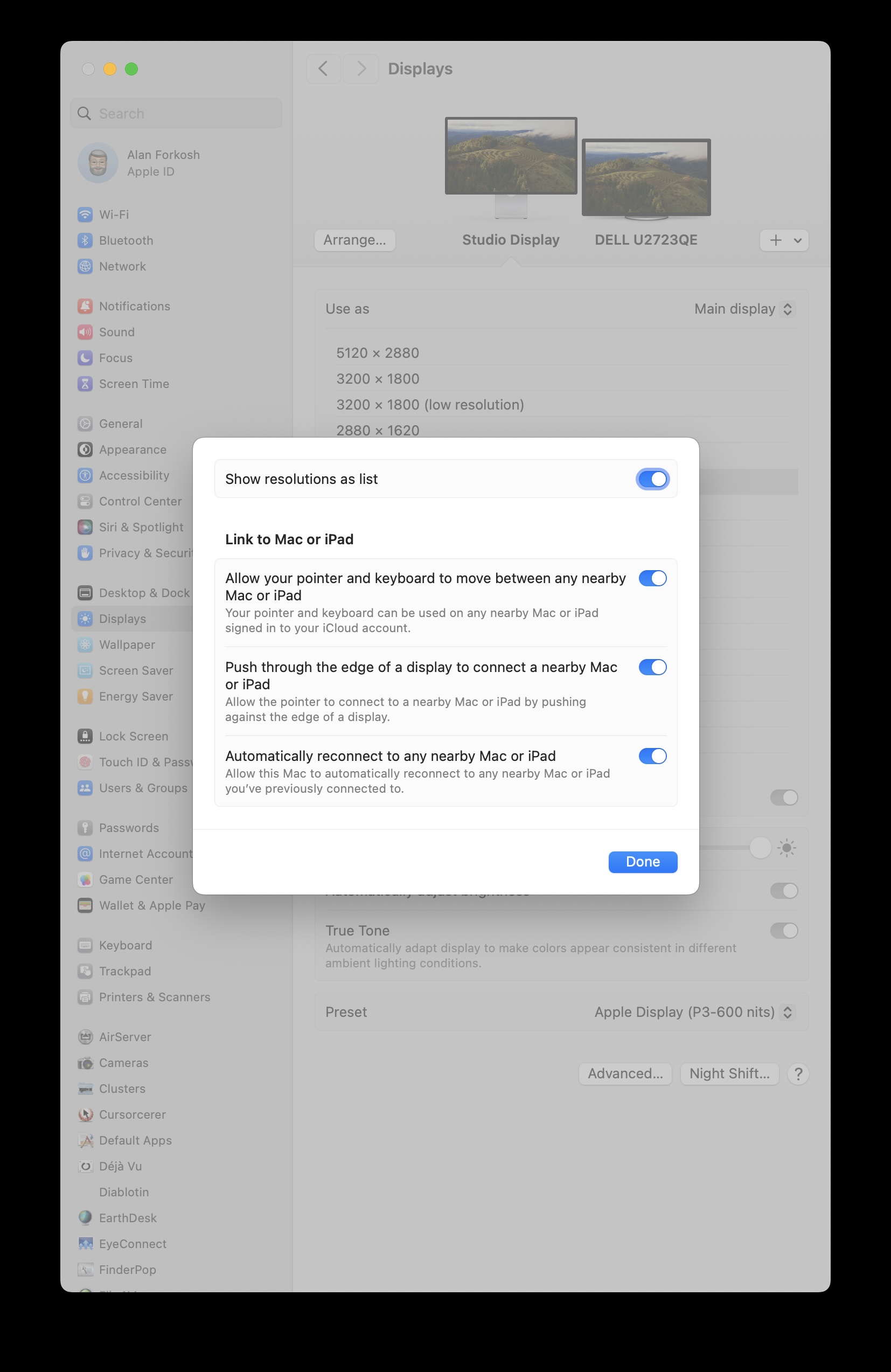
After accessing the Display settings, tap the Advanced button and turn on ‘Show Resolutions as list’ (1st image). Then tap ‘Show all resolutions’ in the monitor’s resolution list. The 2nd and 3rd images show the possible resolutions for both monitors. The top one is the native resolution. In both cases, the default resolution is precisely half the native resolution. Note that there is also a low-resolution version of that, which is created by applying the color value to each of the 4 pixels representing the simulated pixel at that resolution. The sharp version uses the native resolution for graphics and a doubled font size for text at the native resolution. So, when you ask for a 12-point font at the default resolution, the display shows you a 24-point font at the native resolution. This, of course, sharpens the image.
So, you should be able to accomplish this magic using an appropriate graphics driver (which is applied for Mac-compatible monitors). Retina does not refer to this trick but to the pixel density.
So, a 4K monitor shows a sharper image, even when set to 1K resolution. If you set the monitor to a low-resolution version of the desired view, you can see the difference a high-resolution monitor makes, even when used at less than full native resolution.