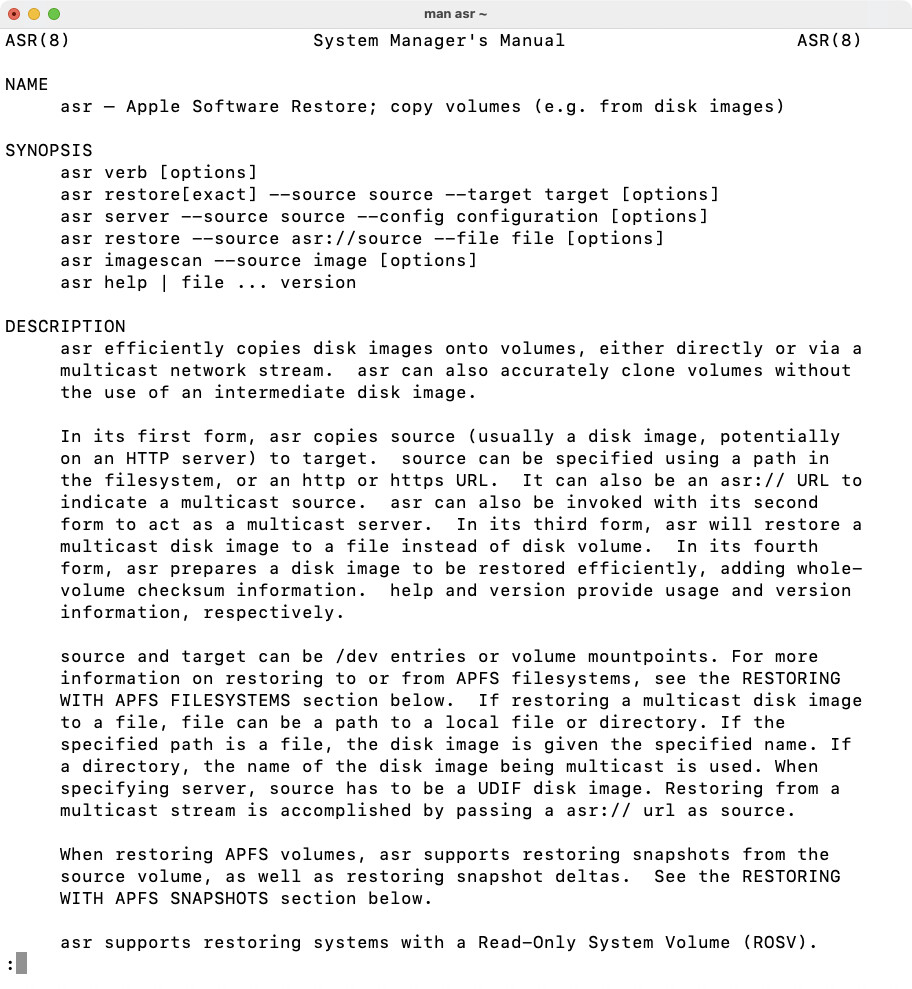
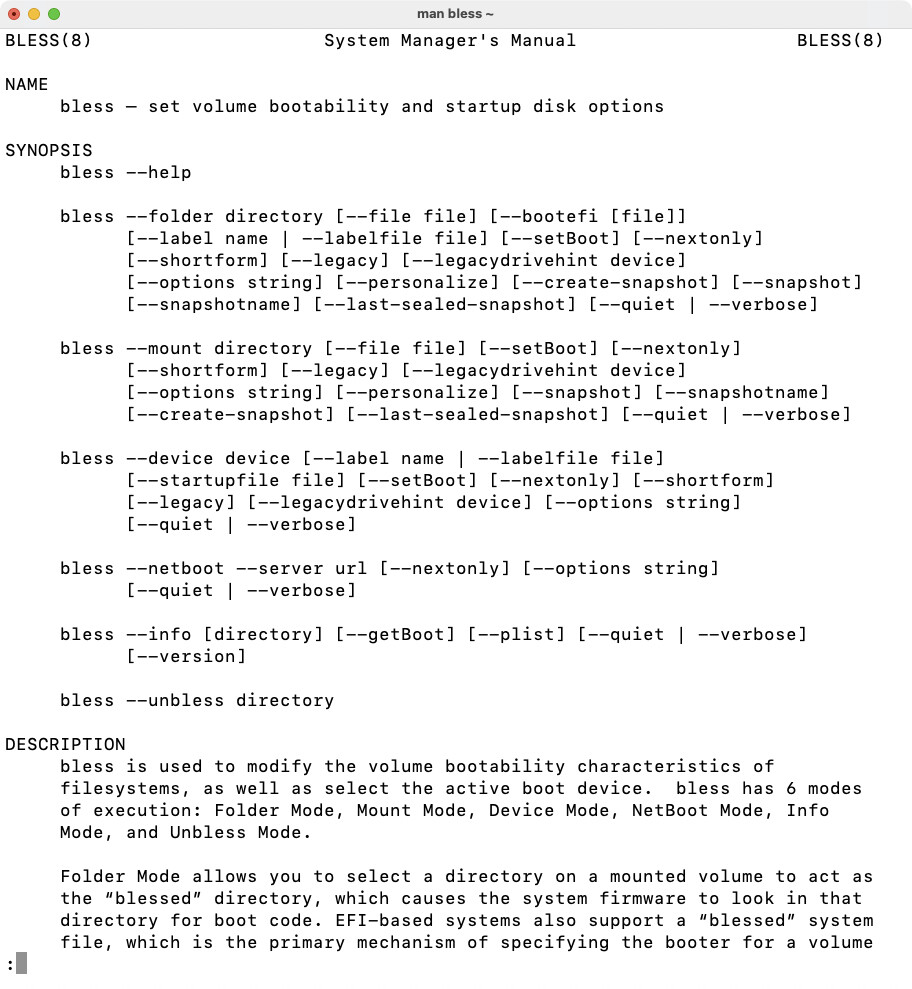
Today I used Migration Assistant (MA) to migrate from a MacPro5,1 running Mojave to a Mac Studio with macOS 15.2. It took several hours as I had about 2 TB of data. I went through System Settings, then worked my way through most of my apps and deleted (some were 32bit) or updated to the most current version. Some update fees applied.
The only problem I encountered – but was fully prepared – was Mail. It did not remember any of my passwords. I used 1Password 6 (yes–Version 6 still works!) to retrieve those. Mail works fine now.
There is no way in this – or any other – Universe I would have attempted this manually.
Oh, and the MacPro is running headless right now because the Studio is using my 2006 Apple Cinema Display.
When I moved from MacPro (dustbin) to an M1 Mac Studio I used migration assistant for data / files and did a clean install of all my Apps etc. It was less painful than anticipated and having a ‘clean’ system seems to have massively reduced the amount of crashes and other issues. I have no scientific measurement, but in 30+ years of Mac use, this is the most stable system I have ever run.
Manual migration is work, yes. And it costs time, time I’d rather spend doing anything else. But, as it turns out, it was a choice made for me when moving an iMac 2020’s configuration data over to my 2023 MBP. Something went weird and wobbly with the migration assistant process and completely broke system audio. I need system audio. So I had no choice but to do it manually.
There is of course a tremendous glory and satisfaction in doing things manually. But, really, at my wise old age of 42, I now hope for miracles from MA. It’s too bad, but it’ll never be perfect for sysadmin/dev type people like me who insist on doing strange things with their Macs, like running server processes under different fixed uids/gids, or having collections of CLI tools in fixed locations, or scripting folder actions, or … anything that is even a little bit out of the ordinary, let’s be honest.
The lesson seems to be, as always, seed your own joy. It can’t hurt to try MA first, but sometimes it’s the only way.
It just requires quite a bit of knowledge to use them effectively.
You can make a bootable disk with CCC but you need to re-install macOS on the disk and jump through some hoops. The problem is the internal SSD needs to be working as there are hidden boot volumes and the internal disk has to be unlocked due to hardware encryption before it can handoff to the external boot drive.
In my opinion it is not worth the effort anymore. Time Machine, CCC, SuperDuper! they all just copy the APFS Data volume.
I would attempt using Migration Assistant but uncheck Applications and include all of /Library & ~/Library then re-install the applications. Afterwards, examine the /Library & ~/Library and remove old stuff you don’t use anymore, etc. But if you don’t feel comfortable doing that. Then leave it alone.
Yes you’ll hit a lot of those Privacy prompts but things will be much cleaner and proper when you are done. Legacy cruft can cause a lot of bizarre problems that can be very difficult to fix. Especially with security related software or cleaner apps, etc.
It is also a great time to re-assess the software you are using and perhaps update or use alternatives that may be better. A ten year leap, a million things have changed. I might even recommend just redoing all your macOS configuration options and application settings from scratch and only restore your actual data files.
Granted, all that will take considerable time and effort.
If it’s a mix of the different language settings I rotated through, that’s even more weird. Clearly a bug somewhere in re/setting the flags to localized versions. Why it manifests only in Mail.app…
Me, I do manually. Bad experience with MA on previous cMP1,1 to 2013 MBA.
Most recent was 2013 MBA to 2018 Intel mini.
That went well manually. YMMD.
A client went from 2009 iMac or MBA to M1 mini and had Apple store do the move.
Mostly OK, dunno what method they used, but I’d assume a mix of both.
He had a TM b.u. I do not use TM due to bad experiences with that as well.
I use CCC.
Since so many people here seem familiar with the process, can anyone point me towards a ‘best practices’ guide to doing a manual rebuild?
I’ve been toying with the idea of doing one to allow me to use Safari again, it has crashed on opening for over three years now. Migration Assistant has transfered the problem between several machines.
I’ve set up a new User (where Safari works without issue) but have never quite got the courage to actually start the ordeal.
There is no process, as such—you just manually copy over the data from your backup and configure everything until it’s just so, or close enough to be viable. In practice it can take days or weeks, during which you’ll prioritise the stuff that matters, until you’re in a place where you can be productive. It’s painful, but glorious once it’s done.
I recommend that you start the process with the original Mac on hand, if you are able to, because it makes it easier to refer to in order to figure out what you did. And there are always things you forget or miss in the process, especially if the data storage is very obscure, such as your open Safari tabs, or which extensions you’ve enabled. So figure out what you want to bring with you, then do the nuke and pave.
I can’t in good conscience tell you to enjoy it or have fun because you won’t. But especially after many years it’s always great to sweep away the cobwebs.
Since I always have wanted a fresh start I have almost always made a clean install. I have made sure to keep note of mail passwords and settings since those will not be stored in passkeys. I don’t use a lot of specific extras in my set-up so it has not been that much work. But as people here has mentioned it is becoming more are more cumbersome to make a clean install. I can’t remember how many restarts it took last time. So when I had bought my newest Mac
I decided to use the migration assistant from Timemachine. It did save a lot of time. But in the end my system started acting out. I got strange messages every time I started my computer. Kernal extensions did of course not work and had to be re-installed. In the end I got tired of it and decided to make a clean install anyhow. It took almost a day but now my Mac is behaving quite nice again
I’d say just be methodical about it. A manual migration is a good time to reflect on what you really need or still want. Identify the data to bring over, and figure out which applications you still use. Perhaps make a list of browser extensions you currently use. Don’t transfer ~/Library since that’s where most of the cruft is, and if you’re experiencing a problem, the root of the issue is likely somewhere in that folder.
Make a backup of your old system. If you later discover you overlooked some data or wanted something you thought you didn’t need, you can get it from the backup.
After going through the initial macOS setup and updating to the latest macOS, one of the first things I do is install 1Password because it has all the information I need to set up the rest of the system.
Step 1 is to apply macOS updates. Then the way I did it is I’d want to be able to have both the old and new machines running. I’d start by using the old machine and use Screen Sharing to control the new machine, and then after I’ve set up enough stuff, switch to using the new machine while controlling the old machine. I’d make a file share from one machine to the other for moving the files.
I’d want practically everything in certain folders, such as Documents and where I store downloads, so I’d copy those entire folders. Then it was just a process of going through every application that I had on the old machine:
Install application on new machine
Copy any data related to that application, if needed and not already copied. For example, locally stored Mail is not in Documents. *
Compare all the settings in the application. This is why you want to remote control, so you can see both versions on the same display.
I’d also go through…
All system settings
Set u prime Machine
Install Mac App Store updates, including checking every application to see if there is an update but the store just doesn’t want to list it in the Updates view
Safari extensions
Extensions and add-ons for other browsers. For browsers like Firefox, I’d copy my entire profile over, it is way to much work to try to rebuild it
Install system extensions, i.e. items that don’t have an icon in the Finder
Install Homebrew (I used to use Fink)
Install all the applications that I couldn’t install on the old machine because it wasn’t a high enough version of macOS
Compare Finder and dock settings
Check all the apps that should be running in the menu bar
Set up my custom launch control items
Set up custom /etc files, such as SSH security, Sudo using Touch ID
Set up zsh profile
Remember to copy the required invisible files in the home folder, for example the ssh keyring
Set custom icons
Set up utilities that have daemons, if not already done
Retest scripts
Set up emergency administrator account
Test printing and scanning
Turn on locate database
Check login items
and much more, but that’s all I remember right now
* Fun fact: long ago it wasn’t obvious where an application should store data like Mail. Should it be in Documents or in Library? There’s arguments for either one. On the one hand, it is data that the user needs to be sure to backup, so maybe hiding it in the Library is a bad idea. But, a theory was that Documents would only be for documents that a user opens directly, not indirectly through an application.
My user folder goes back to the dual boot OS9 (?) / 10.1 (?) of 2001, and has been migrated using migration assistant to 5 new macs since. I keep thinking a nice tidy up rebuild is in order, but haven’t done so.
One day, possibly with the next new mac, my thinking is to use migration assistant from my current air running monterey to get the data and all sorted to an up to date new air, make lots of backups, AND THEN do a clean install using all that up to date data.
The important thing is that your data is where you need it. I don’t really know what consolidation and clean installing brings because your new computer is fresh out of the box, so either way you need to deal with the migration. I suppose you confirm that the migration is more likely to work the next time around? But it’s not clear why simply migrating once, after first booting your new Air isn’t enough. Either is works or it doesn’t. You gain nothing from the reinstallation besides testing that Migration Assistant works sufficiently. Not sure that’s worth it.
Either way you’ve basically got two choices for migration: automatic or manual. Automatically migrate to keep your stuff around without too much effort, but then you risk possible complications. Manually bring stuff over and risk fewer complications, but now you have to do a lot more work. Which may well be worth it after all this time.
There are probably thousands of files and/or GBs of dross in my user folder, plists corrupt over time and so on. apple once, some years ago, suggested a manual migration might solve the particular issue we were working on (though it turned out to be a bug in icloud, so yeah).
“If it ain’t broke, don’t fix it” has been my concept so far, I was just wondering if others had other experience.
Doesn’t make sense to me either. A clean install that wipes everything will blow away everything you migrated. A clean install that preserves your user accounts will preserve everything in your Library, which is where any potential cruft (including potential bug-triggering configuration).
If you think that migration is pulling in lots of junk (caches, configurations, etc.) that is old and maybe useless, then you need to do it the long way:
Completely wipe and reinstall macOS
Don’t migrate. Just drag/drop your documents from the old computer or a backup.
Reinstall all your apps. Hopefully you still have all the installers (especially for stuff that wasn’t installed from on-line sources).
Spend quite some time tweaking app preferences and manually copying over data that wasn’t included in your documents (e.g. your Firefox profile, which is stored somewhere under ~/Library).
Personally, this seems like a lot of work. Something I’d choose to avoid unless you’re trying to fix a specific problem.
I’m thinking particularly of Mail, where sometimes changes are made to data structures between major releases, such that you need to use migration assistant to get all the data up to the new version. Thus doing the migration assistant process, and then wiping it all and doing the manual install of the data now at the level of the new version. As far as I’ve ever been able to tell it isn’t possible to know there is such a change without doing it.
I don’t use the music app, but certainly about 5 years ago the data structure for it changed (you will find you have both an itunes folder and a music folder), as another example.
I don’t think Migration Assistant actually upgrades any data files, except maybe refusing to migrate things known to break the new system. It’s been my (admittedly limited) experience that it copies over your data and the app itself performs the upgrade when it is launched for the first time, much like how it does when you install an update on a running computer.
And it definitely leaves behind all kinds of cruft. My Library folder is full of stuff that belongs to apps going back to my PowerPC systems - apps that absolutely did not survive any migration to x86 and x86_64.
The Music app is actually a perfect example. After the migration that moved from iTunes to Music, my home directory had only an iTunes library. When I launched Music for the first time, it then created a Music library and migrated all my data from the iTunes library to it.
And when I saw problems (it didn’t work right the first time), I was able to do it all over again simply by deleting the Music library and then (via an option-launch) telling Music to load the iTunes library - at which point, it re-did the migration.
I know that Apple stores critical data in hidden places under Library (e.g. the sandbox where Books keeps content), and for all I know, Mail does too (I don’t use Apple Mail). So you would have to locate and copy over the folders containing data not found on remote servers (e.g. settings and local folders). Migration Assistant will copy all of that, but I’m pretty sure that if any upgrades to file formats are required, it will be the app itself that does this upgrade, not Migration Assistant.