I keep my iPhone up-to-date. Usually these updates take a matter of minutes. But it’s been stuck on this iOS 26.4.2 update now for nearly 2 hours. I see the Apple mark. And the progress bar is looks like it’s mostly on its way. But it hasn’t changed in almost 2 hours. I’ve never seen that before. If I pick it up from the Qi charging pad it also feels quite warm to the touch.
Anybody else see this? I’m not sure what to do. Any suggestions?
I have seen this twice on a family member’s SE, with updates taking place via a Windows PC. Each time, the phone had to be force-restarted and then (luckily) Restored from a backup using the iPhone management application Apple provides for Windows.
I have not had this happen on over-the-air updates or macOS Finder/iTunes updates.
It finished updating! As I tell my dog, Pao, “patience makes the perfect puppy.”
It took nearly 3 hours. It got stuck somewhere it seems. But when I looked at it just now it had finished: “Your iPhone has been updated to iSO 26.4.2.”
This family member uses a Windows PC as their main computer. They do not own any Macs. Apple has made a software package for Windows that replicates the experience of connecting an iPhone to a Mac via USB. So it is possible to Backup, Restore, Update, and (I’m pretty sure) Setup an iPhone using Windows.
Interesting. I never thought of doing any of those things using my Mac. I can’t even remember the last time I connected my iPhone via USB to my Mac. Maybe years ago for some iTunes thing…
I backup my iPhones and iPads to my main Mac so that their backups are included in the Mac’s backups to Time Machine and Carbon Copy Cloner and to keep their backups out of the cloud (for security and privacy reasons).
Also, when a major iOS or iPad OS update is released, my Mac’s connection to the Internet—Ethernet to LAN to Google Fiber—downloads the files much, much faster than the cellular phone and Wi-Fi connections the mobile devices host.
Interesting. I only sync my iDevices that way. Originally using iTunes and today via the Finder. I back-up my devices and sync various content (music, photos, etc.) this way.
I think that’s it but I can’t check right now (my household is Windows-free, ha ha). Actually, Windows 11 isn’t that hard to “just use” even though I’m a macOS person.
An interesting way of thinking about it. I also use Time Machine, Carbon Copy Cloner, and also Backblaze, in addition to iClouds backup.
My MacBook Pro has 2 TB of storage but I see only 400 GB are free right now. So that’s a consideration as well.
As far as speed goes, my ethernet to Softbank Hikari fiber optic is faster than wi-fi via the router, but my wi-fi connection right now via SpeedTest on my iPhone is showing about 130 Mbps up and down, which isn’t bad. And I did the iPad OS 26.4.2 upgrade on my iPad Pro 11-inch 3rd generation and it only took a few minutes. SpeedTest on my iPad over wi-fi just now is showing 553 Mbps down and 463 Mbps up over wi-fi which is pretty good. So there would be no reason at all to directly connect it to my Mac for speed reasons.
I too use Mac backups for iPhones and iPads. One issue, raised in another discussion, is that iPhone storage has become so large, and base level Macs so “small” that the iPhone backups tends to fill up the Mac. Annoyingly Apple does not offer a way to save these backups to external storage. For this reason I use a retired IMac (with 1tb storage) for these backups instead of a 500Gb Macbook Air.
I have 2 TB of iCloud storage. Plus I have DropBox and also Microsoft OneDrive. Also Google Drive if I need it. So things are backed up all over the place.
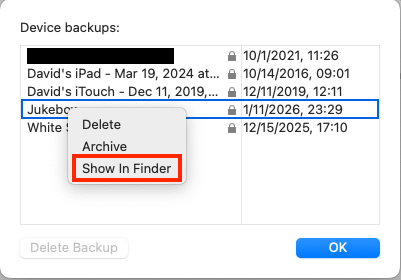
The backups (at least on my system) are each folders stored in ~/Library/Application Support/MobileSync/Backup. Each folder has a almost meaningless numbered filename and contains a lot of similarly-meaningless numbered files.
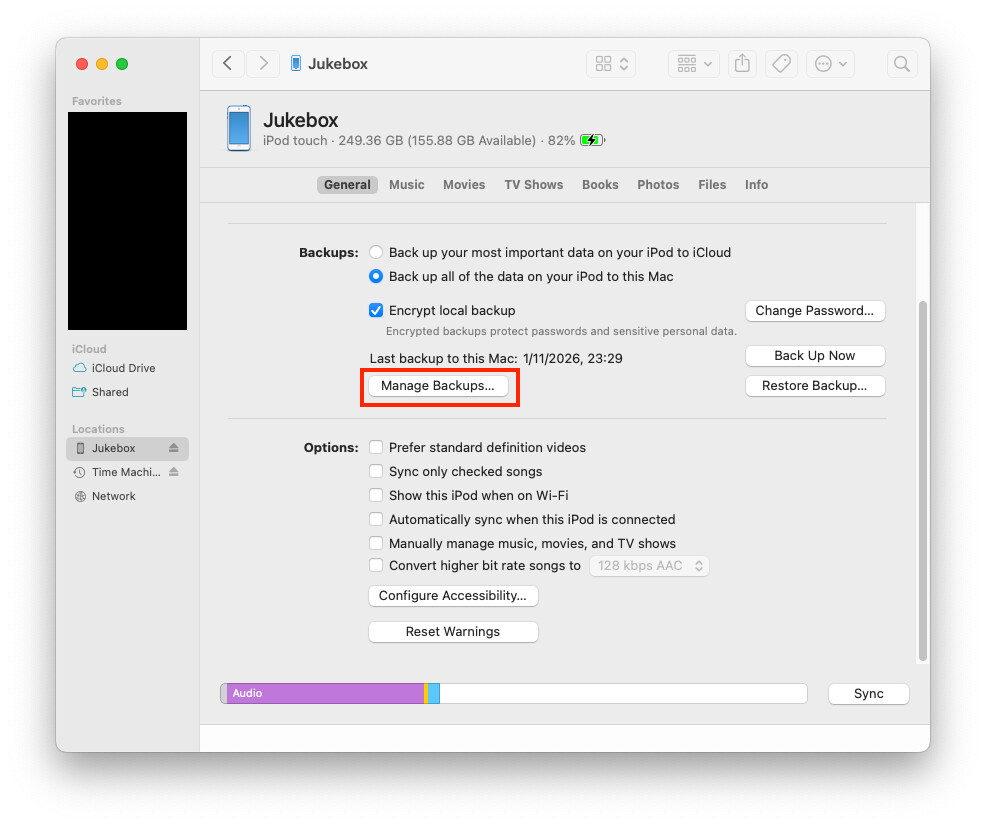
I’m not sure if there’s any easy way to tell at a glance which is which, but if you pull up the list of backups (connect a device by USB, select it in the Finder, go to the General tab, and click “Manage Backups”:
Two things you might want to try (I don’t know if either will work):
If you move one of these backups to another location (e.g., external storage), I assume it will no longer be accessible from the Finder. But if you do, and later move it back, maybe it will reappear and be restorable.
Even if it isn’t restorable via the Finder, iMazing might still be able to access it and let you work with the contents.
If you replace that MobileSync/Backup folder with a symlink to external storage, maybe the Finder will start saving backups there.
Thank you. Yes, I have come across the symlink method but it is a bit too technical. If only Apple added a preference field for storing backups on external drives…
Yejs, that would be a great idea. Because they don’t (yet), I use iMazing to do my iOS backups, because iMazing allows me to say where to put them, which is on my larger storage.