MacOS 26.x Buttons nearly invisible [Solved]

Ever since Liquid Chaos :wink: came out on MacOS I’ve been trying, with Mr. Engst’s articles and others, to get the interface more, ah, opaque and readable I suppose you could say.

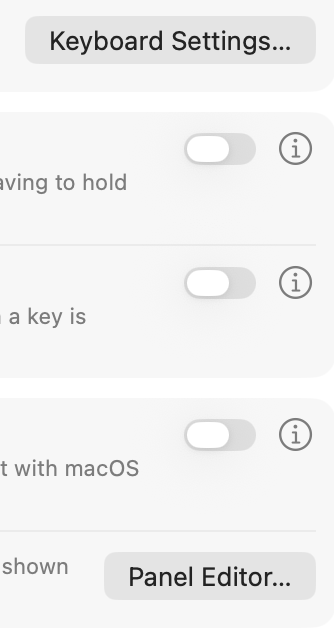
There’s a variety of visual anomolies that occur but the one that disctracted me most today, after installing 26.4, was the near disappearance of buttons in Settings (this was there since 26 itself and I wsa hoping it would be fixed):
Additionally, I generally take a lot of screenshots with shift-command-4 and it used to show an outlined area, a gray box I think, but I just noticed now that Finder window Tab ovals are also nearly invisible and when I went to screen shot that, the gray box was discontinuous and revealed the missing tabs a bit:
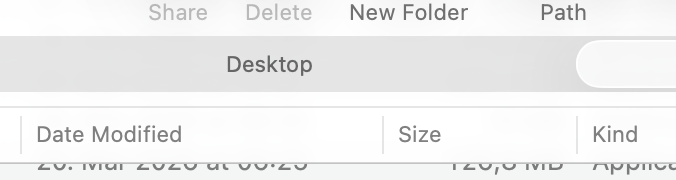
Oh, sorry the crosshairs and gray box are missing from the screenshot (the gray box was behind the tab label but otherwise not showing the full rectangular selection. Anyway here’s just the missing tab shapes. There is a tab left and right of Desktop but their oval shapes don’t show. (If anyone wants to see exactly what I mean lmk and I’ll make a short screen video).

I went back and turned off ‘reduce visibility’ and changed from Tinted Chaos to Clear Chaos and didn’t make any difference. Will reboot and see what happens.

Interested to know if anyone else has seen this and, um, ‘repaired’ it, or if this is actually the ‘doing it right’ look.

1 Like

It appears the issue was “Display Contrast” in Settings > Accessibility > Display

image

Mail had stuck on me this afternoon and I went around quitting other apps before shutting down. Along the way I noticed another anomoly in that the ’shadow’ a window atop a Finder window was revealing alternating gray and white lines at each entry in the Finder window, within about a finger’s width of the overlapping window (one might expect a shadow to darken what’s behind it). Further away were no gray lines, just white. I made a screen shot to show here, and as above, the crosshairs were missing and no Tab outlines were there, just white*.

When I booted the Mac again there was a brief advisory window in the middle of the screen reminding me Display Contrast had been set. So I went into its settings.

I doesn’t work as I expected from the name. With my photo experience, contrast to me means increasing and decreasing the steps between tones so to speak: whites get whiter and less detailed, blacks darker, and fewer shades of gray are there. Sometime in the past I’d adjusted it.

When even 1-1/2 of 6 notches to the right, the effect kicked in, light grays disappeared, whites slightly lighter and blacks about the same to my eye. Beyond 2 notches, the display was effectively unusable. This to me is not ‘contrast’, so I’m not sure what is actually happening in the Mac. I set it back to Normal and increased the Brightness, which gets me close to a desirable look.

Now all Finder windows have the alternating gray lines, inactive tabs are gray, and so on.

*Also unexpectedly, the screenshots I posted above and that I made while observing the effect, do not show the effect! They look ‘normal’. So I can’t even show the effect unless someone is personally observing the Mac. As much as I’d like to invite the TBT community to visit, this is, ah, impractical ;-)

So apparently a user can adjust the non-screenshottable Display, which is different from the Screen.