Originally published at: Living with Digital Key 2 on the Hyundai IONIQ 5 - TidBITS
Several weeks ago, we traded in our aging 2015 Subaru Outback for a leased 2026 Hyundai IONIQ 5. We needed a second car with enough cargo space for the gear necessary for the track meets and running races I coordinate. It was also an opportunity to switch entirely to electric, since our other car is a 2015 Nissan Leaf. With a decade of experience driving an EV, we’ve become convinced that EVs are better cars than gas-powered vehicles in nearly every way. The recent skyrocketing of gas prices makes EVs even more compelling, especially since we charge primarily from our solar panels. Our main unknown has been long-distance trips—the Leaf only has range for around-town driving—and I’ll test what it’s like to take a trip in the IONIQ 5 later this week as I drive to a convention in Arlington, VA.
The other appeal of getting a new car was the opportunity to try out all the new technology that has appeared in cars over the last ten years, including CarPlay, which I’ve only used in rental cars until now. The high-tech option we most looked forward to is Hyundai’s Digital Key 2, a smartphone-based car key that uses Ultra Wideband (UWB) and NFC to unlock, lock, and start the car with nothing but an iPhone or Apple Watch, powered by Apple’s car key technology. For those who are curious, Apple’s Platform Security Guide explains how digital car keys stay secure.
One thing that hasn’t changed much in the last ten years is the abysmal quality of car company documentation. The manuals that come with the IONIQ 5 are just as horrible as those we received with the Outback and Leaf. The main owner’s manual documents most of the physical aspects of the car, and a separate manual covers the infotainment system, but both suffer from covering multiple trim lines (so you’re always trying to figure out if a section applies to your car), lengthy and repetitive warnings required by the lawyers, and the unsatisfying approach of describing how a feature works without telling you when or why you’d want to use it. Hyundai does provide a slim Quick Reference Guide that’s far better than the rest, but it covers only setup and basic usage.
Digital Key Setup
That gap in documentation hit hardest when trying to figure out Digital Key 2. I managed to configure the feature for myself quickly while the sales guy was still around, but he didn’t know offhand how to set it up for Tonya as a second driver. The IONIQ 5’s infotainment system walked me through it and handed me off to Wallet appropriately. But we couldn’t figure out how to give Tonya her own digital key.

Part of the problem was that we had both downloaded and configured the MyHyundai app, but since I had already connected to the IONIQ 5, it wouldn’t let Tonya connect. We then created in-car profiles for each of us, but we couldn’t figure out how to link Tonya’s profile to her iPhone and Apple Watch. (Profiles enable automatic seat position and side mirror changes, along with climate control and audio preferences.) The Hyundai ecosystem has too many separate identity systems, and we couldn’t figure out how to link all the accounts, profiles, and keys. Making matters worse, although the MyHyundai app has decent functionality, it’s hampered by a lousy interface and maddening animations on every screen change.

Eventually, I discovered that I was listed as the primary driver in the MyHyundai app and had to invite Tonya as an additional driver. That got us past one blockage, but it wasn’t until I realized that I also had to share the digital key with Tonya using the iPhone’s Wallet app that we were able to get it to work for her. So, if you find yourself wanting to share a digital key with someone, don’t focus solely on the car’s app; keep the Wallet app in mind as well.
Using Digital Key
In practice, the digital key has been brilliant—I haven’t yet carried the IONIQ 5 key fob, which is larger and uglier than I’d like, though I’ll bring it on my upcoming trip, just in case. With our previous cars, it was all too easy to grab the wrong key fob, such that the car would refuse to start. Or, more confusingly, I could have the wrong key fob but not notice because Tonya had the correct one, even if she wasn’t driving. Now, as long as either of us has an iPhone or Apple Watch, we can unlock and drive away. Realistically, I always have both, and although Tonya very occasionally forgets her iPhone (blame the lack of pockets in women’s clothing), she always has her Apple Watch.
The hard part now is remembering to grab the MagSafe wallet that holds my driver’s license—if only digital driver’s licenses could actually replace the physical cards (see “California Driver’s Licenses in Apple Wallet Largely Symbolic,” 16 August 2024).
You can even use Digital Key 2 to lock and unlock a car using Siri when you’re close to it. The first time we drove the IONIQ 5, we didn’t know how to lock it without the key fob, so I reflexively said to my Apple Watch, “Siri, lock the car.” And it did! That may be my favorite Siri moment of all time.
Not needing the key fob is important to us because we often drive to running spots, and it’s annoying to have to carry a large key fob while running in the summer and worry about it when taking the occasional post-run dip in a pond or lake. We don’t usually carry our iPhones while running, of course, but we always wear our Apple Watches. Plus, although the IONIQ 5 allows locking an iPhone with a digital key in the car, it won’t lock the doors with the key fob inside.
You might wonder, as I did, what happens if the digital-key-enabled Apple Watch or iPhone runs out of charge. A dead Apple Watch can do nothing—it won’t unlock the doors or start the car. However, an iPhone that has run out of charge can still open the car for up to 5 hours, thanks to Apple’s Express Mode, which enables certain transit cards, passes, and keys in that state. I verified this by fully discharging my iPhone and then unlocking the IONIQ 5 by pressing the side button. It also started the car, and once I was inside, I could charge wirelessly.
But what if one of us returns from a run with a dead Apple Watch? I had a weird thought—what if I yelled through the window to an iPhone inside, “Siri, unlock the car”? So I tested it. With the iPhone sitting on the console, I could see it had heard me, but it wouldn’t unlock the car without Face ID authentication. (That’s reassuring, actually.) But what if I put the iPhone on the dashboard, facing up, so it could see my face through the window? That worked too! Of course, leaving an iPhone in plain sight on a dashboard seems like a great way to end up with a smashed window and a stolen iPhone—thieves aren’t necessarily knowledgeable enough to know they can’t crack iOS security or turn off Activation Lock.
There’s another fallback option. Tonya often runs with friends, so if her Apple Watch died during a run and her iPhone was locked out of sight in the car, she could use a friend’s phone to call me, and I could use the MyHyundai app to unlock the car remotely. Once she was in the car, she could use the iPhone to start the car. The MyHyundai app relies on the Bluelink service (which we get for free as part of the lease) and cellular connectivity, but as long as someone else’s phone can contact me, Bluelink can contact the car.
The guaranteed, though boring, solution to this hopefully unlikely scenario is to carry the IONIQ 5’s little mechanical key, which can only unlock the driver’s door. Unlike most cars, which embed the mechanical key in the key fob (where you won’t lose it), Hyundai now provides a separate mechanical key that’s easier to lose, but also smaller and easier to carry. Sadly, it’s not also a USB flash drive, which would be fun.

I’m looking forward to sharing a digital key with our son Tristan the next time he visits, to see how it works for an occasional driver.
Digital Key Trade-Offs
The main advantage of the beefy IONIQ 5 key fob over a digital key is that the fob has dedicated switches to drive the car into or out of a parking space too tight for the doors to open, as can happen in some parking garages. If you get parked in, press and hold the switch, and the IONIQ 5 will back itself out of the spot slowly until you let up on the switch. I can’t say I’ve ever needed that feature, but it seems fun.
We have discovered one problem with the digital keys. When either of us walks up to the locked car, the doors unlock and the driver’s seat adjusts appropriately. Unfortunately, the IONIQ 5 is happy to unlock for the first detected digital key, regardless of which door is being opened. As a result, if Tonya happens to arrive at the passenger side door before I walk around to the driver’s side, the IONIQ 5 thinks she’s driving and switches to her profile and seat position. Luckily, it’s easy to switch profiles immediately from the dashboard screen, after which the driver’s seat moves back to my position. It seems likely that the key fobs would encounter the same issue. I suspect that we’ll subconsciously adjust our walking patterns so the driver reaches their door first.
So far, however, we have thoroughly enjoyed using the digital keys, or, I should say, not using them, since having digital keys embedded in an iPhone and Apple Watch means we don’t need to think about keys at all. The IONIQ 5 just unlocks and starts without any key-related interactions, and there’s less to remember or worry about losing.

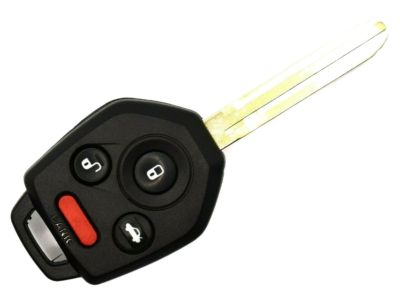
 so I used my wet key, as usual. It worked but I wish I had a way to check the battery from time to time. It doesn’t have a button to press and needs to be in close proximity to the vehicle so I cannot test its effective range as a battery check.