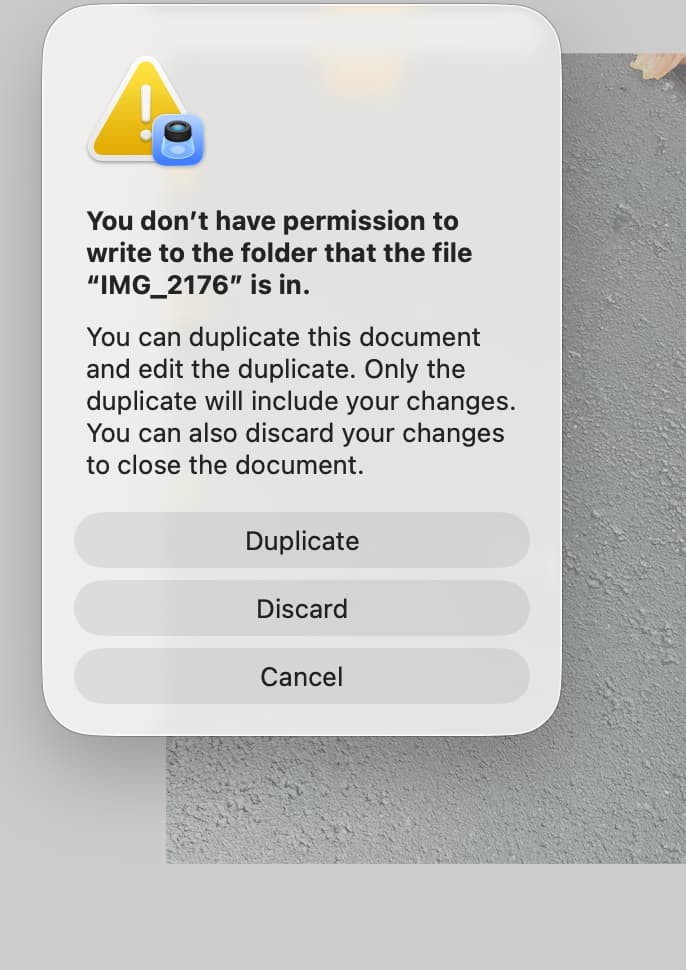
I am attempting to resize jpegs, in bulk, via Preview Version 11.0 (1113.2.5) and receive an alert that I don’t have permissions to modify the files, or more precisely “write to the folder”
… from my phone, on my computer, in my user Documents folder. These were heic format from my phone, downloaded from my iCloud, and exported to jpeg into a folder in my documents folder
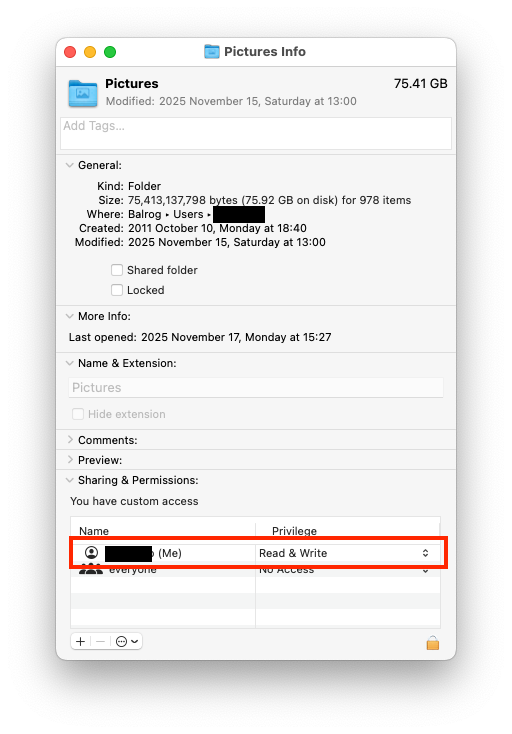
I went the extra step to recertify the permissions for the containing folder of jpegs to be resized but still do not have permission to do so.
Seems like a bug to me
Any thoughts?
p.s. I can, it seems, resize these jpegs if I proceed one at a time … hmm
p.p.s. my workaround was to resize the HEIC files in the downloads folder, then export to jpeg .. hmmm
Note that Unix semantics are that if you are the folder’s owner (which should be the case for anything in your home directory unless you’ve configured it otherwise), then you need write access. If you don’t have write access, but your user-group or “everyone” does, that won’t work - the system only checks permissions at the level (user, group or other) that most-precisely matches your login.
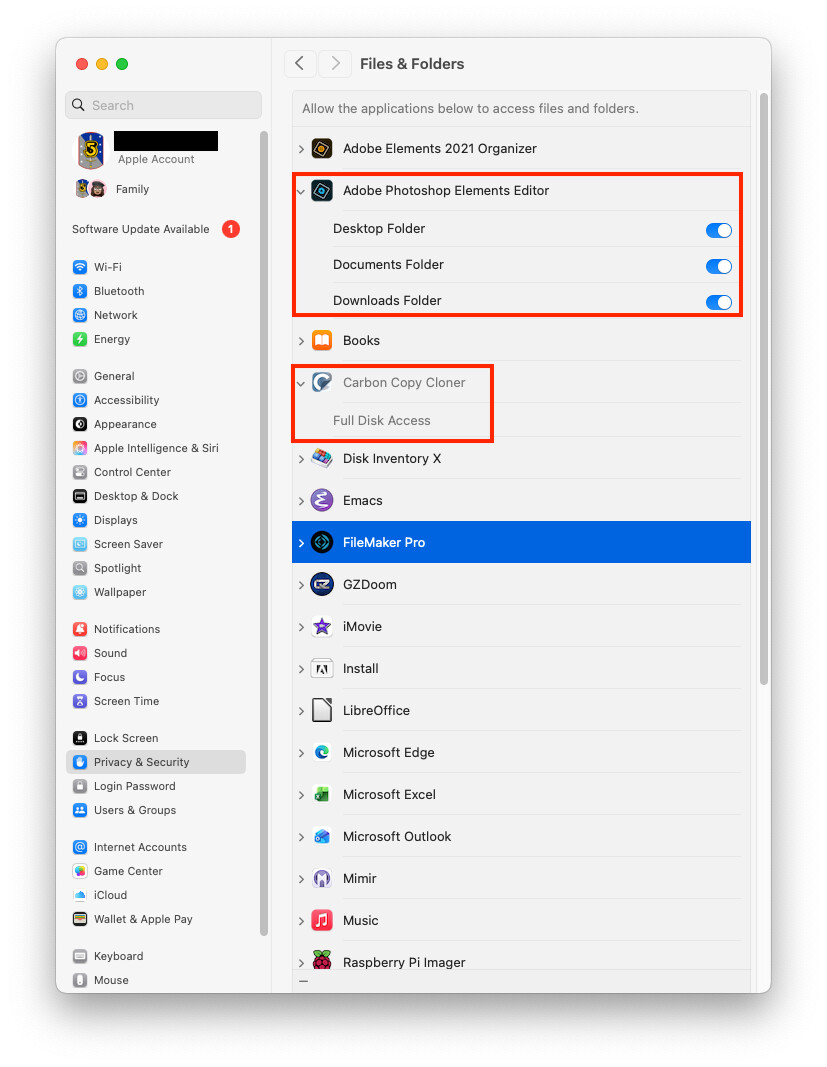
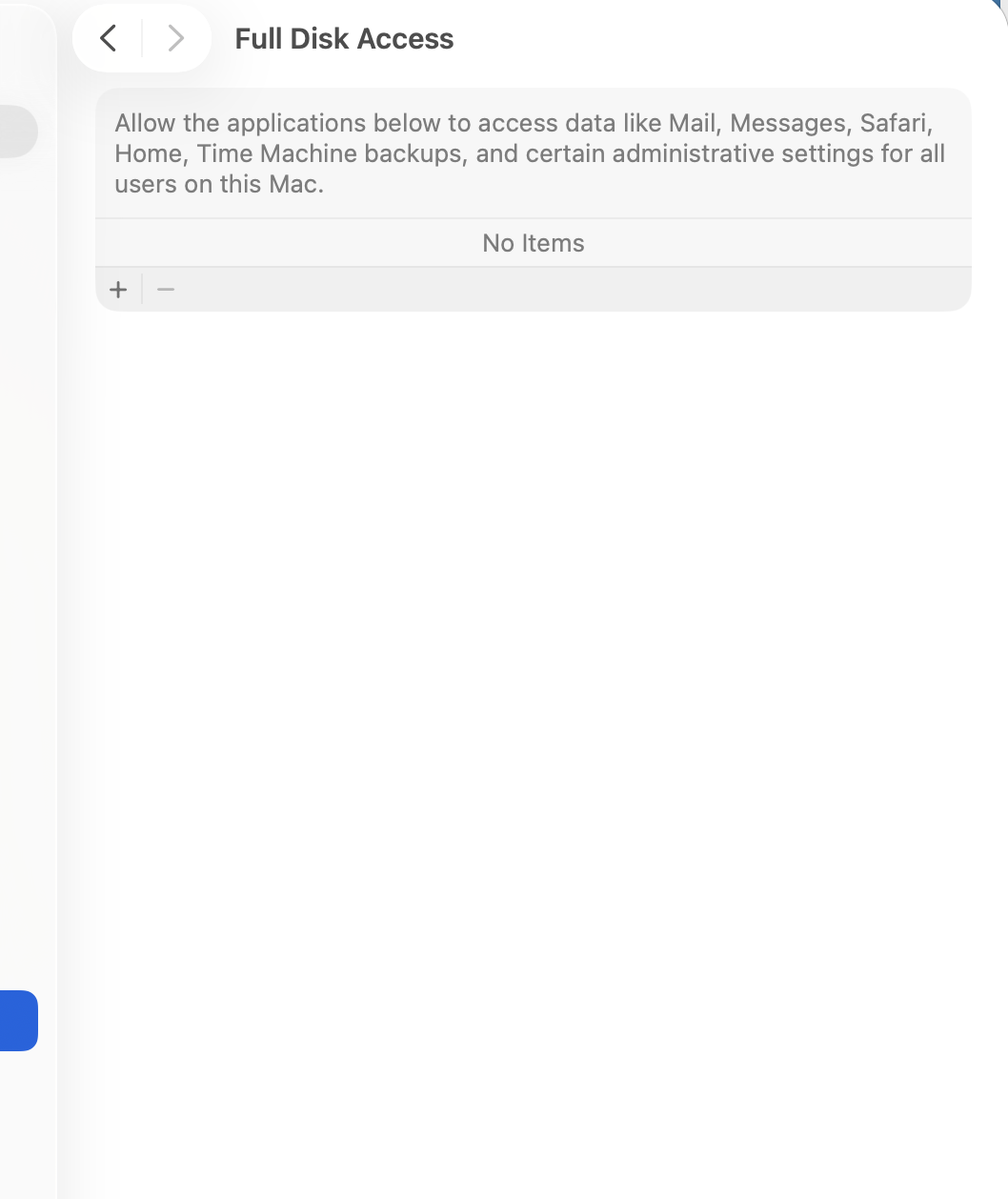
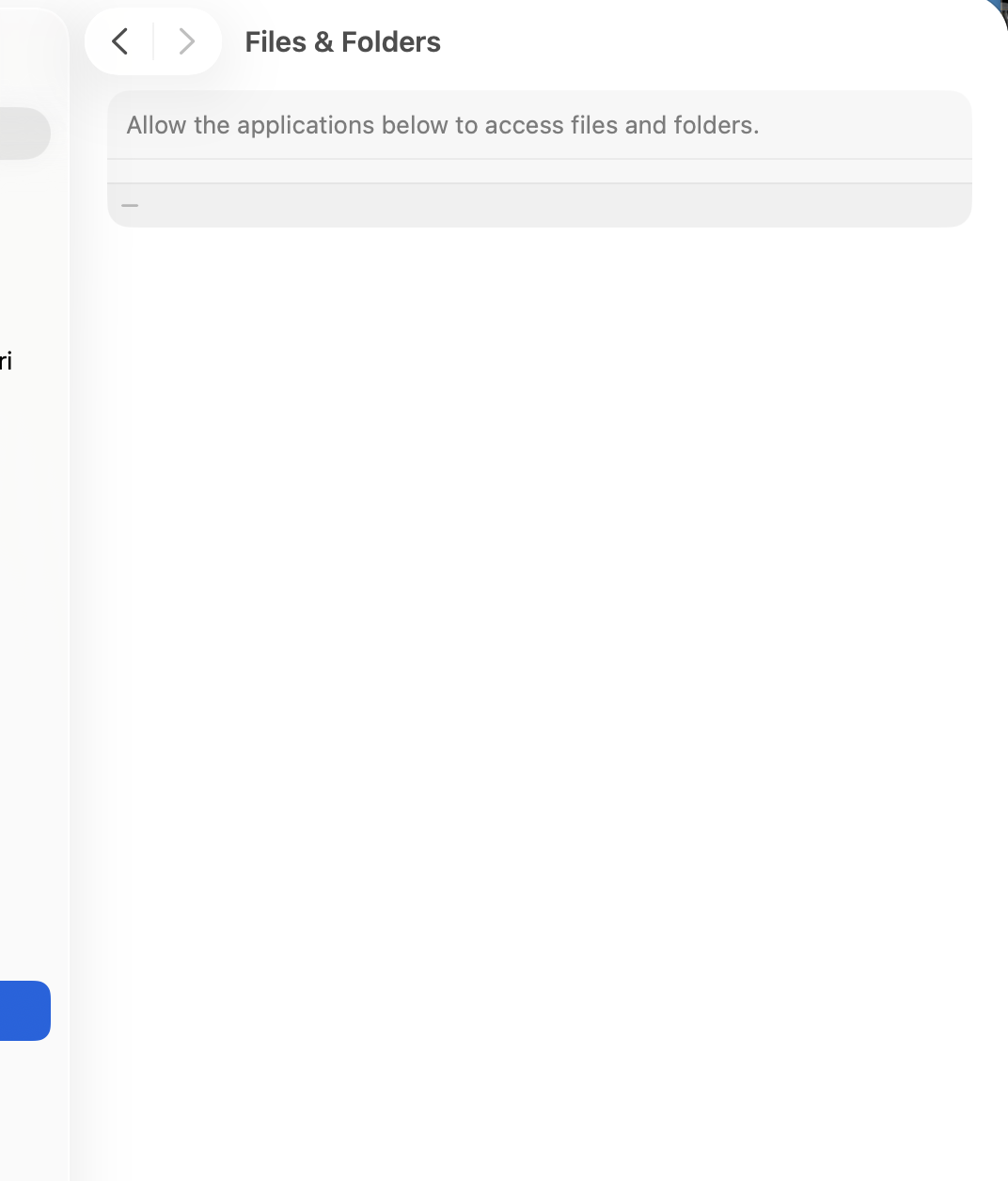
The app you’re using (Preview, or maybe Terminal if you’re driving it from a script) may need to be granted write-access to the folder. Go to System Settings → Privacy & Security → Files & Folders → app, so see if the app has permissions to write to that location or has “Full Disk Access”:
Normally, a graphical app will ask you for permission. If, for some reason, it doesn’t ask, or if you said “no”, you should be able to change the permissions via System Settings.
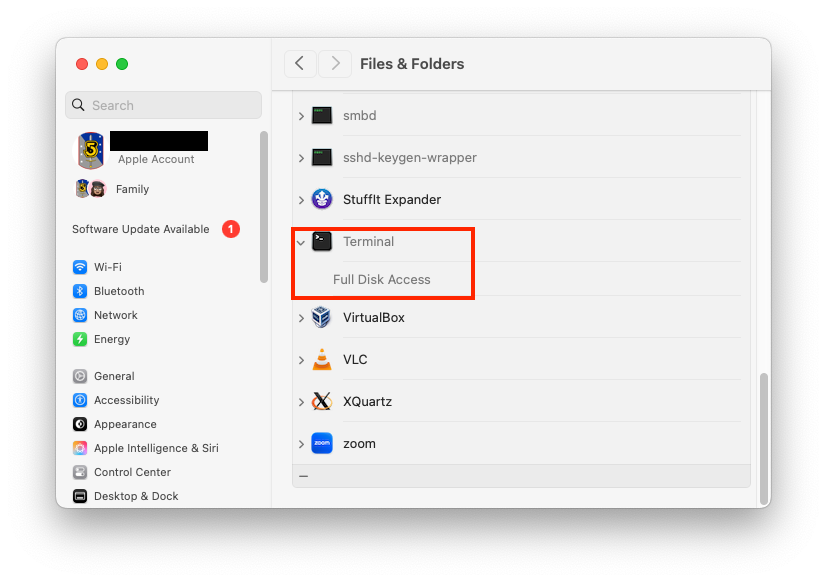
And note that scripts you run from Terminal run with Terminal’s permissions. So you may need to grant it additional access. (I gave my Terminal full-disc access a long time ago, because I use Terminal for all kinds of system maintenance work.)
If neither of these work, then there could be something else at play, like ACLs. Let us know if the above didn’t work and someone here may be able to help you further.
This looks wrong. I have 47 apps in the Full Disk Access list. Among them Numbers, QuickTime, Shortcuts, Automator and Xprotect. I guess all of them has asked for permission and I have granted it to some of them.
Preview is not a third-party app, but if you’re calling it from some kind of script/automation, then the script needs permission. This is actually a good design - you don’t want a potentially malicious script to be able to access an otherwise-prohibited folder by proxying itself through a trusted app.
Or have I misunderstood the way you are trying to resize images “in bulk”?
Hi,
I am not able to log in at tidbits talk so am replying via the email option there is some sort of an infinite loop happening at the site trying to log in.
Yes, I should have clarified the more simple version of “bulk”
I simply opened all of the files in preview, selected all in the side bar and opted for resizing in the tools dropdown menu.
Preview cannot “write” i.e. save to a folder in the Documents folder … there really shouldn’t be any permissions issue I would think
Hello again … um did I irritate someone and get booted?
I have been a “member” ever since Ric Ford discontinued the forum style at Macintouch
You have followed up on any number of my queries
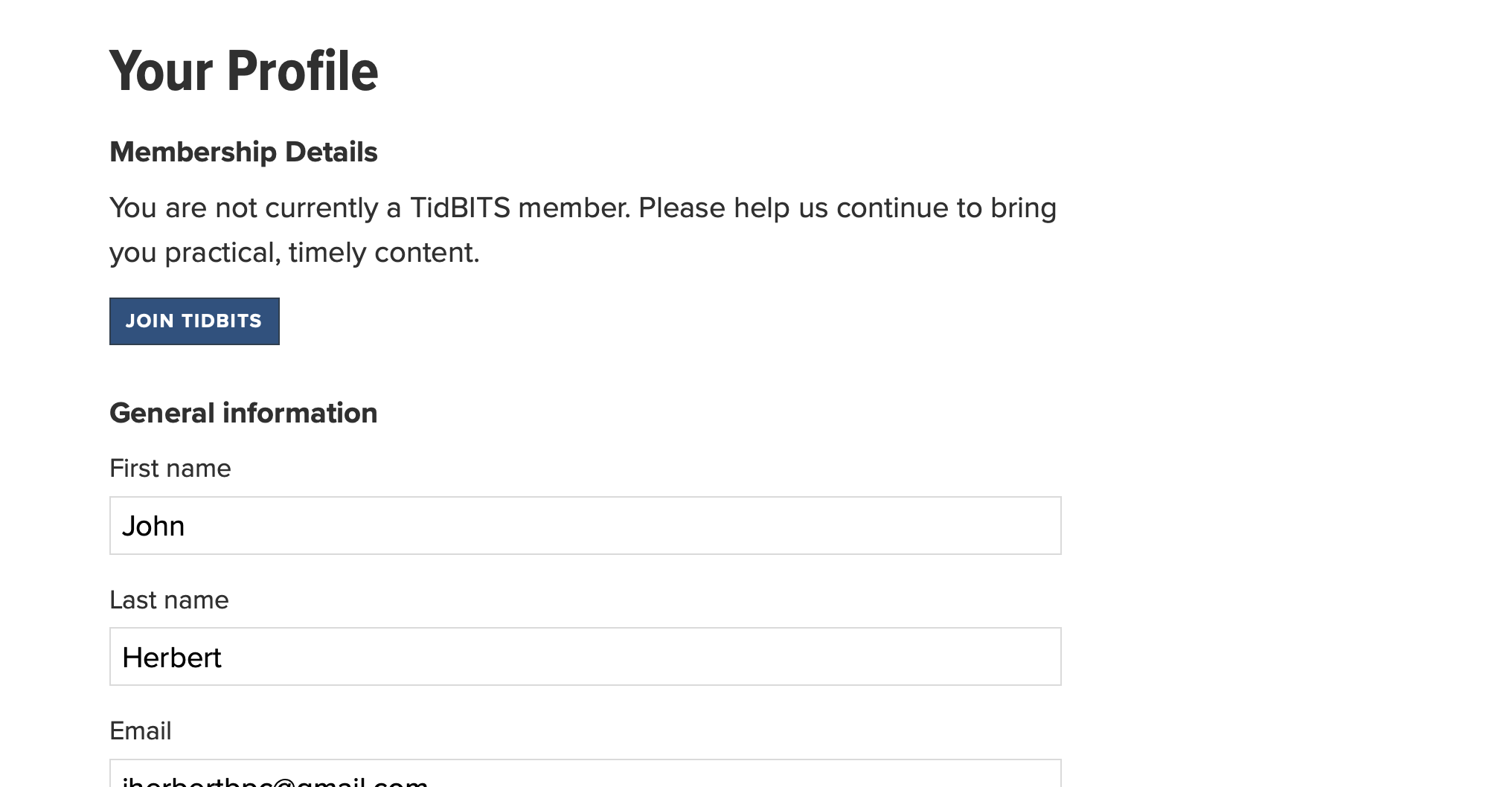
hmmm trying to log in results in the message “You are not currently a TidBITS member.”
(@jmhbpc Lack of response at TidBITS might have been the Cloudflare issue, see @ace ‘s article on that ).
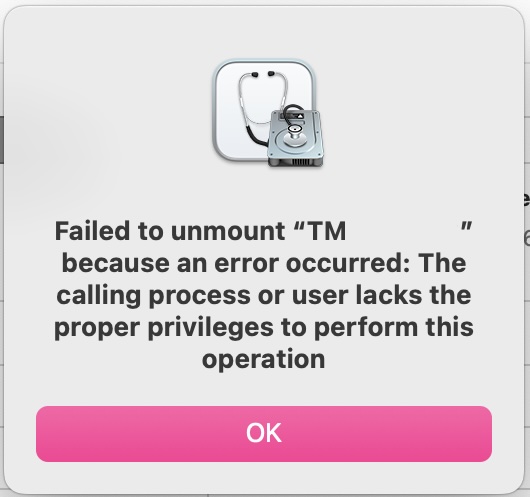
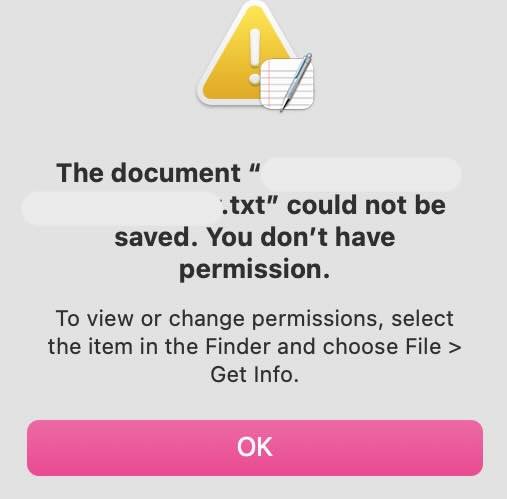
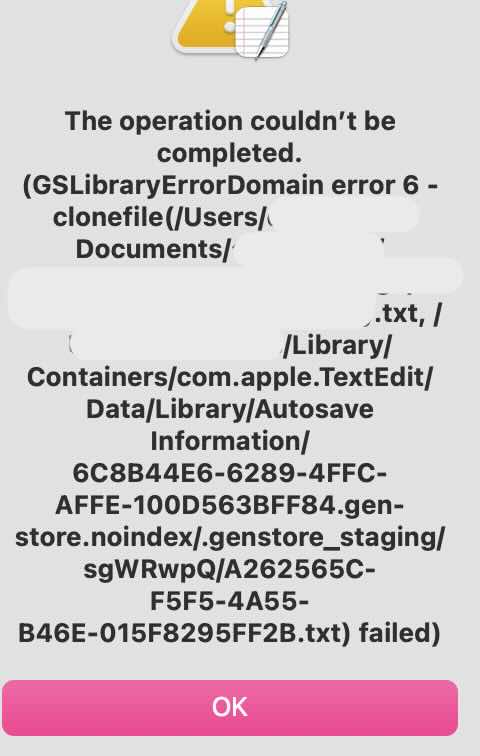
I’ve seen similar ‘permission’ oddities on Sequoia (only changed to 26.1 the other day, haven’t tried same actions in Tahoe):
trying to save an edited (and previously several times saved) TextEdit file
trying to eject a volume using Disk Utility
Errors occur sometimes, not all the time with same file or volume, in an Administrator account, where files were created, edited, saved, opened and reopened many times.
Will try to add couple of screen shots later, need to dash now.
The system of per-app permissions is that an app that opens a file with the standard Mac APIs (not sure about those that use the Unix-layer APIs) can write data back to that file, regardless of location. But it can’t create a new file in a location that it has permission to write.
So, if you use Microsoft Word (for example) to open a file in your Documents folder, you can save that file with no problem. But if you create a new document with Word and want to save it to the Documents folder, Word will need permission to access the Documents folder (or full-disk access).
The categories I see (based on my system) are:
Desktop Folder
Documents Folder
Downloads Folder
Other Documents
Removable Volumes
And then there’s the Full Disk Access category, which overrides all of the above. But that should generally only be needed for utilities that legitimately need to access everything. On my system, it has:
Carbon Copy Cloner
smbd (the SMB daemon for remote file system access)
sshd-keygen-wrapper (part of SSH-based remote login)
Terminal (so I can do anything from terminals I open).
My system also has two items in Full Disk Access that I’ve denied access (I think the apps requested the access), and haven’t had an issue so far:
While this is my system (as admin etc) this one I use at work exclusively. So, or And basically no other third party programs installed.
Was trying to resize a large collection of photos for a report via the tools in Preview and was surprised that preview could not write to a documents folder as noted above.
p.s. to digress I notice I am not logged out on this system so I can still post here, my home system is having the other issue mentioned can’t log in hmmm … I don’t think this is restricted to one computer at a time I guess I better not clear the history on this one 8-|
Cloudflare was mentioned, … I wonder if I change the DNS if that might fix the issue … but I digress Again
Nope. I never run as administrator. I have a lot of apps configured to grant access to specific locations, but none of them require write-access to the entire file system.
It’s likely that our systems were confused during yesterday’s Cloudflare outage. However, a few things to point out:
You have a TidBITS account, and the screenshot you included suggests that you can log in.
Once you’re logged in on the TidBITS site, you should be able to click the blue Log In button on the TidBITS Talk site and be logged in immediately—we have single sign on between the sites. You can tell if you’re logged into TidBITS Talk because you’ll see grey (not blue) Reply buttons under every post.
There’s a difference between a TidBITS account and a TidBITS membership. The account is just for access and for subscribing to the email newsletter. The membership is how TidBITS is funding—voluntary contributions from people who see the value in what we do for themselves and the community. Memberships come with a variety of benefits as well.
If that doesn’t clear it up, write to support@tidbits.com and Lauri can get you straightened out.