I just followed your link and discussion. I have never been down to this level in the Weather app but my notifications are OFF. I have never set them. So our experiences are different. Wonder why?
Aha, I think I see why. I don’t let the Weather app know my location. Since I rarely use the app I have Location services set to off.
This is interesting and shows how complicated it can be to set up apps so that they behave in expected ways.
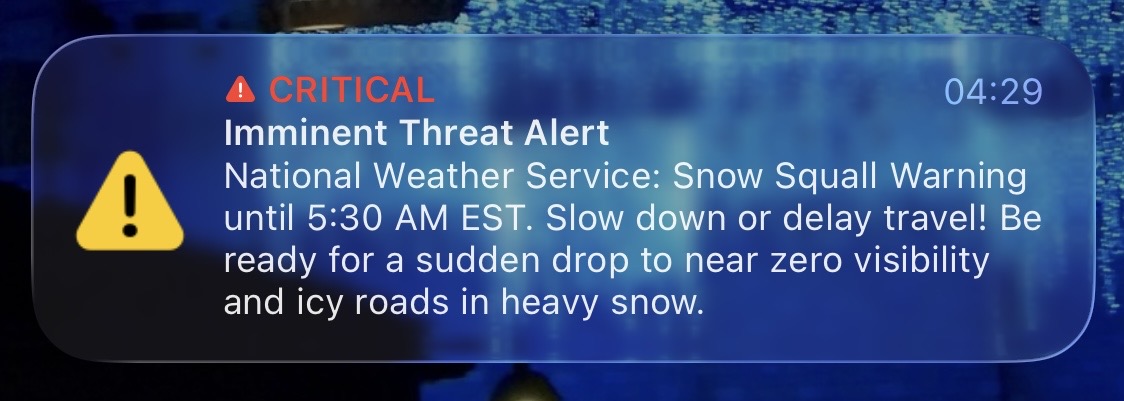
I have to correct myself. I must have remembered wrong from 4:30 this morning. For some inexplicable reason, the alert popped up again on my notification screen (without any sound), and the same timestamp. Don’t ask why (maybe because I enabled and disabled alerts from the Weather app?), but I was able to capture the image to share here:
So it doesn’t say anything about the weather app. Tapping on it doesn’t open any app, but expands it into the full text from the National Weather Service.
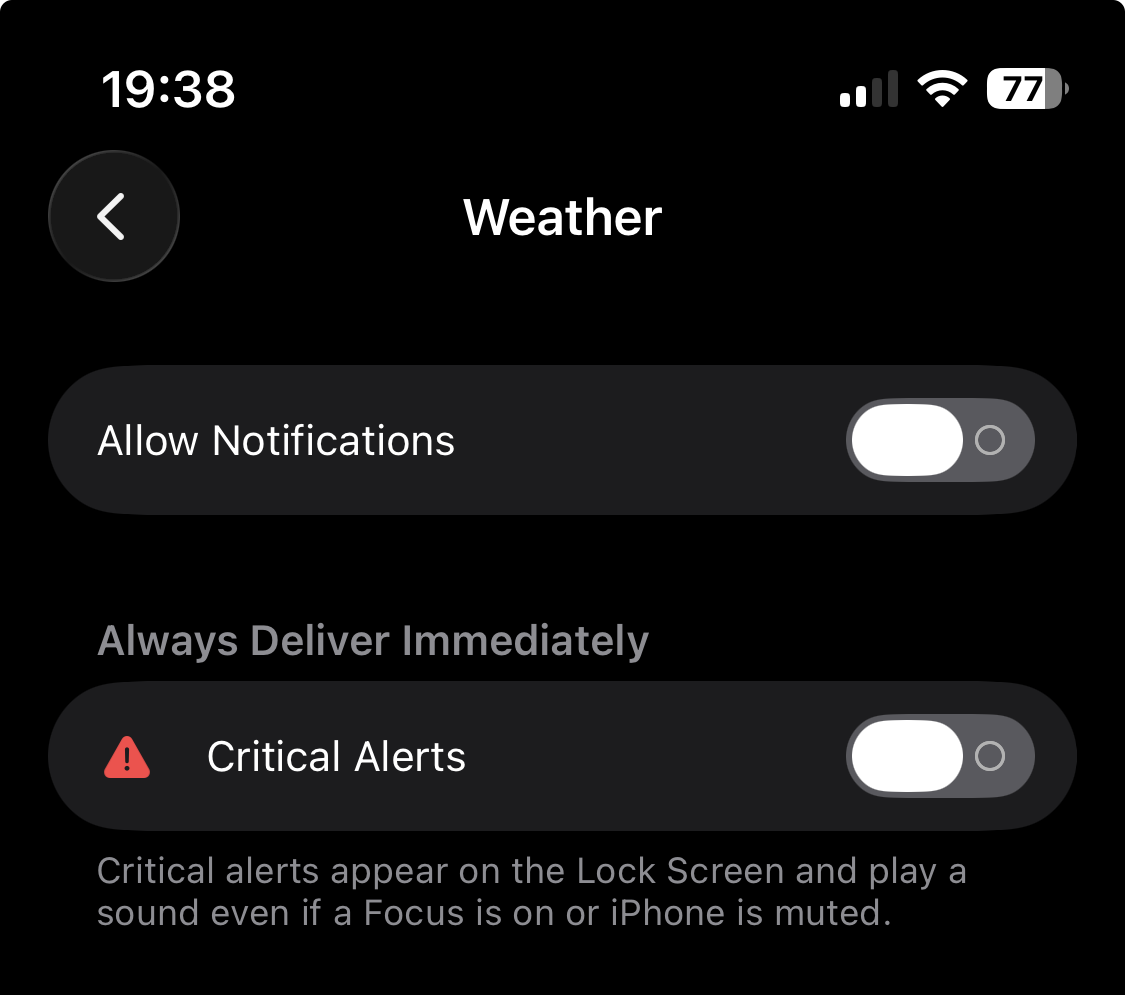
So I really don’t know what created this alert. But I’m still assuming it was from Weather, because the app’s notifications (now that I have made the setting visible) has a setting for “Critical Alerts”:
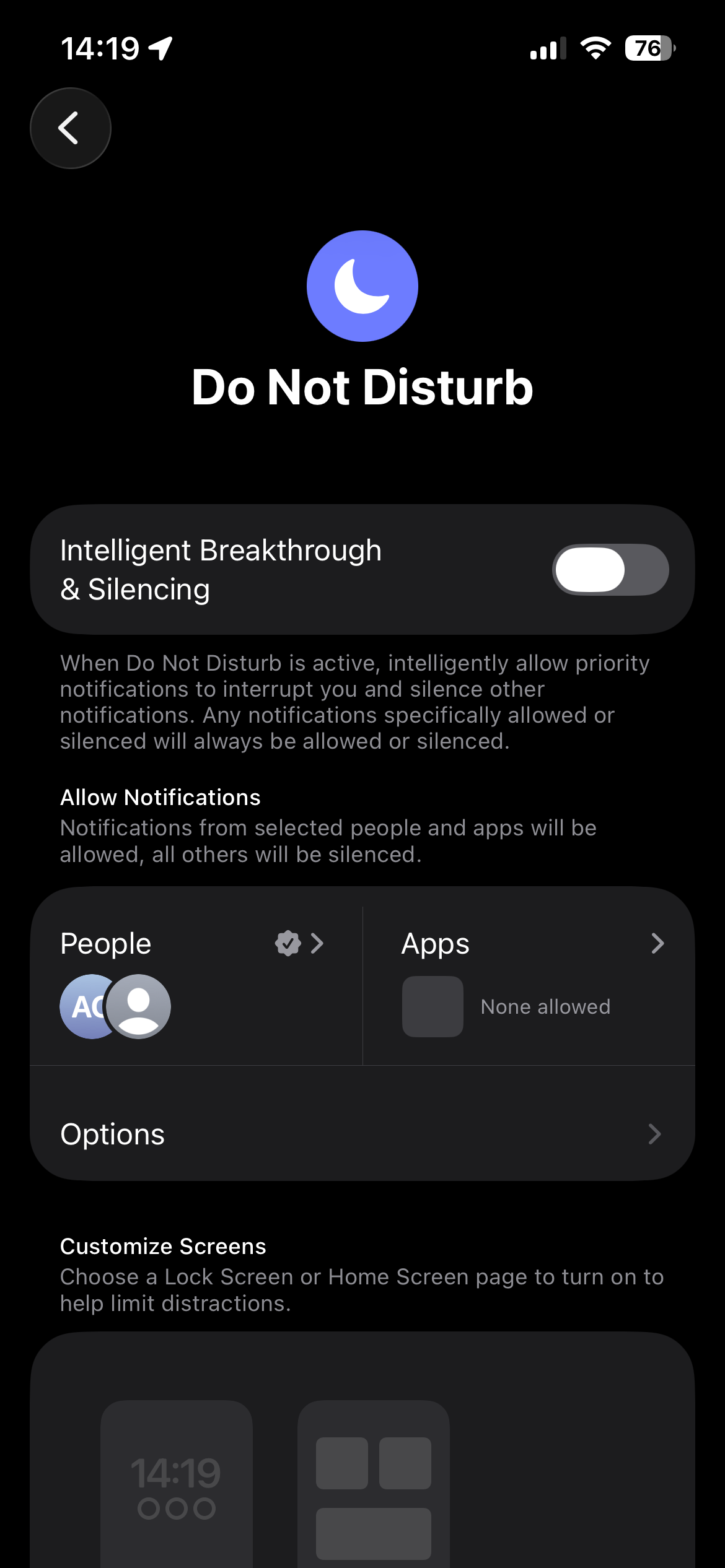
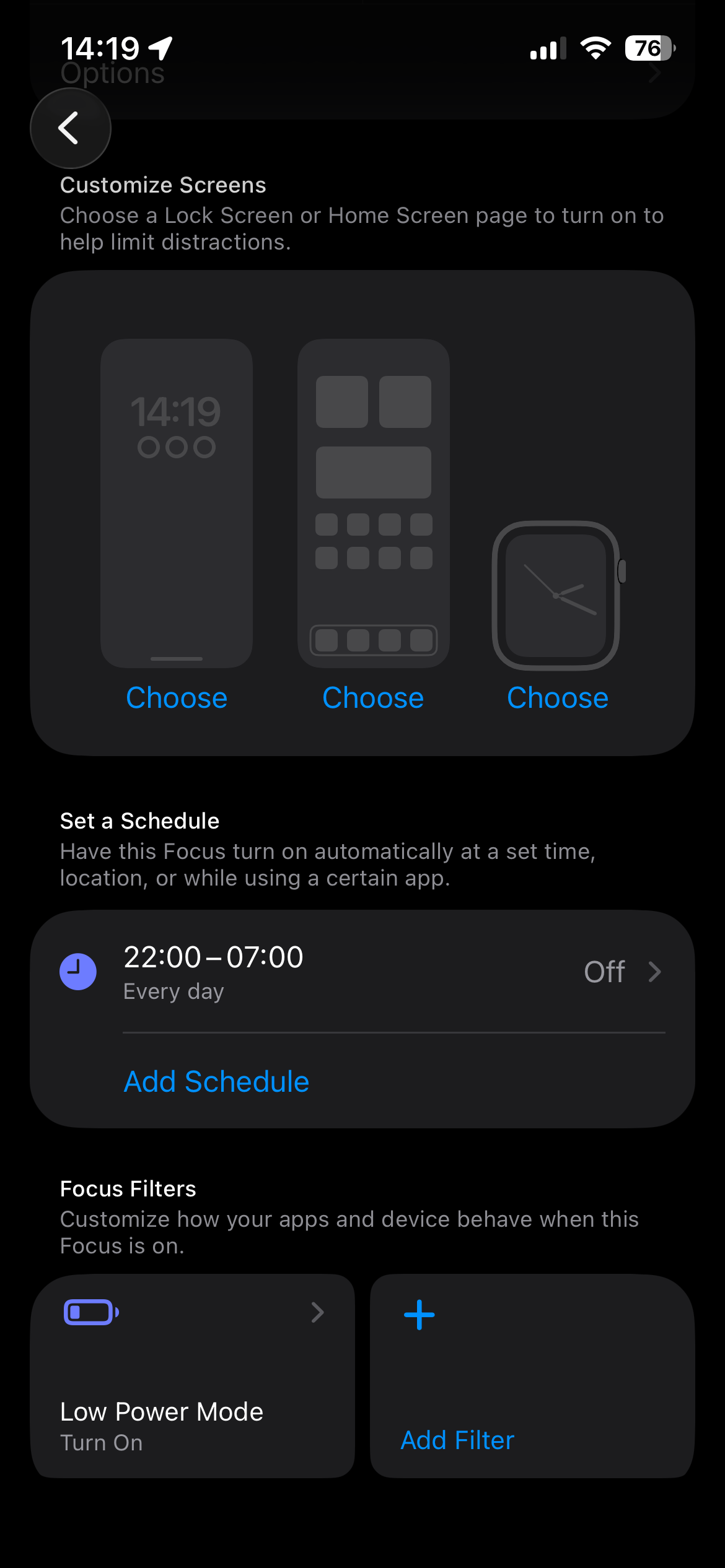
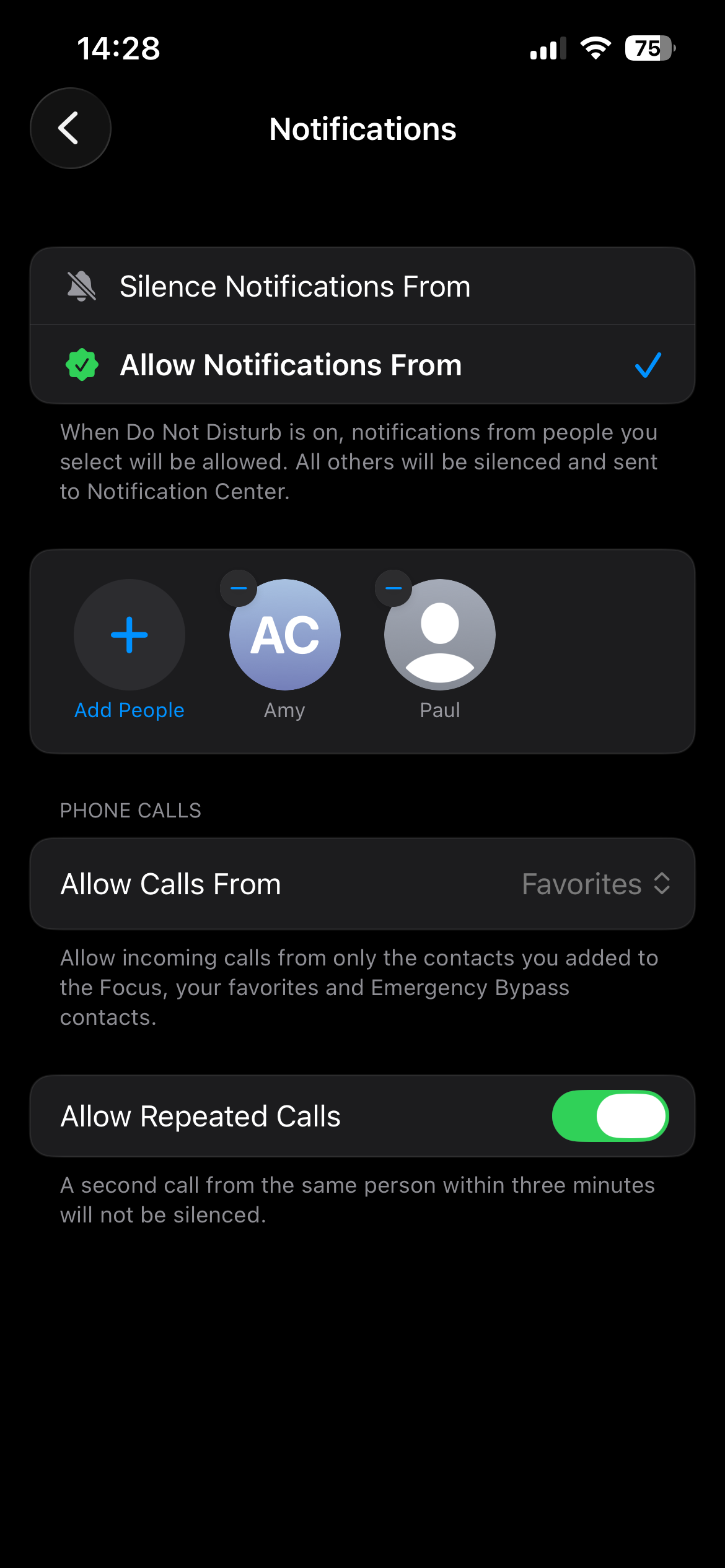
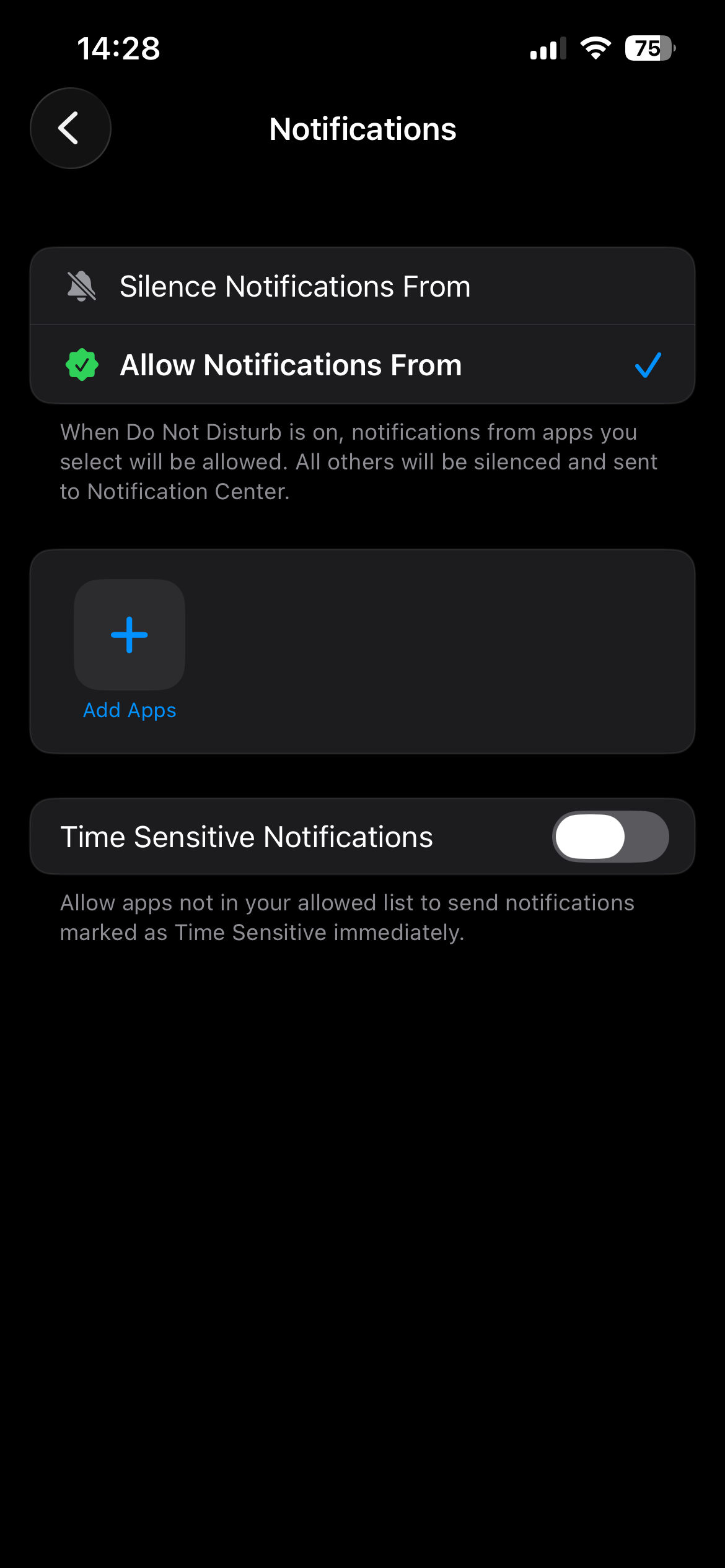
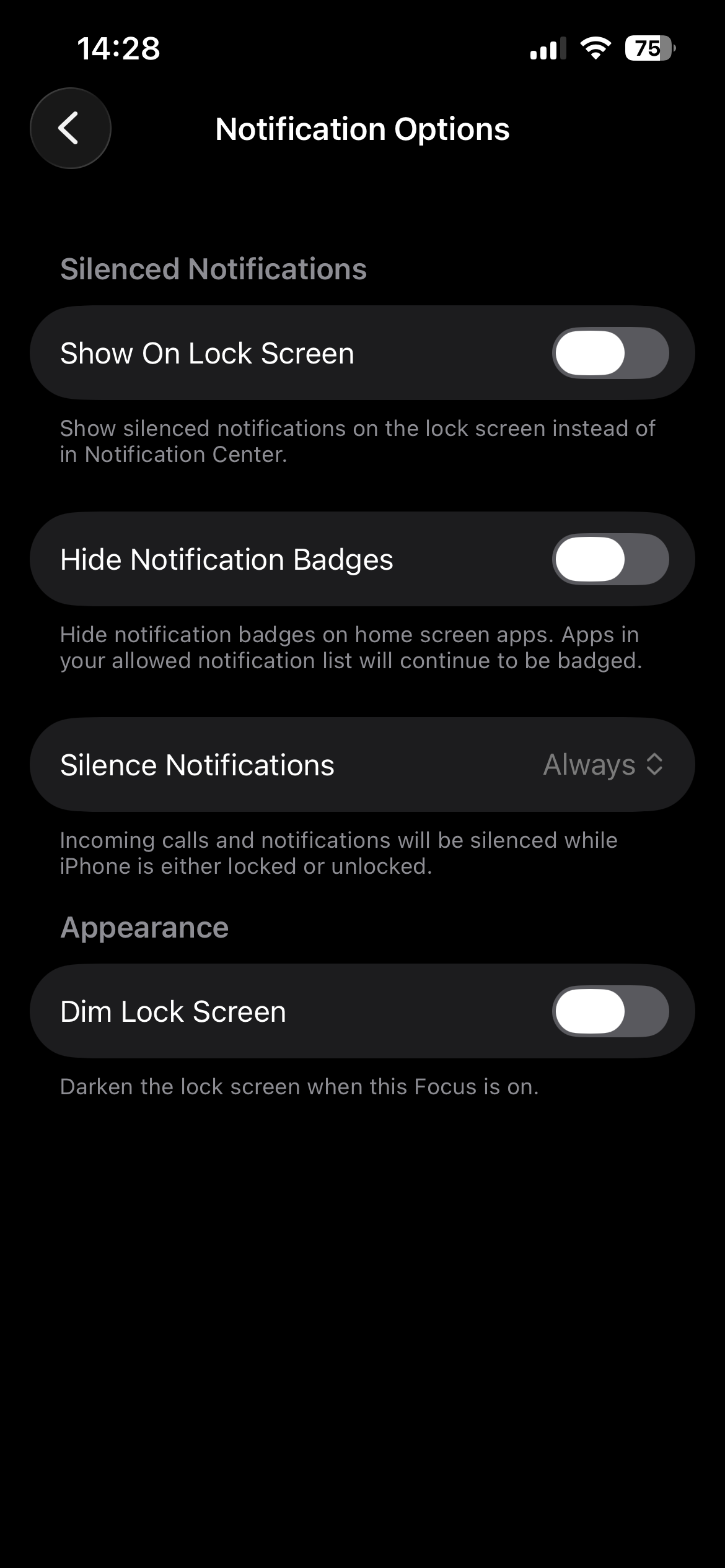
What I’ve set is as follows (with DND Schedule off as shown, I have to remember to set Do Not Disturb manually; I have a one-click Shortcut on my Home Screen to do that):
… and although I do have Notifications set up for the Weather app, I have yet to receive any Notifications from it (or any other app) when the Do Not Disturb Focus is on with these settings.
I’m not sure this addresses Sheri’s original complaint, but it is a rather important discovery I made a year or so ago. If, within the Focus settings main screen, you’ve enabled “Share across Devices”, things can go very awry if you use more than one Apple device to update or tweak Focus settings.
After noticing my settings getting messed up multiple times, I have since imposed a firm rule for my use of the Focus feature. Namely, I only make Focus configuration changes from my iPhone; I never do so using my iPad or Mac. Since following this rule, all my devices have properly honored my Focus settings.
And while Apple may have subsequently fixed the bugs in this, I haven’t been willing to risk finding out.
While I have the Focus set up to “Share across Devices”, I did the set up only on the iPhone & only make changes to Focus on the phone. Neither my Mac or iPad make “noise” for calls, texts, or emails @ any time of day; only my iPhone is set for audible notifications (texts & phone). Set it up that way years ago, don’t even remember why. Possibly as the phone is almost always nearby, didn’t need the additional noise from multiple devices.
Thanks for pointing this out, it might help others. Focus is a good feature but lots of small steps to set up, easy to set up incorrectly.
I think Sheri solved her problem, but my method may help someone: I put my phone in silent mode (manually) every night, and I have turned off all emergency alerts. My emergency contacts can reach me but I have never heard any other notification (unless I forgot to set silent mode). I also have a do not disturb mode at night, but it ends at 8:00 am and silent mode stays on until I get up and turn it off. (I should note that in silent mode, I can hear haptic vibrations, but they generally don’t wake me.)
Unfortunately, I don’t know if my problem has been solved. I haven’t made any changes to my settings as I already had everything suggested in place. Was hoping I had missed something but so far it appears I hadn’t. If I get another break-through during my Focus (do not disturb) time, I’ll ask again. Over the last couple months, I have been awakened by texts during my night time Focus setting. One was a text from Apple, the second one was the weather alert a couple days ago.
All the emergency alerts are turned off. If you put your phone in silent mode, how do your emergency contacts reach you? That was my intention w/my Focus setting; only my 2 emergency contacts could get thru, but it appears that Focus is far from fool proof.
You can select people in contacts to ring through even if silent mode is set by turning on “emergency bypass” in the ringtone and/or text tone for that contact:
Open the Contacts app and select the contact you want to set as an exception.
Tap Edit in the top right corner of the screen.
Scroll down and tap on Ringtone or Text Tone, depending on what you want to allow through silent mode.
Toggle the Emergency Bypass switch to on. This will allow calls and messages from this contact to sound even when your iPhone is in silent mode. Tap Done to save your changes.
Once you set emergency bypass for the contact, they can get through.