Adam, I wanted to ask a question via TidBITS Talk, but I’m an old-fashioned sort of person who (has to) run under Sierra.
Both Chrome and FireFox say I’m too ancient to do that:
So I’m having to send this to you, because you’ve always answered me in the past.
I’m using iOS 26.5.
An annoyance with my iPad is to do with Mail (which I don’t use on the iPhone).
I receive many spams which I dutifully press and hold to select ‘Block Contact’ (in its distinct red lettering).
And Settings/Apps/Mail/Threading/Blocked Sender Options/Move to Bin is set, yet I receive emails that have the red blocked icon visible and none are ever removed from the Inbox.
Either I’ve omitted something that should be obvious or this feature doesn’t work.
It’s been like this for the last few iOS revisions.
A Google search brings up the same familiar non-helpful responses and I’ve not seen it mentioned in TidBITS Talk.
Warning: off-topic about older macOS systems below:
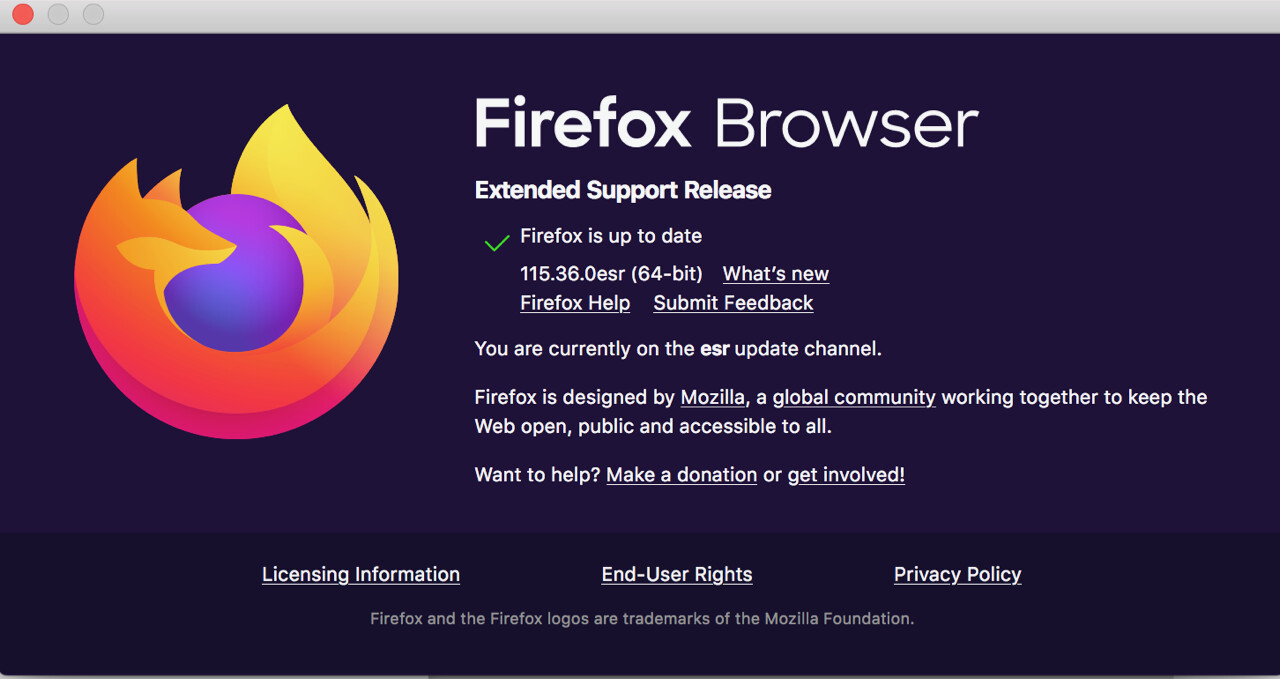
I would strongly suggest NOT using a macOS Sierra system online. If you “have to” then DO NOT use Safari. Use Firefox ESR 115. The “Extended Service Release” version is miraculously still being patched for security issues until at least end of this summer (Mozilla has extended this version WAY past their usual schedule).
I would also install the uBlock Origin add-on by Raymond Hill. It blocks a lot of media types (ie. ads) and some known malware. You can also use it to block JavaScript and other things.
I would also run SilentKnight by Howard Oakley. This tool checks if you are missing any Apple software updates or background security patches. It always surprises me how often older Macs are missing the most current XProtect malware entries because Apple’s automated process failed to do its job. All SL does is provide a graphical utility for the existing Apple command line tools to check and update important system components.
NOTE about SilentKnight… if your Mac is NOT running the last version of macOS supported by that computer (ie. macOS 12 Monterey on 2015 MacBook Air), this tool might trigger a macOS upgrade. It believe this only happens on macOS 10.15 Catalina and later. Message me if you have questions.
Just want to add that any iPhone that can run iOS 26.5 and any iPad that can run iPadOS 26.5 will have a version of Safari that works with TidBITS Talk and TidBITS.
There are also third-party browsers that can be downloaded from the App Store, including DuckDuckGo and Firefox. Any of these should work with TidBITS sites as long as you keep them up-to-date.
Either or both you might already have tested this but as I recall, changes to macOS, iOS, and iPadOS Mail rules, filters, and settings usually are applied only to email received after a change is made. So for the problem we’re discussing here, marking a sender as Blocked will only automatically Trash emails that come in after the Block status is established. The email that was used to set the Block, however, has to be manually moved to the Trash.
Original poster:
I’ve been a bad boy conflating two issues and confusing readers.
Issue 1 - I can’t deal with TidBITS directly on my Mac running Sierra via the TidBITS web page. I’m aware that I can do it on my iPad. But I can read TidBITS and Talks via the received weekly emails on the same Mac under Sierra. It’s just that I can’t dial in from my browsers directly, either Chrome or Firefox. I understand this is an issue with Sierra, but can live with it in comfort.
Issue 2 - …and the main reason I wrote was to say that Mail on my iPad doesn’t move blocked senders to the Bin which it’s set to do via Settings. Every morning I get dozens of red-marked emails and a few personal ones.
As it happens, my OS 9.2 Mac checks my emails with POPmonitor and dutifully deletes any blocked addresses, leaving just my personal ones, which I then pick up on the Sierra Mac. If another spam filters through, I just right-click it in POPmonitor and block it, so I’ll never see it again.
I use the iPad only to do a heads-up of my emails over breakfast before starting to work on my Macs. After seeing what’s in my Inbox on the iPad, I swipe the Inbox left with two fingers which offers to Select All and then delete them all, knowing that the personal ones are still in my provider’s Inbox and are visible on my OS 9.2 Mac which I subsequently pick up on my Sierra Mac.
I still use Sierra to connect with OS 9.2 because after Sierra, Apple deprecated AFP and I need to share many files between my two Macs. I do serious work under OS9 (FreeHand, Photoshop, Word) and then send them to Sierra with Transmit 1.7 running under OS9 for further actions, like printing or emailing. This allows me to pass files between Macs freely and quickly.
The first issue is immaterial to me, I was just saying.
The second is merely annoying that this issue has persisted for so long.
No big deal, actually.
Given you use POP and you are able to download emails you’ve first viewed on the iPad to the Mac, here is a quick guess: the iPad Mail app is set to keep messages on the email server after the messages are downloaded to the iPad. If so, previously downloaded messages can be re-downloaded when checking for new mail. The iPad would then filter and label these messages according to your local settings.
Yes, I use POP so my emails remain in place after picking them up and I have to delete them myself.
As for “The iPad would then filter and label these messages according to your local settings” I don’t understand.
What filtering and labelling and what settings?
Briefly (there is lots of information online about POP and why IMAP has replaced it if you’re interested in details), POP email servers don’t keep track of anything users do with emails on their machines.
So when you flag emails as Junk, block senders, move emails to folders, or apply filters to emails, the actions all take place on your iPad. These actions are set up and maintained by the Mail app on your iPad. The email server operated by your email service provider is not involved in any of this.
What does this actually mean for your problem? It suggests some possible solutions:
If you can access your email account using a web browser, your email provider might offer filtering or sender-blocking that can be applied before the email server transfers emails to your Mac or iPad.
If you have a recent backup of your emails, switching your email setup from POP to IMAP will give you better control over emails that are viewed and managed on multiple devices.
This would disrupt your current email reading routine but, as mentioned previously, if the iPad Mail app is set to keep emails on the server after downloading them, change the setting to immediately delete emails after downloading.
Thanks for the hint. As you said, after Blocking the email’s sender I must manually move the email to Trash or Junk. My problem is that the next time that send sends an email it still shows up in my Inbox, although with the icon saying the sender is blocked.
Yes, I misspoke when I said POP leaves my emails intact, when it’s supposed to do the opposite.
I read them on my iPad and they’re still there on my Mac to be downloaded.
Curiously, today my iPad shows no emails at all. That’s a surprise. Not even the ones I’ve sent to myself from it.
I haven’t changed any settings and I can pick them up on my Mac.
I don’t mind the iPad showing no emails because I can still send them from it. (Usually screenshots from web pages.)
Emails on my iPad are not important to me and I’d rather use POP then IMAP at this moment.
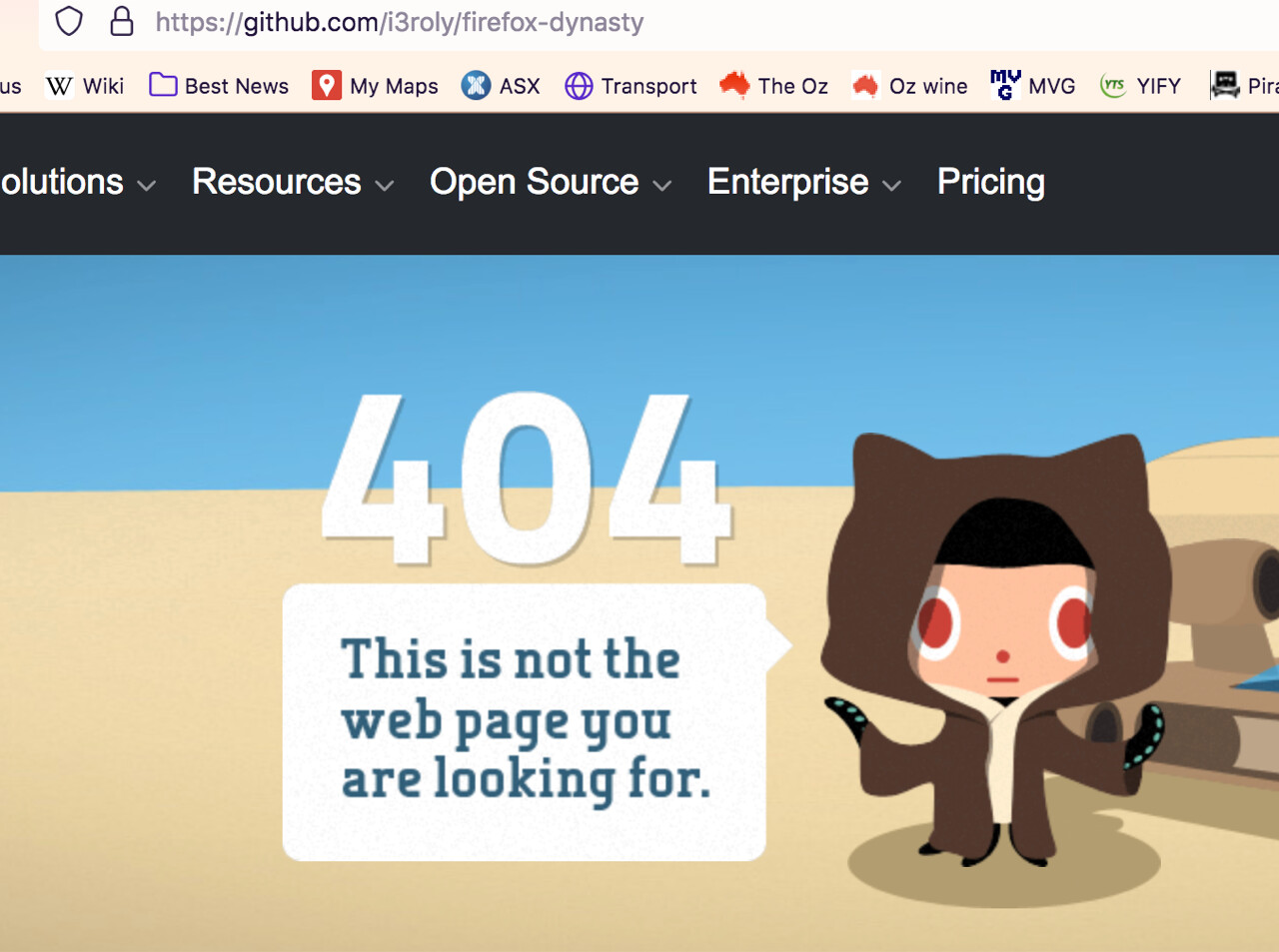
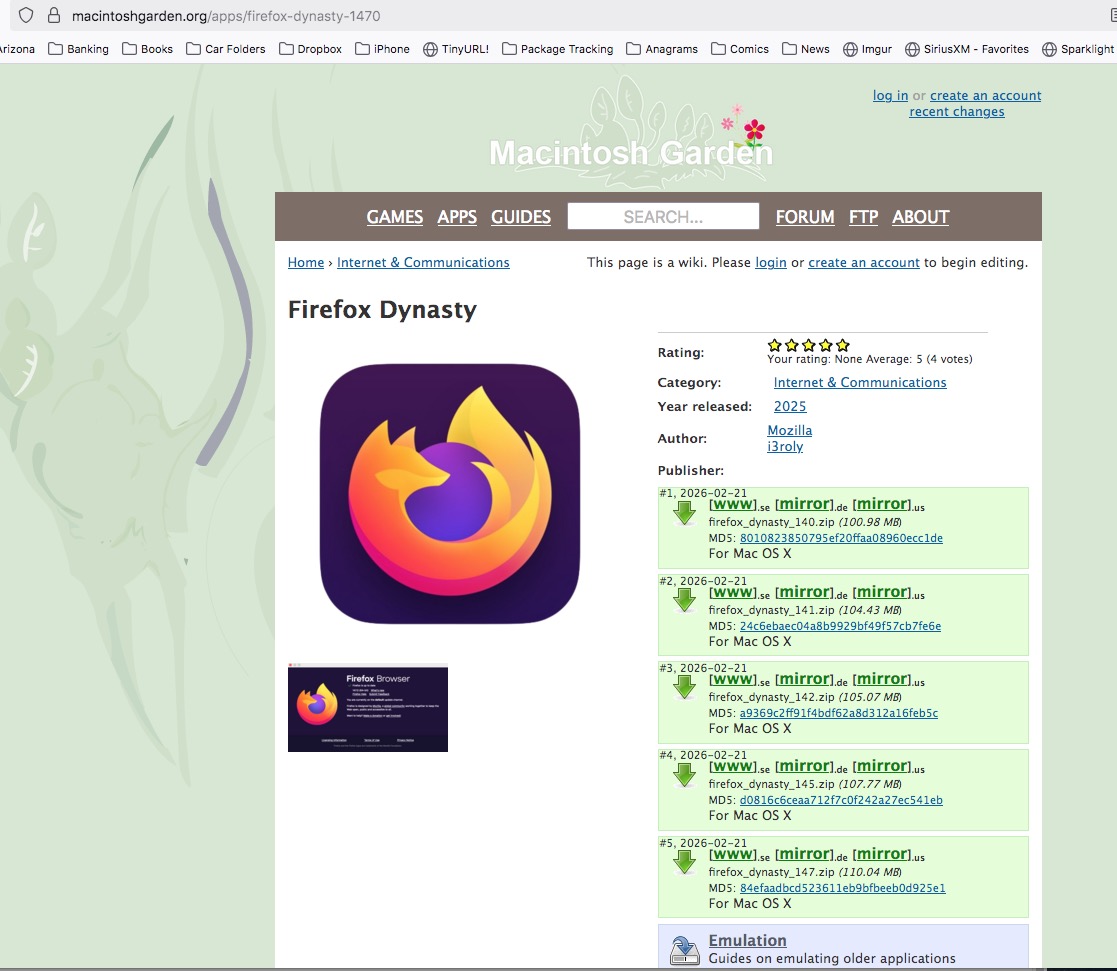
@tpd , @romad , your screenshots show two different urls, not sure if that is a factor. Or is the github page the result of one of the download links in the green column on Macintosh Garden..?
Yep, it was when Firefox ESE 115 broke on TidBITS Talk, that I went to Firefox-Dynasty based, IIRC, on a post here. I could still at least read posts; just wasn’t allowed to post.
The problem is that i3roly got his GitHub account shutdown, taking with it the Firefox Dynasty project.
Another person has been working on taking over that project. Here’s a MacRumors thread about it.
His project is Momiji. It is tracking the latest Firefox ESR releases. I haven’t tried it, but its latest release is 140.10.0esr (released by Mozilla on April 20, 2026), and a beta release of 140.11.0esr (released by Mozilla on May 18, 2026). So there’s a bit of a lag, but it’s probably the best you’re going to do on an older Mac.