How to Keep the User Library Folder Visible in macOS

Originally published at: How to Keep the User Library Folder Visible in macOS - TidBITS

When drafting “Switching from a 27-inch iMac to a 14-inch MacBook Pro: A Fresh Start” (30 June 2025), I wrote:

The two configuration tweaks that required a bit more effort were displaying the Library folder in the Finder’s Go menu so I didn’t have to press Option to see it each time (see “Dealing with Lion’s Hidden Library,” 20 July 2011) and getting proxy icons to appear all the time (see “TipBITS: Always Show Window Proxy Icons,” 26 March 2022).

The command line instructions in my 2011 article about dealing with the hidden Library folder in OS X 10.7 Lion still work well, but as Michael Schmitt reminded me in the comments, Apple came up with a “better” way of revealing the hidden Library folder. That fact was niggling around the edges of my brain, but when I searched the TidBITS archive for “hidden library folder,” I overlooked “Colonel Mustard in the Library with the Shift Key” (7 April 2017).

That second article mainly discussed how a now-fixed bug in macOS 10.12 Sierra caused the Option key shortcut for revealing the Library folder in the Finder’s Go menu to switch to the Shift key if the Finder was ever relaunched. In the discussion, as I like to do, I snuck in information about the “better” way of revealing the Library folder, complete with a snazzy screenshot.

In OS X 10.11 El Capitan, Apple pulled back a bit on pretending that we users weren’t capable enough to work in ~/Library, adding a Show Library Folder checkbox in the View Options window for the home folder. That checkbox appears only when your home folder is displayed in the frontmost Finder window, and if you’re in column view, you might need to select a folder inside the home folder. When that checkbox is selected, ~/Library appears in Finder windows, but Library does not appear in the Go menu unless you hold the Option key down too. In macOS 10.12 Sierra, Apple made it so that checkbox adds Library to the Go menu too, and in 10.12.3, also added a keyboard shortcut — Command-Shift-L.
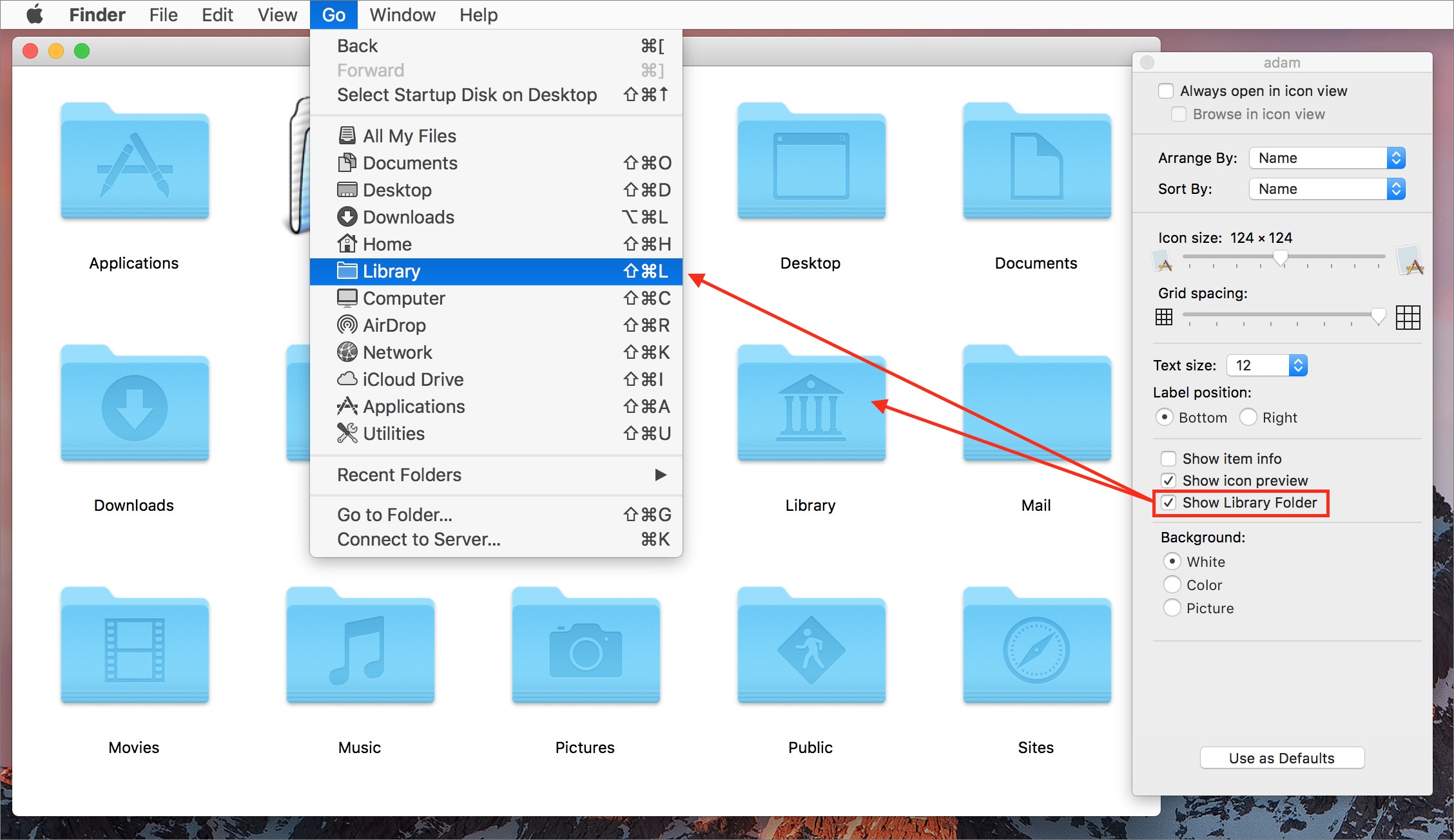
Revealing the user Library folder

I keep using qualifying quotes around “better” because Apple’s solution, while visible in the Finder’s graphical interface, is nothing if not reminiscent of the line from The Hitchhiker’s Guide to the Galaxy about how the demolition plans were “on display in the bottom of a locked filing cabinet stuck in a disused lavatory with a sign on the door saying ‘Beware of the Leopard.’” Before I searched for the answer in the TidBITS archive, I poked around in System Settings and Finder Settings to no avail, never thinking that Apple would have hidden the checkbox in the View Options for a single folder.

To prevent confusion, here’s how you can permanently make the user’s Library folder visible in both Finder windows and the Finder’s Go menu:

  1. Open a Finder window and navigate to your home folder.
  2. Choose View > Show View Options.
  3. Select Show Library Folder.


1 Like

Has there been a TidBITS article on all the ways to hide and show items in the macOS Finder?

For example, Shift-Command-period reveals hidden items in a Finder folder or Open File dialog. It’s a toggle.

Files are primarily hidden if they start with a period, or have the HFS invisible bit turned on:

  • /.hidden was used to hide files in OS X 10.3 and earlier
  • Field starting with a period are hidden, a carryover from Unix
  • Files with the HFS invisible bit on are hidden. On non-HFS volumes (like FAT) this can be set in a ._filename metadata file. Not sure where this bit is on APFS.
  • ls -lO includes the flags in the output. Invisible files say “hidden”
  • GetFileInfo displays HFS attributes. A “V” means invisible, “v” is visible
  • chflags hidden (or nohidden) toggles the invisible bit
  • SetFile -a “V” (or “v”) toggles invisible bit and on non-HFS+ volumes, creates a ._filename file to hold the meta data.

I think that the HFS invisible bit took over for /.hidden for the list of files that are hidden, such as the trash.

The Library folder isn’t a hidden folder per se, it is the Finder hiding it. The proof is whether the folder is visible on an external drive. If the hidden bit was on, then it would be hidden there too.

2 Likes

I’ve covered a few of these, but not everything you mention.

Cool, thanks. The Leopard turns out to be quite tame.

Now, if we can just find a way to stop MacOS removing the Desktop folder from the sidebar - the work arounds I’ve used seem to be only temporary.

Rob

If you want to avoid using Terminal or obscure keyboard shortcuts, TinkerTool makes a number of useful settings easily available.

One annoying feature of Macs is that because they don’t needs Uninstallers, although a few programmers do have them, the Library tends to fill up with a lot of unnecessary files. There is an app that will remove them, but has to be run before deleting the app. Apple should be able to do something better. Searching through the Library isn’t my choice for a way to spend a couple of hours.

1 Like

Many developers do have unistallers for their apps or instructions for doing it manually. Also there are several general uninstaller apps out there. Perplexity provided a list.

I have used Clean My Mac for many years for general maintenance. The uninstaller has worked well for me, as it lists the elements to be uninstalled. I am somewhat concerned when common libraries are listed, as there may be other apps using them. So, if I suspect that I may need to keep something around, I leave it while uninstalling the other elements listed.

Re the Library folder: I’ve added it to the sidebar in Finder – always and easily accessible.

4 Likes

Thanks, I’ll have a look. My main complaint is that it is something that Apple should be looking after.

And then you can use Shift-Cmd-L to open it. (Not to be confused with Option-Command-L to open the Downloads folder, a combo I use about 10 times a day.)