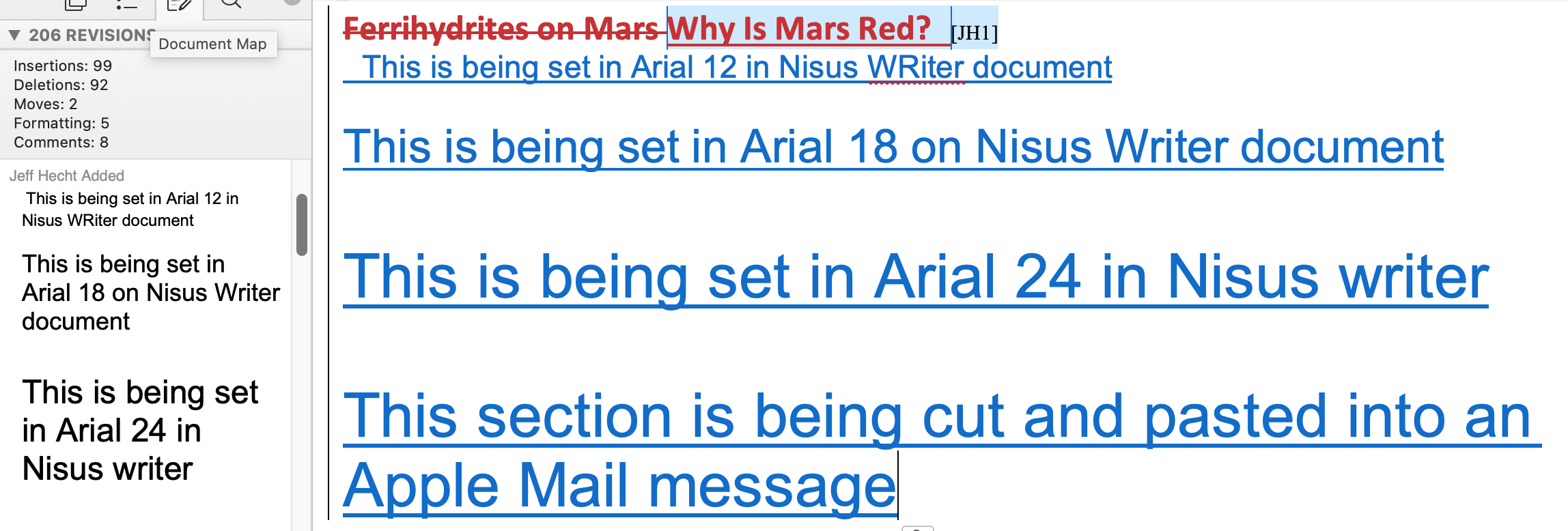
My aging eyes are giving me a headache when I have to try to decipher the tiny type that Microsoft Word shows when I am reviewing articles I have written that were edited with Change Tracking. As best I can tell with a big magnifier, the type is about 4 points on my 27 inch screen. I will be getting new reading glasses shortly, but I do not expect that to be enough to solve the problem.
I see two options: trying to reformat the Change Tracking panel on my 27-inch screen so it shows type in a format I can read, or add a second screen to sit beside this one. The display is a Dell 27-inch which I run at the 1920x1080 default to keep the type larger type legible, but can run with twice twice the resolution (which I can’t read).
Does MS Word have any options that control type side and where do they hide them?
What are options for dual screens? I may be able to fit another identical screen on my desk beside the main one, although may be hard to fit. How would MS distribute the frames? Would the second screen have to use the same resolution? What else should I be thinking of?
Thanks. I tried Accessibility Zoom using the Accessibility on the System Settings and poking around a little did nothing to the Microtype on Word. Am I missing something
Word also has an Accessibility option but does not have a Zoom, and I don’t know what it does. Word does have a Track Changes option, but the only thing I found mentioned the preferred width of Balloons, which did nothing to the size of the type that I could detect.
I am on Sequoia 15.7.1 and Word Version 16.78.3 on a 2019 retail license, none of which I want to change at this point
You have to turn Zoom on in Accessibility, and then you then have to activate it when you need it. It works at the system display level so it’s not specific to an app. I’m not sure you will like it, but since you seem to be saying it didn’t do anything, I suspect you didn’t get far enough to see it work. It’s quite dramatic.
I have a 27 inch screen and older eyes and accessibility zoom is fantastic. Works anywhere, when you zoom in close it’s still clear, and it’s so easy to engage.
Control plus Scroll has been my eye saver for years on both big and small screens. Zooming in to show details in artwork (eclecticlight.co) is a daily use.
Thanks. Now that I have a little time to fiddle with Word and the settings, I could get this to make the tiny type enough larger to read with a bit of work. Your description of the solution is so simple and easy that I had no trouble understanding it. I found a couple of supposed solutions online, but had not been able to understand them.
To confirm my hypothesis that the size of the comment type depends on size type used in the document I tried pasting some text into a the Comment section of a MS Word document and the screenshot below should illustrate. This might be useful sometimes.