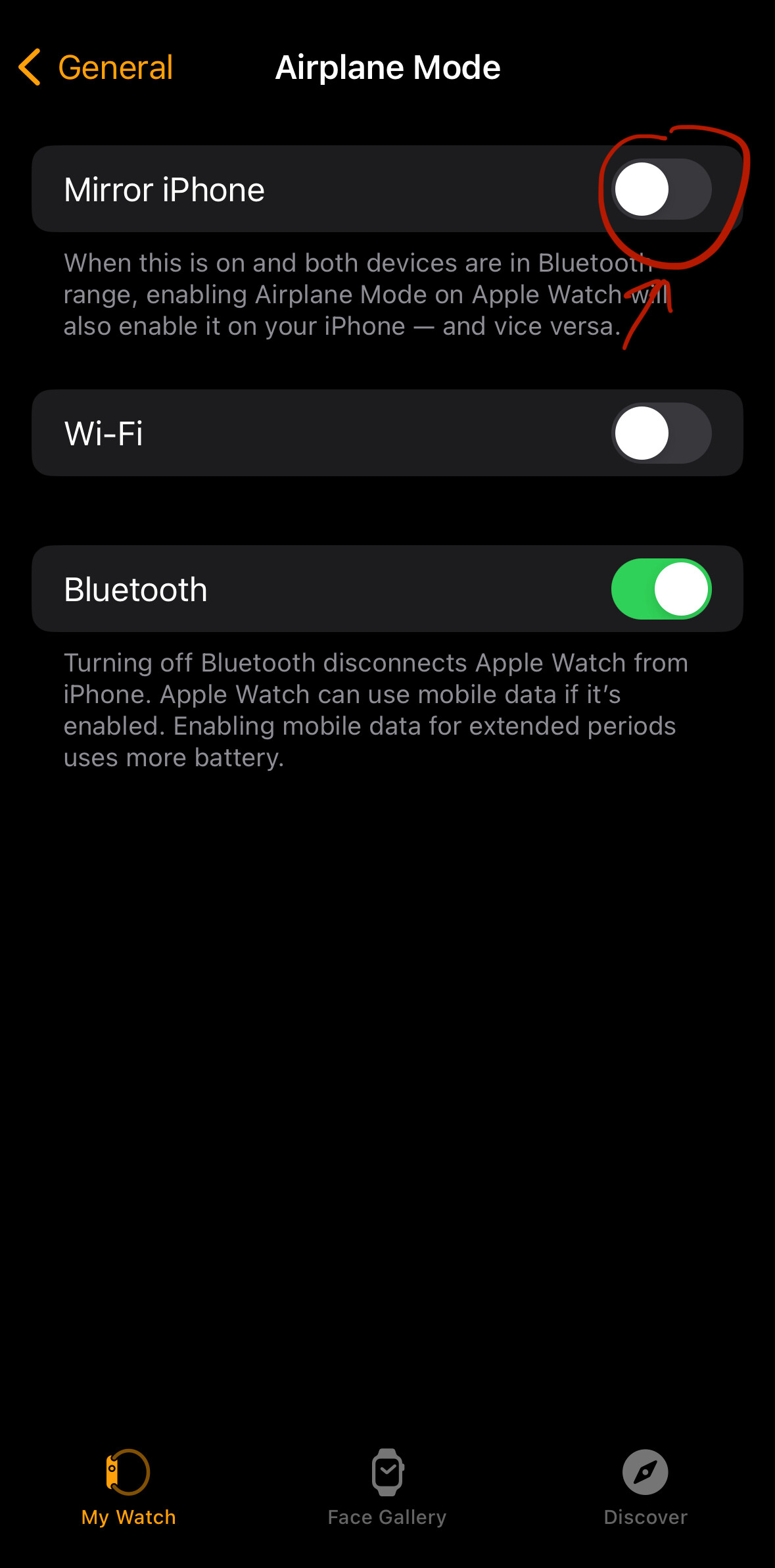
FWIW, you can turn off “mirror iPhone” in watch app / General / Airplane Mode. This means when you really want airplane mode on the watch you’ll need to turn it off manually, but that’s never a problem for me.
2 Likes
To report back, turning off 5G and forcing LTE seems to have made no difference for the last three days.
2 Likes
Would you mind sharing your shortcut with us? I have a need for a similar task
Cheers
2 Likes
My rural area has no and very weak cellular signals so I get the same problem in my iPhone 12 mini. I just use airplane to disable cellular when at home and keep wifi (and its calling) on.
I’ve had this problem since I switched from AT&T to T-Mobile almost 2 years ago. T-Mobile claims 100% coverage across our home area but I get almost no signal in our home and variable signal with 1 mile. For example, right now my iPhone shows SOS for cell signal strength.
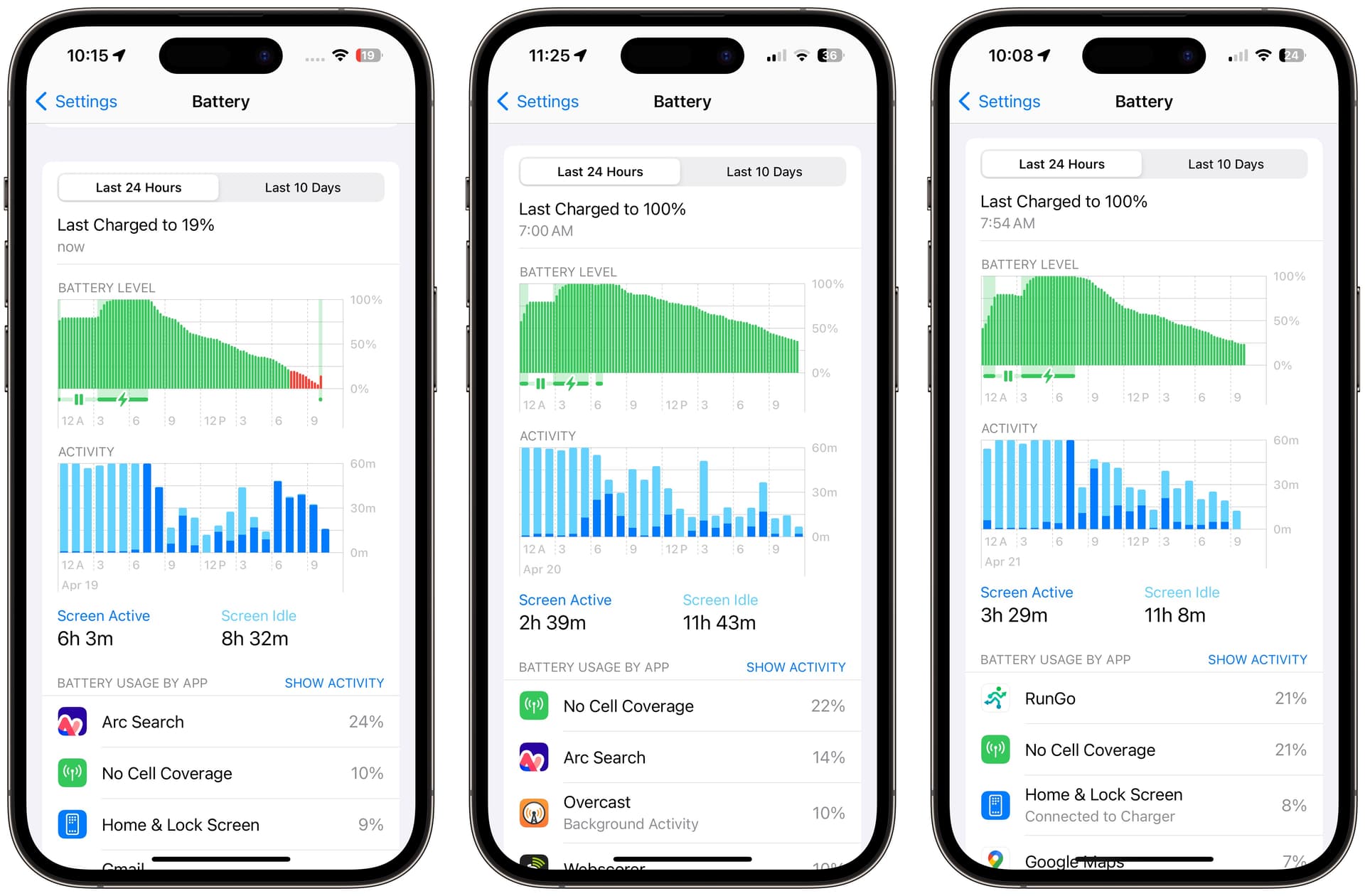
My usage shows that the phone is using battery to try to find cell coverage far more than any other activity. I have formed the habit of switching airplane mode on when I am home and off when not.
The two broad steps of creating the Airplane Mode automation are:
- Create two Shortcuts for turning Airplane Mode on and off
- Create two Automations that toggle the respective Shortcuts when the iPhone joins and leaves the specified Wi-Fi networks, respectively
Specifically, the steps are as follows. First we set up the Shortcuts:
-
Launch the Shortcuts app, and from the Shortcuts tab, tap the “+” button.
-
Tap the “Add Action” button.
-
Search for “Set Airplane Mode”, and tap the button.
-
“Turn Airplane Mode On” appears by default. If you are creating a Shortcut to turn Airplane Mode off, tap the “On” caption and ensure that the indication is “Off”.
-
It is good to rename the Shortcut to tell which Shortcut turns on the Airplane Mode, and which one turns it off.
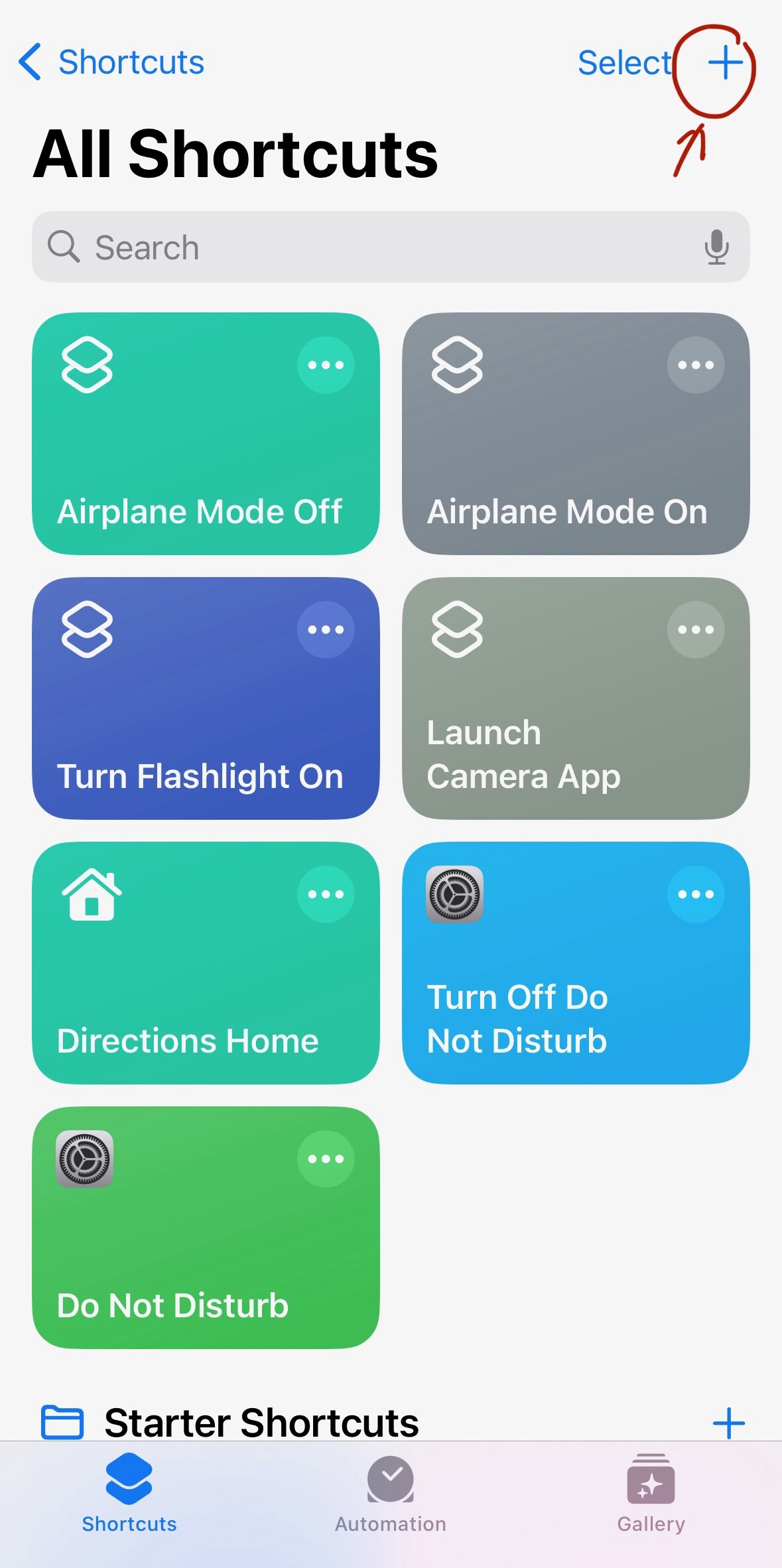
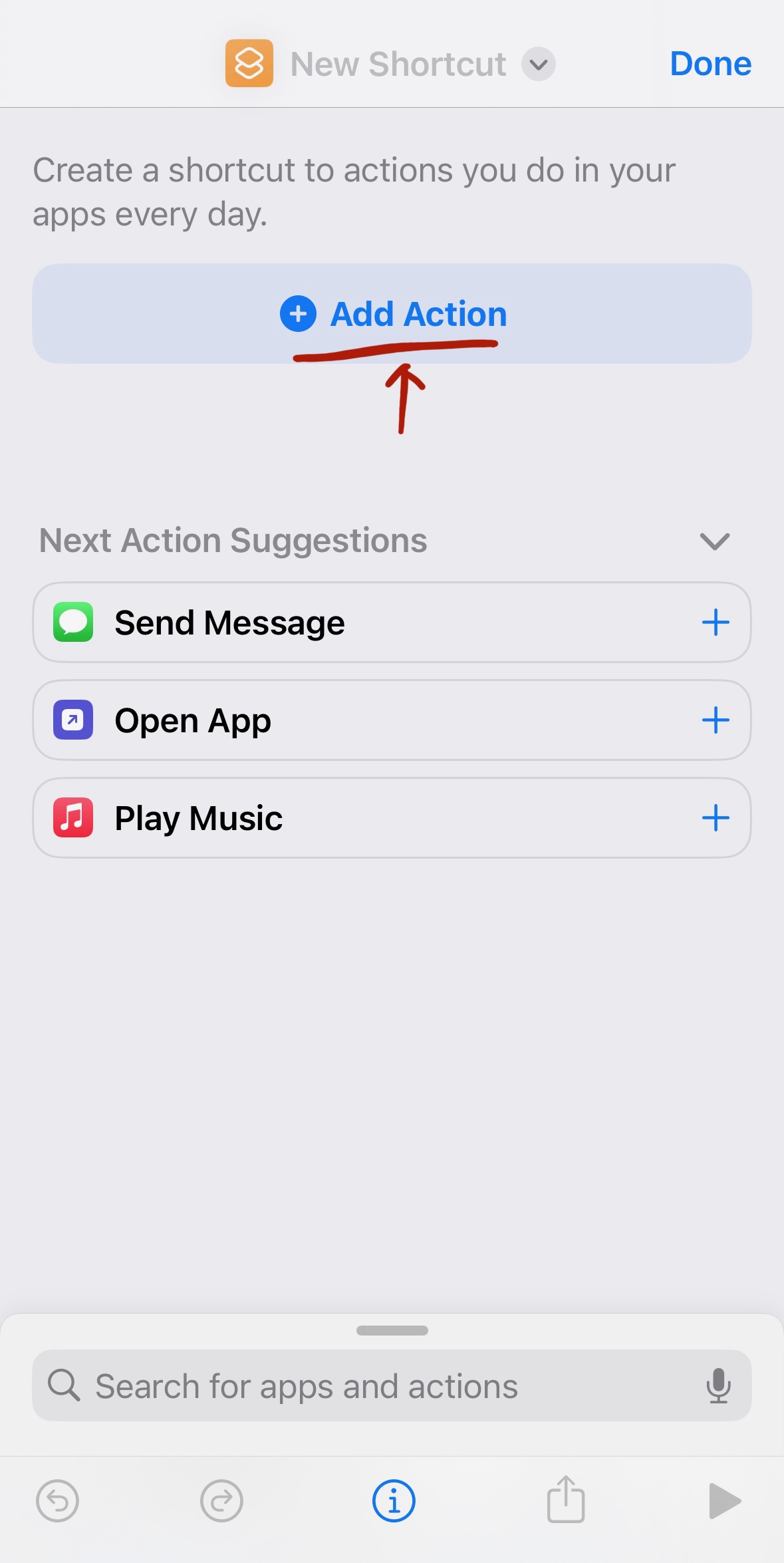
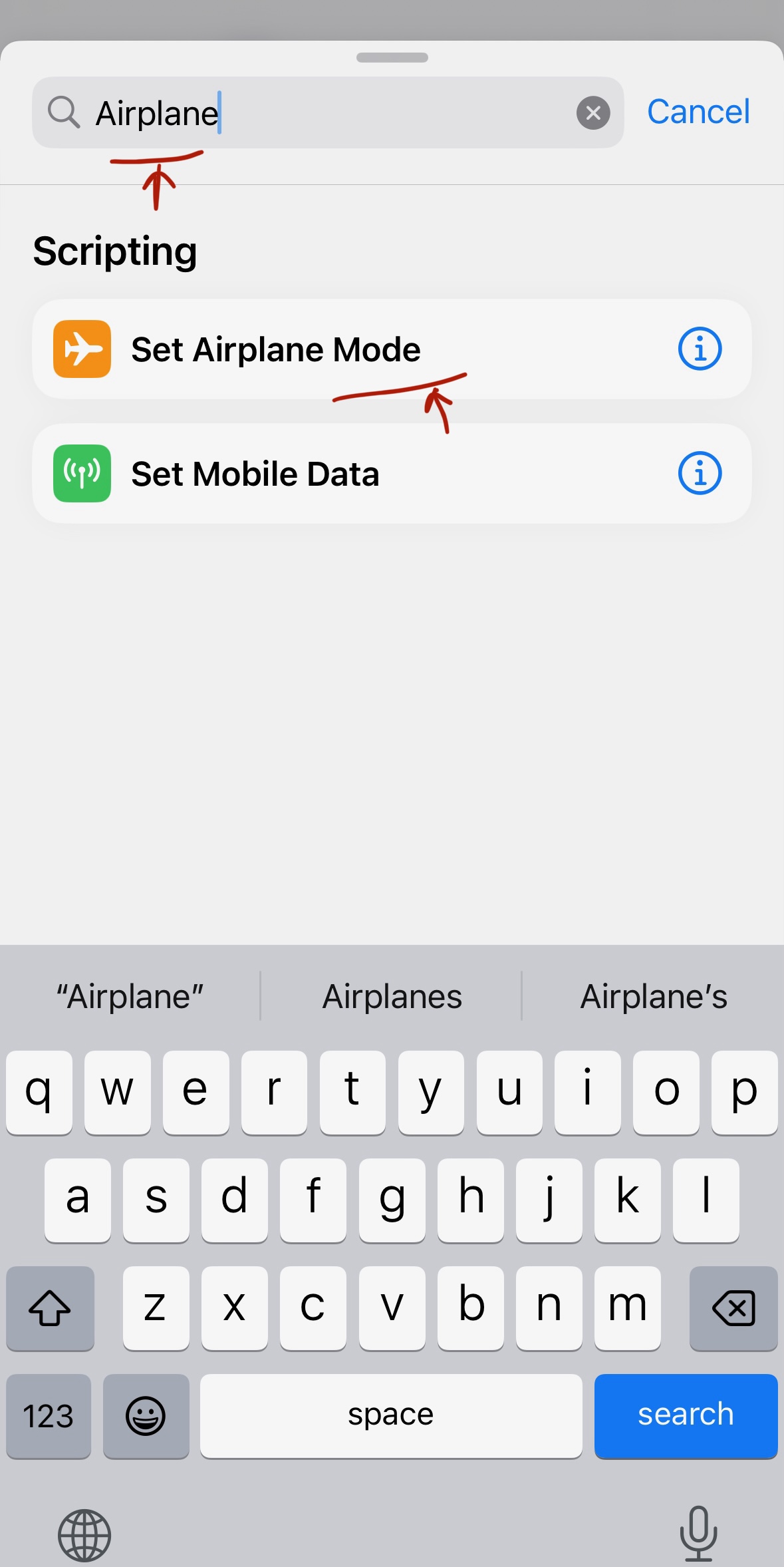
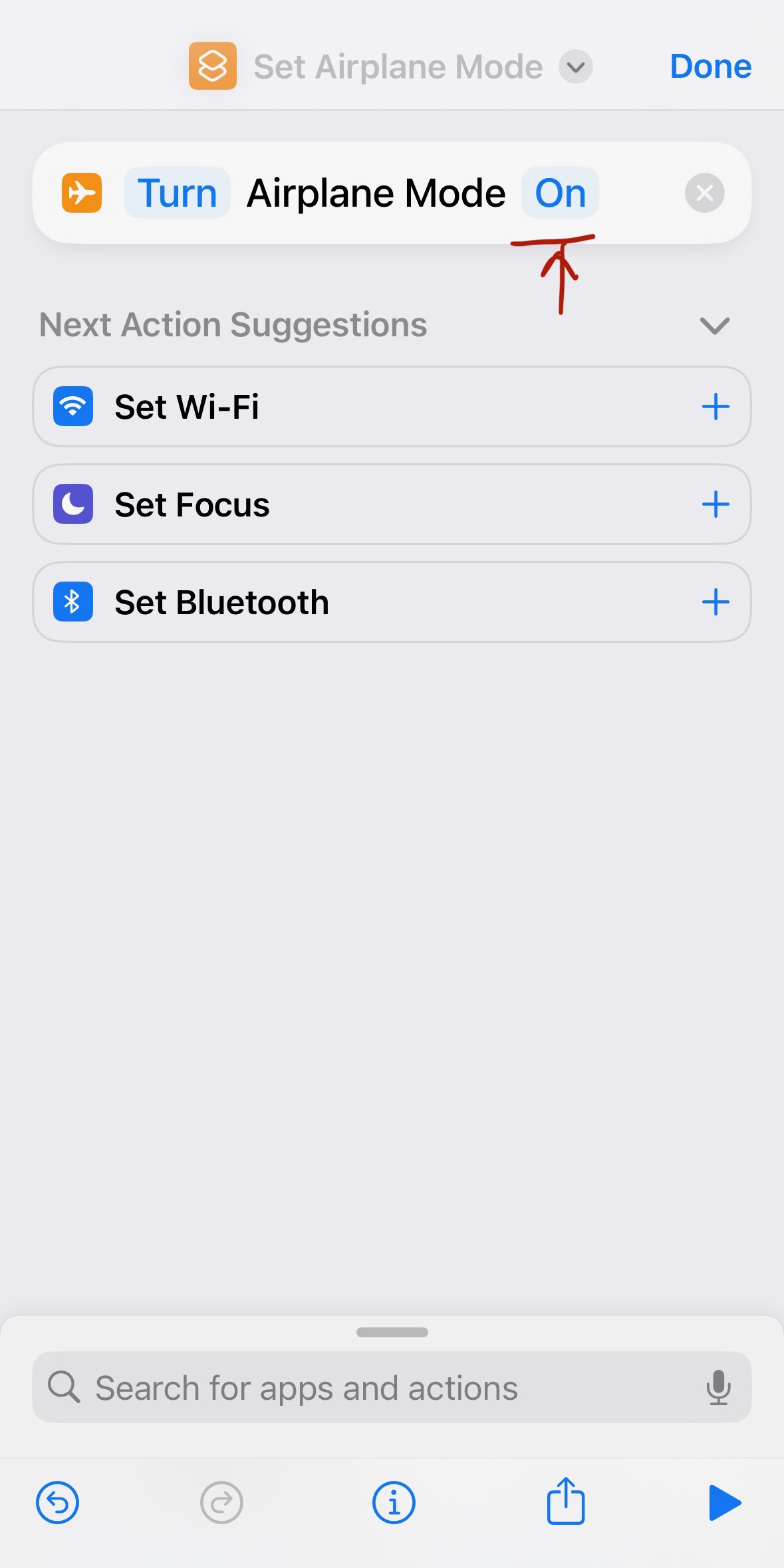
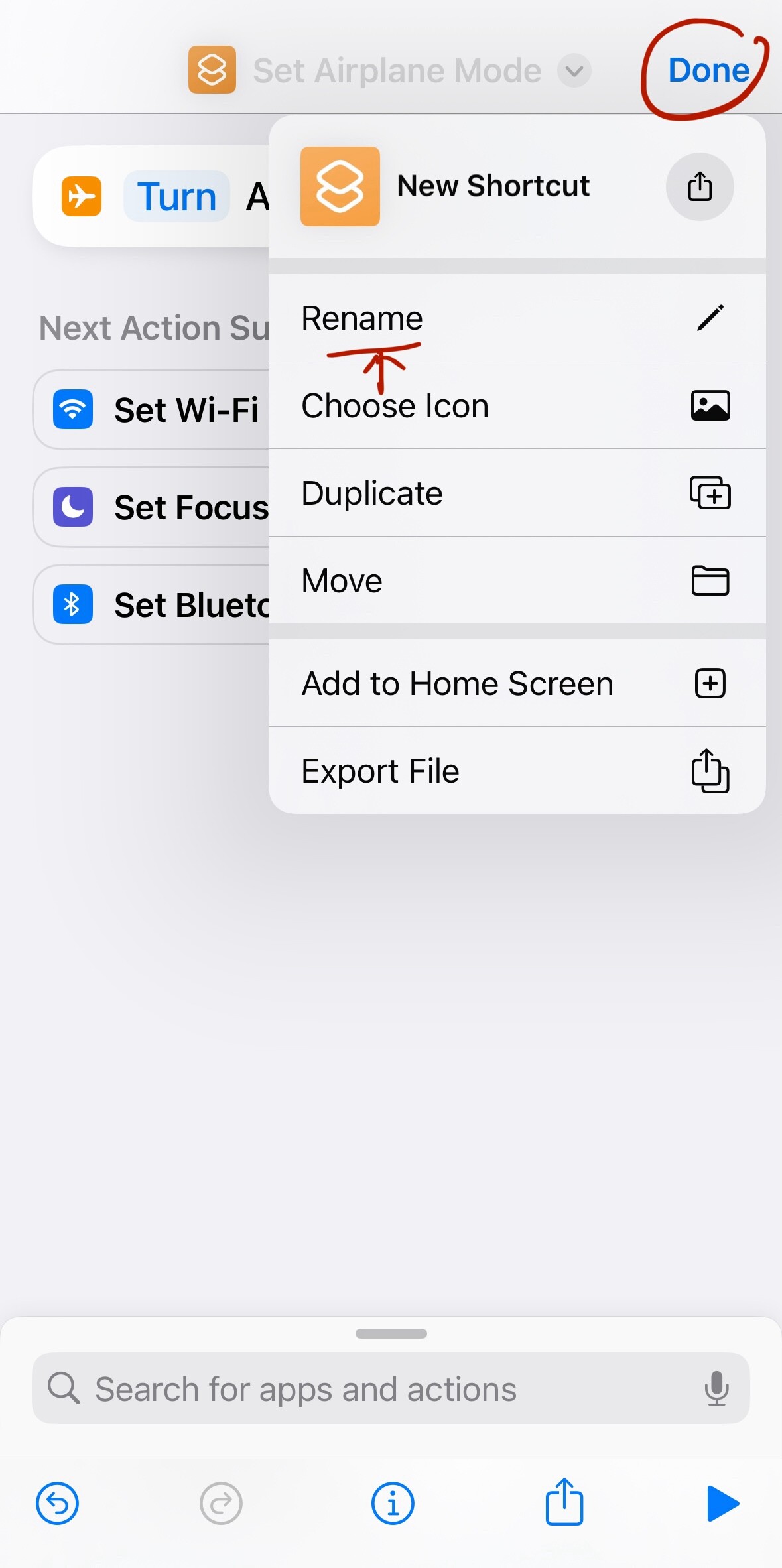
Repeat steps (2) to (5) to set another Shortcut to turn Airplane Mode off.
We have completed setting up the Shortcuts. Now we proceed to create two Automations, one for activating Airplane Mode when the iPhone is connected to selected Wi-Fi networks, and another one for deactivating Airplane Mode when disconnected from the networks.
-
Go to the Automation tab, and tap the “+” button.
-
Search for “Wi-Fi”, and tap the Wi-Fi option.
-
Firstly, select the Wi-Fi networks which you would like to have Airplane Mode activated when connected. Secondly, select Network Joined when you are creating the first Automation to activate Airplane Mode, or select Network Left when creating the second Automation to deactivate Airplane Mode. Lastly, choose whether you would like to have the Automation run immediately or upon confirmation. I let the Automation run immediately as it gets tiring after a while having to manually trigger the Automation.
-
Tap “Next”.
-
Select the Automation that activates Airplane Mode for the first Automation, and the one that deactivates Airplane Mode for the second Automation.
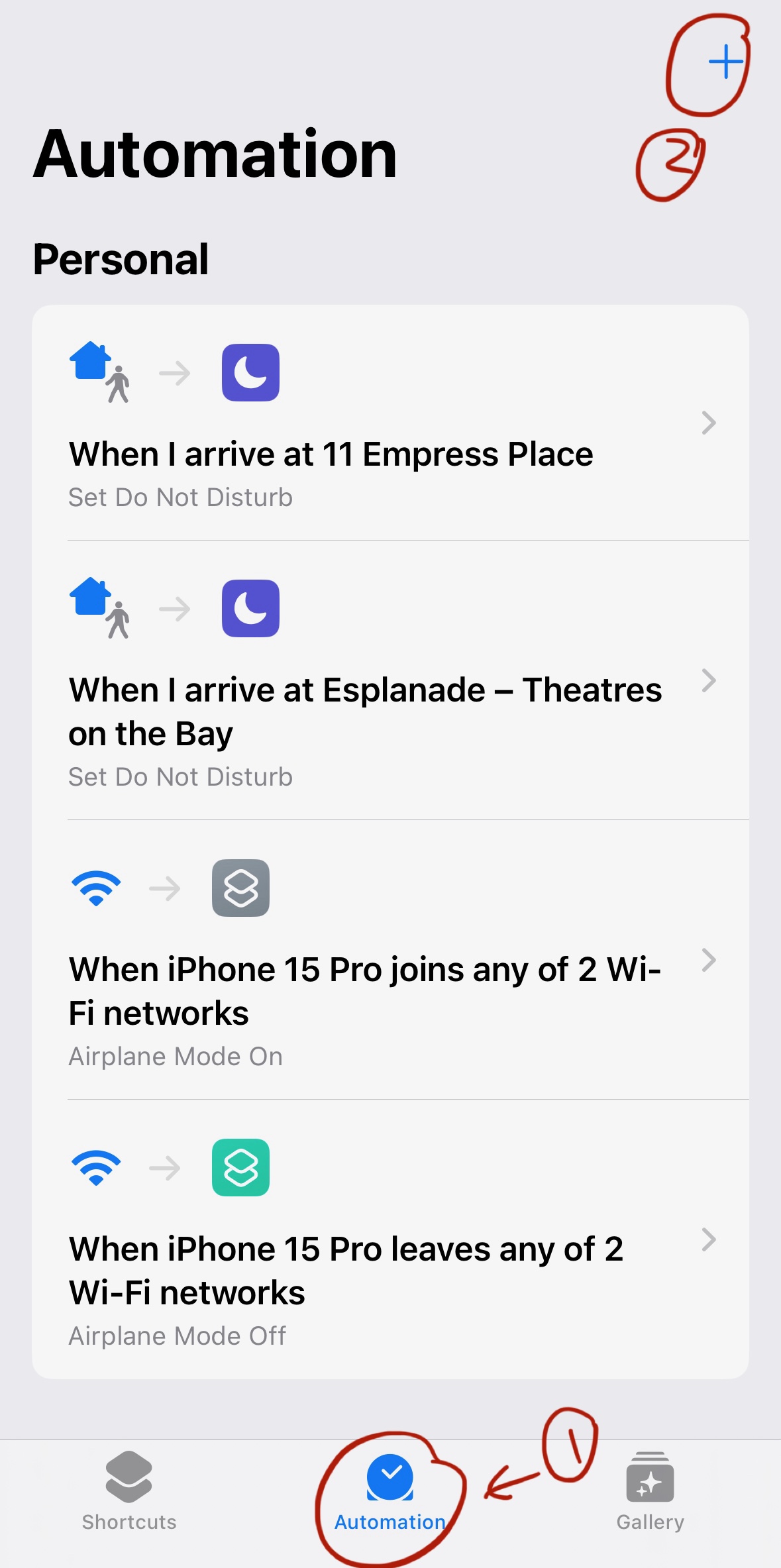
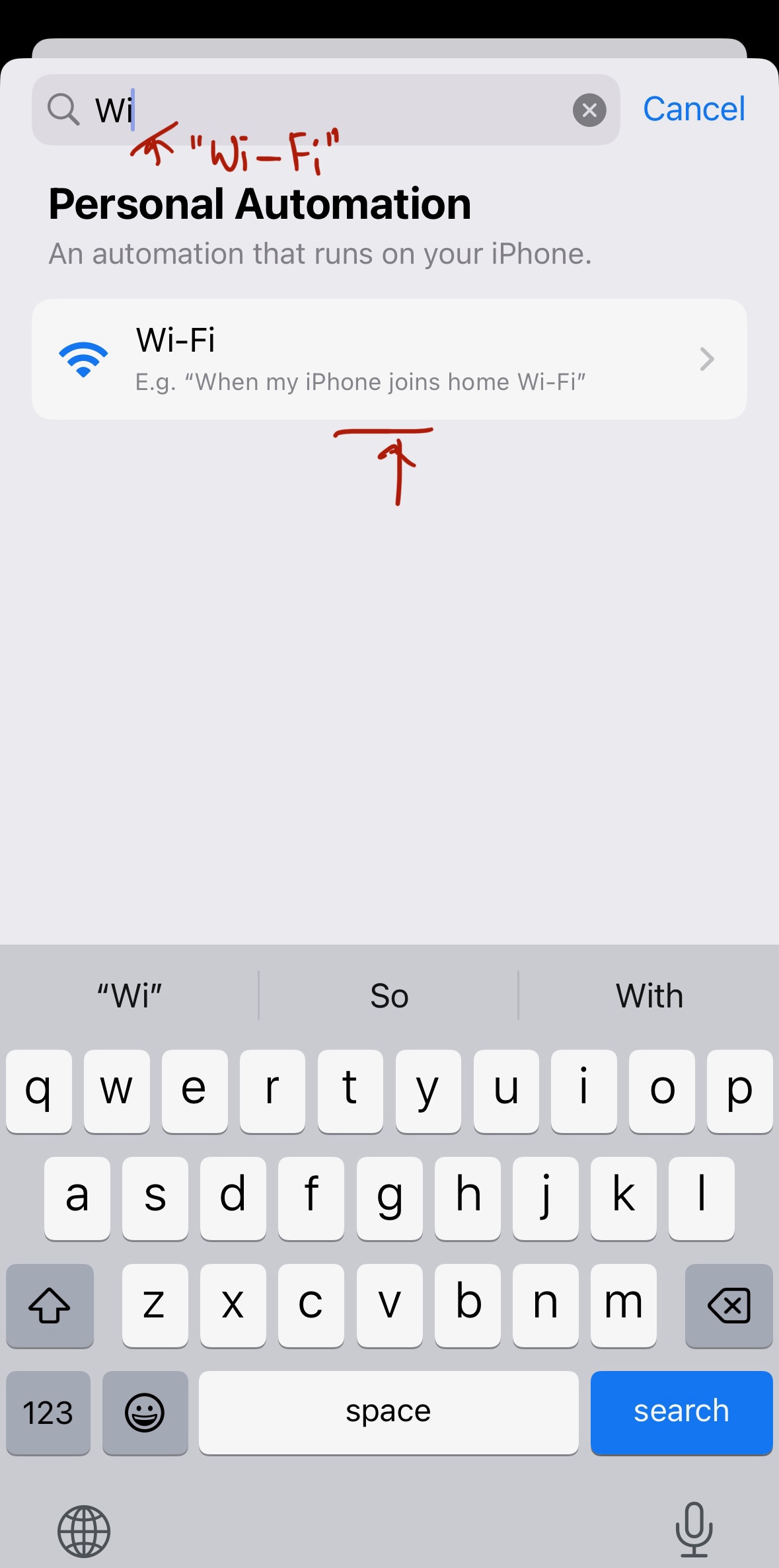
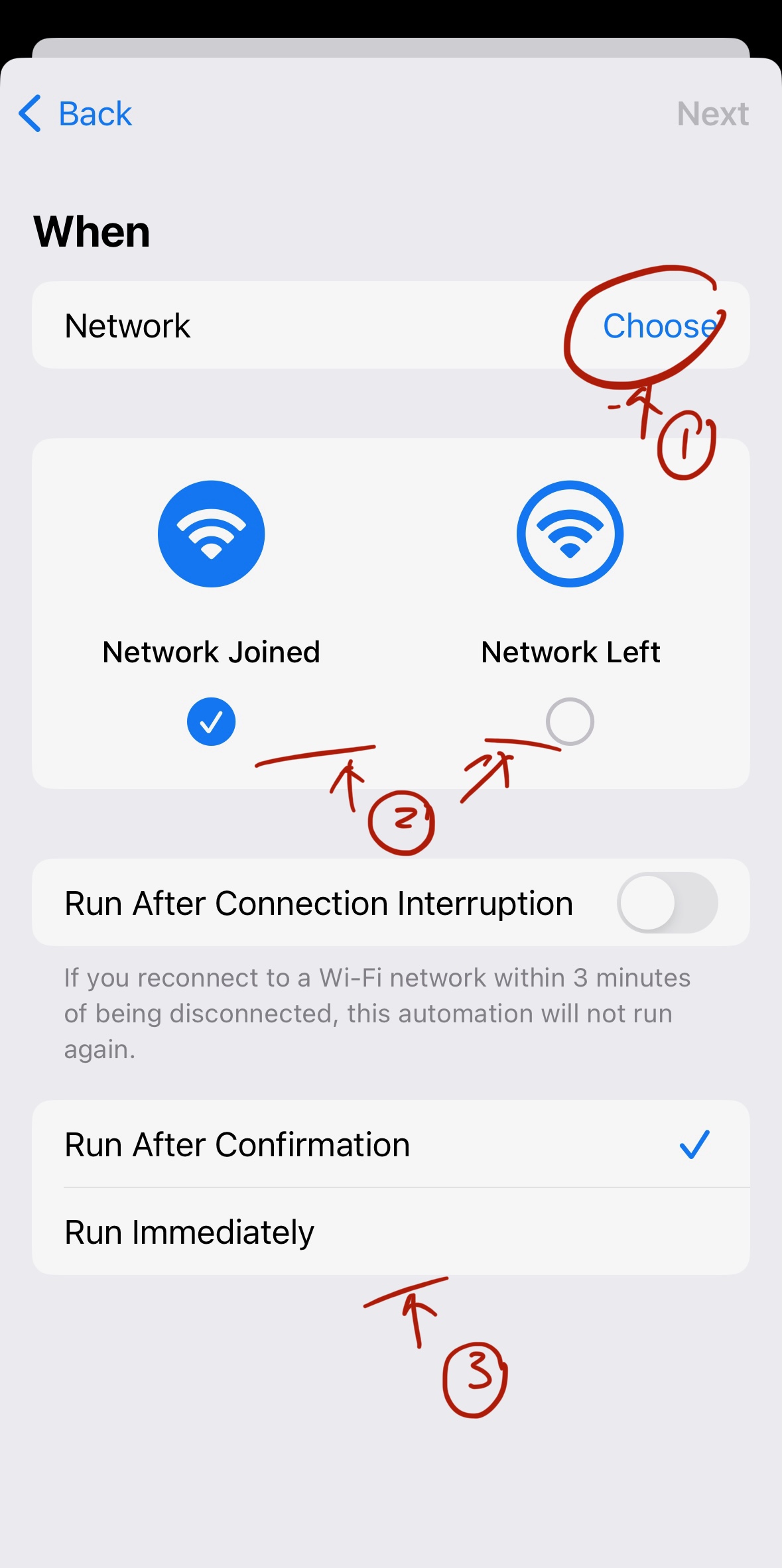
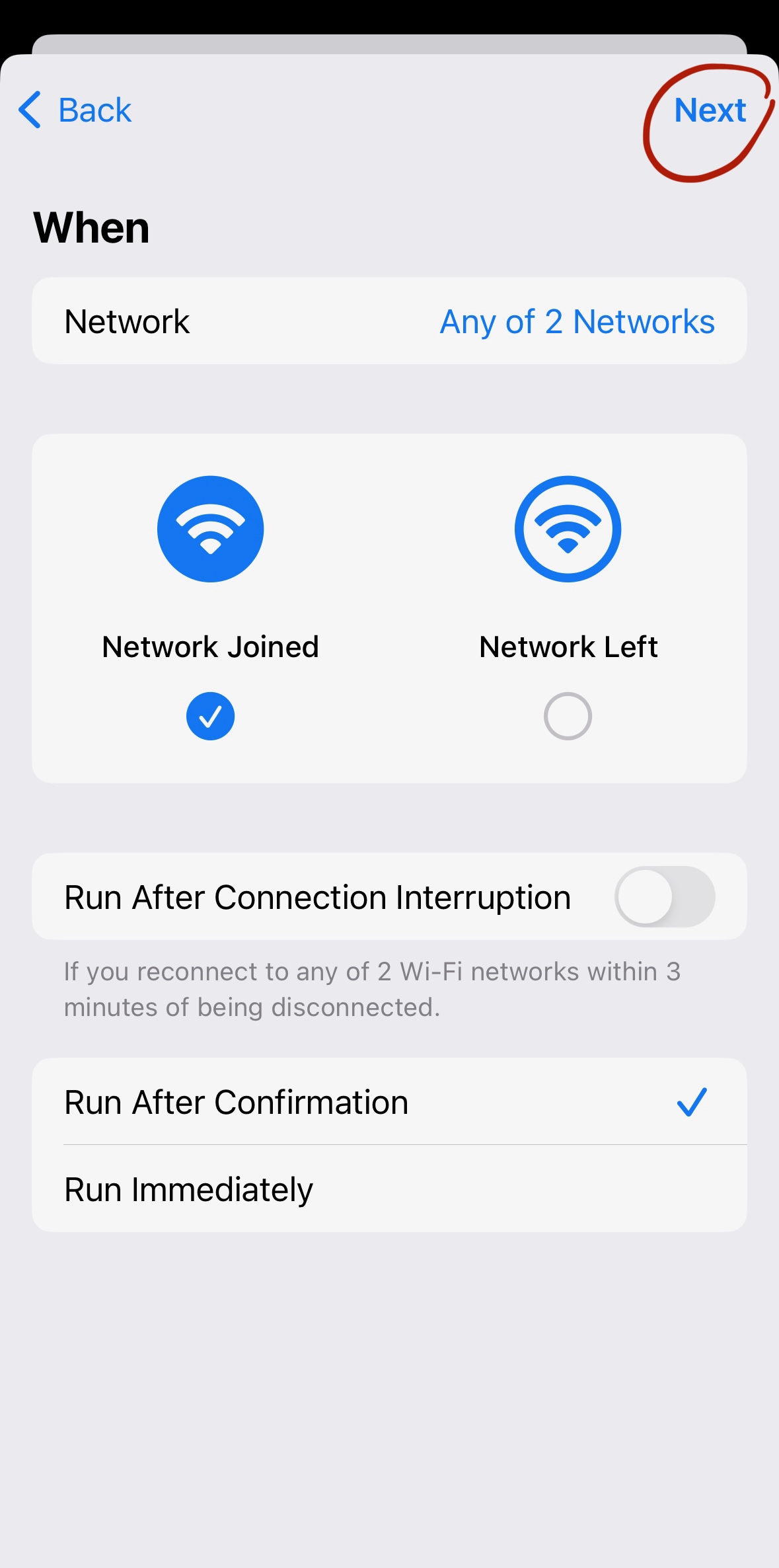
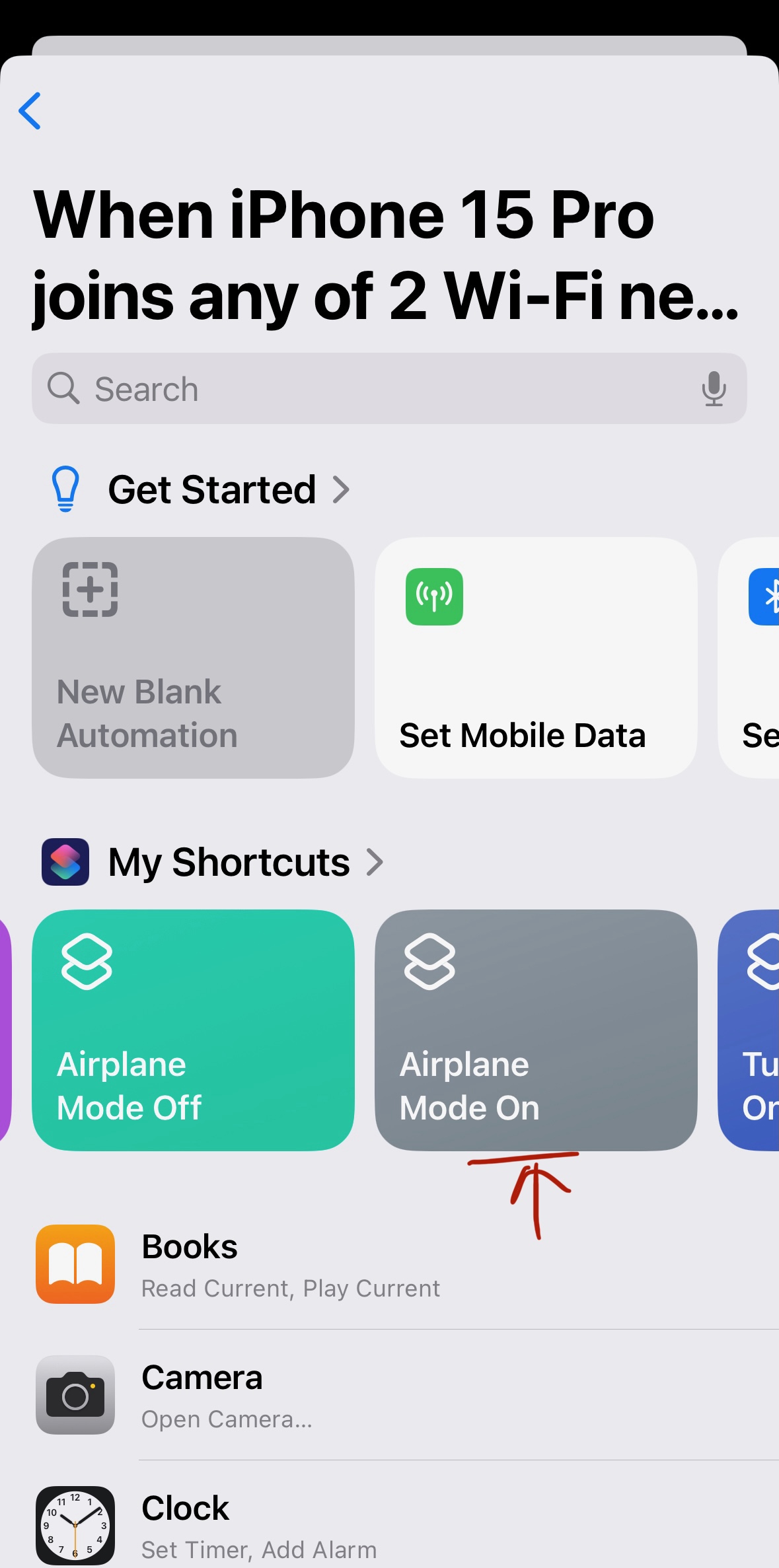
Repeat steps (6) to (10) to set up the Automation that deactivates Airplane Mode when disconnected from the specified Wi-Fi networks.
We are done, and now you should see two Automations like my screenshot under step (6).
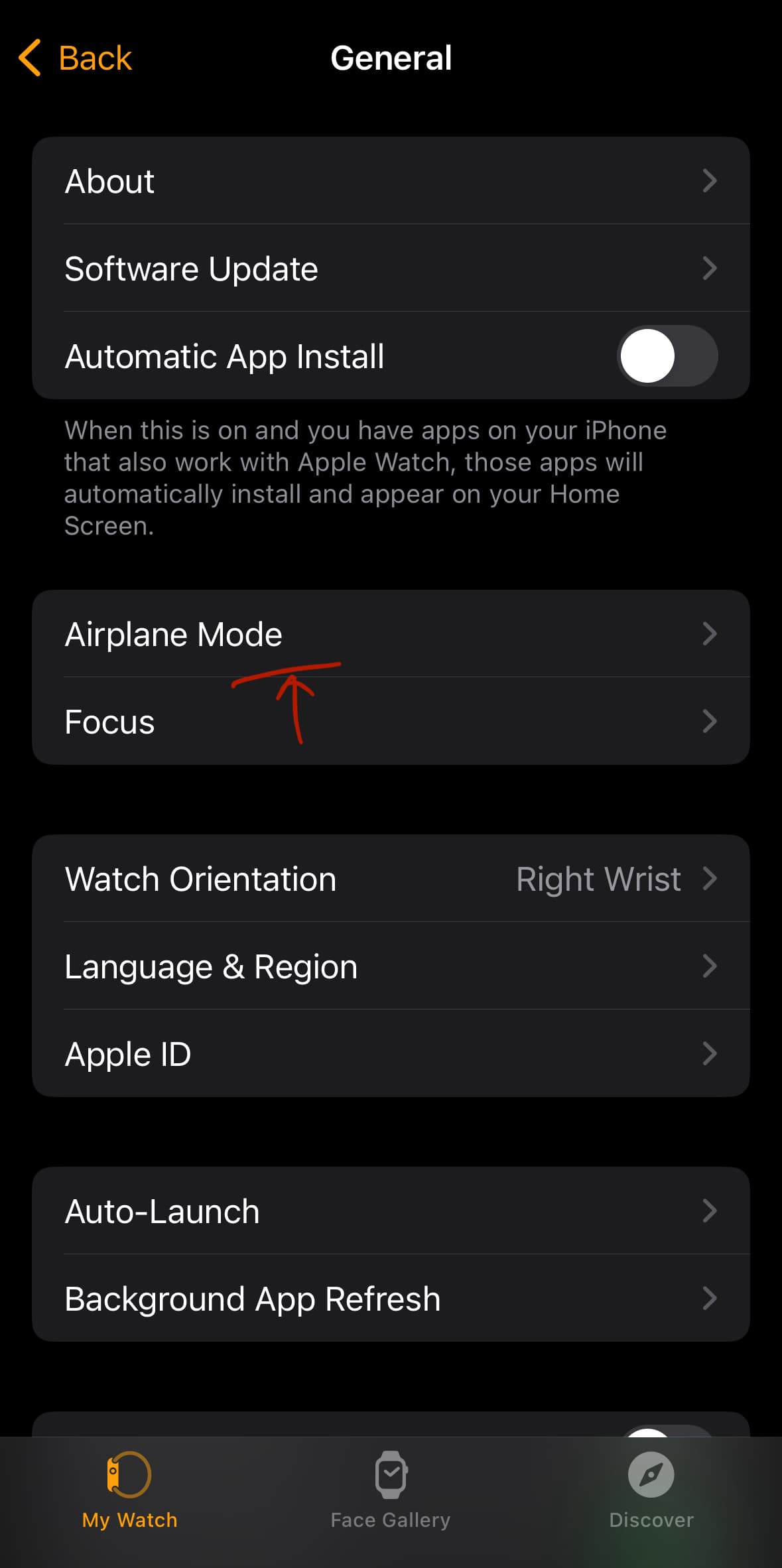
If you are using the Apple Watch and would like to decouple the Airplane Mode setting from that of iPhone as @ddmiller suggested, you can perform these additional steps in the Watch app in iPhone:
-
Launch the Watch app and select General > Airplane Mode.
-
Turn off the Mirror iPhone toggle.
7 Likes
Brilliant description - thank you
1 Like
It has nothing to do with the cellular radio. The GPS radio is talking to satellites in low earth orbit, about 150 - 200 miles up, not cell towers at most a dozen miles away. That requires 2 orders of magnitude (power needed increases at the square of the distance) more power. This has always seriously impacted battery life.
1 Like
Well, the GPS signal is receive-only on the ground. The satellites do not interact with the millions of devices down here. No phone transmission is done to receive GPS.
Connecting to a cellular tower is a two-way dialog. I would not be surprised if the initiation protocol involves increasing the phone transmitter power in order to search for a connection. The initiation protocol for WiFi might also involve an algorithm for temporarily increasing phone transmitter power.
There are “satellite phones” which do interact directly with satellites, such as the Iridium constellation, in orbit. These use a two-way protocol and moderately higher phone power. The constellations support a more limited number of subscribers (compared to terrestrial cellular) due to limited spectrum and transmission power supported by the satellite.
I should leave a wikipedia link that discusses cellular protocols, but I can’t find anything really applicable.
Here is a link to LTE-3GPP standards:
http://lte-3gpp.info
2 Likes
You (and @ant) can easily automate this. I have the same problem with somewhere I visit a couple times a year and created ‘personal’ automations in Shortcuts:
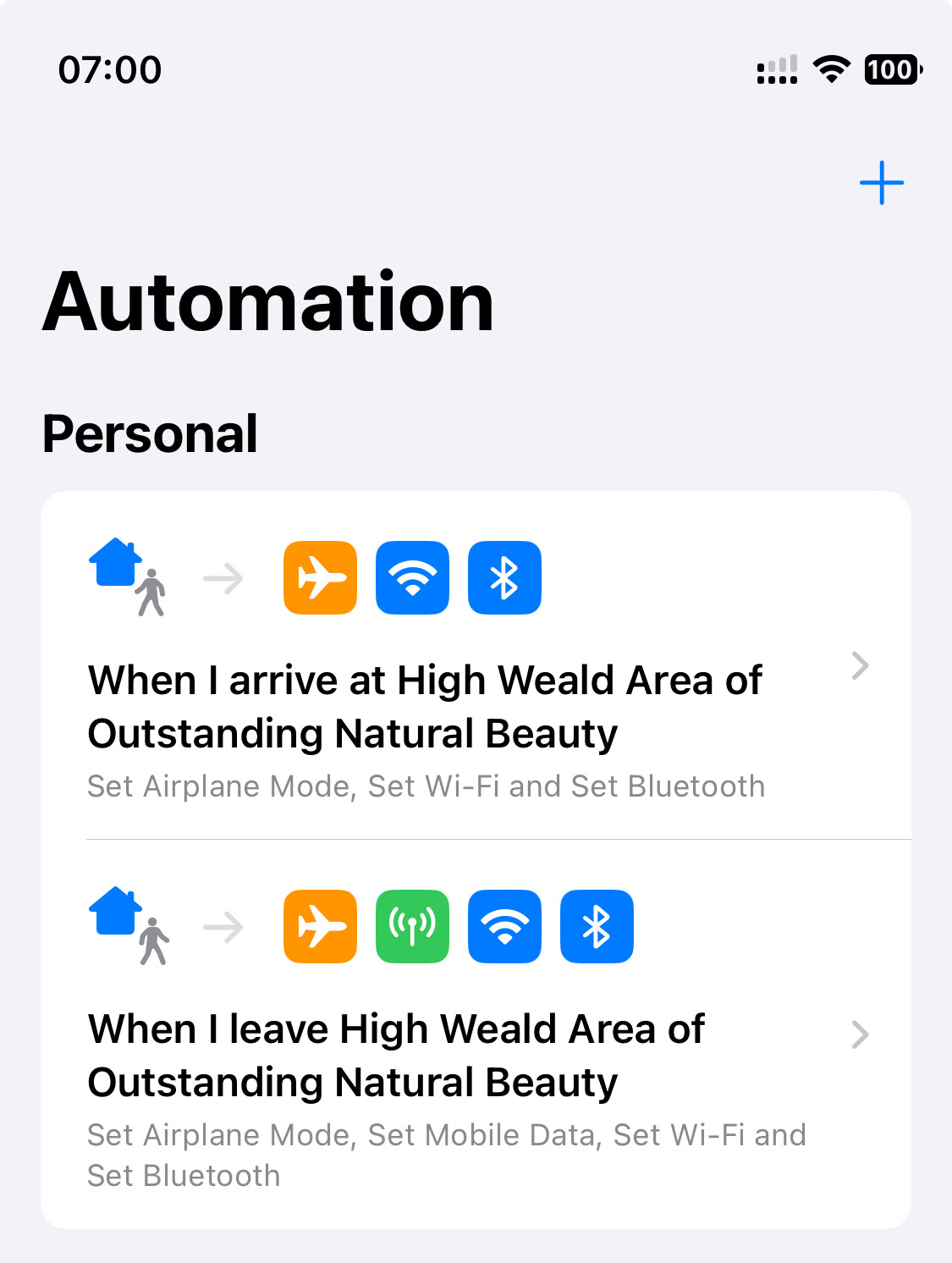
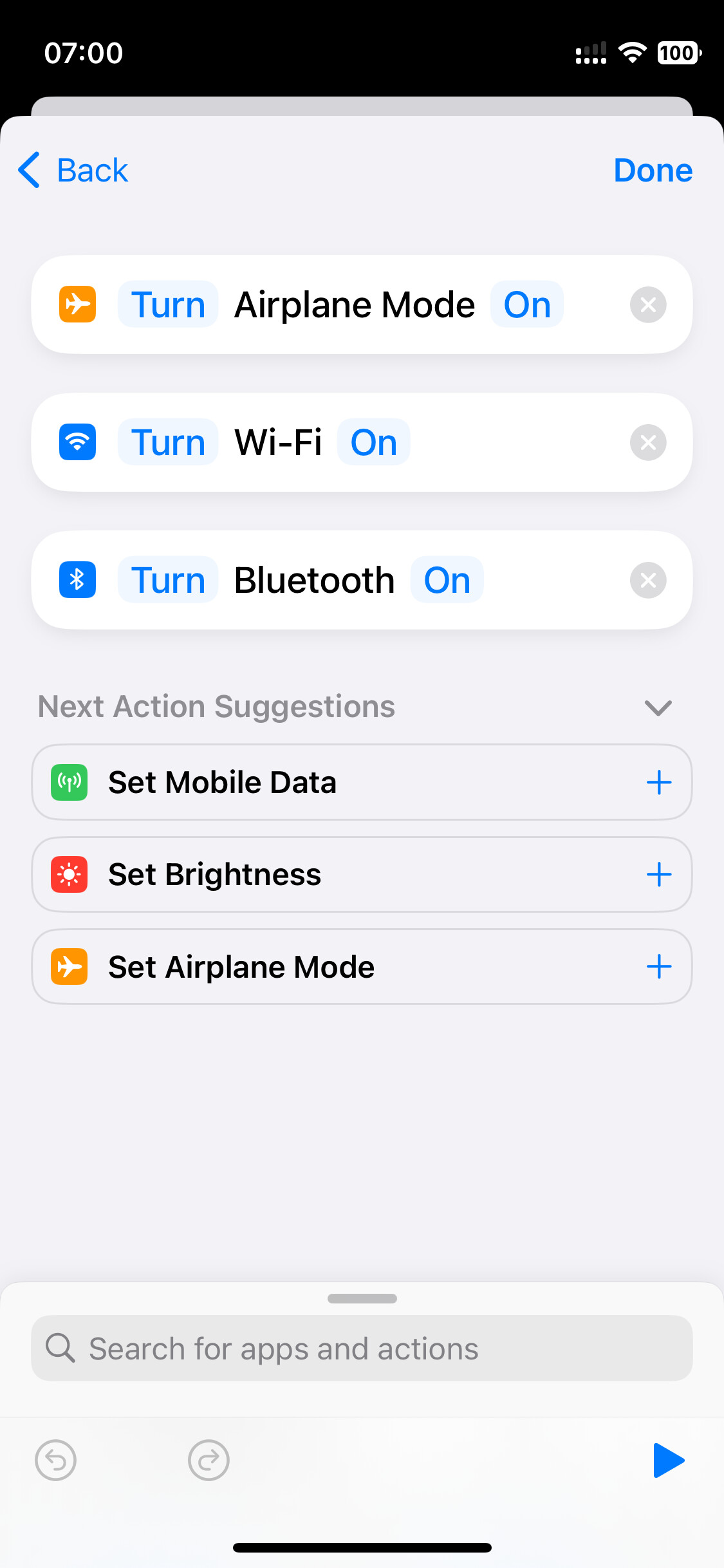
You don’t need to create an actual shortcut, just go straight to the automation tab. Create a new one (+ in the top left) and use the Arrive trigger then add the following actions:
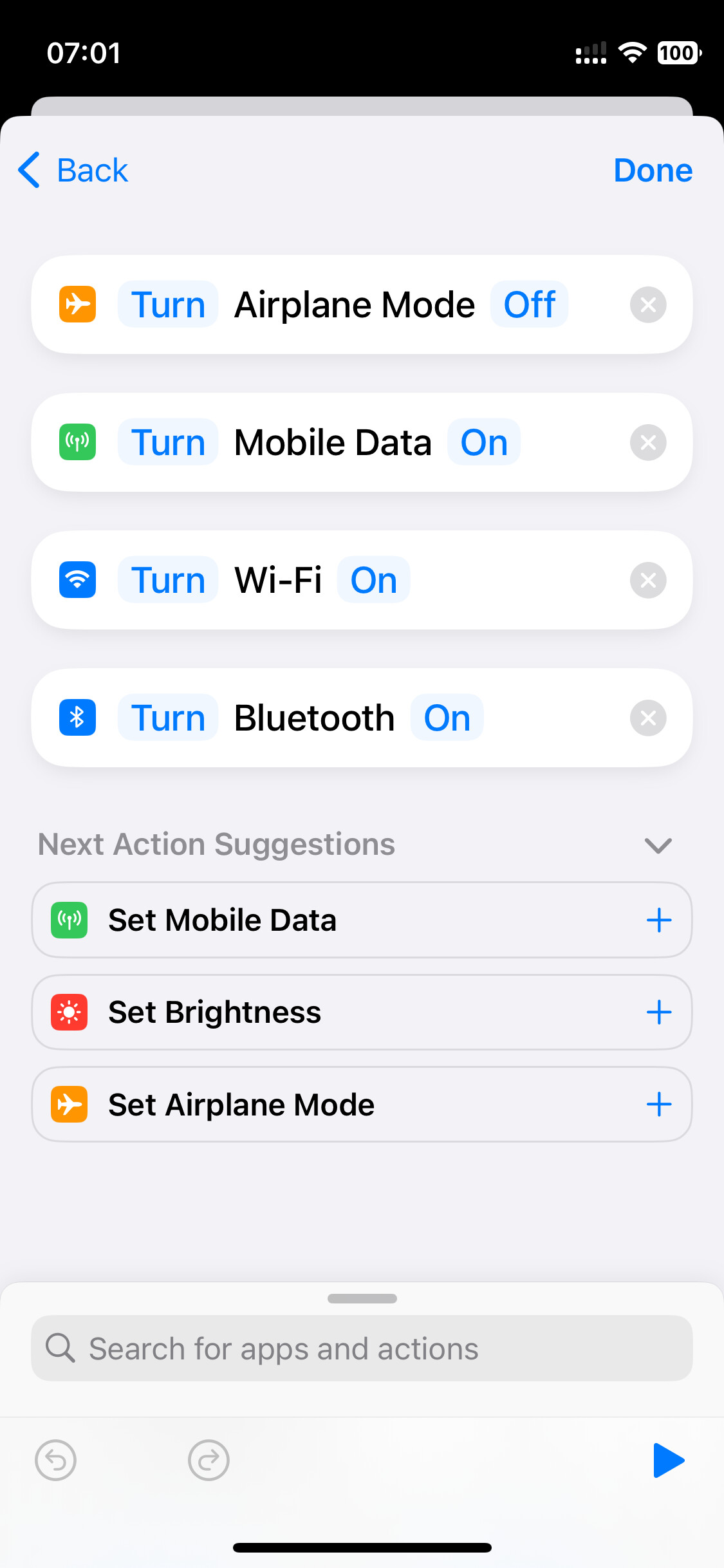
Next create another automation with a Leave trigger and the following actions:
3 Likes
Thanks. I also turn off my privacy for privacy reasons most of the time. ;)
I drove up to and back from the summer house yesterday, there for an hour or so, and I’m seeing “no cellular coverage” in the list now. Only 2% for me.
So I’d say that for me it’s because I was driving through and in areas of very low coverage, yes. The route up goes through lots of areas of low to no coverage.
Thank you! I have not used Shortcuts before and it took some trial and error to work it out but this seems to do the trick. Much appreciated.
1 Like
Just for fun, I asked ChatGPI and MS CoPilot. I tried to attach them to this reply, but don’t see how to do it. Just paste “How much battery life does No Cellular Coverage consume for your iPhone?” into each and see what they say!
Is that carrier-dependent? I don’t have that option. (My carrier is US Mobile, a Mobile Virtual Network Operator.)
Yes, it is carrier-dependent, and also only really valid if the carrier supports 5G.
1 Like
You may be able to get some feel for which apps are demanding the most Cell Data – and which may indirectly be triggering No Cellular Coverage – in
Settings > Celluar then below Cellular Data sort the apps by Usage.
It is apparently normal to see System Services using the most. And within System Services, the biggest hogs are usually DNS Services, Mapping Services, Push Notifications, and Software Updates …
But if anything appears above (or just under) System Services, that can be suspicious. And you may want to restrict that app’s use of Cell Data; by disabling Background App Refresh, or possibly turning its use of Cellular Data off.
Although I hardly ever see No Cellular Coverage, I did see a big difference in how fast the Battery Level (in Settings > Battery) dropped off after I spotted how much Cell Data was being used by Mail, and changing Settings > Mail > Accounts > Fetch New Data from Every 15 Minutes to Every 30 minutes. [Note that Background App Refresh isn’t offered for the Mail app; you have to change its push to/fetch background settings in Settings > Mail.]
1 Like
The automations are very helpful (thanks) but what bugs me is that my iPhone (13 Pro) consumes so much battery looking for a mobile phone signal (cell phone signal for those of you in the US  ) when it already has WiFi calling switched on. Why, Apple?
1 Like
That looks like a page belonging to a vendor selling a 3GPP protocol stack.
Here’s the actual 3GPP home page: https://www.3gpp.org/
All of the specifications (which includes 2G/EDGE, 3G, 4G/LTE and 5G) may be found here: Specifications & Technologies: 3GPP
But note that it is drinking from the firehose. There are literally hundreds of standards documents and multiple revisions of each. And they cover all aspects of mobile telephony, including the radio interface, protocols implemented by user equipment (e.g. handsets), server protocols, gateways to other networks (e.g. the Internet and the wired telephone system), and countless others. If you’re not actually implementing a device, the information in these standards is probably going to be confusing and very difficult to properly understand.
The 3GPP generally doesn’t like terms like “4G” and “5G” except for marketing purposes, because they’re a bit fuzzy and mean different things to different people. Instead, they have a set of Releases each of which is a collection of specifications for a specific point in time, which define a stable standard platform.
Chipmakers and others working on mobile telephony will typically pick a baseline release for their product, possibly augmenting it with cherry-picked features from later releases.
Can anyone beat my 17%?
Yup, 37%. Also an iPhone 15 Pro.
It doesn’t go out of WiFi coverage much, and I can’t get a full day of charge on my damned phone.
Has anyone gotten anywhere with this?
1 Like