And one more topic to collect posts about iPadOS 26.
just now trying os26 on my iPad mini 5 and it is slow, jerky, and laggy.
First impression is I regret upgrading.
Updating a couple dozen apps right now to see how the google and zoom etc. app families are incorporating os26 into their activities. Note that latest zoom update ends support of ios13 and ios14.
New Preview app icon is nifty, new clock icon not so much.
Just updated my iPad Pro (M1) to iPadOS 26. I love the way multi windows work!
I updated my iPad Air M3 to iPadOS 26; first impressions for me after less than 24 hours:
- iPadOS 26 so far is fantastic. I like the new freedom of multiple windows if I want to use them, and the menu bar for apps. I had an interface glitch at first - the list of mail messages in the left sidebar wasn’t right, but toggling the icon to show the kist of mailboxes on and off fixed that, and it hasn’t happened since. Otherwise I haven’t done too much on iPad so far; really just run Mail, Safari, and News - that should change later today.
2 Likes
One minor frustration for me, though: iOS allows you to tap the home screen indicator at the bottom to launch search (it’s an option, but the default option). For some reason, Apple never brought this behavior to iPadOS - you still need to swipe down on a blank area of a home screen to launch search.
1 Like
Upgraded to iPadOS 26, love the window options. Two issues so far: 1. With Magic keyboard attached, I can’t work out how to bring up the onscreen keypad. There used to be a wee icon bottom left. 2. I miss not being able to swipe Quick Notes in from lower bottom, right or left of the screen and leaving the Notes tab there for quick access. Globe+Q brings it up via keyboard, or control centre. But I don’t see the tab option.
On my current generation iPad mini, operation seems snappier.
But I found myself frustrated that Mail lacks the ability to hide the mailbox list, which forces an open message into a narrow iPhone-like view. However, I accidentally discovered that double-tapping a messages in the list will open it in a full screen window. It will take me a minute to get used this workaround.
1 Like
Just updated yesterday, but my initial comments will be on Mail. Everything seems to take up more space than before. The InBox list is not floating next to the message but takes up screen space so the message is in one small column. And where is the Delete button? Under a More Options dots. Yes, I can swipe left on the message, but I delete more often than I forward.
The elements of design just seem to take up more space without any added benefit. The status info at the top left is frequently truncated (and nothing will reveal what it says if you keep your message list column as small as possible. You can slide the divider, but that makes the message screen smaller.
I know some things just need getting used to, but I was hoping for more “Wow, I needed that”
1 Like
Thanks for this tip. Phew!
adding a few days later that even though, I know, the ipad mini 5 is about as far back as we can go and still run 26, that it has settled down and is now an overall plus rather than an overally minus. I may be seeing the summary description/hints of email messages improving a bit at actually describing what’s in the messages, too.
1 Like
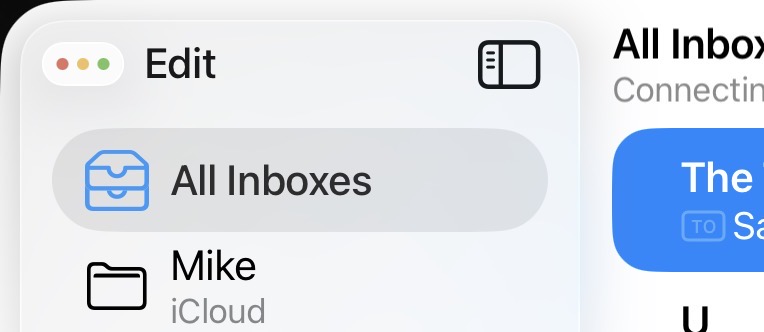
Thank you. I have an iPad Mini 5 (love the small size factor and headphone plug) so it’s good to know that it will work.
Regarding the Mail app, the problem I’m having is that the message list can’t be hidden, so the window pane for displaying and reading the selected message is very narrow. Maddening!
I have to rotate the iPad to landscape mode to get a decent width reading pane.
Making matters worse, I couldn’t even send Apple any feedback, as their product feedback page doesn’t list Mail as one of the apps to comment on. Nor is there a way to give feedback on iPadOS as a whole!
1 Like
One thing that might help is that you can re-size the message list narrower, though not make it disappear completely. Place your finger on the dividing line and drag to the left.
Yeah, I tried that. But on an 11” iPad, the adjustability is minor. So the reading pane is still uncomfortably narrow.
1 Like
Did you try my suggestion to Gordon Meyer two posts above yours? I have no trouble showing/hiding the message list in portrait and landscape mode,
1 Like
So I can see that if you double tap a Mail message, it expands to full screen. How do you reduce it again without deleting it?
Red button upper left hand corner.
1 Like
…or, while Mail is the active app, do a half-swipe up from the bottom home bar to do an expose (not sure what Apple calls it) of the open windows for the mail app. You can swipe up on the window(s) you wish to close.
1 Like
That’s the mailbox list. Im talking about the Message list.