I’ve never used FileVault. But installing Tahoe on two devices has turned it on, on both. Is this just me? Has it happened to others? If so, why is Apple deciding for me that I need FileVault turned on. (I’m not opposed to having it on, I just feel no need for it on my home Mac mini, and I’m taken aback that Apple turned it on behind my back.)
1 Like
Per the Ars Technica review, a change in Tahoe is that if you sign in to an Apple account as part of setting up maOS, FileFault is turned on by default. If you don’t sign in with the Apple Account then it offers FileVault but you can skip it.
5 Likes
Thanks for that update. I never activate iCloud as a part of system installation - preferring to do that after the rest of the system has shown itself to be working.
So now there’s a good technical reason as well.
Even if I want to activate FileVault, I’d rather do it manually so I can print a copy of my recovery key (which the Ars article says you can’t do via the automatic activation).
Ideally, I’d want the key stored both in iCloud and a printed copy in my file cabinet. That’s how my Windows 11 computer is set up - I can go to the Bitlocker control panel and (after admin authorization) choose to sync the recovery key to my Microsoft account and print a copy. Even years after the drive was encrypted.
Two years ago, @glennf wrote for MacWorld, that there is no way to print the key after the fact. Is that still the case today? Am I forced to unlock/relock the drive (generating new keys) if I forget to print it or lose my printout? And is there any way to store the key in both locations - my paper and my Apple account?
Update: According to Apple, this still appears to be the case. 
2 Likes
On the one hand, I generally recommend to all users that they turn on FileVault, and many businesses require it to be enabled on company machines. I also think that managing the recovery key via an Apple account is usually a great idea.
That said, Apple should ask before enabling FileVault and explain the consequences of doing so, both the positive ones and the negative ones.
Others have noted that Windows offers a similar capability with BitLocker drive encryption, including Microsoft account-based recovery. It probably has been nearly two years since I set up a Windows machine from scratch. Maybe things have changed, but when I did so, the installer clearly explained how BitLocker worked and described the importance of different ways of managing the recovery key. If Apple doesn’t do that, it has gone too far down the road of making decisions for its users, in my opinion.
It’s all different now. If you upgrade with FileVault off, it’s enabled and the key is stored in Passwords (and synced via iCloud Keychain). You can view the key at any time in the future on the Mac (click View and authenticate) or via Passwords on linked devices.
If you had FileVault enabled, the previous methods remain in use (see-once key or iCloud escrow). You can disable and re-enable to upgrade to the new Passwords-linked version. That uses iCloud, but the iCloud escrow method that was removed relied on Apple Account authentication; the new Passwords/iCloud Keychain storage is end-to-end encrypted.
I wrote a long article for today’s “Help Me, Glenn!” column at Six Colors.
Apple hasn’t updated the documentation! I’ve filed a note via the feedback link on the page.
7 Likes
I would use FileVault but I think I have to have it off to use my SoftRAID. At least that is what I remember when I set it up years ago. I wonder if it is still the same.
It happened to me. No idea it was happening and didn’t know the password. Awful thing to do without really making sure the user understands what is happening. I ended erasing the disk. Today I hated Apple intensively.
2 Likes
It happened to me, too. Today I found the FileVault setting (under privacy, I believe, but I searched for it). It had a button to display the key, and even better there is a simple switch to turn it off. Once I did so, the system decrypted the disc in a very short time. No time consuming procedure required.
3 Likes
This is one of the great benefits of how internal flash storage is managed on Apple silicon Macs (or Intel Macs with T2 courtesy of the Secure Enclave). The stored data is always encrypted with a hardware key (volume encryption key). When you use FV2 you add another key in addition onto that protection (key encryption key). Similarly, when you turn off FV2, you remove your KEK from the protection scheme, but the VEK hardware encryption remains. The beauty is that keys are only added/removed, the data never needs to actually be decrypted or encrypted. And thus this becomes a very fast process, unlike elsewhere, or even on Mac back in the day (FV before FV2).
All the details can be found here:
4 Likes
Thanks for this, and the Six Colors article, Glenn.
As I mentioned, I don’t see a need to have FileVault turned on for my Mac mini. But I’m not opposed to it either. Should I just leave it on, now that Apple has turned it on?
And the same question about my MacBook Air (these are both M4 devices, BTW). Although I take it places obviously, I’m retired, so my excursions are rather limited. Even when I was traveling, I didn’t have FileVault turned on. Leave it on?
FileVault has two angles to it. The way Apple offer boot protection on M-series Macs, there’s a case to be made that FileVault doesn’t protect your Mac more than the regular protections now built into silicon. For an Intel Mac with or without a T2 Security Chip, I think there’s probably a greater argument that FileVault was a plus (particularly for pre-T2, where the drive wasn’t encrypted).
However, there’s definitely some additional protection in having a preboot state that FileVault locks down. Maybe it matters only in extreme situations.
Apple now positions FileVault as a last-ditch recovery of your encrypted volume if you “forget” your password. They say forget, which can happen, but I also think that you can wind up in situations where you’re locked out—some file corrupts, you enter the wrong password too many times, etc. FileVault is a way out of that.
However, even with the new setup, you have to have a way to access the Recovery Key. If you’re organized enough for that, so that you know you’ll always be able to use an iPhone or iPad or a third-party password manager, then it’s probably worth it? Because otherwise, you can just be eternally locked out.
Wait, what happened? Tahoe doesn’t lock you out by enabling FileVault. What occurred?
The only thing I can think of is if you are trying to manually recover from a disaster.
If you need to boot into a Recovery mode console in order to repair a massively-botched configuration change, you might need to mount your system’s Data volume and edit its files.
If the volume is FileVault protected, you’ll need to unlock it before it can be mounted, but I don’t know if there is any way to do this from a recovery console session.
I would love to know how many people a) forgot their password and b) remember where their Recovery Key is? I definitely think it’s more usually a last-ditch recovery backup, too, David! But Apple pitches it as a “forgot your password,” which I think is odd now that they have turned it on for everyone.
However, syncing via Passwords means that it’s much more like someone should be able to unlock some device to get the recovery key? They’d be on the phone with Apple Support, who would walk them through it, conceivably.
Hi:
First things first: my Mac is 2017 27” Retina 5K.
I am using OCLP to run Sequoia. It just finished reinstalling and saw the Filevaulting message asking to FileVault my disk (I didn’t), message I did not see when previously installing Tahoe.
I assumed that there wouldn’t be a problem. I suffered the consequences. .
.
I will wait a couple of weeks before trying again.
Regards,
Francisco
In Recovery Mode you just mount your FV encrypted Data volume using Disk Utility. And once that’s up, you do whatever else you wanted to do in Recovery. As long as you don’t reboot, that volume will remain accessible.
There definitely are concerns about accidentally upgrading to Tahoe on OCLP Macs. Mr. Macintosh has several recent videos on the subject.
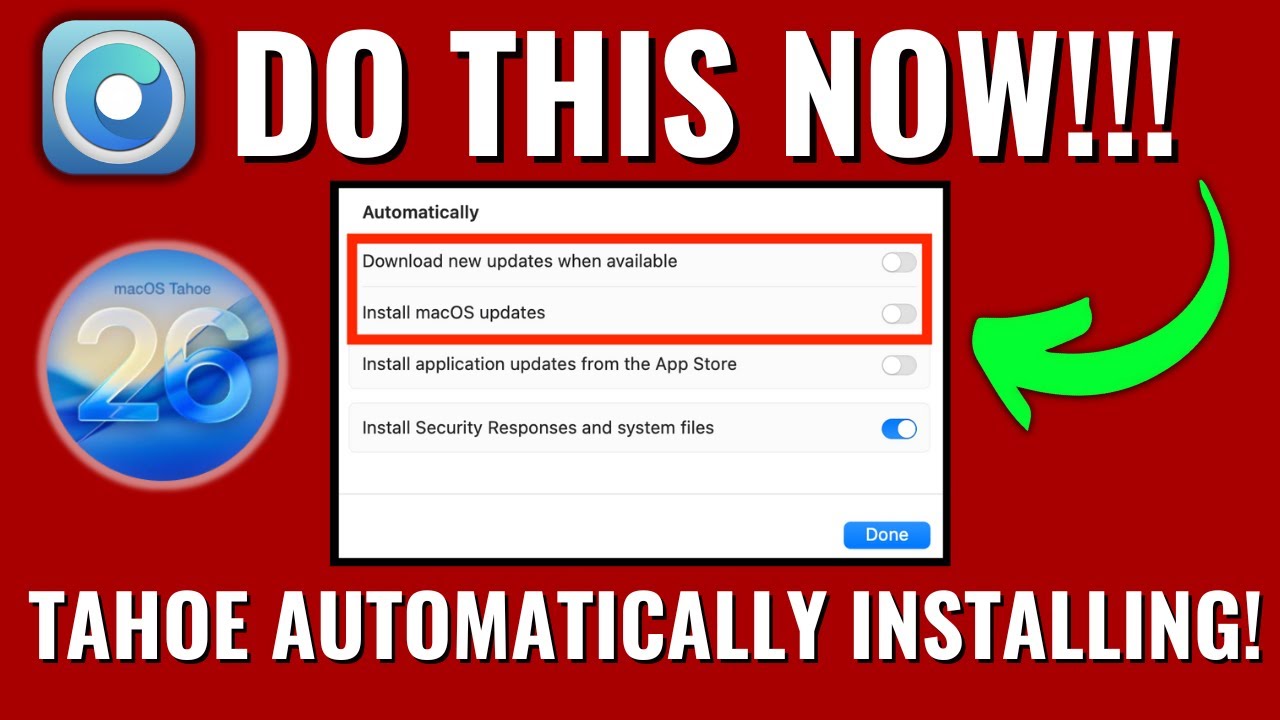
Be careful out there!
1 Like
Can anybody offer up the single-sentence advice so we don’t have to endure 10 min of YouTube influencer-ing?
2 Likes
I think the issue is more along the lines of “what if the password database got corrupted and no longer recognizes your account/password”. You’ll need the recovery key in order to put everything back again.
But, as you said, if you have some kind of keychain sync active, then you can get that recovery key from any device that syncs the key.
Of course, this is not a common situation.
But my comment was in response to @ShermanWilcox , who was asking about whether to use FileVault at all. If FV is not used, then it is trivially easy to mount the Data volume from a recovery console, since it doesn’t need to be unlocked.
But the need for that level of recovery is also not going to be a common situation. I’ve only had to do this after making a mistake hand-editing a critical system file. So, in my experience, this is really important for repairing self-inflicted damage.
But that having been said, I honestly don’t know if you can unlock a volume from the Recovery console, since you’re not going through the usual login mechanism.
But, having said that, I believe Recovery mode will let disable FileVault altogether, which you can do as a part of such repair work.
So Disk Utility will ask for a password?
It has to in order to mount the FV encrypted volume.