When I need help with terminology, I fall back to web searches. I frequently use Wikipedia - a site I would not trust for current events or information about public figures, but seems to be pretty good with respect to technical information.
Here are some key points which may help you:
-
M.2 references a specific form-factor. That is, the shape of the device and the arrangements of its connector. Lots of different things come in the M.2 form factor, including, but not limited to SATA and NVMe storage devices.
-
SATA devices run the same protocol used by most modern consumer hard drives. It’s a robust and proven protocol, but it is limited to 6 Gbit/s - plenty fast for hard drives, but will severely limit the performance of an SSD.
-
NVM Express, aka “NVMe” is a standard way for connecting flash memory to a PCIe bus, whether on a computer’s motherboard or in an external storage enclosure.
NVMe buses come in a variety of speeds, determined by the version of PCIe and the number of PCIe lanes used. In general, the bus is forward- and backward-compatible. So you can connect mismatched devices and they will run at the fastest compatible subset of capabilities. For instance, a PCIe 2.0 device with 4 lanes connected to a PCIe 4.0 bus with 2 lanes will end up running as PCIe 2.0 and 2 lanes - a definite bottleneck to throughput, but the device will work.
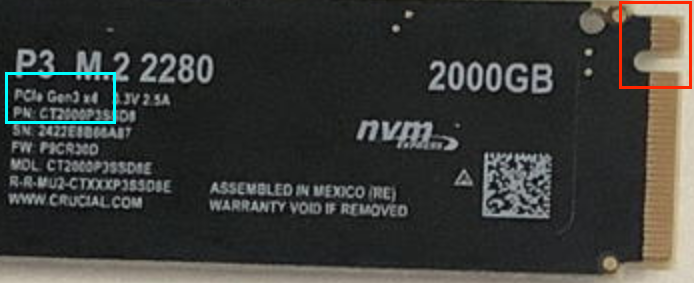
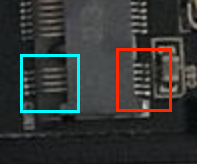
When trying to determine what an M.2 device supports (SATA or NVMe), you can look at the connector. There are various keying cutouts intended to prevent you from connecting a device to an incompatible socket. But this can only tell you about the superset of capabilities that the connection might support - you’ll need additional information in order to determine the specifics about what the device actually does support.
But I’d only suggest that if you come across a device and don’t know what it is. When shopping, it’s best to look at the product description - it should say exactly what the device/enclosure supports. But I’d avoid random no-name brands, because some are sold by crooks who will lie about the specifications (not just the connection, but any spec, including the device’s capacity, performance and everything else.) But if you stick with established brands (e.g. Samsung, Micron/Crucial) and reputable sellers, you can and should just trust the product description.
SSDs are more expensive than HDDs, but they’re a lot faster. There is no other practical option for a boot device or for storing the files you’re actively using, but slower devices may be just fine for other files (e.g. media collections, archives, backups) where performance is not critical.
Likewise for NVMe vs. SATA. A SATA-based SSD will definitely be faster than a HDD, but it will be several times slower than an NVMe SSD. I would avoid SATA-based SSDs for boot devices, but I might consider them for other uses if I’m on a tight budget.
Note, however, that at the 4TB size for which you’re searching, you are seeing a class of very expensive devices, and the price-per-TB does not drop off much (and may even go up) at the larger sizes. If you can stick with 2TB and smaller, you will likely find products to be more affordable. This is very different from the HDD world, where the price-per-TB tends to drop significantly as capacity increases.
Also note that within a brand/capacity, there are different models that offer different features (performance, longevity, etc.), and these different models have different prices. For basic storage, you can probably choose the least expensive model, but it’s usually a good idea to look at the differences. And feel free to ask here if you need help understanding what you’re seeing.
For instance, when I check the prices on Samsung SSDs sold by Micro Center, I find:
- The 980 costs $140 for 1TB
- The 990 EVO costs $75 for 1TB, $130 for 2TB ($65/TB)
- The 990 EVO Plus costs $75 for 1TB, $140 for 2TB ($70/TB) and $260 for 4TB ($65/TB)
- The 990 PRO costs $100 for 1TB, $170 for 2TB ($85/TB) and $290 for 4TB ($72.50/TB)
- The 9100 PRO costs $200 for 1TB, $300 for 2TB ($150/TB) and $550 for 4TB ($137.50/TB)
Two 2TB devices will cost more than a single 4TB device. Nevertheless, 4TB can be pricey. So, depending on your requirements, you may want to build something smaller and then build another in the future, when you need it.
As for SATA-based SSDs, they can be less expensive because they typically ship in larger enclosures (the size of a laptop HDD), and can therefore don’t need to use the highest-density chips, which tend to cost more. But the tradeoff is in performance. And they don’t necessarily cost less than an NVMe device (depending on brand and model). Using the above Micro Center page for comparing the various Samsung models:
- The 870 EVO costs $55 for 500GB ($110/TB), $100 for 1TB, $160 for 2TB ($80/TB)and $250 for 4TB ($62.50/TB)
- The 870 QVO costs $630 for 8TB ($78.75/TB)
Like all things in technology, prices tend to drop over time. So you can always get a better price if you wait, but at some point you need to actually make a purchase. So unless you’re waiting for something specific (e.g. the release of a new model you read about, or an advertised sale to begin), I wouldn’t spend more than a short time waiting for deals.
For basic external storage, especially if you use a USB 3 enclosure and not Thunderbolt, you don’t need “cutting edge”. But that just means that you don’t need to select the fastest NVMe SSD from the available models. I don’t think it pays to go SATA unless there’s a significant price difference and you’re on a budget.
Not all 80mm enclosures have the standoffs to support shorter drives. But it’s not usually an issue because the most common (and usually least-expensive) sticks are all in the “2280” form factor.