The more major the update, the more cautious I am. I just upgraded to Sonoma two days ago. Why did I wait so long? First, there were some reported issues with some software I use. Once that was cleared, I ended up where between planned time away from home and some emergency travel, I was only home four weeks of the last four months. I’m not going to install a major update when I’m away from my backups. Finally, for a major upgrade (like Ventura to Sonoma), I want a more or less completely free day. It will hopefully go smoothly like this when did but if something goes wrong, I want time to deal with it.
1 Like
I almost never install major updates. I’m still on Monterey, and don’t intend moving until I’m forced to. I moved to El Capitan in 2016 only because I was unable to find browsers that ran on my Snow Leopard, and an increasing number of sites were not prepared to work on my browsers.
As for bug fix / security updates, I wait till I’ve seen notice of them in TidBITS and then set a reminder for two weeks’ time, and with reluctance install them. I only do so after a FULL backup (usually my TM runs with quite a few exclusions), and it’s always a relief to see that the system works afterwards.
As a retired software engineer, I just prefer the old known bugs to the new exciting ones ;)
4 Likes
I have 3 Mac computers including 1 MBP16 and two Mac minis. Having been bitten by the ‘upgraded too soon’ bug, I generally wait a day or two and then update one of the MacMinis to see if there are any impact or bugs in the MacOS software install. I all goes well, I then upgrade the other and encourage my spouse to also follow.
I also work with quite a few senior adults(I am 79 myself) and I either advise them (or set their computer myself) to begin the upgrade to download and install as soon as released as otherwise they might forget and not install an essential upgrade at all. Many in this category are experienced users of apps or software but are not very familiar with the ‘under the hood’ elements of system software.
As a senior myself, with 3 Macs an iPhone and 2 iPads, it is easy to forget to install a useful and important upgrade in particular import bug fixes or malware preventers.
Among the elements of the Mac universe that causes angst with seniors are the changes to ‘upgraded’ system settings where the ‘old ways of working’ nor longer exist or the particular tool setting is now hidden in a different place. They often ask: why did Apple have to change that? To that I usually advised them to ask Google for the location of what they want to change and the answer usually appears.
2 Likes
- I’ve been burned to many times with major updates so, I wait minimum, 6 months but usually 9-12 months until Apple has put in a bunch of minor fixes. Done being a beta tester.
- I leave security updates on and auto. Sometimes, rarely it seems, this medicine can be worse than the cure but, the result that it is focused on is more preferable than the disease.
- Interim updates I also usually wait until I remember. Depends on my mood or, if it does anything at all for me!
Sometimes I skip entire OS versions. For example, I stuck with Monterey until last month when I went directly to Sonoma, completely bypassing Ventura. I have done the same in the past. As long as security updates are still being rolled out, I see no compelling reason to replace something that is stable and working well. There is always something unwanted in each new release. For me that was the appearance change in System Preferences. Instead of a nice panel layout where I could see everything at once, it is that idiotic sidebar that I have to scroll (or type in a search term) to get to what I want. Now that I think about it, why did I do it?
1 Like
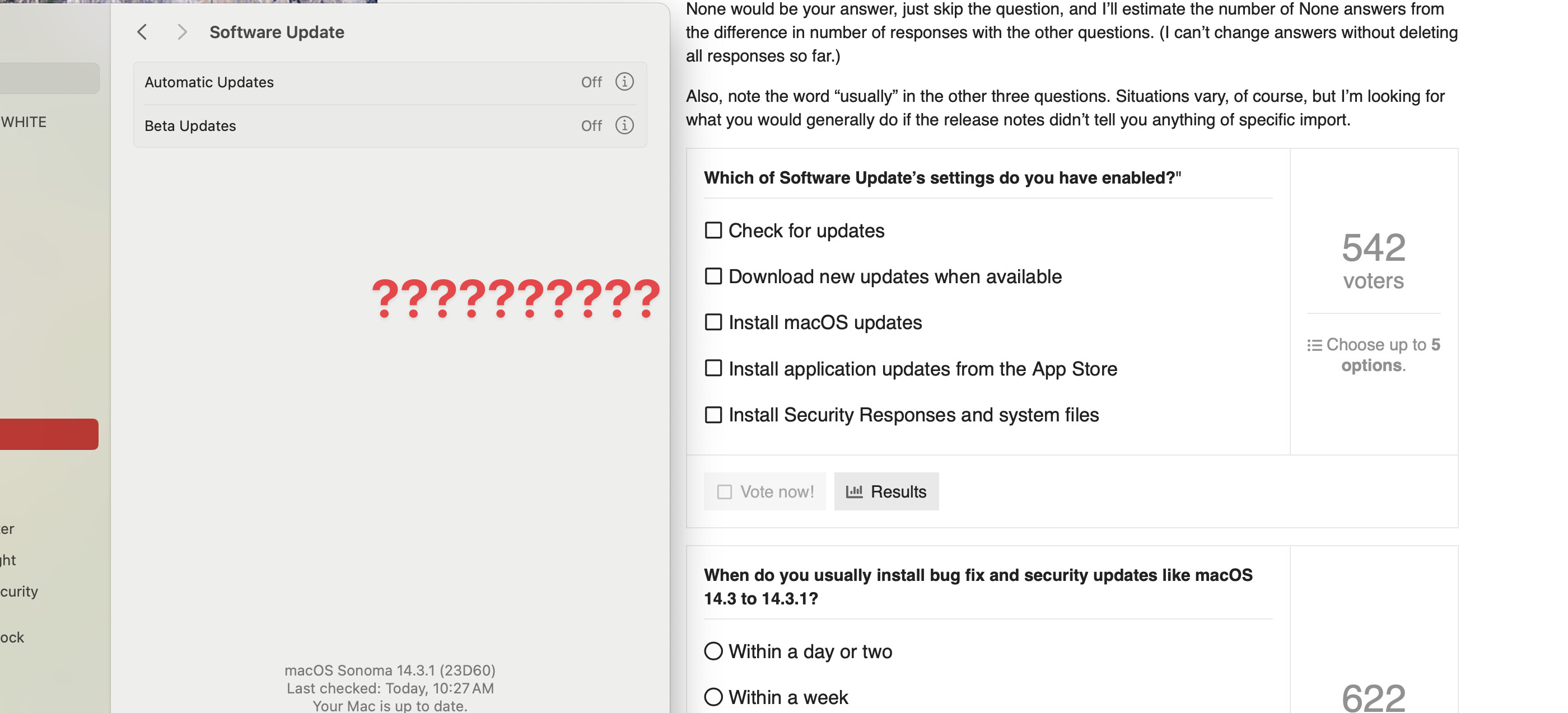
Click on the circled i next to Automatic Updates to see @ace’s choices.
2 Likes
Another poll can be for iOS updates. Something I notice is that I don’t allow the App store to do updates and prefer to manually tell it. Well, I’ve noticed that, ok, I see a Red Circle  with number of updates. If I drag down on the page, then it updates to most current. (I posted about this before).
Seems that the indicator from Apple on iOS isn’t current.
As for Mac OS updates, I’m cautious. Since my work macs are Jamf-managed, updates must be installed within 30days (usually point updates). Security updates, sooner. And users must update…they can postpone a day or so, but once limit is up, they either update or can’t move the nag window until they do so.
Along with others, I’ve been burned from installing and not waiting to find out…uh oh. Something is broken now. While its better now, to re-install OS, its not without caveats. If you depend on a Mac for income, you should also have another that you can rely on.
I have my iPhone and iPad set to update apps automatically and don’t bother to look at the App Store icon, but every so often when I go in to see if some app has updated, I have to pull down on the list to get it to update as well, and it always brings in more updates than were there originally. I presume it’s on some sort of schedule.
2 Likes
Sure. It checks in the background once a day or so. If you drag down it updates right then and there. If updates have occurred between when it last checked in the background and now, you’ll see that number update. Same for macOS by the way — the number you see in the Apple menu next to the MAS tells you what it noted when it last checked. In the meantime, that could have increased. If you launch MAS and go the update section it should update (but often it doesn’t). If it doesn’t, cmd-r will get it to. That btw is truly a dirty hack, since the menu would lead you to believe you can’t “reload” the page. Turns out you can and in fact that is AFAIK the only way to force an update.
2 Likes
While I allow my iOS devices to update automatically, I plan my Mac updates and rarely do it, even for minor updates.
The main reason is takes forever to reboot my Mac and get all my windows set back up in my Spaces and back to work. I hate rebooting! I have to relog into various websites, move apps and windows back where they belong, and so on. Not counting the time to download, install, and reboot, it’s a good 20 minutes before I’m ready to work again. So annoying!
Another issue is that on the Mac, I find myself completely confused as to which version of OS is which. Back in the “cat” days, you could sort of tell that Tiger was better than Jaguar, or whatever, but how can I tell from the name if Monterey is after Big Sur or Mojave or Catalina? They all sound the same to me and no one refers to them by release number. (iOS is much simpler as even I can tell iOS 16 comes after iOS 15.)
This makes it easy for me to miss an OS release. Like recently when I updated a Mac to Sonoma I realized I’d completely skipped Ventura! I think of my main Mac as being current (it’s “brand new”) but it is still running Monterey which is now 2 years out of date! I didn’t even realize it.
2 Likes
Actually, you can reload the page via the Store menu. The catch is you need to be accessing the Updates view rather than any other view.
1 Like
Today. In the past (not sure how far back), there was no such menu item. I stumbled across ⌘R one day after typing it due to force of habit from my web browsers and was surprised to find that it worked.
1 Like
I’ve occasionally seen cmd-R fail to refresh the Mac App Store’s “Updates” view, even though an individual app update may be available directly from that app’s particular “page” in the App Store. When that happens, I presume it is due to a caching issue of some sort.
I usually wait to see what TidBits recommends.
Forgive a quick off-topic side bar…
You can. Firefox/Thunderbird just does not allow you to disable checking for updates. While this may be annoying, I agree with their decision in the interest of pushing security updates ASAP.
You can change the Auto-Update setting in macOS via the Firefox menu > Preferences > General. The 4th section from the bottom is “Firefox Updates” where you can change how updates are handled under the heading “Allow Firefox to”. Choose the option “Check for updates but let you choose to install them” if you just want to be notified. This enables you to plan a time to run the update (which is important).
New update notifications can be dismissed. You may then update manually (Firefox menu > About Firefox). Once opened, this info window should run a network check and provide an update button if there is a newer version. You can abort by simply closing the “About” window and repeat the process later when you are ready.
RE: Viewing a list of past macOS/OS X updates.
You can do this via the System Information.app (in Utilities or by menus below):
Apple menu > About This Mac > Overview > System Report > Software (left side) > Installations (left side below Software header)
Change the sort order for Install Date and then drag the separator down so you can see more of the list. Unfortunately, there are no further details beyond what you see in the 4 columns (name, version, source [Apple/3rd Party], install date).
Thanks, yes, I do have the actual updating on manual. It’s the constant checking and reminding that
drives me (and many others) crazy. I’ve tried a few setting changes “under the hood” that were
suggested, but so far nothing has turned off this irritating behavior! Fortunately the frequency of
updates seems to have slowed down.
1 Like
Well, except for TidBITS, where we always give the version number for the first mention of a macOS version before falling back on just the name for brevity. 
2 Likes
My response to the first item in the poll would more accurately be “It depends.” I am now much more cautious with any system running Monterey. I use Silent Knight to “Install named update” and keep everything off in the system preference. I have older Macs running older OS versiions and with those I still enable checking for updates and installing security responses and system files.