I was considering simply closing my Comcast email account, but since there seems to be some interest in how the Yahoo migration process works, I decided to run through it.
I only had a few dozen emails in my Comcast account, and my Comcast account had one custom folder with several email messages in it.
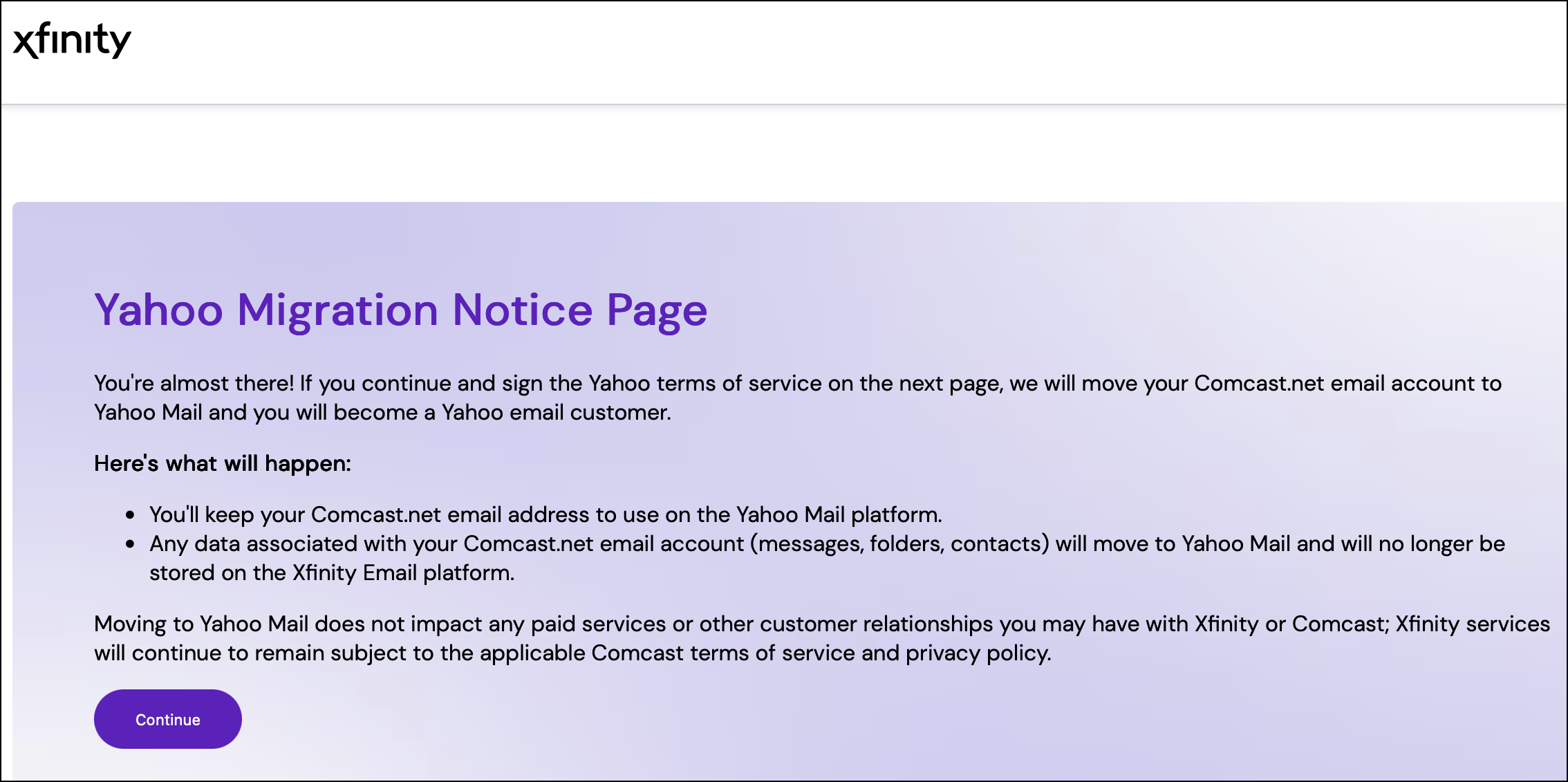
I won’t bother to share every single step, as it may not be identical for every person, but it was very straightforward. The process involved signing into Comcast, clicking the link at the top of the Xfinity page to start the migration, giving permission to proceed (see screenshot below), and then accepting Yahoo’s Terms of Service. After a few moments, the process completed, and I was able to sign into Yahoo webmail using my Comcast email address.
The only small caveats that I encountered were:
- Yahoo prompted me to create a new password for my Comcast email account during the migration, and
- Yahoo indicated that it could take a few days for all emails and folders to migrate from Comcast to Yahoo.
In my case, all of the emails in the default folders (inbox, sent mail) transfered almost instantly, but it took several hours for the emails in my custom folder to migrate to Yahoo.
I’m not a fan of Yahoo’s webmail interface (to say the least), so I set up Apple Mail on my Mac to access my Comcast email account on Yahoo’s servers. Basically, I just used “Add Account” from the Apple Mail menu, clicked the Yahoo button, and entered my Comcast email account name with its new password. A moment later, I had access to my Comcast email via Yahoo’s servers.
As I said in an earlier post, be sure to read the migration FAQs at Xfinity and Yahoo before starting a migration. For most people, there shouldn’t be any problems, but there are some limitations on what the automated migration process can do. For example, attachments over 25 MB cannot be migrated, and folder names must be shorter than 240 characters. If you have any attachments over 25 MB, you will need to download them manually before migrating.
In short, my experience with the automated Comcast-Yahoo email migration process was quick and trouble-free. Of course, your mileage may vary.
I’ve included the text of the email I received from Yahoo after starting the migration, as it contains additional information that my be helpful:
Over the next few days, our systems will continue syncing and organizing your mail. Here’s what to expect while everything completes:
-
You may see more mail appear over the next few days. Some messages and folders may not show up all at once. It can take a few days for everything to fully sync and display across Yahoo Mail and your devices.
-
Please don’t make changes to your folders for 7 days. For the first 7 days after your migration, please do not rename, move, delete, or reorganize folders. Folder syncing may still be finalizing, and changes during this window can cause missing or duplicated folders.
-
A folder change you may notice (some Outlook users) days. If you used Outlook, you may notice some folders appear differently in Yahoo Mail:
- Folders that were previously under a folder named Inbox may now appear as top-level folders (alongside your Inbox) to keep them easy to access.
- If a moved folder has the same name as an existing top-level folder, it may be renamed with a leading underscore (for example, _Receipts).
-
Using an email app? Update your settings—or switch to the Yahoo Mail app.
If you use an email app (such as Outlook, Apple Mail, or Thunderbird), you may need to update your settings to continue accessing your mail. For step-by-step instructions, visit welcome.yahoo.com.
-
About your contacts: Saved contacts are available in Yahoo Mail, but automatically collected contacts (addresses saved only from sent or received emails) are not migrated as part of this process.