Two possibilities to consider:
-
Off-axis color distortion. Some LCD panels show significant color changes when you view them from an angle. Depending on where the screen is physically located relative to your eyes, that may have an impact.
-
Calibration. All monitors needs calibration in order to produce accurate colors. If you’re not doing anything where it matters (e.g. photo editing), the specific colors may not matter, but when you have two displays next to each other, you will notice the differences, even if you’re not sure which is “right” and which is “wrong”.
Assuming the latter, here’s what I recommend you try (if you haven’t already):
-
Configure macOS for a generic color profile for each display. Go to System Settings → Displays. Select each display and set the color profile to something generic. Maybe one of:
- Generic RGB Profile
- Display
- sRGB IEC61966-2.1
Or if these are HDR displays, maybe one of:
- Wide Gamut RGB
- Display P3
- SMPTE RP 431-2-2007 DCI (P3)
You won’t be working with these settings, but you want the signal going to all the displays to be identical for the next step:
-
On each display, use its configuration buttons to select the same hardware color profile, if you can. For general desktop use, I’d recommend using “sRGB” or (if it exists), “P3”. The computer monitors (the Samsungs) should have settings for this. The TVs probably don’t, but they may have alternately-named settings that come close. Look for something like “computer” or “gaming” and avoid settings like “theater” and “warm”, that deliberately alter the color balance in order to improve TV and movie content. Pick one that looks closest to the (probably sRGB) setting you selected for the computer monitors.
-
Once that’s done, now calibrate the displays for real. If you have a hardware color calibration tool, use it on each display. How to do that is beyond my experience, so see its instructions or ask if someone here as experience with your specific tool.
-
If you don’t have a hardware color calibration tool (and you probably don’t if you’re not a professional media editor), you can use Apple’s built-in calibration tool and your eyes. This won’t be as a good as a hardware calibration tool, but it’s definitely better than not using it.
To do this, go to System Settings → Displays. For each display:
- Click on a display to select it
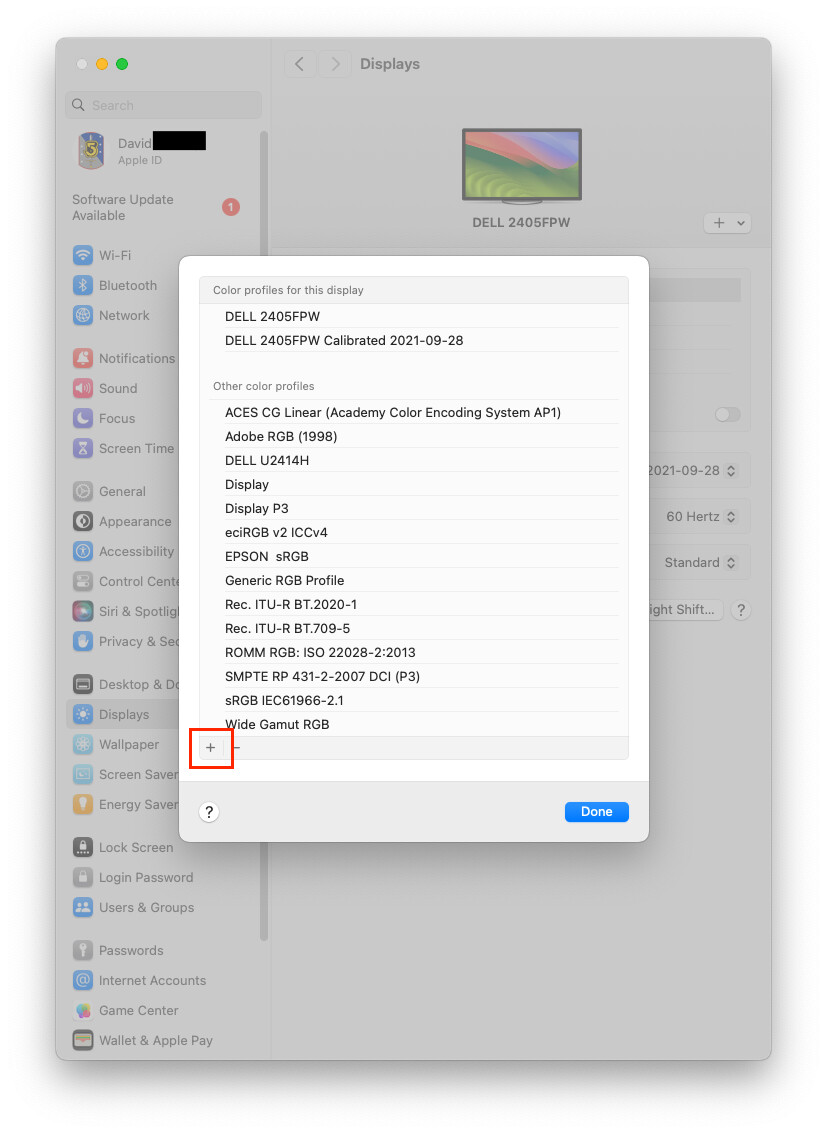
- Click on the “Color profile” item and select “Customize” from the menu.
- Select a color profile to use as a starting point. I recommend one in the “for this display” set, but any one whose description comes close to your display’s configuration (e.g. sRGB or P3) should also be fine.
- Option-click the “+” button at the bottom of the list of color profiles to start the Display Calibrator Assistant tool:
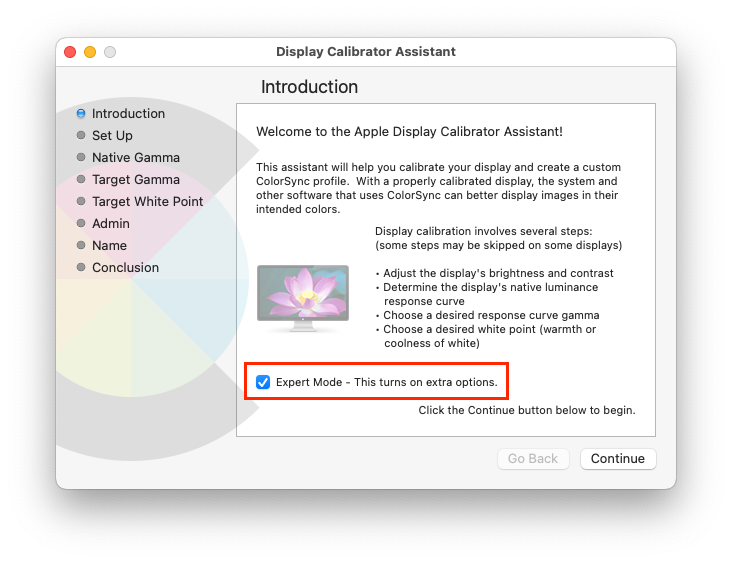
- Be sure to check the box for expert mode, since that will give you more control over the calibration. If you don’t see that box, then you weren’t holding Option when you clicked the “+” button - close the Calibrator Assistant and try again.
- Follow the instructions in the Display Calibrator Assistant. When you’re done, it will have created a new calibration profile. Save it. The default name will be (or was the last time I did this) the name of your starting-point profile, followed by the date you ran the calibration. But feel free to pick any name meaningful to you (e.g. “Upper-left LG TV 2025-02-24”)
- Now back in the Settings → Display window, select the monitor and set its color profile to the calibration profile you just created (I think that will be done automatically, it never hurts to double-check.)
Repeat the above for all four of your displays.
Finally, some casual advice:
- Don’t assume that two displays of the same model will use identical calibrations. Although they should be close, manufacturing differences may cause them to require slightly different calibrations.
- If you move a display to a different kind of interface (e.g. USB-C to/from HDMI), you should re-run its calibration, because DisplayPort (embedded in USB-C and Thunderbolt video) and HDMI are not identical protocols. I’m not an expert here, but I would assume that these differences could result in (hopefully small) differences in color calibration that you might notice.
- Room lighting will affect how you perceive the image, and it may affect different displays differently. If this bothers you, you can re-run the calibration a few times, creating profiles for different lighting conditions (e.g. morning sunlight, afternoon sun, interior lighting, dark room, etc.). You can then select the profile(s) appropriate for your ambient lighting, changing them as necessary. (Since you have four displays, you might find it useful to write a script that can change all four together, if you find yourself doing this a lot.)
- I’ve found that sometimes (especially after a system software upgrade), the display calibration will revert to a factory-default setting. If this happens, go to System Settings → Displays, and select your (saved) calibrated profile for each display. It’s been my experience that the chosen setting will persist across reboots, so in the worst case, you should only have to do this after macOS upgrades.