You literally just gave the reason: because of equipment like printers that shouldn’t be plugged directly into a UPS. Unless you believe that you should have to buy a separate surge protector for the handful of items that require power but are bad for the UPS itself. Good surge protectors are pricey, and after the expense of a UPS, why require users to spend more when it costs the manufacturer very little to add a small number of regular outlets?
1 Like
… or the dozens of other things in the room that simply don’t need uninterruptable power and are connected elsewhere to avoid adding unnecessary load.
My UPS only powers those things where protection is essential. The computer, its display, external storage devices, cable modem, router and Ethernet switch. The things that I need in order to continue working through an outage.
Other things in the room like the printer, scanner and speakers are not connected. Not because the UPS shouldn’t be used with them (which is only the case for the printer), but because I don’t need to use them during an outage and I don’t want their load reducing my UPS’s run-time during an outage.
Most aren’t that pricey, although some of the best can be very expensive.
And what makes you think the one built-in to your UPS will be as good as one of those pricey surge strips that you want to avoid paying for?
If it’s not, then it was the wrong UPS to buy. A UPS with a poor built-in surge suppressor is likely to have other substandard components. Do think that, say, an APC UPS is going to have poor surge suppression?
I don’t think that’s a fair assumption. A company that makes the best UPS may not make the best surge suppressors.
I don’t know what kind APC puts in their UPS units (mine don’t have surge-only outlets), but I know that their consumer-grade surge strips are no better or worse than anybody else’s.
One motive I can think of for UPS manufacturers to “bundle” surge suppressor-only outlets into a UPS, instead of having both a UPS (with all battery backed up outlets on it) and a separate surge suppressor, is that customers only have to use one wall/floor outlet to plug the “bundled” UPS into.
Obviously, for many (probably most) customers, a shortage of wall/floor outlets isn’t an issue. But on when I worked in several offices that were “cubicle farms”, it was pretty much a single pair of outlets per cubicle.
(This, of course, led to extensive use of power strips throughout the office – often to an amusing and/or hazardous extent.  )
)
1 Like
When I worked in an actual cubicle, there were actually two or three duplex outlets in each cube. I think, as a tech company, they recognized that we were hooking up computers and test equipment and other devices all the time.
When I worked at an “open plan” company, where there was just desks in a big open room, we needed power strips and extension cords from the (numerous) quad-outlets at the walls to where the desks were. But fire codes prohibit daisy-chaining a power strip from another power strip, so we invested in big 12-outlet strips where the metal enclosure was 6’ long, and the cord was another 6’. One of those was plugged into each wall outlet, allowing the desks to have sufficient outlets.
2 Likes
We had safety inspections, and one of the checks was use of power boards. We just had to ignore somethings as some people needed multiple computers. Apparently they now have 2 workers per room, which makes it impossible to work with the number of outlets. The problem was that the rules are meant for people with instruments etc that require high power. There are also stupid people who try to plug heaters into power boards.
1 Like
I see no evidence that Brother has “left Apple”. Nor any evidence that Apple has any difficulty with Brother. I recently installed an M4 Mini, treating it as a new macOS installation, and my Brother MFC-J450DW keeps on trucking. (macOS recently configured my ethernet-connected Samsun M332x B&W laser printer and room light dimmer at startup as an AirPrint printer.) My experience since last century was the OS X and macOS usually gets a printer connected faster than I can type the URL for the vendor (for a driver).
I was taught early in my career not to connect laser printers to a UPS because of the inrush load. So my laser printer is connected directly to the 20 ampere (AWG 12) dedicated circuit that I personally ran from a new breaker. The second device connected to the dedicated outlet is an APS BR1500 series UPS. This UPS powers two two Mac minis, an array of Thunderbolt quad enclosures, three LED displays, LED work surface lights, cable modem, AirPort Extreme, RIPE Atlas probe, audio amplifier, ethernet switch, USB hub, dimmable LED cabinet strips which light from behind the screens to enable working on the equipment, and last, any guest equipment like MacBook power adapters and Anker multiple output charging blocks. I have often heard my UPS complain of power glitches or seen the warning of “on UPS” on my primary screen. I just keep working until failure of room ceiling lights insist on a controlled shutdown of editing tasks and the like. The UPS handling the multitude of small loads give sufficient run time to personally react as required.
We have two ‘work stations’, both configured similarly with dedicated 20 amp circuit and 1500 VA UPS. In a mid-1960s houses that was built with some aluminum wiring we had new 200 amp service installed and the new and larger breaker box made it simple to connect the dedicated circuits. This safe power configuration isolates the computer work stations from other bad influences and the UPS filters erratic line voltage by substituting UPS conditioned power when necessary. In over 30 years I have had no electronic equipment fail due to power problems. Now with computers in recent washer, drier, HVAC, and Refrigerators, it will be interesting to see what the future brings.
1 Like
I agree. It’s apparent that printer vendors appear to be adopting driverless printing (AirPrint or IPP Everywhere). Perhaps the standards are maturing to a point that vendor-specific operating system printer drivers are no longer necessary.
That IMO is a good thing as it means that printers have a better chance of working, and the vendors are reducing the costs (both to them and users) of having to maintain printer drivers. (If I were in their shoes, I’d rejoice at not having to build and test new printer drivers for Windows, Mac, Linux, and mobile devices every time the OS vendors upgrade their software).
2 Likes
I’m curious do none of the newer Brother printers connect with a USB (A) cable or has that been discontinued?
Most of their printers have USB interfaces. Looking at all of Brother’s printer/fax devices, according to the check-boxes in the left-side columns, using the filter-by-function boxes:
- 128 of their 160 products have USB
- 46 out of 48 print-only devices have USB
- All 22 print/scan/copy devices have USB
- All 58 print/scan/copy/fax devices have USB
- None of the four fax-only devices have USB (not surprising)
This adds up to to 126 out of 132 devices. I don’t know what those 28 additional devices (2 of which have USB) are, since these are the only four “functions”
(I have no desire to pull up the specs for all 160 devices in order to get a more accurate count.)
All that having been said:
- The AirPrint drivers can still be used for USB-connected printers. Despite the name, it’s not just for Wi-Fi.
- I don’t recommend USB connectivity because:
- It’s usually slower. Brother’s USB interfaces are “High Speed USB 2.0” - meaning a maximum of 480 Mbit/s. Vs. Gigabit Ethernet and Wi-Fi, which will usually be much faster.
- If you have more than one computer, the printer can only be USB-connected to one of them. If you want other computers to be able to print, you’ll need to enable printer sharing and leave the connected computer running 24x7.
- You could also configure the printer for Ethernet/Wi-Fi in addition to USB, but if you’re doing that, why bother with USB at all?
- Certain activities, like upgrading the printer’s firmware, is more awkward over USB. The connected computer must download the firmware and then push it into the printer via an app. Network-connected printers can download the updates directly (either automatically or when you tell it to, however you prefer).
5 Likes
OK. This was helpful. If I get a new printer one of these days, I may ditch the USB cable at long last. Thank you.
Still off-the-rails from the main discussion… it is fascinating to see the discussion about a problem that is partly due to a decision, more than a century ago, to adopt 110V C electricity supply. These problems seem less likely with 240V in Australia and the UK. Devices here are limited to 10A.
That’s not the issue. Personal laser printers don’t come close to consuming 15A or even 10A.
The printer in question has a documented maximum load of 470W, which (at 120v) is about 4A.
If it is causing a breaker to trip, then either the breaker is defective or there are other devices on the circuit.
This reminds me of my first house (built in the 60’s) where there was a wall between the living room and the kitchen, and outlets on both sides of that wall were on the same circuit. So when my computer and its 17" CRT display (on the living-room side of the wall) was running at the same time as the microwave oven (on the kitchen side of the wall), it would often trip the breaker. Neither the computer nor the microwave was doing anything wrong, but they could not be operated together on the same circuit.
According to the meter on my UPS, that computer and monitor consumed about 400VA, or about 3.5A. The microwave was 1200W, meaning it consumed >10A. The two together would be less than 15, but close enough that momentary inrush currents (e.g., when the microwave’s magnetron cycled on) could briefly push it over the limit.
I solved this problem by repurposing a spare bedroom as an office, moving the computer there. Once the devices were on separate circuits, no more problem.
FWIW, the spec page for the USB-only HL-L2400D says that it supports AirPrint, though you have to scroll to the bottom of the page and open the “Conditions” section to see the text:
“Printing via macOS requires the use of AirPrint. Mac printer drivers are not provided.”
If folks are having trouble printing using the AirPrint driver on a current USB-only printer, perhaps this general method for overcoming AirPrint difficulties with a Canon USB printer might be useful.
1 Like
The page you linked to doesn’t have that comment. You probably meant this page from the user’s guide (combined manual for the 2400, 2405, 2420, 2460 and 2865):
But that’s a combined manual for 6 models. If I go to each model’s support page and click the “Supported OS” link on the left-side, I find:
- HL-L2400D
- Windows (10, 11, Server 2012-2022)
- Linux
- HL-2405W, HL-L2420DW, HL-L2460DW(XL) and FL-L2865DW.
- macOS (11-15)
- Windows (10, 11, Server 2012-2022)
- Linux
- iOS
- Android.
So I’m not sure that that footnote is applicable. The other five models in that manual have networking and macOS support, while the 2400D does not.
And if I look at the product pages, the situation actually looks worse, and I may have been wrong in my first post. If you go to the product pages, and expand the “Print” tab, to the emulations of each model in that manual:
- HL-L2400D: GDI
- HL-L2405W: GDI (but claims macOS compatibility via AirPrint on the “Connectivity & Compatibility” tab).
- HL-L2420DW: GDI (but claims macOS compatibility via AirPrint on the “Connectivity & Compatibility” tab).
- HL-L2460DW and HL-L2460DWXL: PCL6 (PCL XL Class 3.0)
- HL-L2865DW: PCL6 (PCL XL Class 3.0)
“GDI” is a reference to the Microsoft Windows Graphics Device Interface API, which is used for basic drawing (the functional equivalent of Mac OS’s QuickDraw library. The fact that there are no other emulations, means that it is very much a “WinPrinter”, designed for Windows and will require a driver that can generate GDI calls.
I am surprised that the 2405 and 2420 claim AirPrint capability even though they also only support GDI. But they’re on Apple’s list of AirPrint devices. So maybe those printers include additional firmware to translate PostScript or PCL to GDI? Or maybe Apple has a generic GDI driver (although I don’t see one anywhere on my system). I just don’t know.
But this starts to explain the OP’s original problem. Without a built-in GDI driver and no AirPort support from Apple or Brother, there may not be a viable option. I’m not surprised that CUPS has a driver - the open source CUPS project supports everything, but sometimes their support isn’t very good (e.g. the duplexer, in this case), and I have no clue what CUPS drivers Apple includes or supports beyond what they officially list on their support pages.
2 Likes
Thanks, but on the page I linked, scroll down past the reviews and questions to the section labeled “Conditions” and click on the control to expand it.

Thanks for the detailed analysis of the HL-L24xx series of printers. You are indeed correct about some of the printers being GDI printers, including the OP’s HL-L2400D. The page I linked to shows that, as well, though I confess I didn’t check for it there:
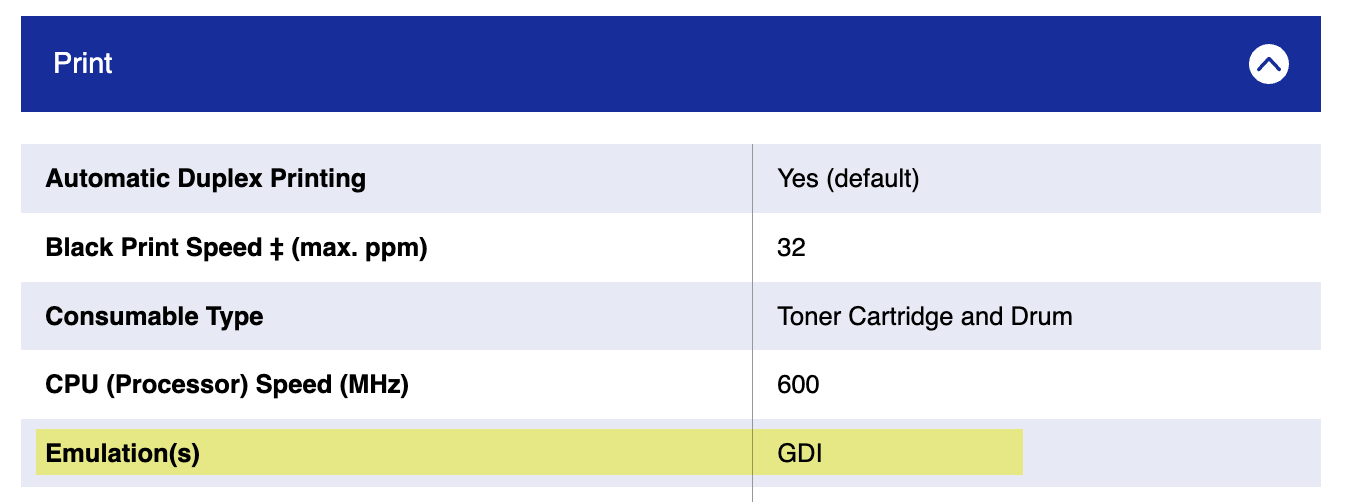
Certainly, there are some GDI printers that are supported on MacOS, so perhaps this one does via AirPrint over USB, but at this point, it seems like anyone’s guess.
It is interesting that someone on the previously mentioned Reddit thread apparently got the HL-L2400D to work with the older HL-L1440 CUPS driver. I guess that uses the same GDI system, or at least something similar.
At this point, I confess to being a bit demoralized by the effort I (and you) put into researching this question. Sure, I thought it was interesting, but it would have been much easier with clearer documentation. Even so, the result is disappointingly inconclusive.
1 Like
This is a really interesting discussion because I’m dealing with something similar although unrelated to UPS or computers. In the last year, my microwave has started tripping its breaker if you open the door while it’s running. This is new behavior.
I’m trying to figure out if the problem is the microwave wearing out (it’s less than five years old) or if I just need to replace the breaker (which is the same age, this being a new house). I’m no electrician and am afraid it might be the microwave, which will be a pain to replace because it’s built-in and the exhaust fan runs through it. So for now, we’re careful not to open the door while it’s running. It is alone on its 20A circuit, which I believe is per code.
Maybe some of the brilliant knowledgeable people here will have thoughts…
Is the breaker an AFCI breaker? Now required on most living and bedroom outlets. Not typically required for dedicated appliances. Opening the door could cause noise on the circuit that trips the arc fault circuitry. Newer AFCI breakers are less susceptible to noise. Opening the door just shuts off power to the magnetron tube. That shouldn’t cause any additional power draw.
1 Like
I think it might be better from both convenience (not tripping the breaker) and safety (not potentially getting exposure to microwave radiation) standpoints to hit the “Stop” button before opening the door when cooking time remains.