Yes, the writing has been on the wall for Time Capsules for a long time now.
Will be awaiting this answer. I recently sold an M1 MBA to a friend and they say it wants a password. So I have to get with them to sort it out. I should have reset it, but it was a while ago and I don’t remember.
Obviously most aren’t having problems, but I don’t see any other M1 MBA reports. M2 Mini Pro and M3 MBP to 15.6 without problems here.
Ditto here. I’m glad my 2022 MBA M2 is still on Sonoma 14.7.7. I hold off updating until just about a year has passed after a new major version of MacOS is released and was just about to install Sequoia. Since I don’t have an Apple Store nearby to do repairs, if something happens and I can’t fix it I have to toss the hardware and get a replacement.
Not a bad approach, in your situation, imho!
I rarely find new Apple OSes compelling any more so also try to wait until my intution tells me it’s safe.
As a follow up, I was having trouble with a new digital camera being seen by the M2 MBAir so went ahead and updated to 15.6.
Took about an hour over DSL while I was tending to dinner.
I haven’t fully gone thru all settings or key apps yet but the Mac is still working, Mail works but had some categorization feature offered which I turned off and adjusted some settings that appeared to be new and on by default.
Appears Apple AI was installed (I had prevented that previously with Little Snitch), but not active as Siri is in one language and the Mac in another. I don’t know how Siri got in another language as i never use it but am happy this keeps Apple AI from working.
There were several things in iCloud turned on that were off before so I turned them off. System Settings was not displaying correctly, I went into my Apple Account section and then for example ‘Sign In & Security’ and at the top it told I was in Wi-Fi Settings though the Sign in stuff was displayed. I clicked the left arrow to go back to Account Settings and it took me somewhere else.
Anyway, I restarted the MBA and then section headers matched content in System Settings.
On the plus side, I launched Firefox and up came TBT, still logged in!
Alas, the update did not solve the problem with the digital camera. Need to decide on sending for repair or trying to return for refund or exchange.
You can turn Apple Intelligence off via the Apple Intelligence & Siri settings panel.
Does the camera need a driver? Have you checked online for information?
Thanks Mr. Forkosh!
Yes I have never turned on Apple-I in Sytems but wanted to avoid using storage space for it as the MBA only has 1TB internal storage. (it’s also irksome how many applications can’t be deleted even if one doesn’t use them; but that’s another topic…).
Camera is a Fujifilm X100VI. I owned an X100V previously and it did not require a driver and worked fine with the same Mac, apps, and same cables. I’ve read the manuals for both models and not come across any reference to drivers. Good Question! Sending it off to repair center tomorrow.
A bit of a nuisance but I travel with an Apple SD card reader for transferring photos if the camera wifi feature does not work for my iiPad (eg camera battery needs recharging). I haven’t tried it with my MBA but expect it would work.
I have an iPhone 15. The bottom 4 Apps are Contacts, Phone, Evernote annd Comcast/Xfinity. I use them every day.
Last week I updated to 18.6. When the update was finished, the bottom row was changed to Conacts, Phone, and a folder called Productivity. Comcast and Evernote were placed in this folder. I didn’t ask for this and I don’t want these Apps in a folder! (It’s another click just to open the App!) I tried to drag the 2 Apps out of folder numerous times and was finally able to get Comcast out. But I can’t get Evernote out of the folder. When I touch the folder I do get a menu that says: Remove Folder, Edit Home Screen and Rename.
Question: If I choose Remove Folder, does that mean Evernote will be gone, too?
I don’t want Evernote in a folder — any suggestions on how it can be removed? It won’t let me drag it out!
Did this happen to anyone else where Apple decided to put Apps in folders??
I have a 15" MacBook Air M2 2023. I bought it April 2024. I returned from vacation on Monday (8-11-2025) and booted up the laptop. It doesn’t hold a charge! It was charged to 100% went I went to bed, with top open and on. In the morning only 2% charge was left. Before I left for vacation, I updated to 14.7.7. From reading the comments here, It appears that the update has caused this problem. Is Apple acknowledging this problem? Those of you that have had to take your computers in to be fixed —are you paying for that?
Interesting. iOS has never changed the icons on my home screen. My Dock (the bottom row) has what I think is still the factory default: Phone, Messages, Safari and Mail. Everything else is on the screen above it (mostly in folders):
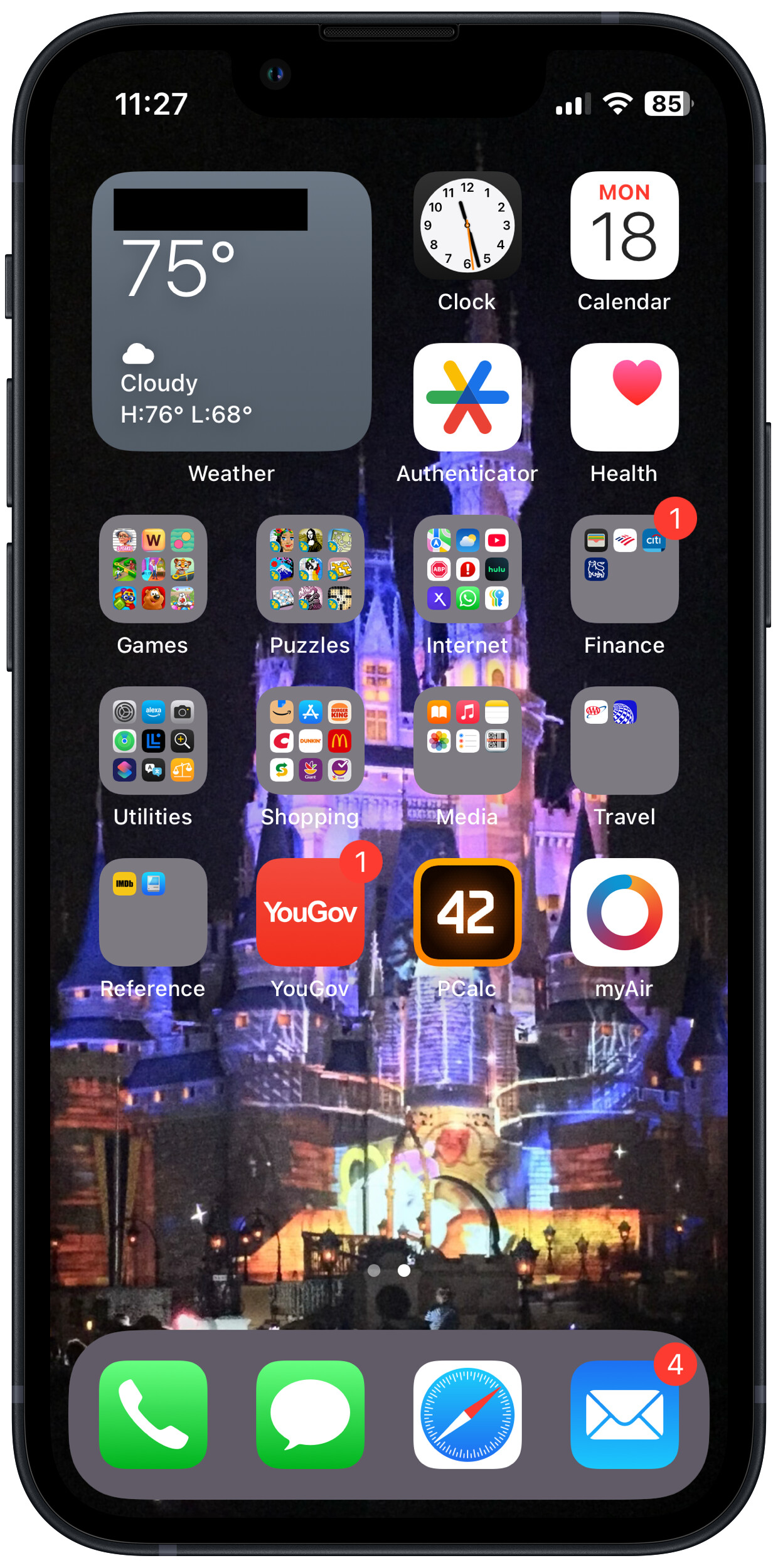
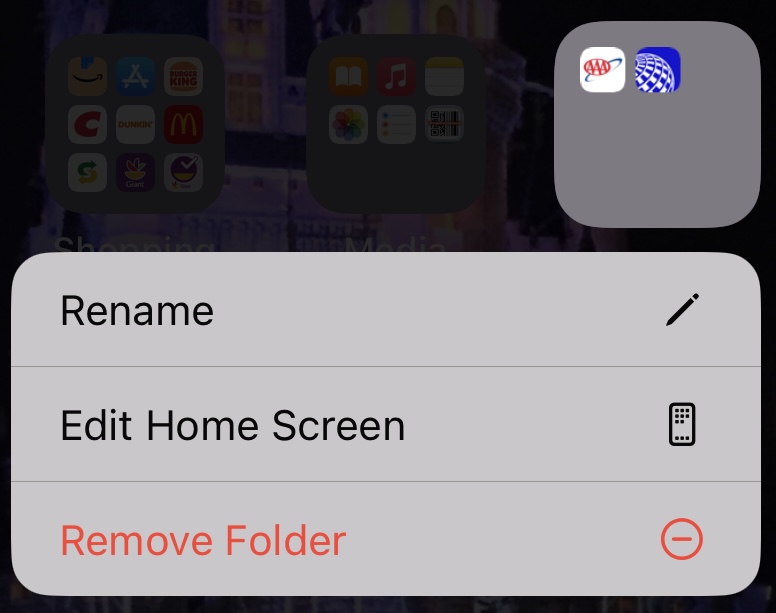
Regarding the question itself, that popup is what happens whenever you long-press any folder:
-
“Rename” opens the folder and lets you rename it. Same as if you would open the folder and then long-press its name.
-
“Edit Home Screen” starts the icons wiggling so you can move them around. Same as if you would long-press the icon and then start dragging it somewhere.
-
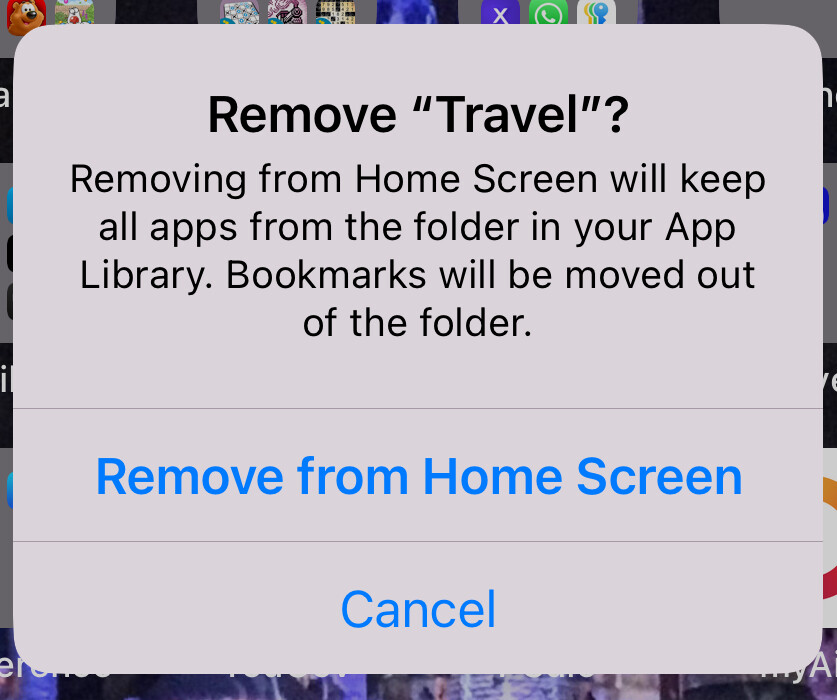
“Remove Folder” will delete the folder and its content from the home screen. The app will remain installed, and will be accessible via the App Library, should you want to put it back. If you tap this option, it even says so:
My suggestion to you:
- Drag the folder out of the Dock (or select “Edit Home Screen”), to some other part of the home screen
- Open the folder. Then drag Evernote from that folder to its position in the Dock
- The folder will self-destruct once there is no longer anything in it.
1 Like
THANK YOU, David. Dragging the folder out of the dock was the trick! Bad Apple --if I want my Apps in a folder, I’ll put them there myself!
2 Likes
It’s not uncommon to see a Mac perform a lot of background tasks after updates. If you have your Mac on after an update but not plugged in, I wouldn’t be surprised to see the battery run down.
Leave it plugged in over night while it’s finishing all its housekeeping. See if once you start using it after it has fully charged, the battery rundown appears any faster than it used to. If you are suspicious of a runaway process and don’t wan’t to get into detailed investigation, you can always just reboot your Mac.
What does System Information say under Hardware > Power in terms of cycle count and max capacity?
Cycle Count: 126
Condition: Normal
Max Capacity: 89%
That’s still fine.
A decent rule of thumb is no less than 80% before 300 cycles.
I have a MacBook Pro 2019 16-inch running Sequoia 15.6.
Under System Information there is Cycle Count (211) and Condition (Normal), but no Maximum Capacity.
Under Charge Information, however, there is Full Charge Capacity (mAh): 7454.
I assume this is all fine too, but is there a reason there is no Maximum Capacity as a percentage?
David
The Intel MacBooks are different. But we can arrive at similar conclusions.
Your 2019 16" has a 100 Wh battery and its battery voltage is ~11.4 V which means the battery has a charge capacity of about 8.8 Ah. So that would put your remaining capacity at about 85%. At ~5 years of age and over 200 cycles that looks just fine so I’d claim the ‘normal’ label is spot on.
I thought the fact that it’s an Intel model might have something to do with it.
Thanks for the clear and detailed explanation.
David