AppBITS: EyesOff Alerts You to Shoulder Surfing

Originally published at: AppBITS: EyesOff Alerts You to Shoulder Surfing - TidBITS

I’ve never been one for working at a coffee shop or in other public spaces, but lots of people—particularly students—often find themselves in situations where someone could be surreptitiously watching what you do over your shoulder. That could be a problem if you’re working with confidential or sensitive data, or just something that you would be embarrassed if someone else read. If shoulder surfing concerns you, there’s now a solution.

EyesOff, a menu bar app by indie developer Yusuf Mohammad, uses your Mac’s webcam to detect whenever someone else is looking at your screen and alerts you instantly. It offers two detection modes: Face mode simply detects any face in view, while EyesOff mode goes further by detecting whether faces are actually looking at your screen. You can adjust detection sensitivity and specify how many additional faces are necessary to trigger the warning (perhaps you regularly work with a friend or colleague, so you’d be worried only about a third face being detected).

Whenever EyesOff detects a face, it can show an unmissable alert in the center of your screen, post a standard notification, or launch another app. You can customize the alert’s size, text, color, and opacity, or switch to full-screen mode, which has the added advantage of obscuring whatever is on your screen. The alert can disappear automatically or require manual dismissal. EyesOff also offers a “rear view mirror” option that displays a small window of what the webcam sees when it detects a new face, and it can even launch another app in response to face detection. What you see below is the app’s main window; normally, whatever you’re working on would be underneath the EYES OFF alert, and the rear view mirror window would appear in the corner of the screen.
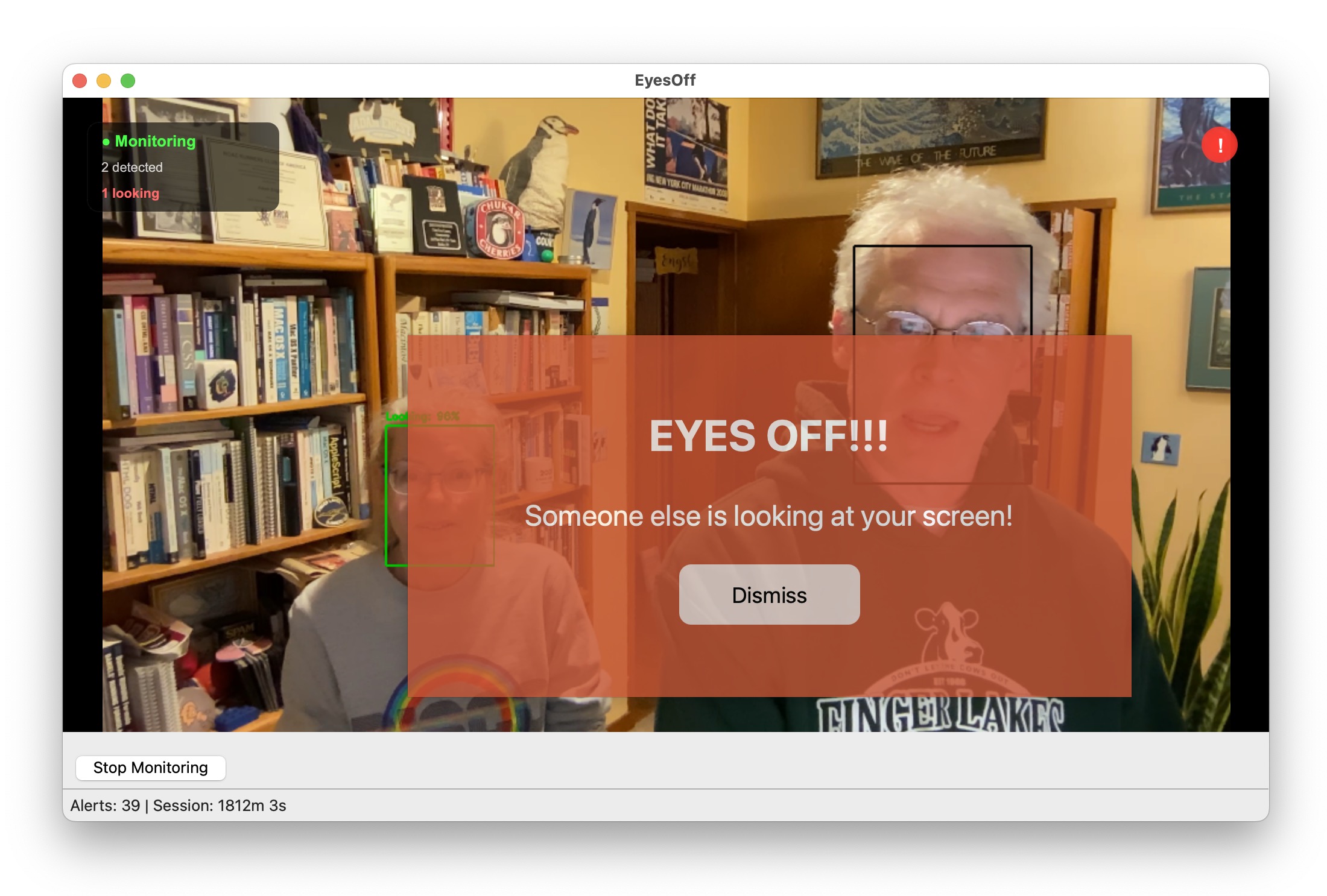
EyesOff main screen

What about an unattended Mac? In theory, if you’re working on confidential data, you should have the display turn off or start the screen saver after a few minutes of inactivity. But if you were called away from your desk and a nosy colleague came by before the inactive timer elapsed, they would have access to your Mac. We may not have Face ID for the Mac yet, but EyesOff offers a basic level of face authentication. You enroll your face, and whenever it detects someone other than you looking at the screen for more than about 5 seconds, it locks the screen. Since you wouldn’t know who was looking at your Mac when it was unattended, EyesOff offers an option to take snapshots whenever it triggers and keep them for a user-specified number of days.
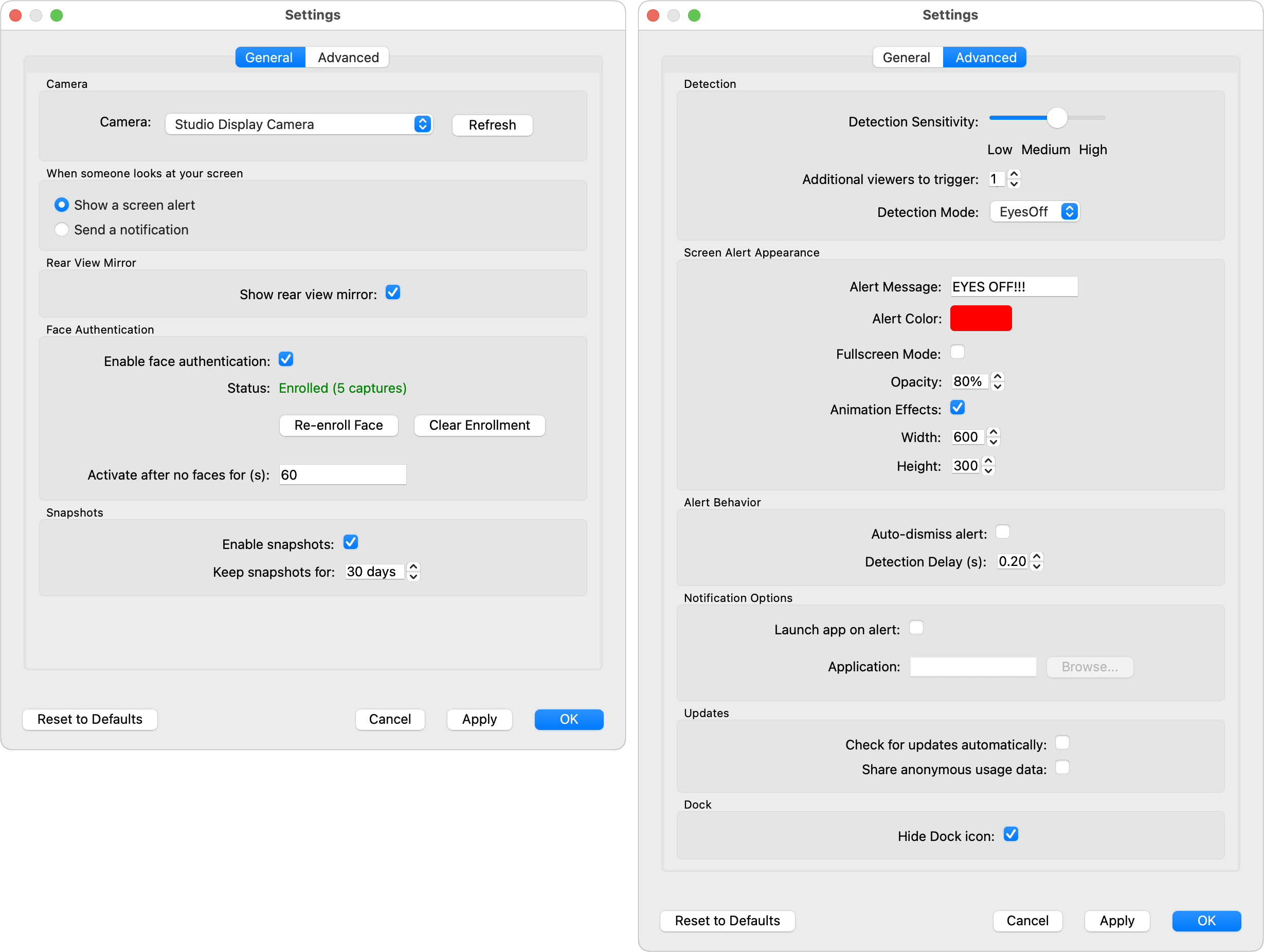
EyesOff settings

Although I seldom compute in public, EyesOff worked fine during my testing, and when I was at the ACES Conference last week, it triggered correctly when someone was looking over my shoulder. Of course, I was working with them on something, so I had to quit the app temporarily, but Yusuf is considering adding a button that would let the user prevent the alert from appearing for a user-configurable number of minutes to address legitimate co-working situations.

EyesOff relies on a lightweight AI model for face and gaze detection, but I noticed no performance slowdowns, admittedly on an M4 Pro MacBook Pro. All processing takes place on the Mac—no data ever leaves the machine—and the app doesn’t record or store video.

Yusuf has been extremely responsive to feedback, converting the initial version he showed me into a menu bar app, adding face authentication, and fixing bugs associated with my somewhat unusual three-camera Mac (a MacBook Pro with two Studio Displays). Nonetheless, EyesOff is still young and in active development, so I’ve encountered a few glitches, and you might too. Yusuf has resolved all of mine so far, but EyesOff will undoubtedly continue to mature in the coming months. If EyesOff would give you some peace of mind while working in public or leaving your Mac unattended in your office, I encourage you to give it a try. It offers a 14-day free trial—no credit card necessary—after which it costs £13.99 (about $19) per year. There’s also a Windows version.

8 Likes

I have always been a big fan of 3M Privacy filters.

These are full-screen covers that prevent anybody from seeing your screen off-axis. So someone sitting next to you can’t see much of anything.

I’ve used one of these on my work laptop for a very long time, and I strongly recommend them for anybody who needs to work on sensitive documents where strangers might be shoulder-surfing.

Of course, this doesn’t help if you leave your computer unattended. For that, I strongly recommend manually locking the screen before you get up.

6 Likes

Wow, using your laptop’s webcam to spy on people spying on you? That’s just creepy! Is that ‘prying eye’ detection done on the laptop, or does this send data to the cloud?

I wouldn’t call it spying on people…merely providing eyes in the back of your head and alerting you to possible security issues. All processing is local and no cloud involved. Seems like a good security practices idea to me.

2 Likes

Looks like no cloud involvement:

2 Likes

Hi Yusuf here, the dev behind EyesOff.

Indeed, there is no cloud involvement and all processing takes place on device.

There are two reasons for this. First, sending webcam data to the cloud would undermine the whole idea of a security app and second latency, the round trip time to send video and get a response would be much too slow to detect when someone looks at your screen (by the time you’re alert they may have already left).

10 Likes

Thanks for pointing those out; I’ve been looking for ways to avoid paying Apple for its nano-etched screens. And bonus!..3M’s current filters can be turned on-and-off, so to speak, through the way they are mounted.

Question: how effective have you found the filters at cutting glare? And do you ever switch from the filter’s matte side to its glossy side?

Note that the purpose of the 3M screens is privacy. Anti-glare is a side-effect. And unlike other kinds of anti-glare screens, these do reduce the overall brightness of the screen. (3M says it passes 85% of the light, which seems about right to me).

They do a pretty good job. At least as good as standalone anti-glare screens.

I don’t normally use the glossy side, because I prefer the look of the matte surface. But as you point out, it’s trivially easy to flip it around when you want to switch. And I can easily remove it when I want to let others in the room see my screen.

1 Like

Great product. Highly recommended.

I’ve seen polarized screens from other manufacturers aimed at phones, but I don’t have firsthand experience with them.

I’d love to see this for the iPad or iPhone.

1 Like

I’ve tried to implement it there too, but the issue with mobile devices is front facing camera access is very difficult. Specifically, background access of the camera is not allowed (afaik from my research).

Bummer. Be great way fto know when someone is eyeing up your phone.

1 Like

Third reason: user Mac might not be connected to internet! :wink:

1 Like

For sure, I’ve thought of some methods to make it work. E.g. having EyesOff appear as Picture in Picture but I’m not sure if it would be approved by the App Store and if users would be ok with it blocking the screen.

haha indeed

I love that they “utilize nanolouver technology to help you deter visual hackers.” I presume you don’t find that they dim the screen too much? It sounds like they reduce brightness by about 15%.

When I was using my MacBook Pro on the plane, the person in the seat next to me never showed up in the EyesOff view; she was too far to the side. I suspect she still could have read what I was writing with some effort.

This is a general limitation with EyesOff, the app is limited by the webcam FOV. To have the “highest” security I’d recommend both a privacy screen and EyesOff (in my experience privacy screens don’t cover the over the shoulder view).

1 Like

It has never been an issue for me in normal office lighting. In bright sunlight, it might not be bright enough for comfort, but I never work outdoors.

If you have several computers in your room, and therefore sit in a variety of locations, you may find that you can’t see anything from some locations (e.g., glancing over your shoulder to see if a long-running task has completed). This should be expected, but it still surprised me the first time.

A fair number of companies that work with sensitive data (accountants, lawyers, etc.) require their laptop users to use them. For example, I worked as an interim exec with a well-known professional services firm, and failure to use a privacy screen would lead to disciplinary action, including termination for repeated offense.

15% is noticeable, but with professional machines that have bright screens, it’s generally not a problem.

2 Likes

This is one of the best hidden features of the Apple Vision Pro – you can work on your laptop inside it and no one can see what you are doing!