Yep, it’s reported in several places that getting Golden Gate up via an installer from Mr Macintosh or the wonderful Mist app with all Internet access via Wi-Fi or Ethernet disabled will avoid the AI material. Haven’t tried this myself though…
You might avoid AI initially, but once you connect to the internet it’s going to download and that’s mentioned in the ArsTechnica article:
“If you were running Tahoe with Apple Intelligence turned off, Golden Gate needed a whopping 17GB more space on the M1 MacBook Air, thanks to a mandatory multi-gigabyte language model download that kicks in automatically the first time you connect a freshly restored Golden Gate Mac to the Internet.”
1 Like
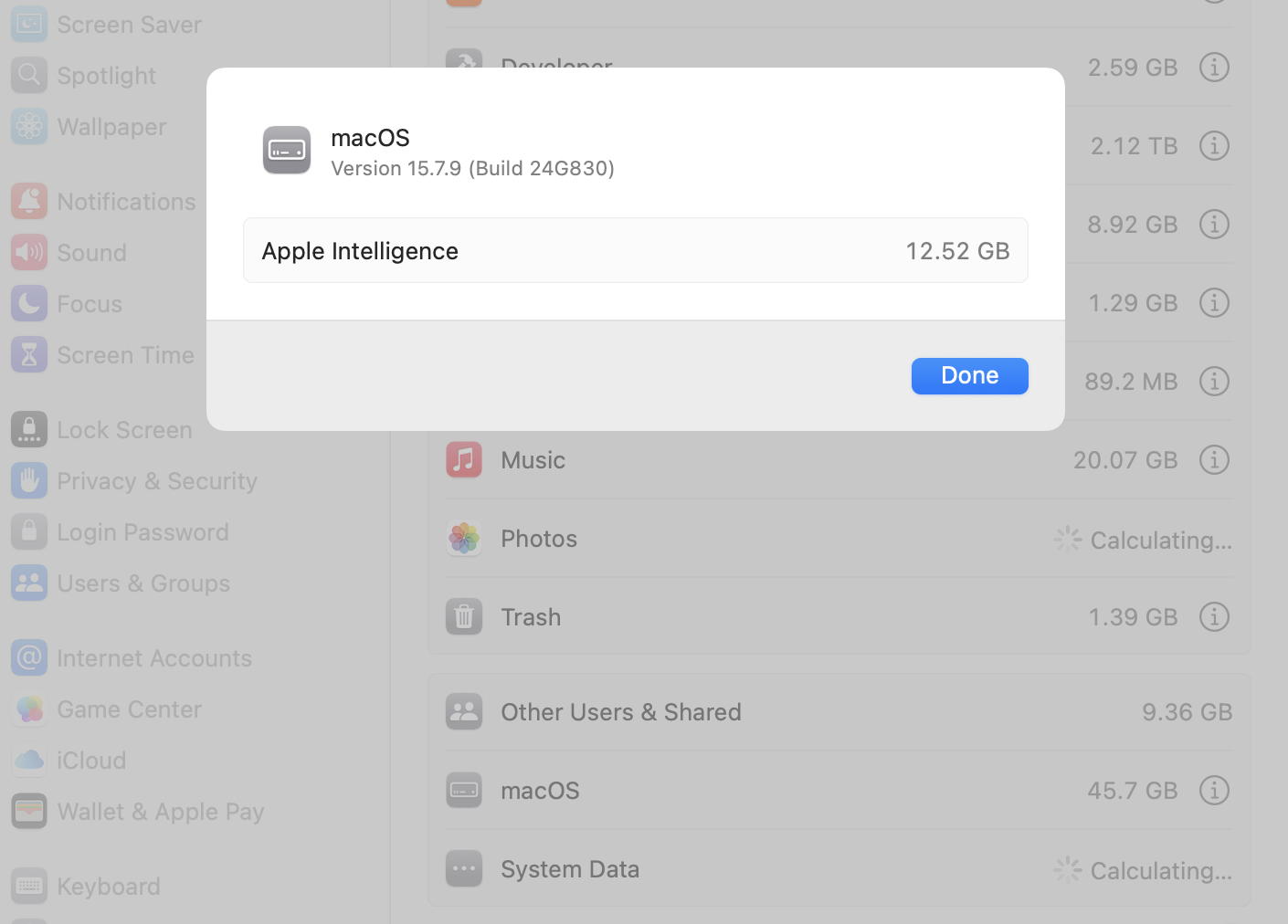
I have both Siri and Apple Intelligence turned off on my Sequoia installation. I had assumed that no AI data had been downloaded but System Settings > General > Storage indicates about 12.5 GB.
I will wait to upgrade from Sequoia to Golden Gate with the x.2 or x.3 update. Maybe.
2 Likes
Thank you, Jeff, for looking into this. I had almost resigned myself to it, but 30 GB for something utterly useless. Sigh
Here’s what I see in System Settings > General > Storage:
macOS: 28.69 GB (of which Apple Intelligence takes 8.28 GB) <— I’m fine with this, but…
System Data: 56 GB <— This is outrageous. It was about 25 GB in Tahoe.
Well, if it’s mandatory, that’s life, I guess.
1 Like
I’ve been waiting on installing OS 26 on all of my devices, because I don’t like liquid glass, and I continue to see a handful of macOS issues among my clients. But I’m enthusiastic about OS 27 and expect to install it on my devices once the .1 or .2 update hits.
I only noticed the AI data issue when I was using my iPhone’s hotspot and I think I was upgrading to 15.1 at the time and that’s when my storage space started being used up and my data was being utilized faster than normal. Since my M1 Air only has the 256 GB drive and I have a dual boot setup, I notice it even more. I have enough other files, virtual machines etc. so then I have to remove a few things just to do a major update and then copy them back if I have enough room.
I have had problems when skipping multiple releases. It was messy and convinced me never to try that again. As I recall, some problems came from changes Apple made in formats and procedures, which it handled adequately when going to the next OS, but assumed it had been done when going to OS+2. Non-Mac apps and hardware also could be problematic especially when you have to upgrade to new versions that have unexplained changes.
1 Like
I had to upgrade to Bartender 7 in order to use Bartender on GG on my M5 MacBook Air.
macOS 27 has its own built in version of Bartender. I have deleted Bartender on my MBA. Not as versatile but good enough for me to abandon third party apps which do the same.
Click on the double chevron which appears when there is not enough room to show all the menubar items on the right of the notch.
2 Likes
FYI, Howard Oakley published a new article today on The Eclectic Light Company, with some (IMO perceptive and illustrative) musings about the tradeoffs between the advances in Apple Intelligence in Golden Gate, and the cost in lost GBs of storage space:
It was particularly interesting to me, because it talked about he uses Apple Intelligence when writing articles about (one of) his other great interests, art history.
Well stated, Jeff! And as one who uses third party software exclusively on my Macs, your statement about that is right on the money. Usually I’ll upgrade when the .2 or .3 release of the new OS arrives. By that time, 1) any updates I would need for my third party programs will be available (most of the time earlier), and 2) most of the “serious” bugs in the OS should be ironed out by then. The only time I waited was just recently. I did not move from Sequoia to Tahoe until back in June. That is when a non-beta version of SuperDuper! compatible with Tahoe became available. So far Tahoe is fine, although a little slower than Sequoia.
Unlike Tahoe, on Golden Gate there’s no longer a master switch to turn off Apple Intelligence. So you’re stuck with an additional up to roughly 25-GB payload for the on-device models. Keep this in mind before you update to GG if you’re already tight on disk space.
5 Likes
That’s a very important thing to keep in mind, whether you use Apple Intelligence or other on-device AIs. I keep a few third-party AI models on my Mac, and they easily can take many gigabytes each.
I’ve long been skeptical of the need for “app cleaner”/uninstaller apps, but as AI models proliferate, I can see a real place for a tool that will clear out unused A.I. models left over from apps that were removed long ago. Notably, A.I. models tend to get buried in the Library folder, where most users never venture, filling a small drive quickly.
My general advice now is that anyone with a drive 256 GB or smaller should be very cautious about upgrading to Golden Gate (or enabling Apple Intelligence on Tahoe) or using other AIs locally on their computers. Even computers with larger drives need to consider the implications of local AI models carefully.
1 Like
That’s something that may keep me on Sequoia indefinitely. Some of the writing I do for publication bars the use of AI, and some publications may use software that checks for traces of AI.
2 Likes
Addendum: while there might be no master off switch, you apparently can revert AI Siri back to dumb Siri (≤26) according to this post by @glennf.
1 Like
Glenn Fleishman’s article includes a useful tip in its last paragraph for banning Siri from certain features, including writing tools.
To wit: Go to Settings/System Settings > Screen Time > Content & Privacy > Siri on an Apple device, then toggle off Siri assistance for writing, math, and image creation, among other activities.
This should help you avoid using AI in circumstances where it could cause issues.
2 Likes
Yes, this definitely helps reduce Apple Intelligence “impact.” I think users might persuade Apple to add an “off” button.
4 Likes
As I’ve said repeatedly here, as of macOS 27.0, there is a global “off” switch for Apple Intelligence.
Go to System Settings > Siri and set the Siri language to something different from your system language. If the two languages don’t match, Apple Intelligence turns off completely. (The second paragraph on that page explains this.)
On my Mac, the system language is Japanese and the Siri language is English (United States). Apple Intelligence does not work at all, even though the System Settings > Screen Time > Content & Privacy > Siri page says “Siri AI (beta)” is selected and all of the Siri assistance options are allowed.
I don’t know. A hack is not an off switch.
Better said: we have no guarantee in your scenario that it’s truly off.
7 Likes
It’s not going to automatically jump into your word processor and start rewriting your text without your knowledge. Assuming your word processor integrates with AI, AI-based auto-correction and text creation is definitely going to be a configurable option in the app.
The only real downside to not having this off switch is that the models are going to consume a lot of space on your system’s SSD. And you may have to double-check the preferences in your apps to make sure AI-based features are disabled there.
1 Like
That just disables it in Siri. That doesn’t disable it system-wide. The AI libraries and models are used in many other apps. Like image editing in Photos and (I assume) various editing/correcting features in Pages.
3 Likes