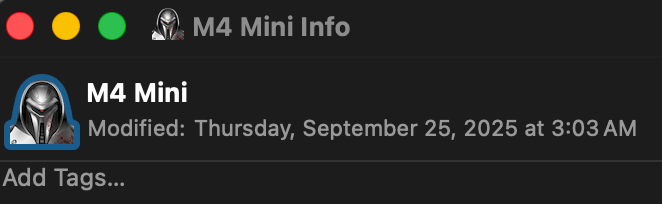
So somehow in the past I managed to put a custom icon on my main boot drive (M4 Mini, 29.0.1). Wanted to delete it back to the original… doesn’t work, highlighting and deleting doesn’t work. Maybe some kind of permission thing? I mean I am the only admin and only user here anyway.
In the GetInfo dialog I see I am not specifically listed in the Permissions box. AND it says “You can only read.” Huh? System has read/write. I unlock the little lock icon, put in my admin password. I can NOT do anything down there. Can’t add myself or change wheel or everyone to read/write. I keep getting told “The operation can’t be completed because you don’t have the necessary permissions.” So I look at a mounted external drive… on it I can do whatever I want in the Permissions area. Just not on my boot drive.
Icon changes are a special case. Your current permissions should be fine; it should prompt you for authentication when you change the icon. Part of this is because the icon not at the root of the drive; it is in the Data volume. When mounted, the path is /System/Volumes/Data/.VolumeIcon.icns.
Let’s be sure this isn’t working:
Get Info on the drive
Select the tiny icon at the top. It should have an outline in your selection color.
Edit > Cut
If that doesn’t work, does it let you replace the icon?
I wish I knew the cause. I ran into this with an earlier OS (possibly Ventura?) on my M1 Mini. The same symptoms exactly. I never got it figured out. When I am booting it from the Sonoma drive, the custom icons work, but the annoying “Update” volume is still Austedo Orange whenever it appears.
I ended up thinking it might have something to do with how I set the Mini up the first time.
Simple stuff like this is not making me love the direction of the Mac OS since Big Sur.
If I’m reading this right, you have an external bootable drive that has a custom icon when you’re not booted from it, but the no custom icon when you are?
Before Catalina, a drive’s custom icon was stored in /.VolumeIcon.icns. The Finder used this file whether the Mac was booted from the drive or it was just connected to it, while booted to some other drive.
After Catalina split and the Big Sur sealed system volume, it got more complicated. The root of the drive (/) is on the System volume. There’s a (read-only) symbolic link from /.VolumeIcon.icns to the writable data volume mounted at /System/Volumes/Data/.VolumeIcon.icns. But that didn’t work when you were not booted to that drive, because then the drive is mounted at /Volumes/drive_name - Data. The symbolic link isn’t resolvable for the non-boot drive.
If you attach the bootable drive (i.e. not booted from it) and then set the custom icon, it blows away the symbolic link. So now the custom icon appears correctly when you’re not booted from the drive, but there is no custom icon when you are booted from it.
With macOS 12 Monterey, this was fixed, sort of. If you set a custom icon on a bootable drive while booted from it, the Finder will show that same custom icon when you are not booted from it. The Finder now appears to be looking for the custom icon:
At root of system volume when booted from the drive (i.e. following the symbolic link) *
At root of the Data volume when not booted from the drive
But I’m pretty sure it won’t work the other way. You can’t set a custom icon on a bootable drive when not booted from it and then expect it to work while you are booted from it.
If you’ve already done that, you’d need to restore the symbolic link while not booted from the drive, boot from it, and then set the custom icon.
Note that in my experience, the Finder won’t display the custom icon of a bootable-not-boot-drive until you open it once. That is, you have to open it once after it is mounted, every time it is mounted.
* It is possible that it is always looking for it at the root of the data volume, i.e. not using the symbolic link at all. But when you create a custom icon, while not booted from the drive, it still puts it at the System root, not the Data root.
I had done as you asked, just tried it again. If I select the drive icon so it’s highlighted, there’s no ““cut” item in the Edit menu. There IS a Copy, and that works, I can copy that icon and paste it on another icon on the desktop. AND I discovered that I CAN paste another icon, just not delete it. Very odd.
Still says “You can only read” in the Sharing section. AND I see another very odd thing… maybe best to show you:
Weird, no? Don’t think I’ve ever had it going at that time. It DOES wake up at 4:30 AM to run my CCC task. Now in addition to thee icon business (which isn’t the end of the world) I have another thing that might be more serious…
If you search your drive for files with that exact last mod date, you’ll find several hundred thousand, all with the exact same time. These are the mod dates of the files that were replaced by the last macOS update you applied. It is not the date when you ran the update.
For example, I applied macOS 13.78 on 8/22/2025. It put 411,208 files on the volume, all with the same modification date of 8/16/2025 12:23:41 AM – which is the same time as Get Info shows.
It’s a kludge, but what you can do is paste the same icon that is used when there is no custom icon: /System/Library/Extensions/IOStorageFamily.kext/Contents/Resources/Internal.icns.
Will that command delete the custom icon and revert it to the default? I couldn’t remember what the default icon exactly looked like, I was wanting to just see it… I had read about a “new” default drive icon.
Now I’m totally confused. That cmd string results in a permission denied response. Doubt I can “open” a text string in Preview. This a goes back to the “You can only read” on my boot drive.
It is a path to a file. If you use the Finder to navigate down this path, you can get to the Internal.icns file, and then then drag that to Preview or the drive icon.
Oh, must have had a major brain fart, that stuff is becoming too frequent. Didn’t realize I had to do the Finder’s Go, paste the sting and I get a window with a path, double clock and then it gets me to the icon I was looking for!
“You can only read” on my boot drive does kinda bother me a bit.