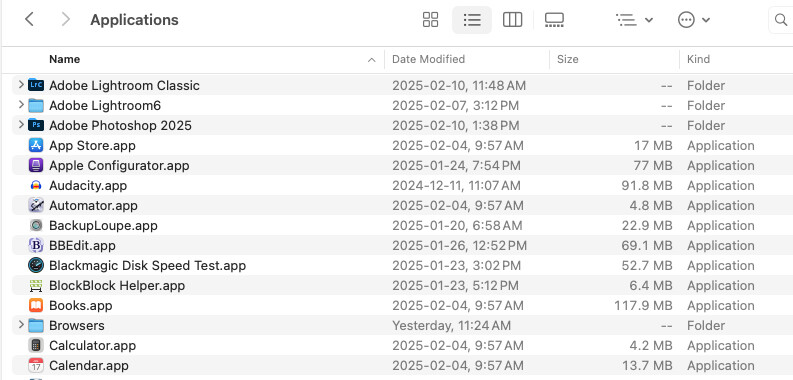
Yeah, I simply updated to 15.3.1 and the anomaly appeared thereafter. Before the update the frequently visited folders I surveyed correctly showed dates added
I’m an EasyFind fan as well - in fact I use many DEVONtechnologies apps and “services” on a regular basis - they rock!
Dunno Alan, it’s a mystery to me. I visit the folder with “1817 folders” pretty regularly where Date Added is displayed and ‘used’ regularly - I think I’d have noticed it before, albeit, I usually sort it in descending order when looking for most recent additions
And, while I seldom display Date Added in the other folders I surveyed (e.g., Applications, Documents) it seems curious so many items were affected (read: afflicted)
The only-est thing I can think of that may be at play is I “Migrated” all my stuff (documents, apps, etc) to the Mac Mini 2024 from their previous home on the iMac 2017 which contained way older stuff ‘migrated’ from earlier Macs which acquired “Dates Created” in 2018 when I setup the iMac 2017
Seems possibly strange, although what you said about Migrating old “items” could be a possible culprit.
And yeah, EasyFind rocks! I actually also use another excellent free app called AppCleaner, to remove an app I no longer need. But it (and similarly other ones) do not always find all items associated with an app that is being removed. That is when I “kick in” EasyFind, to locate those other items. AppCleaner and Easy Find, a winning (and free!) combination!
Like minds! I use AppCleaner together with EasyFind for the same purpose! Furthermore, when a app has an Uninstaller.app I’ll run that, then let EasyFind uncover the rest of the cruft left behind… Like the old saying goes ‘mind the bytes and the MB’s will take care of themselves’ (adaptation of “Mind the pennies and the Pounds…”) - every litter bit helps
Excellent, right on the money reply! Thanks for that. Nice to have users like you around.
Just out of curiosity, is running an app’s Uninstaller app “better” than using AppCleaner? I actually have never done that.
And your sayings are so, so accurate! To that I would add that I keep my Macs “lean, mean, and clean”. Have always done that, and will always do it. It has successfully led to me never having space issues on my SSDs/HDs. The other thing is that I use all 3rd party applications (not a single one from Apple) on my Macs (like AppCleaner and EasyFind), so I make a concerted effort to keep them up to date.
Hope you get your issue resolved. Wish I could offer assistance. It does seem strange that it “just” happened with OS 15.3.1. And it seems you did the “move” to your M4 Mac Mini (thinking of getting one, although my M1 Mac Mini is rock solid) while OS 15.3 was out. Correct? Also wonder if a clean installation of OS 15.3.1 would help. Seems though you might have some “conflicts” with some of your “older” items. But that’s just a guess on my part.
It is going to depend greatly on the app in question.
Ordinarily, I would expect an app’s own uninstaller to do a better job, but “better” is actually a bit subjective here. For example:
Should the uninstaller remove your saved application preferences or not? If you think you might reinstall in the future, then you probably want to keep them. If you don’t plan on ever looking back, then you probably want to get rid of them.
Sometimes apps (especially open source ones) install prerequisite shared libraries that might be used by other apps as well. Should the uninstaller remove these as well? Probably only if nobody else is using it, but can you be sure?
This is a common issue in the Linux world, which is why Linux packages typically include a long list of dependencies, so the system package manager can auto-install dependent packages and let you know if any other packages are using them after uninstallation.
Mac package-management systems like MacPorts, Homebrew and Fink do this, but I am unaware of any commercial apps for macOS (or Windows, for that matter) that do.
How about associated cloud storage? Should an uninstaller delete the files or keep them? The “right” answer is going to depend greatly on the nature of those files. You probably want to keep documents. Maybe not other stuff.
But if you have the app installed on multiple computers, you may want to leave all the cloud files in-place, since your other installations might still be using them.
What about media files? If you uninstall a content-creation app that ships with a lot of stock images/sounds/videos, do you want to delete them or not? They will be taking up a lot of space, but maybe you want to keep them for use with other apps.
A well-written uninstaller should present you with some choices, asking what parts you want to keep or remove. But I don’t see a lot of that these days. Instead, the uninstallers that come with apps seem to work with the assumption that will later want to reinstall, so they leave behind files that will make it simpler (e.g. preferences, license key data, media files).
But if you are never going to look back, then you will want to be rid of all that stuff, since it will just be wasting storage.
Do tools like AppCleaner give you a choice? Or do they automatically take a maximal approach, blowing away everything the app originally installed?
I just updated to 15.3.1 (I skipped 15.3) and a Finder bug appears to be fixed. It may have been fixed in 15.3. The bug, of course, is well documented.
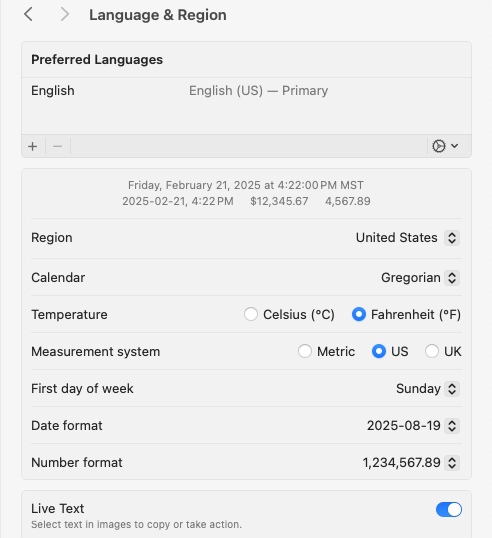
The Finder date format did not match the value in Settings. It would always use the spelled out month and day even though I specified YYYY-MM-DD HH:MM
Thanks for the explanation. Apps like AppCleaner and EasyFind do first show a list of items which can be removed/deleted. For applications I want to remove, typically they are no longer useful, and thus AppCleaner is fine. Seems to do the job (along with, at times, “help” from EasyFind).
My original thinking was that app developers should know where they stash all their stuff and thus remove it during an uninstall. However, from experience, that’s not always the case. David C. Shamino’s response is excellent in this regard offering many insights to consider.
Yes, OS 15.3 came preinstalled on the 2024 Mac mini
p.s. I seem to recollect discussions on the Mac Power User’s podcast suggesting users of earlier M series Macs may not notice much better performance in the M4 series in many cases… kinda depended partly on what kinda of computing power they needed for the apps they’re running.
That said I’m loving the 2024 M4 so far - blazing fast - but then I’m comparing it to my 2017 iMac from which I upgraded (and still using, primarily as a media server via iTunes, as well as for Reaper (my preferred DAW) which is still only compatible with macOS 14
I use a mix of Apple and 3rd party apps, but only a handful of Apple apps, like you preferring 3rd party apps in many cases.
For me, the date (no matter which one) is showing as Feb 23, 2025 (example, using today). And that is the way it is "formatted’ in Settings. Seems fine to me.
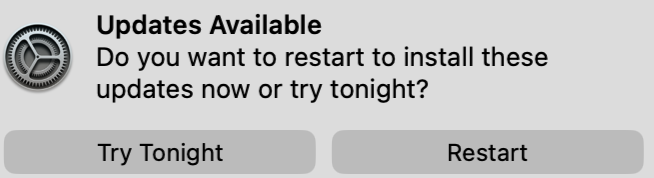
I found this thread (again) because I just got the above message and I was hoping for a clue on how to dismiss it without triggering anything now or later. In general, I prefer to have a choice about when to install any kind of software. In this case, I can see two choices; is there a third?
Instead, click on the notification bubble somewhere outside of the button areas. That should launch the updates section in Settings. Then quit Settings. That will make sure nothing gets installed against your wishes (see Howard’s story above for how he got tricked into an undesired update).
The notification can (and likely will) come up again the future. If/when that happens, follow the same advice to make sure nothing gets installed against your wishes.
I often use what might be considered a fourth method— click & hold on a non-button area then sling the banner off the righthand edge of the screen, thus skipping the need to quit the System Settings app.
Nevertheless the notification will return the next day or following a sleep/wake cycle.