How a Passcode Thief Can Lock You Out of Your iCloud Account, Possibly Permanently

Maybe but SIM swapping more often involves either the actual theft of a SIM card or corrupt mobile phone company employees transferring control of a phone number to criminals. More here: FCC Proposal Targets SIM Swapping, Port-Out Fraud – Krebs on Security

Yes. However, losing control over a mobile phone number can lead to criminals easily taking over a victim’s online and financial institution accounts. This is why, as you know, passkeys will be a massive improvement over SMS-based 2FA and account resets. I can’t wait for passkeys to become widely adopted!

1 Like

I used 2 factor verification, and while it’s supposed to be the best security, it sure as heck didn’t secure my account.

Lynda, I certainly echo the sympathy for your plight others here have expressed. However, Adam is asking the same question that occurred to me as well: Could the supposed thief in the hotel have unlocked your iPad with its passcode? This the code you would enter when Touch ID failed for some reason. Also, your iPad would likely have prompted you from time-to-time (and certainly after a restart) to “enter your passcode to enable Touch ID.” The question would be was that a simple four-digit code that might have been guessed by looking at the smudge patterns on your iPad screen, or by someone who knew, for example, the last four digits of your cell phone number, or your street address number?

And please don’t misunderstand, I’m in no way trying to “blame the victim” here. Just trying to help get to the bottom of the mystery. :slight_smile:

1 Like

Anything is a possibility, but I don’t remember using a password on this in months.

But you can turn it off, no? According to what I’ve seen, this will remove your Apple Pay cards, and give you a warning about all your other data being available to anyone who uses the device. The text of the warning message seemed to imply that turning off the passcode disabled all security, but I couldn’t find anything specifically stating that was the case.

I believe that biometrics like Touch ID and Face ID require a passcode. Remove the passcode and there is no need for Touch ID - the device is never locked.

2 Likes

How do you get into the iPad after it updates to a new version of iOS? The passcode is always required at that point.

I just saw this post on Mastodon today: Baldur Bjarnason: "Turns out that Adobe is collecting all of its cus…" - Toot Café

Turns out that Adobe is collecting all of its customers’ pictures into a machine learning training set.

This is opt-out, not opt-in so if you use Lightroom, for example, it defaults to adding all of your photos to the set.

Just FYI.

Adobe clarifies that this is not used to generate images from customer images. So, never mind.

2 Likes

Is this only in the new subscription based products? I am using LR6 and do not share with the cloud but I have friends using the current version.

Diane

Interesting. I have no recollection of adjusting this, but I just checked and the machine learning is already turned off on my account. Of course it’s possible I just glanced at it a long while back, thought “that seems intrusive and doesn’t need to be turned on” and flicked it off and never thought about it again. I tend to default to turning off/opting out of these sorts of privacy invasions when I can.

Worth checking on your accounts if anyone has them with Adobe.

Trying to follow this Screen Time lock issue. Two questions about your statement above:

  1. Is that with 16.4.1 ? I understood from earlier that 16.4.1 had introduced a relevant change here.
  2. When setting Screen Time passcode did you “enable resetting with Apple ID” ?

Final question do you disagree with Adam’s final sentence in his post that you were replaying to, “All that said, if you both turn on the Screen Time passcode and set a recovery key, you’re safe. There’s no way to turn off the Screen Time passcode without having access to the recovery key.” ?

Yes, it was with 16.4.1. The first time I tried I must have hit something wrong. This hasn’t changed. If you know the Apple ID and the passcode for the device, you can still change the Apple ID password and then remove recovery keys, trusted devices, trusted contacts, and then set a new recovery key to frustrate the real owner’s attempts to recover their Apple ID.

I did. In fact, I didn’t realize you could skip that step - it’s not obvious that hitting cancel still allows you to set a screen time password. But it doesn’t matter - I just tied, and if you hit forgot screen time passcode, it still goes through the same prompt for your Apple ID, and you can still reset the Apple ID passphrase.

Yes.

Thanks! Just to be completely clear about the sentence above:

The starting point of the whole topic is how much damage the thief can do by having the phone and having the passcode. The sentence above says if he also has the Apple ID, by which I assume you mean Apple ID name and Apple ID password, which is a different scenario from just having the passcode.

Thanks

I can answer my own question by experiment. You are correct… Screen Time password is not the answer even with Recovery key set (which I have), though it does put some more obstacles in the thief’s path. Maybe some less knowledgeable thieves would be stopped. Also some of the branches possible might lead the thief to a delay in Recovery, but the sequence below is instant break in.

I just went through these steps:

  1. Screen Time settings > Change Screen Time passcode.

  2. Click Forgot Passcode

  3. Enter Apple ID email but not password…click forgot Apple ID password

  4. Get screen asking for iPhone Passcode which thief has. Enter Passcode leads to screen to enter new Apple ID password.

While doing the above I had “enable reset of Screen Time with Apple ID” enabled, but accept that when you tried with it disabled you reached the same end point. EDIT confirmed by repeating with reset with Apple ID off.

Yes! But even with a screen time passcode blocking access to account changes, there are a number of ways that a thief can find the phone’s logged in Apple ID:

  • If you have a family plan, you can find it in that section of the settings app.

  • Also on the settings app, in the AppStore section, it’s probably listed as the sandbox account for almost everyone.

  • Again in settings, you may find it at the bottom of the TV settings.

  • Open the iTunes Store app and you will probably find it at the bottom.

  • It’s probably one of the email addresses on the phone in the mail app. You can also search the mail app for any messages from Apple.

Yes, as I found in my later post, you only need the Apple ID email which is easy to find, not the Apple ID password.

Even though it easy to circumvent the screen time password I am leaving it set on my iPhone, at least for now. It does put some obstacles in the thief’s path.

I want to see how inconvenient having it on is in my normal daily use.

I’m confused about your Screen Time instructions:

Under “Content & Privacy Restrictions” for Screen Time, am I making 1 or 2 changes.

  1. Content & Privacy Restrictions>Account Changes > Don’t Allow
    AND
  2. Content & Privacy Restrictions > Passcode Changes > Don’t Allow

"If you enable Screen Time, set a separate four-digit Screen Time passcode, navigate into Content & Privacy Restrictions, and select Account Changes > Don’t Allow…

Unfortunately, the Screen Time passcode does that by preventing anyone, including you, from entering Settings > Your Name to make changes without first going to Settings > Screen Time > Content & Privacy Restrictions > Account Changes > Screen Time Passcode > Allow.?

Unfortunately, the Screen Time passcode does that by preventing anyone, including you, from entering Settings > Your Name to make changes without first going to Settings > Screen Time > Content & Privacy Restrictions > Account Changes > Screen Time Passcode > Allow.?

I think the confusion is the italics. In TidBITS style, italic text in a sequence like that indicates something you type or that’s different for every user—in this case, your Screen Time passcode. I’ve bolded those above for clarity.

There’s no need to block passcode changes; the thief has the passcode already and doesn’t need to change it.

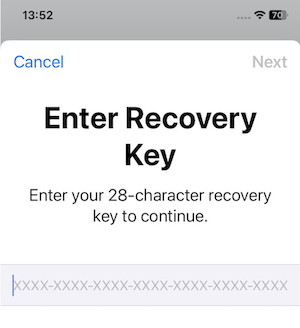
I have just tested this again (first time since May) and in iOS 17, with the 28 digit Recovery key set, I am finding it impossible to change Apple ID account password if a Screen Time Passcode is set.

This was not true in May (even though I had Recovery key set at that time). In May, attempting to turn off or change Screen Time passcode, and clicking forgot passcode or forgot password, eventually led to requiring the phone passcode which the thief already has.

Now the same sequence leads to this screen:

The thief would not have the 28 digit Recovery Key.

I don’t know if this is an iOS17 change or Apple has changed something behind the scenes.

6 Likes

I read the article. Basically a shoulder surfing thief can watch you type in a passcode, grab your phone, and use the passcode to get access to your entire phone including all of your accounts. Except…

  • My bank accounts want to use FaceID or type in their account and password. In theory, the thief might be able to reset the password, but my banks wants my ATM card’s last four digits and my account.
  • All my passwords are stored in 1Password and I need my FaceID or 1Password password. If you use Apple’s Password database, your passcode can get into that.
  • And this is not exclusively an Apple problem. This is also a problem with Android phones too. It is more likely that iPhone users will use their phone for banking, email, etc. But, if they do, Android phones are just as vulnerable. Pasting Apple like they did all over the place is just plain clickbait.

The solution is to always use TouchID or FaceID when you’re out and about. They both work so seamlessly, you can almost forget your phone is locked. So, set them up.

Since you’ll FaceID and TouchID use 95% of the time, using more complex passcodes is much easier. Apple defaults to six digits which is barely acceptable. It’ll be hard for a shoulder surfer to get all six digits. However, older users have four digit passcodes which is unacceptable.

The iPhone has four options:

  1. Four Digit Passcode
  2. Six Digit Passcode
  3. Digital Passcode up to 19 digits long
  4. Alphanumeric passcodes

The idea is to prevent the shoulder surfer from picking up the entire passcode. If the thief gets only four digits of a six digit passcode, they’ll have to guess the last two, they really can’t do any damage. After five attempts, the iPhone will take longer and longer to allow the next guess.

The idea is speed and length. Thus, option #3, an extra long digital passcode is the best option. You can type it pretty fast, and a shoulder surfer might not be able to pick up the code. Note that if you choose option #3 and your passcode is just six digits long, Apple will treat it as a six digit passcode. That means it’ll prompt you that the passcode is six digits. That will make it easy for. Shoulder surfer to pick up.

Option #4, Alpha numeric passcodes might be too slow for you to type, and if your passcode is a word, the shoulder surfer could pick that up.

I’ve noticed that Android still defaults to four digit passcodes. Even worse are the swipe pattern locks. I’m glad Apple never implemented them. I’ve been able to shoulder read swipe patterns without even trying. Heck, most people use the same swipe pattern — around the perimeter then diagonally from bottom right to top left. It’s like leaving your car keys in the toe of your shoe when you go swimming at the beach.

So setup TouchID and FaceID and use them. If you suddenly find yourself out and about and must use your passcode, check around you for shoulder surfers. Use either the extra long numeric passcode or an alphanumeric passcode that is not a simple word. Make sure you can type it fast without hunting and pecking.

If you speak a foreign language that uses a Non l-Latin alphabet, you can use your non-Latin keyboard for the passcode. Unless the thief is familiar with the language, they’ll probably never figure out your passcode.