You can mark files to stay downloaded now.
That has never been true. There is an option to store “Documents & Desktop Folders” in iCloud Drive, but it has always been an option.
System Settings > Apple ID > iCloud > iCloud Drive > Desktop & Documents Folders
If you use iCloud Drive, add it to the Finder sidebar: Finder Settings > Sidebar, check iCloud Drive.
You can put whatever you want in the iCloud Drive folder, and create any subfolders you need.
2 Likes
It’s possible I’m remembering incorrectly; it was many years ago. I do remember visiting an Apple Store at the time for assistance w/iCloud Drive (remember those days? Just walking into an Apple Store & having questions answered) & being told something about needing to use the Documents folder w/iCloud drive; maybe they merely said it was easier using the Documents folder? It was so long ago I might be misremembering what was said.
Will look into SyncThing; have not heard of it. Thank you.
I’ve used syncthing for years, and I absolutely love it on macOS, and though there is an iOS and iPadOS syncing app called Möbius, I’m not sure it’s super-reliable for keeping the mobile OSes updated in the background. Also, I’m not sure that syncthing is super friendly toward less technical users. Perhaps I’m wrong about both things?
As a default option in the app settings? So all newly added files and folders will download without having yo remember to mark them? That’s what I was looking for, and waiting for.
One advantage to Dropbox is the iPhone & iPad Dropbox apps have the option to keep specific files available even when offline, they’re “stored” in the Dropbox app on the device even w/o internet access. That’s helpful to me as my iPad has wifi but not cell service. So if I’m in a situation where I don’t have internet access, I can still use the Dropbox app on my iPad to view my files.
I’m fairly certain, but not 100% positive, that w/o internet access (wifi), my iPad wouldn’t have access to my iCloud files. Anyone know if any of the suggested Dropbox alternatives have the capability to access files/store files directly on a device so the files can be viewed even w/o internet access?
Resilio Sync allows the user to specify that a local copy of any given file be kept on-device.
Um, why don’t you move all your subject folders into the Documents folder? 
You could clear out the detritus of 20 years from the Documents folder so all that’s in there are your subject folders.
Further, as @tommy pointed out, you can right/control click on files and folders and mark them to stay downloaded.
You can set iCloud Drive to sync just your Documents and Desktop folders in Settings / iCloud / Drive. Or Settings / General / Storage.
I don’t do that because, er, my Documents folder is monstrous so I choose the things I’d like to share between devices and drag them to iCloud Drive.
Not sure what you mean here . . . 
If your iPad is never connected to the internet well, you’re right, no iCloud. But if you mean it’s sometimes not connected, like when you like to go think under the shady tree in the back 40 far from any radio signal, you can . . . when it’s connected . . . long-press on files and folders and select “Keep Downloaded”. And if you set the subject folders to “Keep Downloaded” you can happily change the files within them without worrying about their individual settings. The next time you’re in range, they’ll be synced.
Dave
1 Like
It’s very easy to have Dropbox save all locally created files on the Mac. In the Locations section of a Finder window sidebar, control-click the Dropbox icon and select ‘Sync and storage’. In the bottom section (Default sync state for new files added), select ‘Available offline’ . You can also make existing files available through that panel, although I think it’s easier to just open the Dropbox folder and select all the files and folders that you want available offline; control-click and select 'Make available offline.
The files will be found in the ~/Library/Cloud Storage/Dropbox folder. You cannot change that location. Files saved on other devices will not automatically be available offline; you will need to select the file and select the action as above.
There is no need to have your Documents or Desktop synchronised with iCloud Drive.
It really is very simple:
-
Finder Settings > Sidebar > Enable iCloud Drive.
-
Finder sidebar > Select iCloud Drive. You will likely see a list of folders created by apps to hold app specific synchronised data.
-
Add your own folders. Copy (or move) files in there. Those folders and files are then accessible on any Apple device. On iPhone or iPad use the Files app, on a Mac use Finder.
Tip: If you have lots of app folders in iCloud Drive, name your folders with an initial character which puts them at the top (mine all have an = as 1st character).
1 Like
No I don’t see that as an option, you have to select and then right-click.
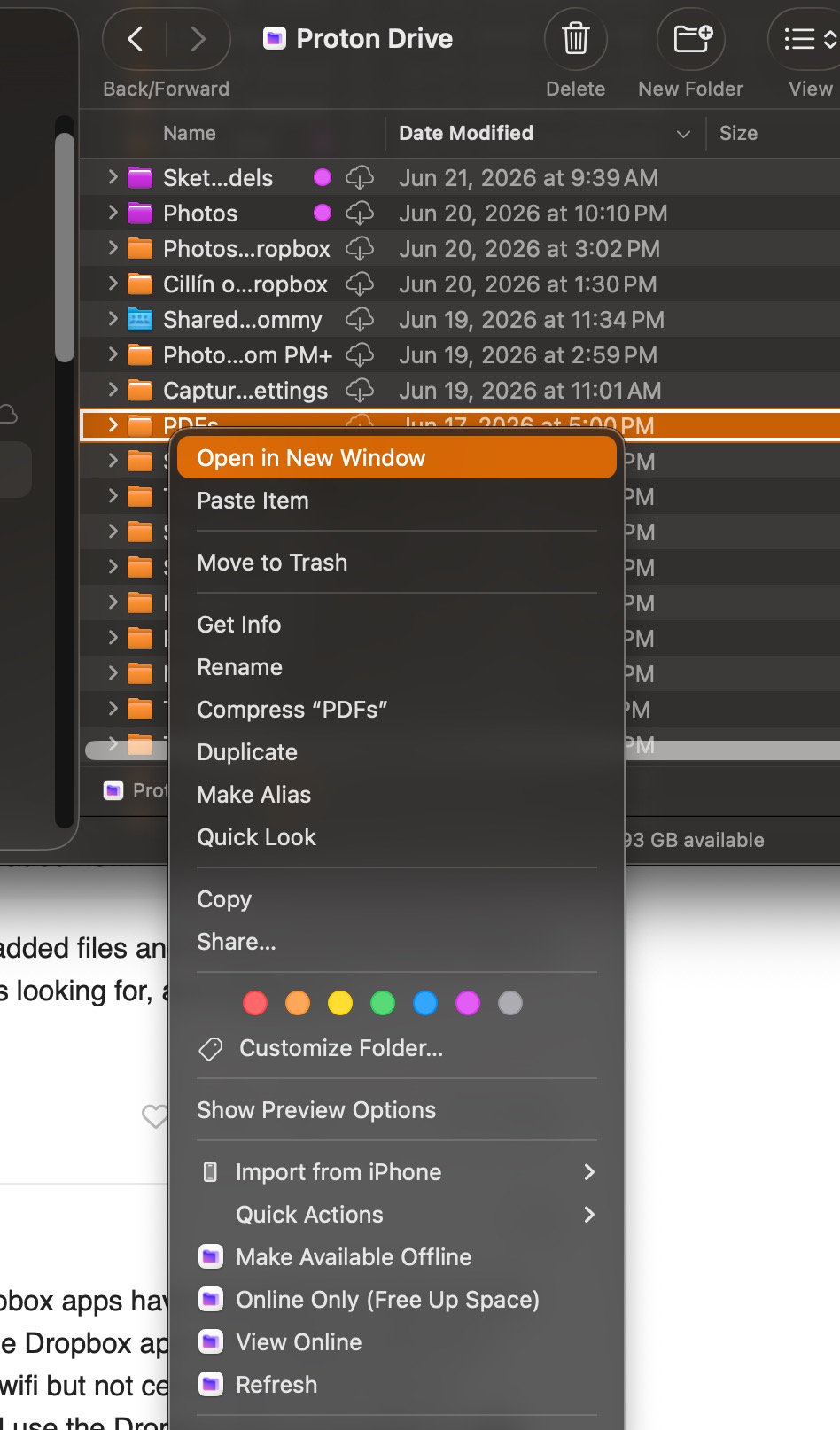
The Settings for the Proton Drive app are basic, the options in the contextual menu are not as good as Dropbox, you have to go to the web to get a shareable link for example, but mostly they suit my needs.
Of these syncing options, which ones (if any) get backed up by Backblaze?
Maestral will soon no longer be supported or developed.
I’m very happy with Sync (and it’s Canadian!) Great for sharing, too.
But yeah, iCloud space is CHEAP!
2 Likes
I am not entirely sure what you are referring to, but it might be the iCloud>Drive>Desktop & Documents Folder setting, which tries to upload all of that. I hate that feature and always make sure it is off. But with that feature disabled, iCloud Drive acts much like Google Drive and DropBox: you decide which files to upload, and you can easily have it keep local copies for offline use.
I mostly use iCloud and love it. The integration is unparalleled, and I feel the 2 Tb plan is a bargain, especially as we split the cost with a family member (perfectly legit). I also use Google Drive, mostly because an organization I belong to uses it. It’s also fine, but shared drives do not show up in the Files app in iOS, which I find to be a nuisance. And, like DropBox, the integration is good but not great. Apple knows how to make life hard for 3rd party clouds.
To make sure I understand: iCloud drive does have an option to keep files downloaded on an iPad that can only access the internet via wifi? I realize I would have to periodically connect the iPad to the internet to keep it synced, which is what I currently do w/Dropbox. My understanding has always been that iCloud could only be accessed via the internet, there wasn’t an iCloud app.
If my understanding is correct - and I realize I could be wrong - how would I access iCloud drive files on my iPad w/o internet access? Where would the files be stored on my iPad? Beginning to realize I might not fully understand how iCloud drive works.
Yes. When connected to the Internet mark the files/folder as “Keep Dowloaded”. You can then use them when disconnected.
The “Files” app includes access to iCloud Drive as one of its “Locations”.
2 Likes
I will do some trials setting up iCloud drive that way. If it works as I expect it to, having downloaded copies available for access thru Files when not accessing the internet, that will allow me to switch from Dropbox and it’s iPad & iPhone apps that allow downloaded files to iCloud drive that has the option to keep downloaded files &docs in Files.
If I’m able to set it up correctly and it’s as easy to use as Dropbox, I can then drop Dropbox & replace it with iCloud drive. Will start to work on this tomorrow. Hope it’s as simple as it sounds. 
This sounds like the files are copied to to iCloud Drive (and so are accessible by any of my devices) but are static copes since there is no two way synchronization. Correct?
They are dynamic in the sense that there is two-way synchronisation between each device and Apple’s iCloud whenever the device is connected to the internet. This provides multi-way synchronisation brokered by iCloud.
You need to take care when more than one device is changing a file at the same time or whilst disconnected.
iCloud Drive, Dropbox, Google Drive, etc. all provide a similar service and synchronise devices with their respective cloud storages. iCloud Drive is arguably the most convenient for those in the Apple sphere.