DiskFox: see what changed in your Mac's storage, and why (new app, feedback welcome)

Hi all, I’m Krishan Assi, a solo developer in the UK. Adam kindly said I could share this here. I’ve just released DiskFox, a Mac app I built because my 256 GB MacBook Air kept running out of space and Storage settings only ever said “System Data”.

Disk analysers like DaisyDisk are great at showing what’s big right now. DiskFox keeps a history instead: each scan is saved on your Mac and compared with the last, so it tells you what grew, when, and the likely cause.

What it does:

  • What Changed: dated changes in plain words. If it can’t confirm a cause, it says “likely” rather than guessing.
  • Storage over time: a graph of every scan, with your cleanups marked.
  • Explains System Data where it can: Time Machine local snapshots, purgeable space, caches, logs, iPhone backups, developer data and more.
  • Names the app folders in your Library that grew most.
  • Tells you when something you cleaned comes back. On my Mac, Spotify’s cache returned (890 MB) within a week.

On safety, because cleaner apps have earned some suspicion:

  • Nothing is removed without a review screen that says what each item is and whether it will come back.
  • Everything goes to the Trash first, with a cleanup history and Put Back.
  • There’s no one-click “clean everything” button.

Privacy and compatibility:

  • No account. It sends a few anonymous usage counts (first open, first scan, whether it was used that day), which you can turn off in Settings. Otherwise it only connects for update checks and licence activation.
  • macOS 14 Sonoma or later, Apple silicon and Intel. Signed and notarised by Apple.
  • Honest limits: it tracks the startup drive only, and on macOS 27 Apple hides the Apple Intelligence model sizes even from apps with Full Disk Access, so DiskFox says “size unknown” there.
  • In the spirit of honesty: I used AI coding tools for a large share of the code. I designed it, chose what’s safe to remove, and test it on my own Macs.

It’s a 14-day free trial, then $9.99 one-time for two Macs (a $6.99 launch price for the first 25 buyers, until 18 October).

I’d really value this group’s feedback, especially from anyone who’s fought a growing “System Data” figure: what did it turn out to be, did DiskFox find it, and did it get anything wrong?

Privacy policy: Privacy Policy — DiskFox

6 Likes

Thank you. I will give it a try. I see it requires Sonoma or later.

The space used by iPhone/iPad backups is useful info. However I use an old iMac (pre Sonoma) with 1Tb storage for this as I don’t want to fill up my Silicon Macbook Air with these backups. It is frustrating that Apple doesn’t provide a way to automatically store these backups on an external drive. BTW I am not requesting that Diskfox supports earlier macOS as I can always check the folder where they are stored.

Thanks for that reminder. I use iMazing, which does let me store backups on an external drive. That alone might keep me using iMazing, which is annoying in other aspects.

@mpainesyd thanks for giving it a look. Yes, it needs macOS 14 Sonoma or later, sorry. It’s built on newer Apple frameworks, and supporting older versions would mean maintaining two apps. Using the old iMac as the backup Mac sounds like a sensible setup anyway.

On backups to an external drive: you’re right that Finder has no setting for it. The workaround people use is to move ~/Library/Application Support/MobileSync/Backup to the external drive and leave a symbolic link in its place. It works, but Apple doesn’t support it, and backups fail if the drive isn’t plugged in. So I’d only suggest it to people comfortable with Terminal.

1 Like

@Will_M iMazing is a good choice for that. Choosing where backups go is exactly the gap it fills. DiskFox only shows how big each device’s backup is and when it grew, then points you to Finder to remove old ones. It’s not a backup tool, so the two don’t really overlap.

Bought, but could have done with this a few days ago.
was battling shrinking disk space on my Mac Studio.

turns out I had caching of updates turned on from many machine migrations, got an extra 260GB back :rofl:

I am testing this right now. It found 0.5 TB of System Data. When I click on the System Data right arrow, I get a spinning wheel and nothing is revealed. I finally had to Force Quit.

Oh, well.

Sorry, doesn’t work like how I’d like it to work. I use OmniDiskSweeper where I can actually see a hierarchy of files. I shows files in columns so I can easily drill down to find something.

Been using it for a while and its incredible

1 Like

Fair enough, and thanks for trying it. OmniDiskSweeper is great for drilling down through folders, and DiskFox doesn’t try to replace that column view. What it adds is history: it compares each scan with the last, so it can tell you which folder grew and when. If drilling down is what you need most, OmniDiskSweeper is the right tool.

Thanks for testing it, David, and sorry about that. A spinning wheel on the System Data page is a bug on my side, not something you did, and 0.5 TB is exactly the kind of case it should handle.

Could you tell me your DiskFox version (DiskFox › About DiskFox), your Mac and your macOS version? If you’re up for it, File › Export Diagnostic Report… and emailing it to support@diskfox.app would help me find it faster. It leaves out folder and app names. I’ll post here when it’s fixed.

1 Like

DiskFix v1.1.??? (have already deleted app)
M2 Max Studio
macOS 15.8.1

David, thanks again for the report and the details. The freeze is fixed in DiskFox 1.1.3, out now (DiskFox › Check for Updates). The bar at the top of the System Data page could get stuck redrawing itself when one part was tiny next to a very large total, like your 546 GB. If you have a minute to try it again, I’d love to know it opens for you now.

2 Likes

Appreciate your graciousness.

1 Like

Just bought it. Tried it. Very sophisticated and elegantly presented.

Thanks for the hard work!

Dave

Why no purchase via PayPal?

Hi all, I’m Krishan. I make DiskFox, a Mac app that keeps a history of your storage, so it can tell you what changed, when, and the likely cause. For example: “System Data grew 14 GB: Apple Intelligence models re-downloaded after a macOS update.”

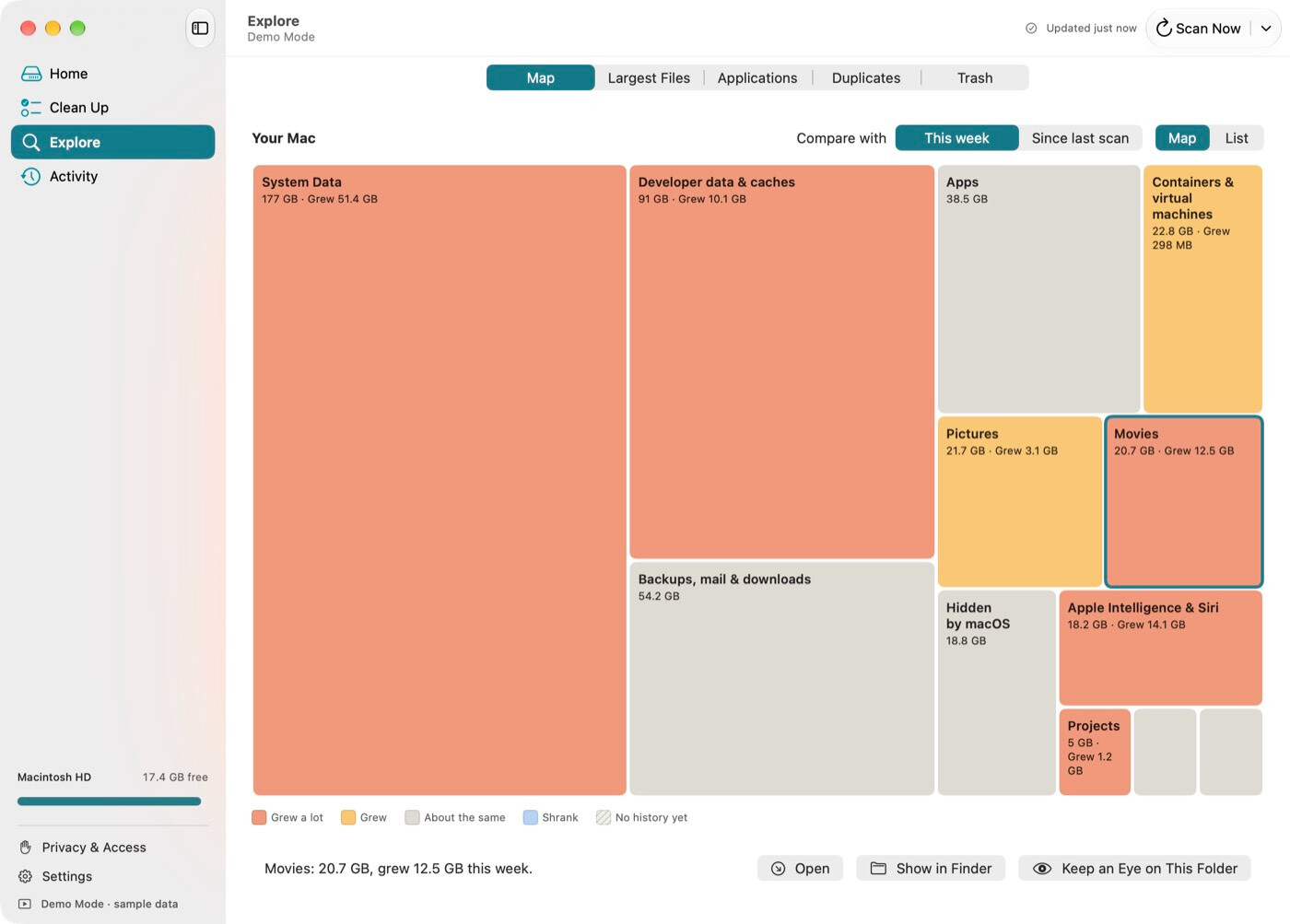
Version 1.2 adds a visual map of the disk, which was the main thing people said DiskFox was missing next to DaisyDisk.

[drag screenshot here]
The map in Demo Mode (sample data, not my Mac). Movies isn’t the biggest block, but it grew 12.5 GB this week.

It’s in Explore › Map. As in DaisyDisk, each block’s size is its share of the disk. The difference is the colour: each block shows how much it grew this week, or since the last scan. So what’s big and what’s growing stand out together. A large Photos library that hasn’t changed stays a calm grey, and a folder of video renders that grew 12 GB since Tuesday stands out at once.

Some details this group may care about:

  • Colour is never the only signal. Hover over a block for a plain sentence such as “Movies: 20.7 GB, grew 12.5 GB this week”. There’s also a list view of the same blocks.
  • No guessing. Where there’s no earlier size to compare with, it says “no history yet” rather than calling something growth.
  • System Data isn’t a black box. Its block opens DiskFox’s System Data page, which lists Time Machine local snapshots, the Spotlight index, swap, Apple Intelligence models, app data and so on separately.
  • The map only measures. There’s no delete button on it. Its actions are Show in Finder, Review in Clean Up and Keep an Eye on This Folder. Anything you do remove goes through a review screen and into the Trash first, with Put Back.
  • Folder names stay on your Mac. The map adds nothing to the diagnostic report or the history export.

The rest of DiskFox, for anyone new to it:

  • A graph of your storage over time, with your cleanups marked on it.
  • Notices when something comes back, such as caches or models refilling after you cleared them.
  • Largest files, real app sizes and an exact duplicate finder.
  • No account. It connects only to diskfox.app (update checks and a few anonymous usage counts, which you can turn off) and to Polar, the payment provider, to check the licence.
  • macOS 14 Sonoma or later, on Apple silicon and Intel Macs. Signed and notarised by Apple.
  • Demo Mode lets you look around with sample data before it scans anything. There’s a 14-day free trial with everything included, then a one-time purchase. No subscription.

Since 1.1, I’ve also fixed a spinning wheel on the System Data page on Macs with very large System Data, thanks to a report from someone here. And DiskFox is English-only again for now, because the translations I shipped weren’t good enough. If you’re a native French, German, Spanish, Italian or Japanese speaker and would be willing to check one, I’d be glad to hear from you.

I’d welcome feedback on the map, especially whether the colours tell you something useful about your own Mac, and anything it gets wrong.

2 Likes

Very nice! Have purchased.

Any chance of adding access to external disks within the app? I recently migrated from an iMac with a huge screen but a small internal drive. I installed many apps on the external drive where they remain. I also have a lot of data there that cannot fit on my new Mac’s internal drive.

Your check in Explore for duplicate files is very fast but DiskFox sees the external drive as a protected location, although I have given full disk access (and turned on the administrator helper).

John, thanks for asking about external drives, and for spotting the Duplicates label. That was wrong: a copy on your external drive isn’t in a “protected location”. DiskFox 1.2.2, out now, says “On another drive” instead.

The bigger part is on its way. The next version lets you switch on any external drive in Settings › Drives. Each one gets its own page with its free space, what grew on it and when, and the storage map, and it keeps its history while it’s unplugged. Time Machine and network drives are left alone. I’ll post here when it’s out.

2 Likes

Krishan,

After I did the initial scan, I saw this message when I hovered over the left side of the map view, where half my space is shown in a block called “Not measured yet.”

Not measured yet: At least 251 GB. DiskFox can't read some folders, such as Desktop and Documents, without Full Disk Access, so their space is counted here with macOS itself.

What’s up with this message? I have enabled Full Disk Access for DiskFox, and even quit and restarted DiskFox twice since doing so, so DiskFox does indeed have Full Disk Access. Does the message perhaps not really mean Full Disk Access is lacking, but that the app hasn’t had time to create multiple scans yet, so it can’t provide “Compare to this week” information? If so, blaming Full Disk Access is a confusing message. Hope this helps improve the app.

[update] I see that all folders are not quite accessible, but that macOS “protects” 1 or more folders. I ran across that message when I reopened DiskFox and continued to explore its many sections. So perhaps a rewrite of that message is in order :-D

And THANK YOU for providing a setting to enlarge the font throughout the app! If only more developers cared enough about their users to do that.

Great job with this app. I bought a license.

Chris