I was able to write a very simple Shortcut that can do this. It just adds an extra share step.
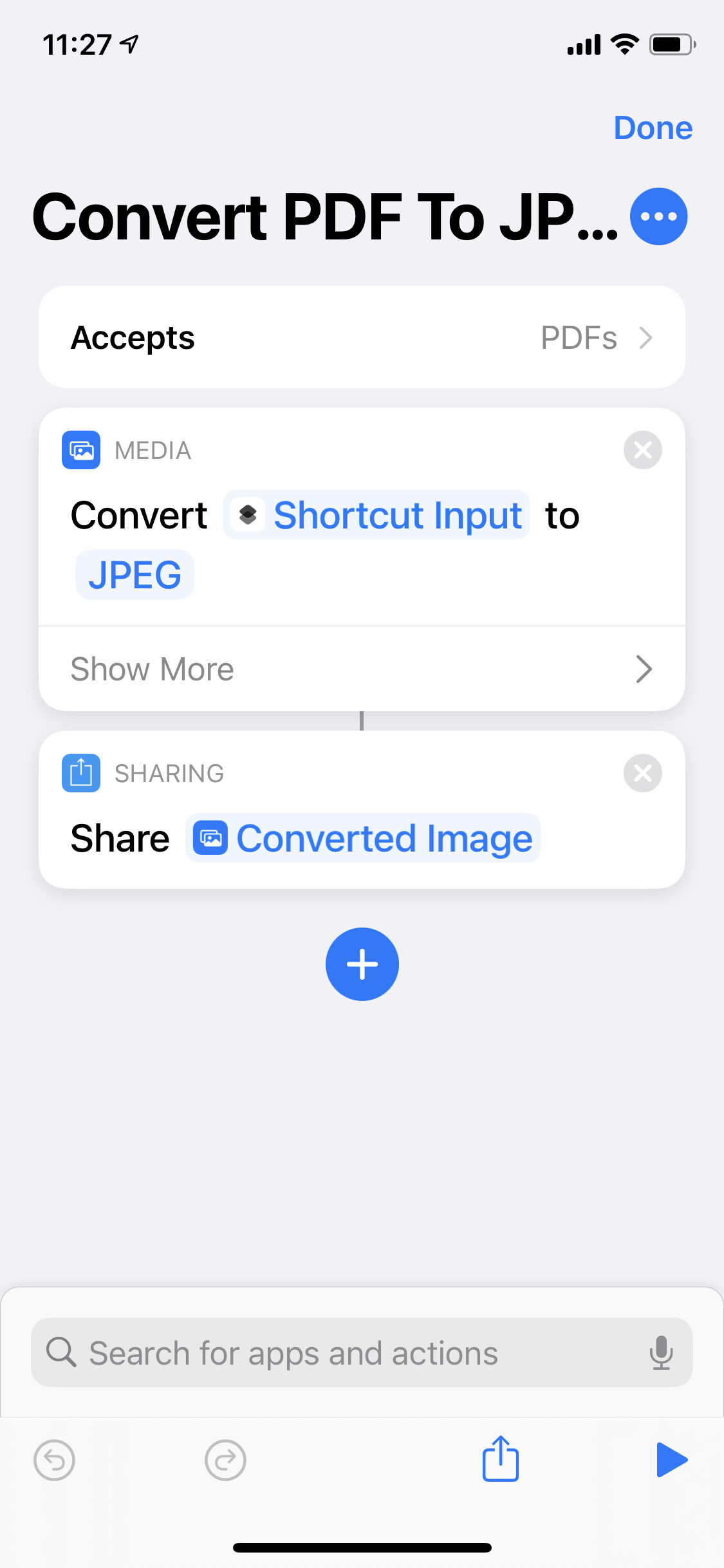
Open the Shortcuts app, tap the Plus. In the bottom search for the action called “Convert Image” and tap it to add to the shortcut. That should put the action that says “Convert [Image] to [JPEG]”. Tap the word [Image] and change it to [Shortcut Input].
Next, in the search bar at the bottom, search for “Share” and add that to the shortcut. That should add the Sharing action with the words “Share [Converted Image]”. This one you can leave alone.
Tap the three dots next to “New Shortcut” at the top. Give the shortcut a name at the top (maybe “Convert PDF to JPEG”), turn on “Show in Share Sheet”. After turning that on, it will show just below that “Share Sheet Types” set to “Anything”. Tap that, tap “Deselect All” at the top, and then turn on only “PDFs”. Go back and tap “Done” on the Details screen and “Done” to finish creating the shortcut.
It should look like this.
Now anytime that you share a PDF file, that shortcut will show in the Share sheet. Tap it and it will quickly bring up the share sheet again to allow you to share the converted JPEG image.